メインコンテンツにスキップ
リペアコミュニティに参加 - アカウントの作成

Google Pixel 10a Battery Replacement

必要な工具と部品

  1. Google Pixel 10a Battery Replacement, Prepare your Pixel for disassembly: 手順 1、 2の画像 1 Google Pixel 10a Battery Replacement, Prepare your Pixel for disassembly: 手順 1、 2の画像 2
    • Let your Pixel's battery drain below 25% before starting this repair. A charged lithium‑ion battery may catch fire if damaged.

    • Unplug all cables and completely power down your Pixel.

    • If your rear cover is bulging, your battery may be swollen—take appropriate precautions.

    FixBotに聞いてみる

    コメントを追加

  2. Google Pixel 10a Battery Replacement, Heat the rear cover: 手順 2、 1の画像 1
    • The rear cover is secured by mild adhesive. Heating the cover softens the adhesive, making it easier to separate.

    • Use a hair dryer to heat the entire rear cover until it's hot to the touch.

    • For best practices on using a hair dryer to soften adhesive, check out this guide.

    • Alternatively, follow this guide if you're using an iOpener to heat the edge.

    FixBotに聞いてみる

    コメントを追加

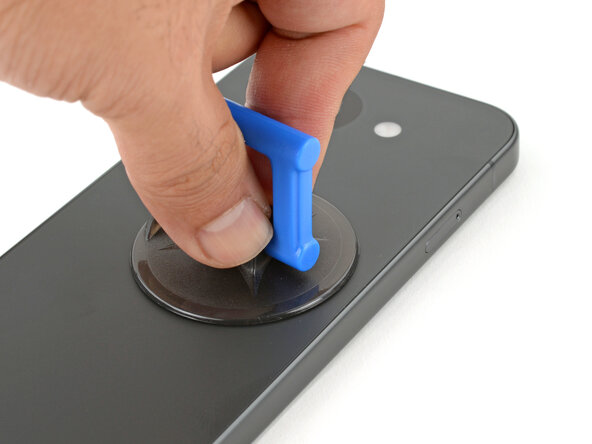
  3. Google Pixel 10a Battery Replacement, Create an opening gap: 手順 3、 2の画像 1 Google Pixel 10a Battery Replacement, Create an opening gap: 手順 3、 2の画像 2
    • Apply a suction handle near the center of the rear cover's right edge, as close to the edge as possible.

    FixBotに聞いてみる

    コメントを追加

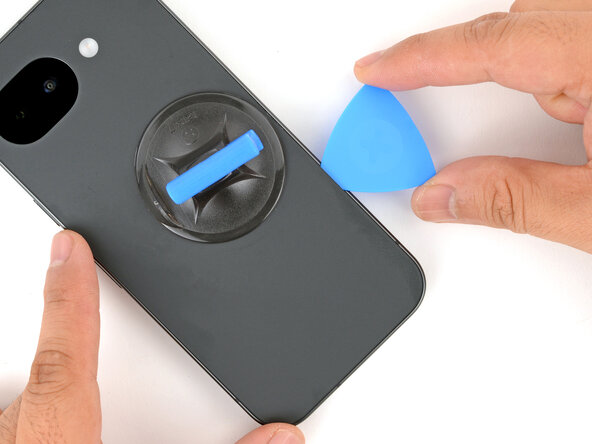
  4. Google Pixel 10a Battery Replacement: 手順 4、 3の画像 1 Google Pixel 10a Battery Replacement: 手順 4、 3の画像 2 Google Pixel 10a Battery Replacement: 手順 4、 3の画像 3
    • Pull up on the suction handle with strong, steady force until a gap forms between the cover and frame.

    • If you're having trouble, reheat the edge and try again.

    • Insert the tip of an opening pick into the gap.

    FixBotに聞いてみる

    コメントを追加

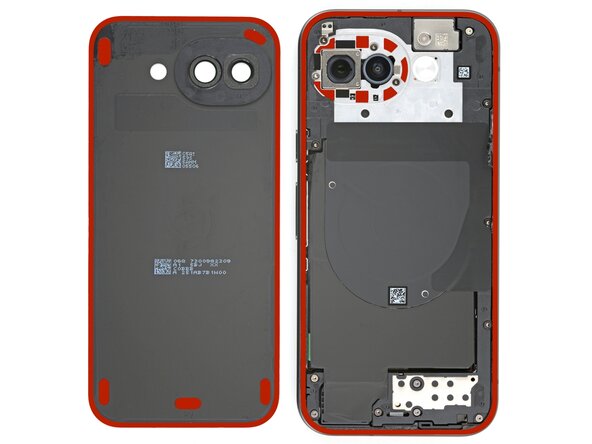
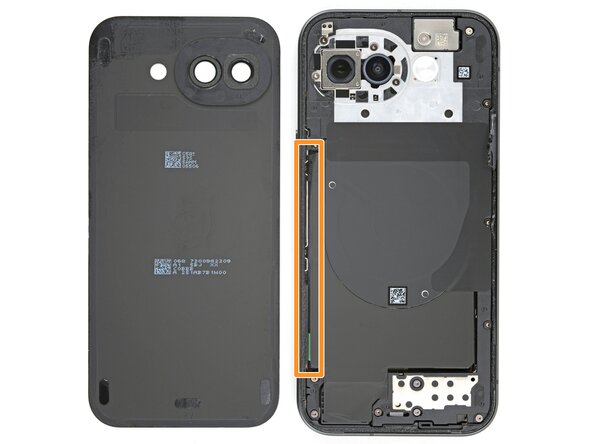
  5. Google Pixel 10a Battery Replacement, Adhesive information: 手順 5、 2の画像 1 Google Pixel 10a Battery Replacement, Adhesive information: 手順 5、 2の画像 2
    • The rear cover is secured with adhesive around the frame perimeter and near the cameras. Use this picture as a reference while you separate the adhesive.

    • When separating the left edge adhesive, don't insert your pick more than 3 mm to avoid damaging the wireless charging coil and its graphite film.

    FixBotに聞いてみる

    コメントを追加

  6. Google Pixel 10a Battery Replacement, Separate the rear cover: 手順 6、 3の画像 1 Google Pixel 10a Battery Replacement, Separate the rear cover: 手順 6、 3の画像 2 Google Pixel 10a Battery Replacement, Separate the rear cover: 手順 6、 3の画像 3
    • Slide the opening pick around the entire perimeter to separate the adhesive.

    • If you're having trouble separating the adhesive, apply more heat and try again.

    FixBotに聞いてみる

    コメントを追加

  7. Google Pixel 10a Battery Replacement: 手順 7、 3の画像 1 Google Pixel 10a Battery Replacement: 手順 7、 3の画像 2 Google Pixel 10a Battery Replacement: 手順 7、 3の画像 3
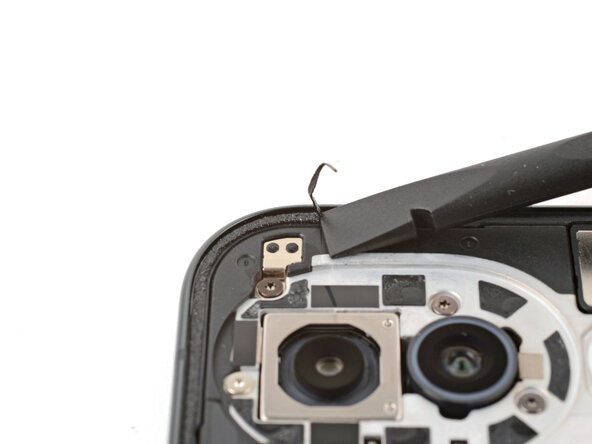
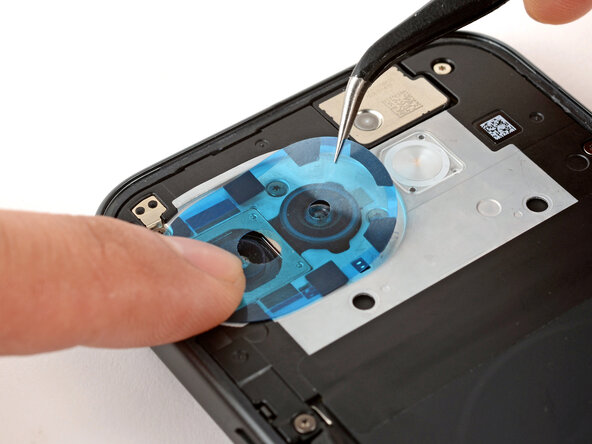
    • Insert the opening pick deeper near the top-left corner and pry to separate the adhesive around the camera bezel.

    FixBotに聞いてみる

    コメントを追加

  8. Google Pixel 10a Battery Replacement: 手順 8、 2の画像 1 Google Pixel 10a Battery Replacement: 手順 8、 2の画像 2
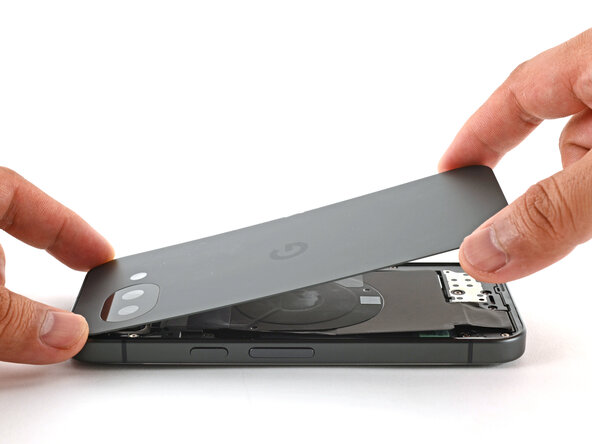
    • Slowly peel up and remove the rear cover.

    FixBotに聞いてみる

    コメントを追加

  9. Google Pixel 10a Battery Replacement, Remove the wireless charging assembly screws: 手順 9、 2の画像 1 Google Pixel 10a Battery Replacement, Remove the wireless charging assembly screws: 手順 9、 2の画像 2
    この手順で使用する道具:
    Magnetic Project Mat
    $19.95
    • Use a Torx Plus 3IP screwdriver to remove the fifteen 5.0 mm‑long screws securing the wireless charging assembly:

    • Thirteen gray screws

    • Two silver non-magnetic screws

    • Throughout this repair, keep track of each screw and make sure it goes back exactly where it came from to avoid damaging your phone.

    FixBotに聞いてみる

    コメントを追加

  10. Google Pixel 10a Battery Replacement, Unclip the wireless charging assembly: 手順 10、 3の画像 1 Google Pixel 10a Battery Replacement, Unclip the wireless charging assembly: 手順 10、 3の画像 2 Google Pixel 10a Battery Replacement, Unclip the wireless charging assembly: 手順 10、 3の画像 3
    • Use an opening pick to pry up and unclip the wireless charging assembly from the two cutouts—one near the bottom-right corner, and another on the left edge near the power button.

    FixBotに聞いてみる

    コメントを追加

  11. Google Pixel 10a Battery Replacement, Remove the wireless charging assembly: 手順 11、 2の画像 1 Google Pixel 10a Battery Replacement, Remove the wireless charging assembly: 手順 11、 2の画像 2
    • Remove the wireless charging assembly.

    FixBotに聞いてみる

    コメントを追加

  12. Google Pixel 10a Battery Replacement, Remove the battery connector cover: 手順 12、 1の画像 1
    • Use a Torx Plus 3IP screwdriver to remove the 1.9 mm‑long screw securing the battery connector cover.

    FixBotに聞いてみる

    コメントを追加

  13. Google Pixel 10a Battery Replacement: 手順 13、 2の画像 1 Google Pixel 10a Battery Replacement: 手順 13、 2の画像 2
    • Remove the battery connector cover.

    FixBotに聞いてみる

    コメントを追加

  14. Google Pixel 10a Battery Replacement, Disconnect the battery: 手順 14、 3の画像 1 Google Pixel 10a Battery Replacement, Disconnect the battery: 手順 14、 3の画像 2 Google Pixel 10a Battery Replacement, Disconnect the battery: 手順 14、 3の画像 3
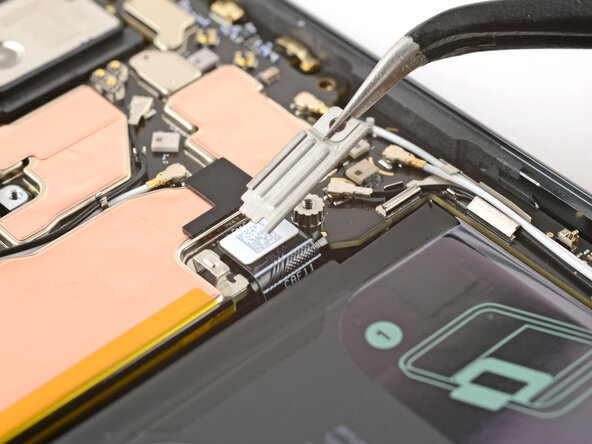
    • Insert the point of a spudger under the top-right corner of the battery connector.

    • Pry up to disconnect the battery.

    • Throughout the repair, pry only at the instructed area (also marked by a gold line on the circuit board) to prevent damage to the delicate components near the connector socket.

    FixBotに聞いてみる

    コメントを追加

  15. Google Pixel 10a Battery Replacement, Move the side button cable: 手順 15、 3の画像 1 Google Pixel 10a Battery Replacement, Move the side button cable: 手順 15、 3の画像 2 Google Pixel 10a Battery Replacement, Move the side button cable: 手順 15、 3の画像 3
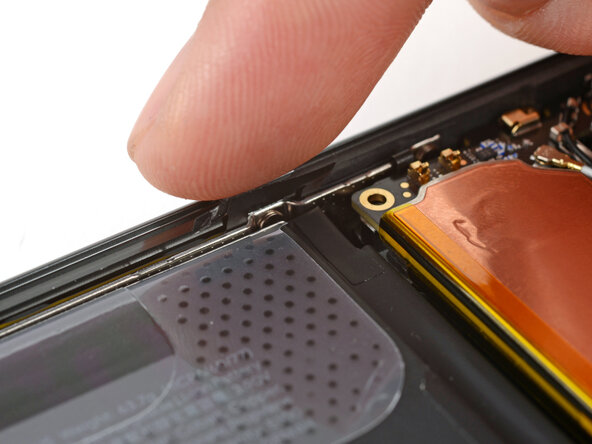
    • Use your fingernail or a spudger to peel up the left-side button cable and flip it over the side of your phone.

    • Be careful not to poke the battery.

    FixBotに聞いてみる

    コメントを追加

  16. Google Pixel 10a Battery Replacement, Peel the pull tabs: 手順 16、 3の画像 1 Google Pixel 10a Battery Replacement, Peel the pull tabs: 手順 16、 3の画像 2 Google Pixel 10a Battery Replacement, Peel the pull tabs: 手順 16、 3の画像 3
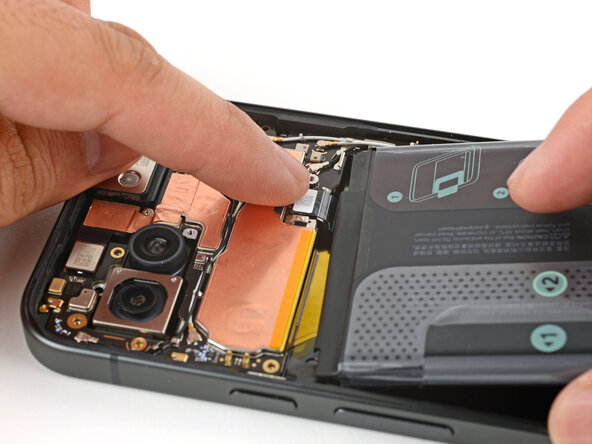
    • Use your fingers or an opening pick to peel up a corner of the battery pull tab labeled "2".

    • Grab the tab with your fingers and peel it off the top of the battery.

    • Peel the pull tab labeled "1" completely off the top of the battery.

    FixBotに聞いてみる

    コメントを追加

  17. Google Pixel 10a Battery Replacement, Separate the battery: 手順 17、 2の画像 1 Google Pixel 10a Battery Replacement, Separate the battery: 手順 17、 2の画像 2
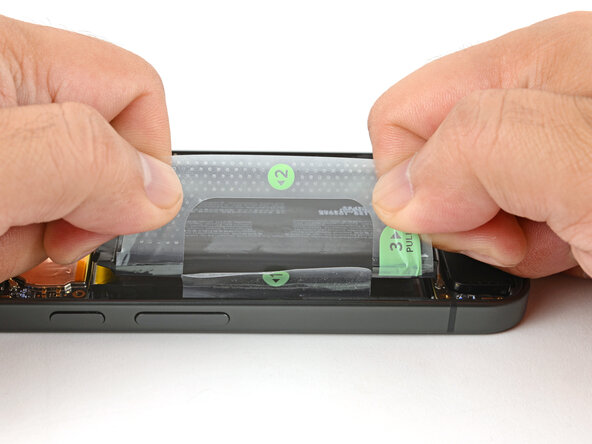
    • With both hands, firmly grab the pull tab labeled "2" as close to the left edge as possible. Brace your hands against the rest of the phone frame.

    • Pull up with firm, steady force until the battery separates.

    • The battery adhesive is strong and may require multiple attempts before it separates.

    • If you can't loosen the battery, follow the next step for an alternate method.

    FixBotに聞いてみる

    コメントを追加

  18. Google Pixel 10a Battery Replacement, Loosen the battery (alternate method): 手順 18、 3の画像 1 Google Pixel 10a Battery Replacement, Loosen the battery (alternate method): 手順 18、 3の画像 2 Google Pixel 10a Battery Replacement, Loosen the battery (alternate method): 手順 18、 3の画像 3
    • Skip this step if you separated the battery in the previous step.

    • Apply two or three drops of high-concentration (>90%) isopropyl alcohol to the left edge of the battery.

    • Tilt the left edge of the phone up to help the alcohol flow under the battery.

    • Wait one minute to allow the alcohol to soften the adhesive.

    • Use the flat edge of an opening pick to pry up the left edge of the battery until it separates.

    FixBotに聞いてみる

    コメントを追加

  19. Google Pixel 10a Battery Replacement, Remove the battery and liner: 手順 19、 2の画像 1 Google Pixel 10a Battery Replacement, Remove the battery and liner: 手順 19、 2の画像 2
    • Peel and remove the battery and its plastic liner from the phone.

    FixBotに聞いてみる

    コメントを追加

  20. Google Pixel 10a Battery Replacement, Disassembly complete: 手順 20、 1の画像 1
    • Congratulations on completing disassembly! The remaining steps will show how to reassemble your phone.

    FixBotに聞いてみる

    コメントを追加

  21. Google Pixel 10a Battery Replacement, Clean the frame: 手順 21、 1の画像 1
    • Use high‑concentration (>90%) isopropyl alcohol and a lint‑free cloth (or coffee filters) to remove any adhesive residue from the battery well.

    FixBotに聞いてみる

    コメントを追加

  22. Google Pixel 10a Battery Replacement, Remove the thin battery liner: 手順 22、 1の画像 1
    • Remove the thin liner from the top edge of the back of the battery.

    FixBotに聞いてみる

    コメントを追加

  23. Google Pixel 10a Battery Replacement, Move the left button cable out of the way: 手順 23、 1の画像 1
    • Bend the left button cable over the edge so it'll be out of the battery's way.

    FixBotに聞いてみる

    コメントを追加

  24. Google Pixel 10a Battery Replacement, Connect the battery: 手順 24、 1の画像 1
    • Hold the battery above its recess and use your finger to press and connect the battery press connector.

    • This will help align the battery when you stick it in place.

    • Don't try to force the connector into place. If you're having trouble, reposition it and try again.

    FixBotに聞いてみる

    コメントを追加

  25. Google Pixel 10a Battery Replacement, Install the battery: 手順 25、 3の画像 1 Google Pixel 10a Battery Replacement, Install the battery: 手順 25、 3の画像 2 Google Pixel 10a Battery Replacement, Install the battery: 手順 25、 3の画像 3
    • With one hand, steady the battery over its recess.

    • With the other hand, pull the liner from the underside of the battery to expose the adhesive.

    • Carefully lay the battery in its recess.

    FixBotに聞いてみる

    コメントを追加

  26. Google Pixel 10a Battery Replacement: 手順 26、 2の画像 1 Google Pixel 10a Battery Replacement: 手順 26、 2の画像 2
    • Use your fingers to firmly press on the battery to secure it with the adhesive.

    FixBotに聞いてみる

    コメントを追加

  27. Google Pixel 10a Battery Replacement, Install the battery connector cover: 手順 27、 2の画像 1 Google Pixel 10a Battery Replacement, Install the battery connector cover: 手順 27、 2の画像 2
    • Hook the left edge of the battery connector cover in place, then lay the cover down flat.

    FixBotに聞いてみる

    コメントを追加

  28. Google Pixel 10a Battery Replacement: 手順 28、 1の画像 1
    • Use a Torx Plus 3IP screwdriver to install the 1.9 mm‑long battery connector cover screw.

    FixBotに聞いてみる

    コメントを追加

  29. Google Pixel 10a Battery Replacement, Fold the left button cable down: 手順 29、 2の画像 1 Google Pixel 10a Battery Replacement, Fold the left button cable down: 手順 29、 2の画像 2
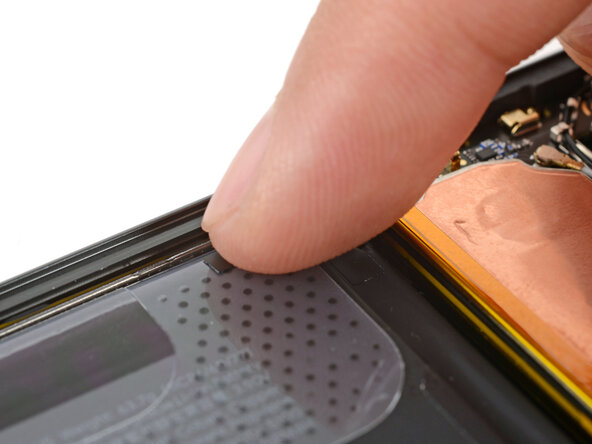
    • Use your finger to fold the left button cable onto the battery and press it in place.

    FixBotに聞いてみる

    コメントを追加

  30. Google Pixel 10a Battery Replacement, Install the wireless charging assembly: 手順 30、 3の画像 1 Google Pixel 10a Battery Replacement, Install the wireless charging assembly: 手順 30、 3の画像 2 Google Pixel 10a Battery Replacement, Install the wireless charging assembly: 手順 30、 3の画像 3
    • Lay the wireless charging assembly onto the frame.

    • Use your fingers to press around the perimeter to engage all of its clips.

    • Stop if the assembly feels like it won't clip in. Check if anything underneath it may be out of place.

    FixBotに聞いてみる

    コメントを追加

  31. Google Pixel 10a Battery Replacement: 手順 31、 2の画像 1 Google Pixel 10a Battery Replacement: 手順 31、 2の画像 2
    • Use a Torx Plus 3IP screwdriver to install the fifteen 5.0 mm‑long wireless charging assembly screws:

    • Thirteen gray screws

    • Two silver non-magnetic screws

    FixBotに聞いてみる

    コメントを追加

  32. Google Pixel 10a Battery Replacement, Test your repair: 手順 32、 1の画像 1
    • Now is a good time to test your repair:

    • Power on your phone and check all functions.

    • Run a diagnostics test with the built-in Pixel Diagnostic tool.

    • If the screen or fingerprint sensor doesn't work correctly, you may need to reconnect the screen connector.

    • Fully power off your phone before you continue with reassembly.

    FixBotに聞いてみる

    コメントを追加

  33. Google Pixel 10a Battery Replacement, Clean the frame: 手順 33、 3の画像 1 Google Pixel 10a Battery Replacement, Clean the frame: 手順 33、 3の画像 2 Google Pixel 10a Battery Replacement, Clean the frame: 手順 33、 3の画像 3
    • Take your time cleaning the frame. A clean frame allows replacement adhesive to lay evenly, ensuring a better bond.

    • Use your fingers, spudger, or tweezers to remove the adhesive from the frame perimeter.

    • If you scrape up a piece big enough to grip with your fingers, you can pull long sections of the adhesive up. Pull slowly and straight in the opposite direction of the adhesive.

    • Use some high concentration (>90%) isopropyl alcohol and a lint-free cloth (or coffee filter) to remove any adhesive residue.

    FixBotに聞いてみる

    コメントを追加

  34. Google Pixel 10a Battery Replacement, Replace the camera bezel adhesive: 手順 34、 2の画像 1 Google Pixel 10a Battery Replacement, Replace the camera bezel adhesive: 手順 34、 2の画像 2
    • Inspect the adhesive blocks surrounding the rear cameras. If they're clean and unwrinkled, you can reuse them and skip down three steps.

    • Use the point of a spudger to pry up and remove the seven adhesive blocks surrounding the rear cameras.

    FixBotに聞いてみる

    コメントを追加

  35. Google Pixel 10a Battery Replacement: 手順 35、 3の画像 1 Google Pixel 10a Battery Replacement: 手順 35、 3の画像 2 Google Pixel 10a Battery Replacement: 手順 35、 3の画像 3
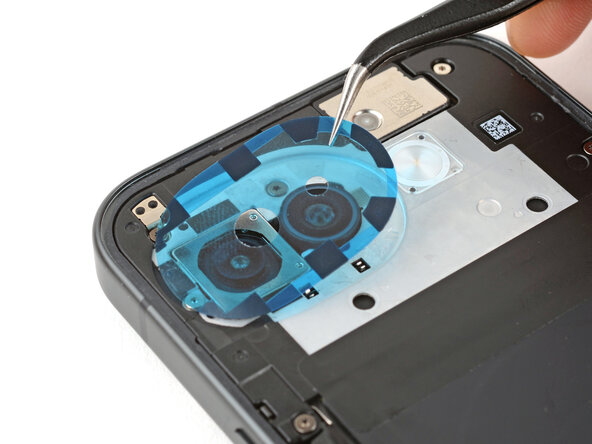
    • Peel the clear liner from the camera bezel adhesive.

    • Carefully align and lay the adhesive in place. Use the rear cameras to help with alignment.

    FixBotに聞いてみる

    コメントを追加

  36. Google Pixel 10a Battery Replacement: 手順 36、 3の画像 1 Google Pixel 10a Battery Replacement: 手順 36、 3の画像 2 Google Pixel 10a Battery Replacement: 手順 36、 3の画像 3
    • Use your fingers to press the camera bezel adhesive onto the frame.

    • Peel and remove the top blue liner from the adhesive.

    • There will still be a thin liner covering the adhesive.

    FixBotに聞いてみる

    コメントを追加

  37. Google Pixel 10a Battery Replacement, Replace the rear cover interior adhesive: 手順 37、 2の画像 1 Google Pixel 10a Battery Replacement, Replace the rear cover interior adhesive: 手順 37、 2の画像 2
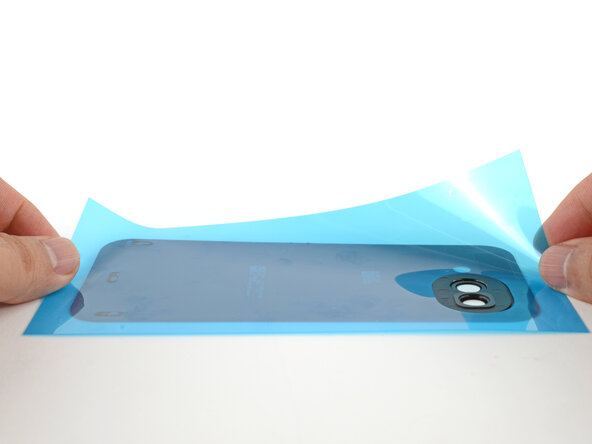
    • Inspect the interior adhesive blocks on the rear cover. If they're clean and unwrinkled, you can reuse them and skip down two steps.

    • Use a spudger to scrape and remove the interior adhesive blocks from the rear cover.

    FixBotに聞いてみる

    コメントを追加

  38. Google Pixel 10a Battery Replacement: 手順 38、 3の画像 1 Google Pixel 10a Battery Replacement: 手順 38、 3の画像 2 Google Pixel 10a Battery Replacement: 手順 38、 3の画像 3
    • Peel the clear liner from the interior adhesive sheet.

    • Align and press the adhesive onto the rear cover. Use the camera cutout to help with alignment.

    • Slowly peel and remove the large liner.

    FixBotに聞いてみる

    コメントを追加

  39. Google Pixel 10a Battery Replacement, Install the rear cover adhesive: 手順 39、 1の画像 1
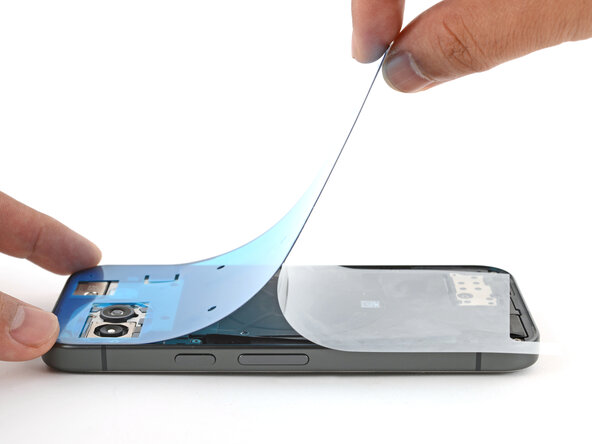
    • Without peeling any liners, hold the rear cover adhesive over the phone to figure out how it'll sit on the frame. Use the camera cutout to help with orientation.

    FixBotに聞いてみる

    コメントを追加

  40. Google Pixel 10a Battery Replacement: 手順 40、 1の画像 1
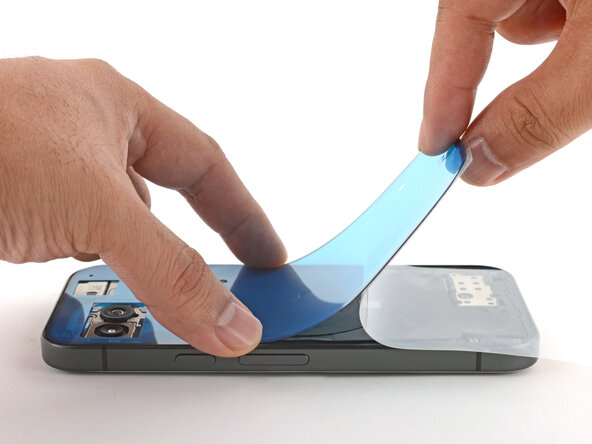
    • Peel down the top half of the clear liner to expose the adhesive—don't fully remove the liner yet.

    FixBotに聞いてみる

    コメントを追加

  41. Google Pixel 10a Battery Replacement: 手順 41、 3の画像 1 Google Pixel 10a Battery Replacement: 手順 41、 3の画像 2 Google Pixel 10a Battery Replacement: 手順 41、 3の画像 3
    • Take your time aligning the adhesive to the frame. If you apply it incorrectly, you'll need to restart with new adhesive.

    • Align and lay the top edge of the adhesive onto the frame.

    • Press down along the top edge to secure the alignment.

    • Slowly peel away the clear liner as you press the rest of the adhesive in place.

    FixBotに聞いてみる

    コメントを追加

  42. Google Pixel 10a Battery Replacement: 手順 42、 2の画像 1 Google Pixel 10a Battery Replacement: 手順 42、 2の画像 2
    • Use a spudger to press the adhesive onto the entire frame perimeter.

    FixBotに聞いてみる

    コメントを追加

  43. Google Pixel 10a Battery Replacement: 手順 43、 2の画像 1 Google Pixel 10a Battery Replacement: 手順 43、 2の画像 2
    • Peel up and remove the large liner from the rear cover adhesive.

    FixBotに聞いてみる

    コメントを追加

  44. Google Pixel 10a Battery Replacement: 手順 44、 1の画像 1
    • If you installed replacement camera bezel adhesive, remove all remaining liners from it.

    FixBotに聞いてみる

    コメントを追加

  45. Google Pixel 10a Battery Replacement: 手順 45、 1の画像 1
    • Remove the perimeter adhesive liner.

    • Carefully inspect the frame for any remaining liners and remove them.

    FixBotに聞いてみる

    コメントを追加

  46. Google Pixel 10a Battery Replacement, Inspect the rear camera glass: 手順 46、 2の画像 1 Google Pixel 10a Battery Replacement, Inspect the rear camera glass: 手順 46、 2の画像 2
    • Make sure the rear cover camera cutouts are clean. Carefully wipe them with a lint-free cloth if needed.

    • Remove any lens caps or liners from the rear cameras. Make sure the lenses are clean. Gently wipe them with a lint-free cloth if needed.

    FixBotに聞いてみる

    コメントを追加

  47. Google Pixel 10a Battery Replacement, Install the rear cover: 手順 47、 3の画像 1 Google Pixel 10a Battery Replacement, Install the rear cover: 手順 47、 3の画像 2 Google Pixel 10a Battery Replacement, Install the rear cover: 手順 47、 3の画像 3
    • Lay the rear cover over the frame.

    • Firmly press around the perimeter to secure the adhesive.

    • You can also hold your phone and squeeze firmly around the perimeter to strengthen the adhesive bond.

    • For an even more secure bond, lay your phone screen-down on a clean and flat surface underneath a few books overnight.

    FixBotに聞いてみる

    コメントを追加

終わりに

Congratulations on completing your repair!

Take your e-waste to an R2 or e-Stewards certified recycler.

For optimal performance, calibrate your newly installed battery after completing this guide.

To run a diagnostics test with the built-in Pixel Diagnostic tool, click here.

Repair didn’t go as planned? Try some basic troubleshooting, or ask our Answers community for help.

キャンセル: このガイドを終了できませんでした。

作成者

1人の作成者と共同作成されました。

Arthur Shi

メンバー登録日: 01/03/18

336,813 ポイント

849のガイドは作成済み

0件のガイドコメント

コメントを追加

統計データ:

過去 24時間: 31

過去 7 日: 218

過去 30 日: 857

今までの合計 1,327