メインコンテンツにスキップ
リペアコミュニティに参加 - アカウントの作成

Reflowing Xbox 360 Motherboard

必要な工具と部品

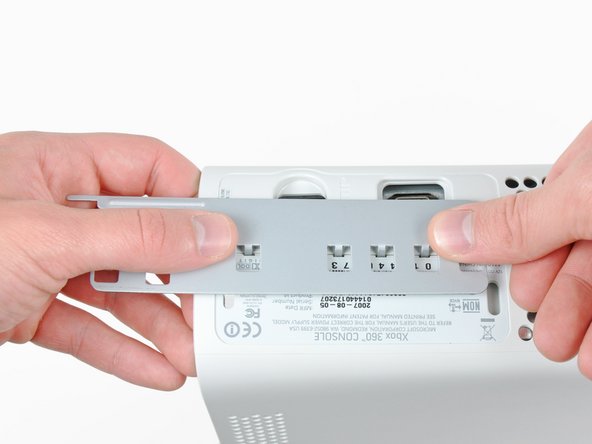
  1. Reflowing Xbox 360 Motherboard, Hard Drive: 手順 1、 2の画像 1 Reflowing Xbox 360 Motherboard, Hard Drive: 手順 1、 2の画像 2
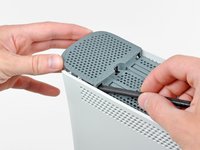
    • Grasp the hard drive assembly and press the release button while lifting its front edge.

    • Remove the hard drive assembly from the top vent.

    FixBotに聞いてみる

    コメントを追加

  2. Reflowing Xbox 360 Motherboard, Bottom Vent: 手順 2、 1の画像 1
    この手順で使用する道具:
    Xbox 360 Opening Tool
    $4.99
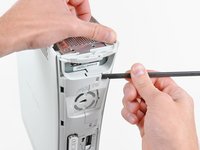
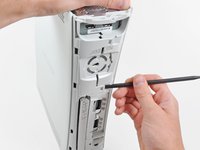
    • Stand the console vertically with the bottom edge facing up.

    • Throughout the following opening procedure, the finger of an Xbox 360 opening tool can be used in place of a spudger.

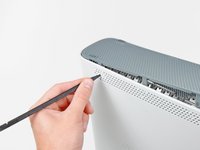
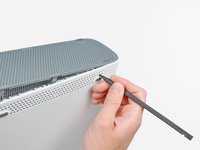
    • Insert the flat end of a spudger or the edge of an Xbox 360 opening tool into the small gap at the front edge of the bottom vent.

    • Pry the front edge of the bottom vent away from the faceplate.

    FixBotに聞いてみる

    コメントを追加

  3. Reflowing Xbox 360 Motherboard: 手順 3、 3の画像 1 Reflowing Xbox 360 Motherboard: 手順 3、 3の画像 2 Reflowing Xbox 360 Motherboard: 手順 3、 3の画像 3
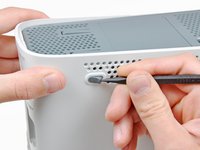
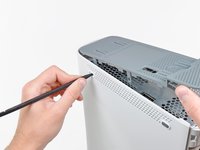
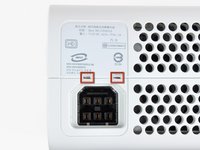
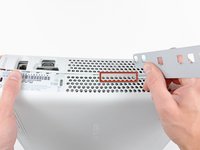
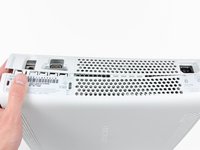
    • In the next few steps, you will use the tip of a spudger or the finger of an Xbox 360 opening tool to release the clips along the left and right sides of the bottom vent. Their locations are highlighted in red.

    • You will insert the tool into the holes molded into the white plastic side case pieces.

    FixBotに聞いてみる

    コメントを追加

  4. Reflowing Xbox 360 Motherboard: 手順 4、 2の画像 1 Reflowing Xbox 360 Motherboard: 手順 4、 2の画像 2
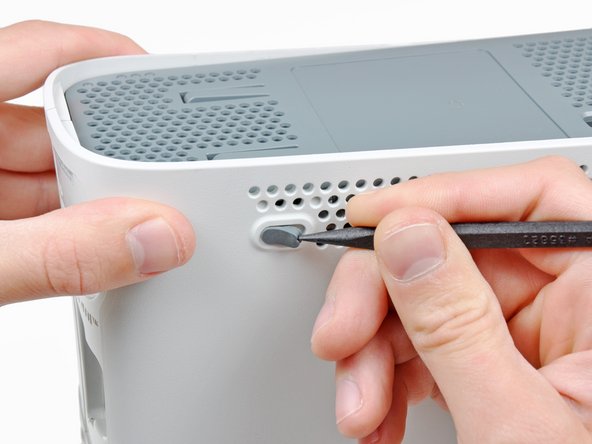
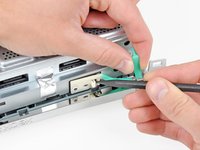
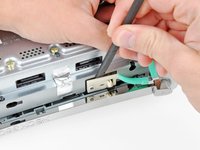
    • To release the clips, work from the front edge of the bottom vent.

    • While slightly lifting the front edge of the bottom vent, use the tip of a spudger to push the clips closest to the front of the bottom vent towards the inside of the console.

    FixBotに聞いてみる

    コメントを追加

  5. Reflowing Xbox 360 Motherboard: 手順 5、 2の画像 1 Reflowing Xbox 360 Motherboard: 手順 5、 2の画像 2
    • Repeat the same process to release the two center clips on the bottom vent.

    FixBotに聞いてみる

    コメントを追加

  6. Reflowing Xbox 360 Motherboard: 手順 6、 2の画像 1 Reflowing Xbox 360 Motherboard: 手順 6、 2の画像 2
    • Use the tip of your spudger to release the clips on the bottom vent nearest the back of the Xbox.

    FixBotに聞いてみる

    コメントを追加

  7. Reflowing Xbox 360 Motherboard: 手順 7、 1の画像 1
    • Remove the bottom vent from the 360.

    FixBotに聞いてみる

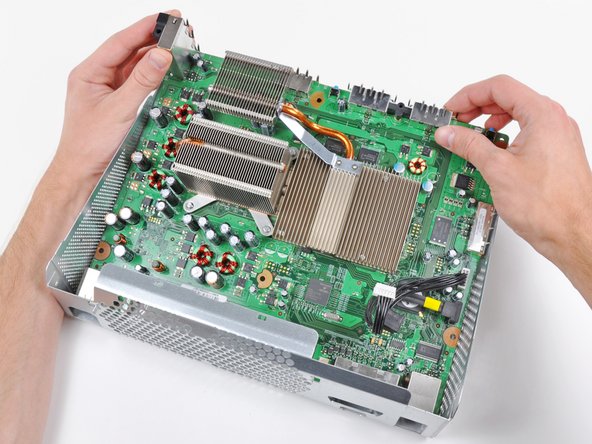
    コメントを追加

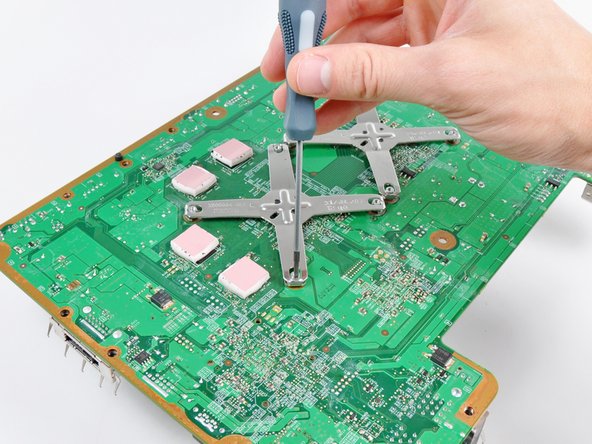
  8. Reflowing Xbox 360 Motherboard, Faceplate: 手順 8、 2の画像 1 Reflowing Xbox 360 Motherboard, Faceplate: 手順 8、 2の画像 2
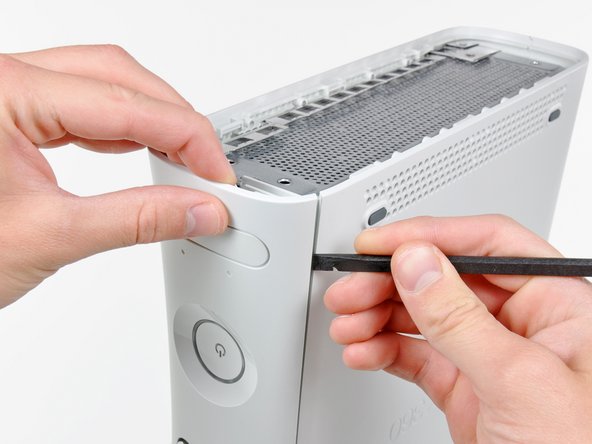
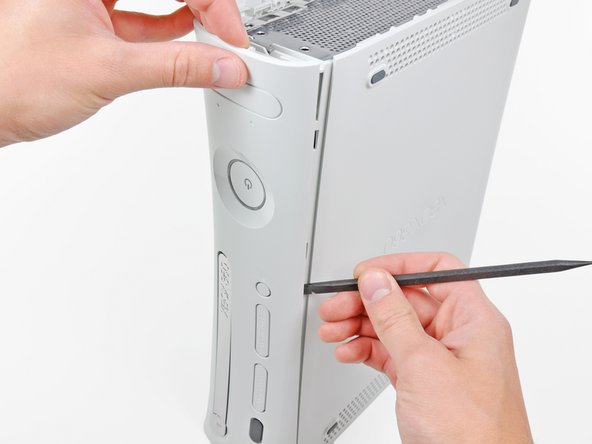
    • Insert the flat edge of a spudger between the faceplate and the outer casing near the power button.

    • Run your spudger along the edge of the faceplate to release the clips securing it to the front of the console.

    • You may also accomplish this task by using the edge of the Xbox 360 opening tool, but it may scratch the plastic case.

    • Alternatively, you can use your hands to carefully pull the faceplate away from the Xbox.

    FixBotに聞いてみる

    コメントを追加

  9. Reflowing Xbox 360 Motherboard: 手順 9、 1の画像 1
    • Repeat the same motions as previously mentioned to release the left side of the faceplate.

    FixBotに聞いてみる

    コメントを追加

  10. Reflowing Xbox 360 Motherboard: 手順 10、 1の画像 1
    • Remove the faceplate from the front face of the console.

    FixBotに聞いてみる

    コメントを追加

  11. Reflowing Xbox 360 Motherboard, Top Vent: 手順 11、 2の画像 1 Reflowing Xbox 360 Motherboard, Top Vent: 手順 11、 2の画像 2
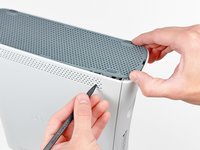
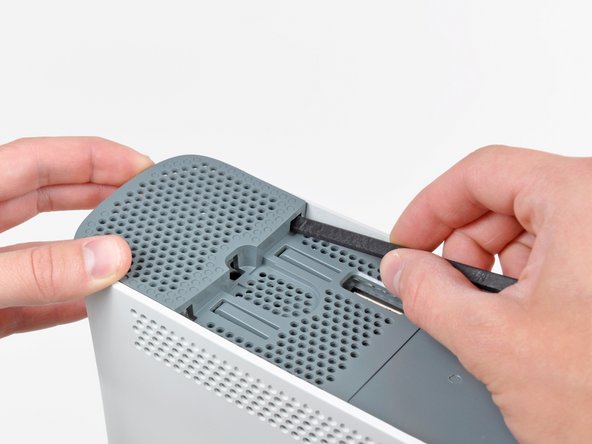
    • Stand the console vertically with the top edge facing up.

    • The top vent is secured to the console via clips. The first two clips are located underneath the top vent closest to the faceplate, as shown in the pictures.

    FixBotに聞いてみる

    コメントを追加

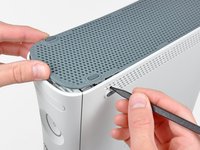
  12. Reflowing Xbox 360 Motherboard: 手順 12、 2の画像 1 Reflowing Xbox 360 Motherboard: 手順 12、 2の画像 2
    • Insert the flat end of a spudger into the small gaps previously mentioned to release the clips.

    • You may also use the long finger of an Xbox 360 opening tool to accomplish this task.

    FixBotに聞いてみる

    コメントを追加

  13. Reflowing Xbox 360 Motherboard: 手順 13、 3の画像 1 Reflowing Xbox 360 Motherboard: 手順 13、 3の画像 2 Reflowing Xbox 360 Motherboard: 手順 13、 3の画像 3
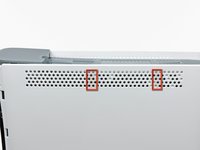
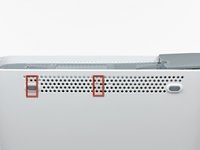
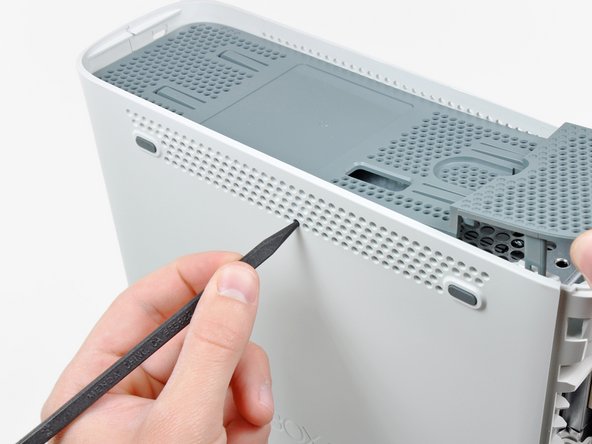
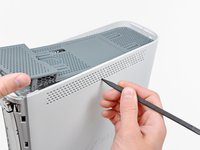
    • In the next few steps, you will use the tip of a spudger or the finger of an Xbox 360 opening tool to release the clips along the left and right sides of the top vent. Their locations are highlighted in red.

    FixBotに聞いてみる

    コメントを追加

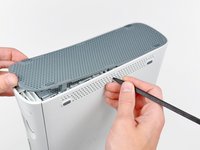
  14. Reflowing Xbox 360 Motherboard: 手順 14、 2の画像 1 Reflowing Xbox 360 Motherboard: 手順 14、 2の画像 2
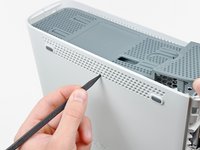
    • To release the clips, work from the middle of the top vent.

    • While slightly lifting the front edge of the top vent, use the tip of a spudger to push the clips closest to the center of the top vent towards the inside of the console.

    FixBotに聞いてみる

    コメントを追加

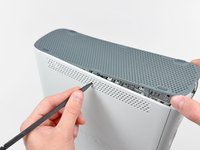
  15. Reflowing Xbox 360 Motherboard: 手順 15、 1の画像 1
    • Use the tip of your spudger to release the clip on the top vent nearest the back of the Xbox's upper case.

    FixBotに聞いてみる

    コメントを追加

  16. Reflowing Xbox 360 Motherboard: 手順 16、 2の画像 1 Reflowing Xbox 360 Motherboard: 手順 16、 2の画像 2
    • The last clip is hidden underneath the rubber foot nearest the back of the console.

    • Use the tip of your spudger to release the clip on the top vent nearest the back of the Xbox.

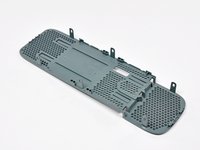
    • Remove the top vent from the 360.

    FixBotに聞いてみる

    コメントを追加

  17. Reflowing Xbox 360 Motherboard, Lower Case: 手順 17、 1の画像 1
    • Stand the console vertically with the top edge facing down.

    • Carefully peel the warranty sticker off the console.

    FixBotに聞いてみる

    コメントを追加

  18. Reflowing Xbox 360 Motherboard: 手順 18、 3の画像 1 Reflowing Xbox 360 Motherboard: 手順 18、 3の画像 2 Reflowing Xbox 360 Motherboard: 手順 18、 3の画像 3
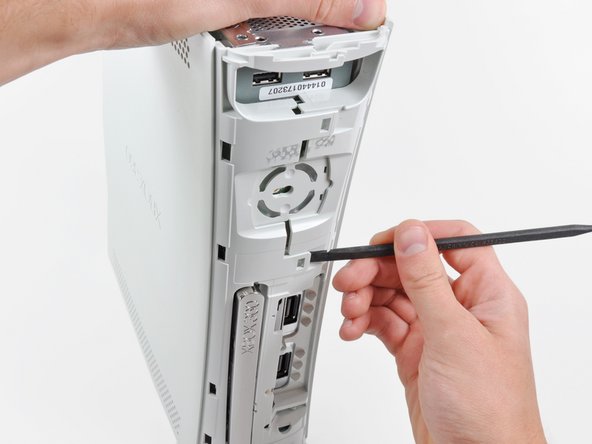
    • The upper and lower cases are attached via several latches, located in the front and back of the console. These latches must be disengaged to separate the upper case from the console.

    • Use the flat end of a spudger to release the following latches:

    • Above the front-facing USB ports.

    • Beneath the front-facing USB ports.

    • Above the Memory Unit slots.

    FixBotに聞いてみる

    コメントを追加

  19. Reflowing Xbox 360 Motherboard: 手順 19、 1の画像 1
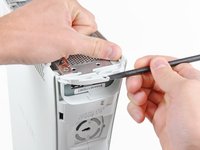
    • Insert the flat end of a spudger and pry upwards to release the last remaining latch located above the eject button.

    FixBotに聞いてみる

    コメントを追加

  20. Reflowing Xbox 360 Motherboard: 手順 20、 1の画像 1
    • Slightly lift the front portion of the lower case to ensure that the latches in the front have been completely released.

    FixBotに聞いてみる

    コメントを追加

  21. Reflowing Xbox 360 Motherboard: 手順 21、 2の画像 1 Reflowing Xbox 360 Motherboard: 手順 21、 2の画像 2
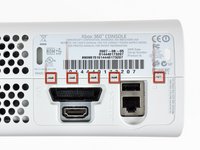
    • The upper and lower cases are held together by seven release latches located on the back of the console. Their locations are highlighted in red.

    FixBotに聞いてみる

    コメントを追加

  22. Reflowing Xbox 360 Motherboard: 手順 22、 3の画像 1 Reflowing Xbox 360 Motherboard: 手順 22、 3の画像 2 Reflowing Xbox 360 Motherboard: 手順 22、 3の画像 3
    • Press the Xbox 360 opening tool down into the clips securing the lower case to the upper case near the I/O ports.

    • While pressing down on the tool, push the lower and upper cases apart to separate the retaining clips.

    FixBotに聞いてみる

    コメントを追加

  23. Reflowing Xbox 360 Motherboard: 手順 23、 2の画像 1 Reflowing Xbox 360 Motherboard: 手順 23、 2の画像 2
    • While pushing the upper and lower cases apart, use the tip of a spudger or the finger of an Xbox 360 opening tool to push the long clip highlighted in red toward the center of the 360.

    • The clip should release, leaving the clips near the power connector as the only thing holding the upper and lower cases together.

    FixBotに聞いてみる

    コメントを追加

  24. Reflowing Xbox 360 Motherboard: 手順 24、 1の画像 1
    • Press the Xbox 360 opening tool down into the two remaining clips near the power connector.

    • Push the upper and lower cases apart to fully release the retaining clips.

    FixBotに聞いてみる

    コメントを追加

  25. Reflowing Xbox 360 Motherboard: 手順 25、 1の画像 1
    • Orient the console so that the front portion is facing downwards.

    • Grasp the back portion of the lower case and lift it upwards to separate it from the console.

    • Be careful not to excessively bend the lower case near the power plug, as it can crack easily.

    FixBotに聞いてみる

    コメントを追加

  26. Reflowing Xbox 360 Motherboard, Eject Button: 手順 26、 2の画像 1 Reflowing Xbox 360 Motherboard, Eject Button: 手順 26、 2の画像 2
    • Use the tip of a spudger to release the clip securing the eject button to the metal casing.

    • Insert the flat end of a spudger between the eject button and the optical drive.

    • Pry the eject button off its retaining posts and remove it from the 360.

    • This can also be accomplished using an Xbox 360 opening tool.

    FixBotに聞いてみる

    コメントを追加

  27. Reflowing Xbox 360 Motherboard, Upper Case: 手順 27、 1の画像 1
    • Remove the six silver 64 mm T10 Torx screws securing the upper case to the metal casing.

    FixBotに聞いてみる

    コメントを追加

  28. Reflowing Xbox 360 Motherboard: 手順 28、 1の画像 1
    • Orient the console so that the upper case is facing upwards.

    • Lift the upper case straight up and remove it from the console.

    FixBotに聞いてみる

    コメントを追加

  29. Reflowing Xbox 360 Motherboard, Optical Drive: 手順 29、 1の画像 1
    • Peel the silver tape securing the optical drive to the metal casing.

    FixBotに聞いてみる

    コメントを追加

  30. Reflowing Xbox 360 Motherboard: 手順 30、 1の画像 1
    • Slightly lift the optical drive upwards to gain clearance to disconnect the SATA and power connectors located on the backside of the optical drive.

    • Don't try to completely remove the optical drive just yet. Two cables still connect it to the motherboard.

    FixBotに聞いてみる

    コメントを追加

  31. Reflowing Xbox 360 Motherboard: 手順 31、 2の画像 1 Reflowing Xbox 360 Motherboard: 手順 31、 2の画像 2
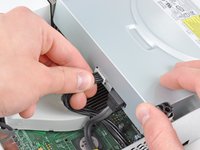
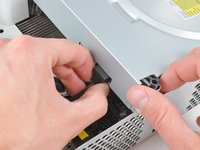
    • Grab the power connector by its cables and pull it straight out of its socket on the optical drive.

    • Disconnect the SATA data connector from its socket on the optical drive by pulling it straight away.

    FixBotに聞いてみる

    コメントを追加

  32. Reflowing Xbox 360 Motherboard: 手順 32、 1の画像 1
    • Lift the optical drive assembly out of the metal casing.

    FixBotに聞いてみる

    コメントを追加

  33. Reflowing Xbox 360 Motherboard, Cooling Fan Duct: 手順 33、 2の画像 1 Reflowing Xbox 360 Motherboard, Cooling Fan Duct: 手順 33、 2の画像 2
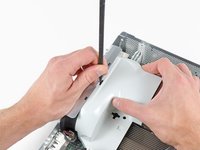
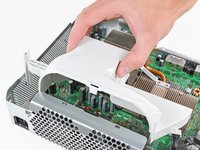
    • Insert the flat end of a spudger into the small rectangular opening on the top of the cooling fan duct.

    • Carefully release the fan duct retaining clip and remove the fan duct from the Xbox.

    • The clip can alternatively be released using the metal finger of an Xbox 360 opening tool.

    FixBotに聞いてみる

    コメントを追加

  34. Reflowing Xbox 360 Motherboard, Dual Fans: 手順 34、 2の画像 1 Reflowing Xbox 360 Motherboard, Dual Fans: 手順 34、 2の画像 2
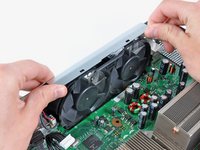
    • While lifting the metal chassis strip above the dual fans, pull the fans toward the center of the motherboard.

    • Do not completely remove the dual fan assembly yet. Its cable is still attached to the motherboard.

    FixBotに聞いてみる

    コメントを追加

  35. Reflowing Xbox 360 Motherboard: 手順 35、 1の画像 1
    • Lift the dual fan connector straight up from its socket on the motherboard.

    • Some fan connectors have a locking tab. If yours has a locking tab, be sure to depress it while disconnecting the fan from the motherboard.

    • Remove the dual fan assembly from the console.

    FixBotに聞いてみる

    コメントを追加

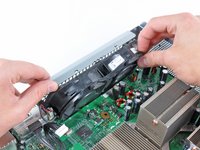
  36. Reflowing Xbox 360 Motherboard, Motherboard: 手順 36、 3の画像 1 Reflowing Xbox 360 Motherboard, Motherboard: 手順 36、 3の画像 2 Reflowing Xbox 360 Motherboard, Motherboard: 手順 36、 3の画像 3
    • Use the flat end of a spudger to release the clips securing the RF module shield along the top and the left edge of the RF module.

    • It may be easier to use your fingernail to release the clips from the RF module.

    • Remove the RF module shield from the console.

    FixBotに聞いてみる

    コメントを追加

  37. Reflowing Xbox 360 Motherboard: 手順 37、 1の画像 1
    • Remove three 5.6 mm T8 Torx screws securing the RF module to the metal chassis.

    FixBotに聞いてみる

    コメントを追加

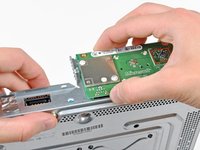
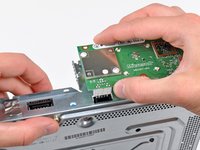
  38. Reflowing Xbox 360 Motherboard: 手順 38、 2の画像 1 Reflowing Xbox 360 Motherboard: 手順 38、 2の画像 2
    • Grasp the RF module and lift it straight up to disconnect it from its socket on the motherboard.

    • Remove the RF module from the console.

    FixBotに聞いてみる

    コメントを追加

  39. Reflowing Xbox 360 Motherboard: 手順 39、 1の画像 1
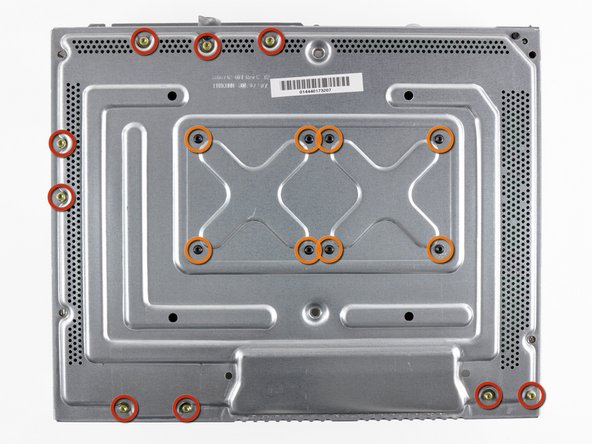
    • Remove the following screws securing the motherboard to the metal casing:

    • Nine gold 11 mm T10 Torx screws.

    • Eight black 5.6 mm T8 Torx screws.

    • If you are reassembling your Xbox 360 after installing the Red Ring of Death Fix Kit, the eight T8 Torx screws circled in orange are not reused.

    FixBotに聞いてみる

    コメントを追加

  40. Reflowing Xbox 360 Motherboard: 手順 40、 2の画像 1 Reflowing Xbox 360 Motherboard: 手順 40、 2の画像 2
    • Turn the Xbox over, being careful not to let the motherboard fall out of the chassis.

    • Lift the motherboard assembly from its front edge.

    • Be careful not to damage the sockets as you rotate the motherboard away from the metal casing.

    • Remove the motherboard assembly from the metal casing.

    FixBotに聞いてみる

    コメントを追加

  41. Reflowing Xbox 360 Motherboard, GPU Heat Sink: 手順 41、 1の画像 1
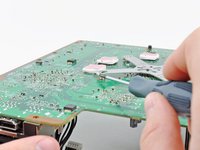
    • Insert the tip of a small flathead screwdriver between the X clamp and its retaining post on the heat sink.

    • Pry the X clamp away from its retaining post until it is lifted above the small groove cut into the retaining post.

    FixBotに聞いてみる

    コメントを追加

  42. Reflowing Xbox 360 Motherboard: 手順 42、 2の画像 1 Reflowing Xbox 360 Motherboard: 手順 42、 2の画像 2
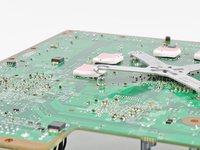
    • Insert your screwdriver parallel to the motherboard between the X clamp and its retaining post.

    • Twist the screwdriver to fully release the X clamp from its retaining post.

    • Repeat this process for all four corners of the X clamp.

    • When removing the last corner of the X clamp and holding the motherboard upside down, be sure to catch the GPU heat sink to avoid damage from it falling.

    FixBotに聞いてみる

    コメントを追加

  43. Reflowing Xbox 360 Motherboard: 手順 43、 1の画像 1
    • To reinstall the X clamp, first start by attaching two corners to the posts on the heat sink.

    • While holding the third arm of the X clamp down against the post attached to the heat sink, use a small flathead screwdriver to pry the X clamp away from the heat sink post.

    • As you pry, press down on the arm of the X clamp until you "walk" it down into the retaining groove cut into the post attached to the heat sink.

    • Repeat this process for the fourth arm of the X clamp.

    FixBotに聞いてみる

    コメントを追加

  44. Reflowing Xbox 360 Motherboard: 手順 44、 1の画像 1
    • Remove the GPU heat sink.

    • Before reinstalling the GPU heat sink, be sure to apply a new layer of thermal paste.

    • If you need to mount the heat sink back onto the motherboard, we have a thermal paste guide that makes replacing the thermal compound easy.

    FixBotに聞いてみる

    コメントを追加

  45. Reflowing Xbox 360 Motherboard, Motherboard: 手順 45、 2の画像 1 Reflowing Xbox 360 Motherboard, Motherboard: 手順 45、 2の画像 2
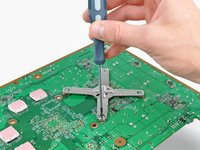
    • Insert the tip of a small flathead screwdriver between the X clamp and its retaining post on the heat sink.

    • Pry the X clamp away from its retaining post until it is lifted above the small groove cut into the retaining post.

    • If necessary, insert your screwdriver parallel to the motherboard between the X clamp and its retaining post. Twist the screwdriver to fully release the X clamp from its retaining post.

    • Repeat this process for all four corners of the X clamp.

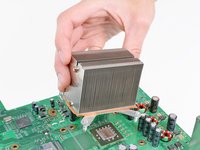
    • When removing the last corner of the X clamp and holding the motherboard upside down, be sure to catch the CPU heat sink to avoid damage from it falling.

    • Remove the CPU heat sink from the motherboard. When reinstalling the CPU heat sink, be sure to apply a new layer of thermal paste.

    FixBotに聞いてみる

    コメントを追加

  46. Reflowing Xbox 360 Motherboard: 手順 46、 2の画像 1 Reflowing Xbox 360 Motherboard: 手順 46、 2の画像 2
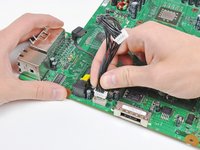
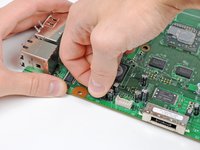
    • Disconnect the optical drive power and SATA cables from the motherboard.

    FixBotに聞いてみる

    コメントを追加

  47. Reflowing Xbox 360 Motherboard: 手順 47、 1の画像 1
    • If replacing the motherboard transfer the four thermal pads on the underside of the motherboard to your new motherboard.

    • Motherboard remains.

    • The DVD drive and the motherboard are "married" when they leave the factory. If you replace one you must replace the other. If you put any old DVD drive onto a motherboard that it is not "married" to it will only play DVDs, no games. It is possible to alter the keys so that they match.

    FixBotに聞いてみる

    コメントを追加

  48. Reflowing Xbox 360 Motherboard, Reflowing Xbox 360 Motherboard: 手順 48、 3の画像 1 Reflowing Xbox 360 Motherboard, Reflowing Xbox 360 Motherboard: 手順 48、 3の画像 2 Reflowing Xbox 360 Motherboard, Reflowing Xbox 360 Motherboard: 手順 48、 3の画像 3
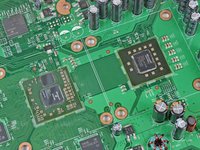
    • Before heating up the motherboard, be sure to clean the old thermal paste off both the CPU and GPU until they are as clean as the processors seen in the first picture. The process for cleaning the processors can be found here.

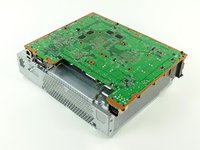
    • Lay the motherboard with the processor side facing down on the flat metal bottom of the the bare chassis (with its open side facing down) as seen in the second picture. Allow the tall USB socket to hang over the edge of the chassis so the board sits flat.

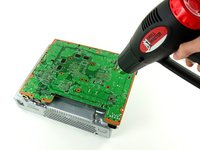
    • Use a heat gun on the LOW setting to heat the entire back of the motherboard for one minute. Be sure to continually sweep the heat gun back and forth across the face of the motherboard to evenly heat it.

    FixBotに聞いてみる

    コメントを追加

  49. Reflowing Xbox 360 Motherboard: 手順 49、 1の画像 1
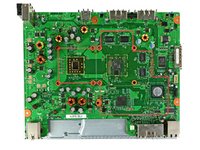
    • After heating the back of the motherboard for one minute, flip the motherboard over and lay it on the chassis as shown.

    • If you have installed the RROD fix kit already, keep the two small black heat sinks included in the kit stuck to their respective chips. The tape that is used to attach them to the chips on the board is extremely strong and attempting to remove them may damage the chips underneath. The heating process will not damage the heat sinks in any way.

    FixBotに聞いてみる

    コメントを追加

  50. Reflowing Xbox 360 Motherboard: 手順 50、 2の画像 1 Reflowing Xbox 360 Motherboard: 手順 50、 2の画像 2
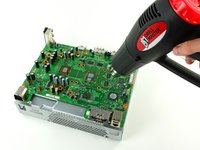
    • With your heat gun set to HIGH, evenly heat the area boxed in red for four minutes.

    • When using the heat gun on high, it is extremely important to continually move the heat gun so the stream of hot air evenly heats up the desired area.

    • Avoid directly heating the many cylindrical electrolytic capacitors located near the area boxed in red.

    • After heating the area boxed in red for four minutes, turn off your heat gun and allow the motherboard to cool down to room temperature without moving or disturbing it in any way.

    • At this point, we strongly recommend installing our Red Ring of Death Fix Kit to safeguard against future failure.

    FixBotに聞いてみる

    コメントを追加

終わりに

To reassemble your device, follow these instructions from Step 48 in reverse order.

キャンセル: このガイドを終了できませんでした。

209 の人々がこのガイドを完成させました。

作成者

3人の作成者と共同で作成されました。

Andrew Bookholt

600,046 ポイント

619のガイドは作成済み

23件のガイドコメント

Is there a similar guide for XBOX 360s?

Juan F Botero - 返信 共有
Yes, there is - and It worked for me!
Yellow Light of Deathの修理

Dave - 返信 共有

Is there a similar guide for the E series?

THOMAS LANG - 返信 共有
What temperature ranges should I be aiming for? I have a variable temp head gun and no idea of what temperatures are best for both stages.

Josh - 返信 共有

The heat gun they are using has a 570 F low-setting. While that doesn't give you an EXACT temperature, it should give you some idea of what they're using.

Sam Archer - 返信 共有

コメントを追加

統計データ:

過去 24時間: 4

過去 7 日: 85

過去 30 日: 395

今までの合計 292,049