メインコンテンツにスキップ
リペアコミュニティに参加 - アカウントの作成

Motorola Droid Rear Case Replacement

閲覧: 4.2万

統計データ:

過去24時間:
9
過去7日:
25
過去30日:
122
今までの合計
41,523
コメント: 1

手順に関する1件のコメント.

完了済み: 6

6人のユーザーがこのガイドを「完了」させました。あなたも加わりませんか?

お気に入り: 3

3人のユーザーがこのガイドをお気に入りに登録しています。あなたもリストに入れませんか?

所要時間: 10分
難易度: 中レベル
Motorola Droid Rear Case Replacement

はじめに

手順 1 に進む ↓

This guide will take you through the delicate process of removing the rear panel of the Motorola Droid.

必要な工具と部品

ツール

    1. Motorola Droid Rear Case Replacement, Battery: 手順 1、 3の画像 1 Motorola Droid Rear Case Replacement, Battery: 手順 1、 3の画像 2 Motorola Droid Rear Case Replacement, Battery: 手順 1、 3の画像 3
      • Slide the battery cover downwards while applying pressure to the center of the battery cover with your thumb.

      • Lift and remove the battery cover out from the phone.

      FixBotに聞いてみる

      コメントを追加

    2. Motorola Droid Rear Case Replacement: 手順 2、 1の画像 1
      • Grasp the upper left corner of the battery and lift it out of its housing.

      FixBotに聞いてみる

      コメントを追加

    1. Motorola Droid Rear Case Replacement, Rear Case: 手順 3、 1の画像 1
      • Use a spudger to lift and remove the black plastic screw cover at the top of the phone near the camera.

      • The cover is attached by adhesive, so some force may be required.

      FixBotに聞いてみる

      コメントを追加

    2. Motorola Droid Rear Case Replacement: 手順 4、 2の画像 1 Motorola Droid Rear Case Replacement: 手順 4、 2の画像 2
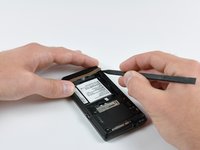
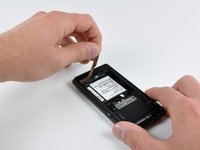
      • Using the tip of a spudger, peel up one corner of the gold ribbon beneath the battery compartment.

      • Peel the ribbon up off the phone.

      FixBotに聞いてみる

      コメントを追加

    3. Motorola Droid Rear Case Replacement: 手順 5、 2の画像 1 Motorola Droid Rear Case Replacement: 手順 5、 2の画像 2
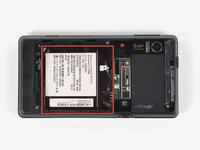
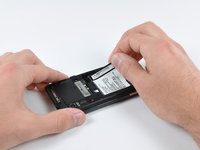
      • Carefully peel the device information label that covers the motherboard EMI shields.

      • This label contains important information specific to the phone. Remove it with care and keep it in a safe place.

      FixBotに聞いてみる

      コメントを追加

    4. Motorola Droid Rear Case Replacement: 手順 6、 1の画像 1
      • Insert the flat end of a spudger and pry the plastic camera cover up off the phone.

      • The thin plastic cover is attached to the phone with an adhesive. Work slowly and carefully.

      FixBotに聞いてみる

      コメントを追加

    5. Motorola Droid Rear Case Replacement: 手順 7、 1の画像 1
      • Remove the seven 5.5 mm T5 Torx screws securing the rear case to the inner case.

      FixBotに聞いてみる

      コメントを追加

    6. Motorola Droid Rear Case Replacement: 手順 8、 1の画像 1
      • Insert the flat end of a spudger and pry downwards to release the plastic tab holding the rear case to the motherboard screw.

      FixBotに聞いてみる

      コメントを追加

    7. Motorola Droid Rear Case Replacement: 手順 9、 1の画像 1
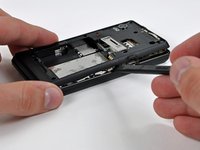
      • Gently insert a spudger between the rear case and front case at the top of the phone, near the audio jack.

      • Carefully pry the top edge of the rear case up from the rest of the phone.

      FixBotに聞いてみる

      コメントを追加

    8. Motorola Droid Rear Case Replacement: 手順 10、 2の画像 1 Motorola Droid Rear Case Replacement: 手順 10、 2の画像 2
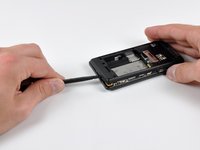
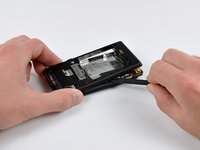
      • With the spudger still inserted between the rear case and front case, slide the spudger along the right edge of the device, moving toward the bottom, prying as you go.

      • Continue prying along the bottom edge of the device from right to left, freeing it from the front panel.

      FixBotに聞いてみる

      コメントを追加

    9. Motorola Droid Rear Case Replacement: 手順 11、 2の画像 1 Motorola Droid Rear Case Replacement: 手順 11、 2の画像 2
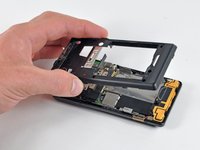
      • Continue prying the rear case from the front case along the left side, moving from bottom to top.

      • Lift the rear case up out of the phone.

      FixBotに聞いてみる

      コメントを追加

終わりに

To reassemble your device, follow these instructions in reverse order.

キャンセル: このガイドを終了できませんでした。

6 の人々がこのガイドを完成させました。

作成者

6人の作成者と共同で作成されました。

Brett Hartt

メンバー登録日: 04/12/10

132,579 ポイント

144のガイドは作成済み

チーム

iFixit iFixit人のメンバー

Staff

121 メンバー

72,895のガイドは作成済み

0件のガイドコメント

コメントを追加

統計データ:

過去 24時間: 9

過去 7 日: 25

過去 30 日: 122

今までの合計 41,523