メインコンテンツにスキップ

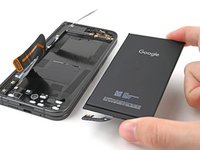
Google Pixel 9 Pro Fold Flip Battery Replacement

必要な工具と部品

  1. Google Pixel 9 Pro Fold Flip Battery Replacement, Prepare your phone for disassembly: 手順 1、 1の画像 1
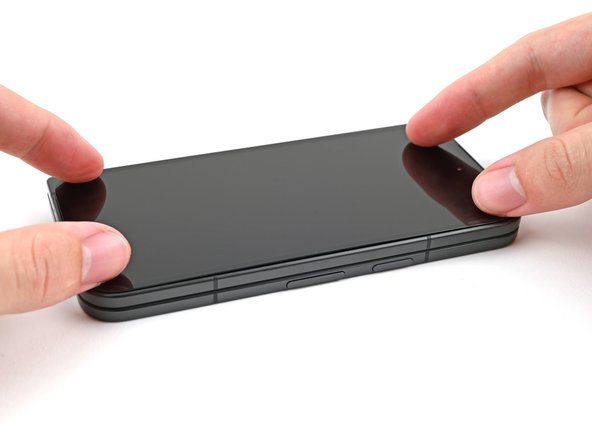
    • Let your phone's battery drain below 25% before starting this repair. A charged lithium‑ion battery may catch fire if damaged.

    • Unplug all cables from your phone and completely power it down.

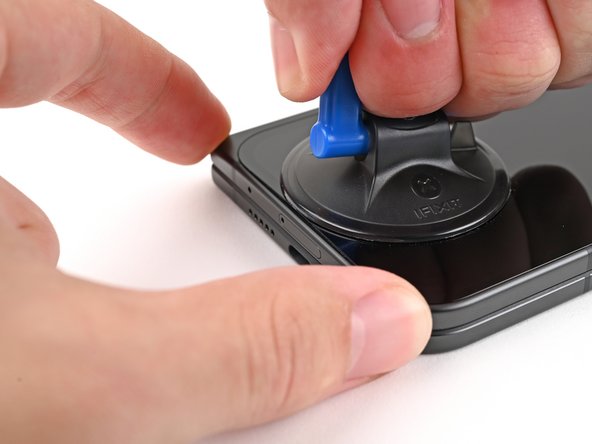
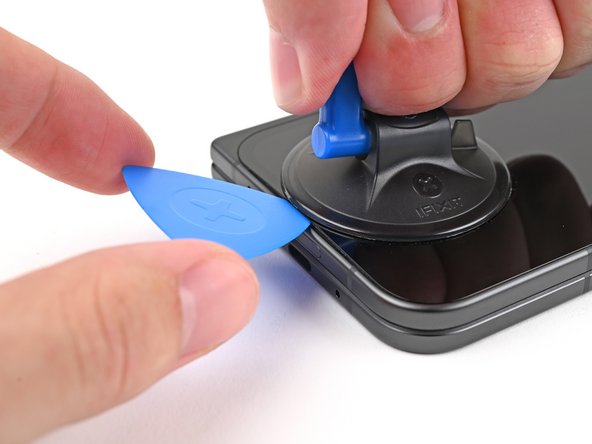
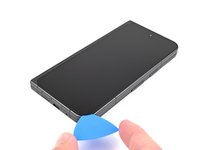
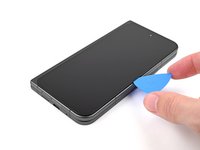
  2. Google Pixel 9 Pro Fold Flip Battery Replacement, Insert an opening pick: 手順 2、 3の画像 1 Google Pixel 9 Pro Fold Flip Battery Replacement, Insert an opening pick: 手順 2、 3の画像 2 Google Pixel 9 Pro Fold Flip Battery Replacement, Insert an opening pick: 手順 2、 3の画像 3
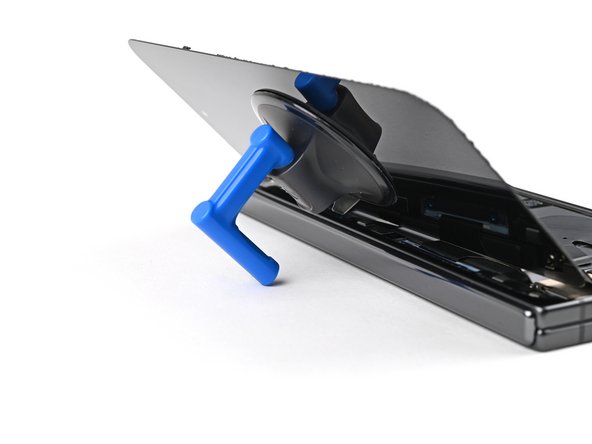
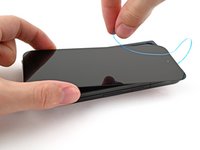
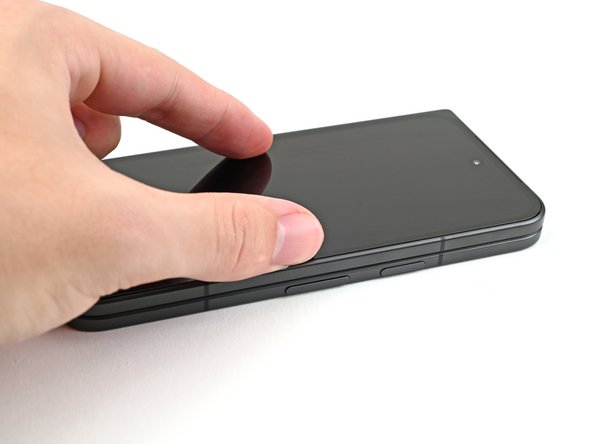
    • Apply a suction cup to the screen, as close to the center of the bottom edge as possible.

    • Pull up on the suction cup with strong, steady force to create a gap between the screen and the frame.

    • Insert an opening pick into the gap.

    • If your screen is badly cracked, covering it with a layer of clear packing tape may allow the suction cup to adhere. Alternatively, very strong tape may be used instead of the suction cup. If all else fails, you can superglue the suction cup to the screen.

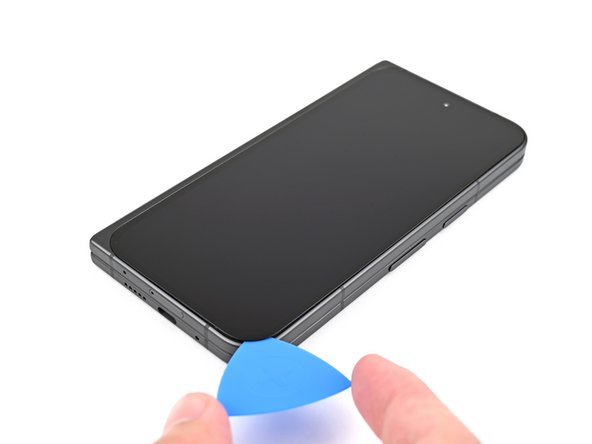
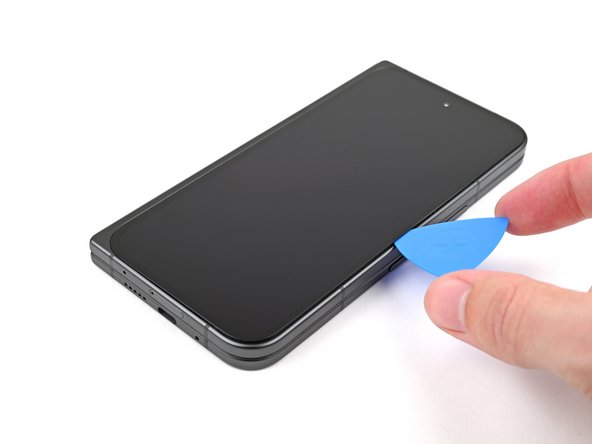
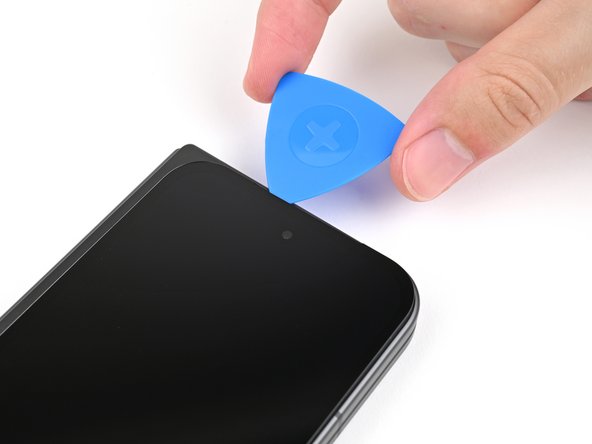
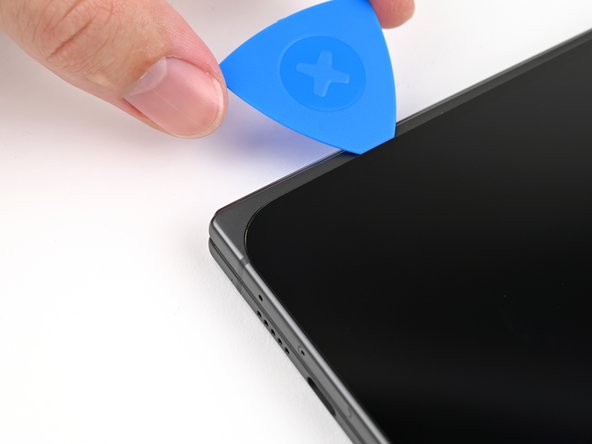
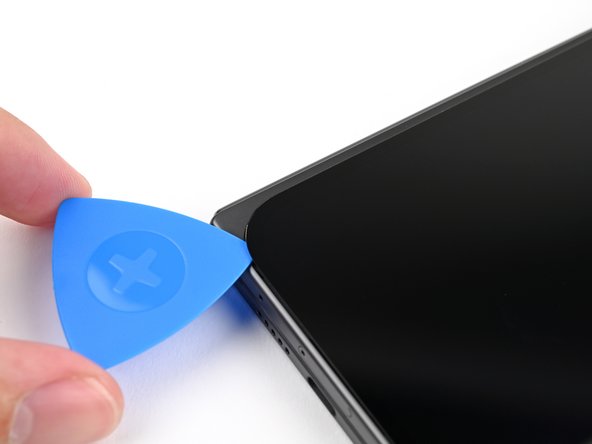
  3. Google Pixel 9 Pro Fold Flip Battery Replacement, Separate the adhesive: 手順 3、 3の画像 1 Google Pixel 9 Pro Fold Flip Battery Replacement, Separate the adhesive: 手順 3、 3の画像 2 Google Pixel 9 Pro Fold Flip Battery Replacement, Separate the adhesive: 手順 3、 3の画像 3
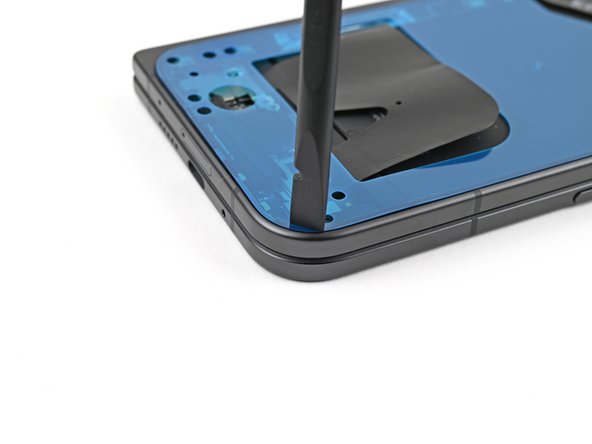
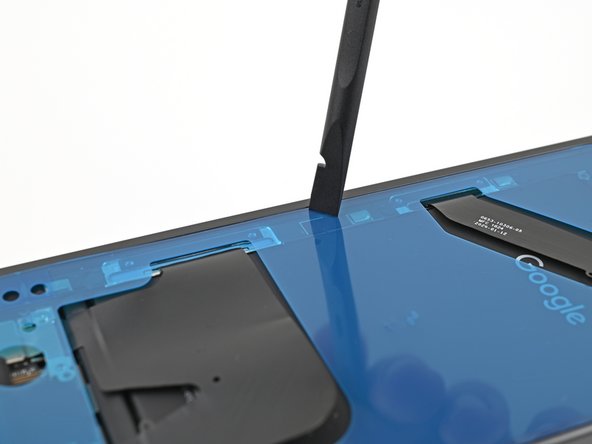
    • During the next four steps, don't insert your opening pick deeper than 3 mm to prevent damaging internal components.

    • Optionally, you can measure and mark your opening pick 3 mm from the tip to help you visualize the length.

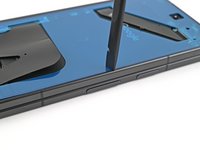
    • Slide the opening pick around the bottom right corner and up the right edge of the screen to separate the adhesive.

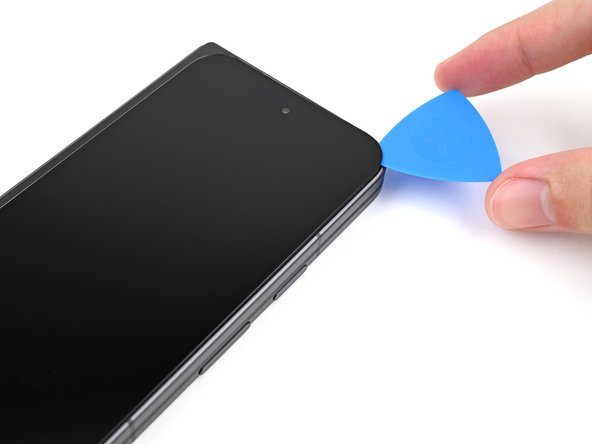
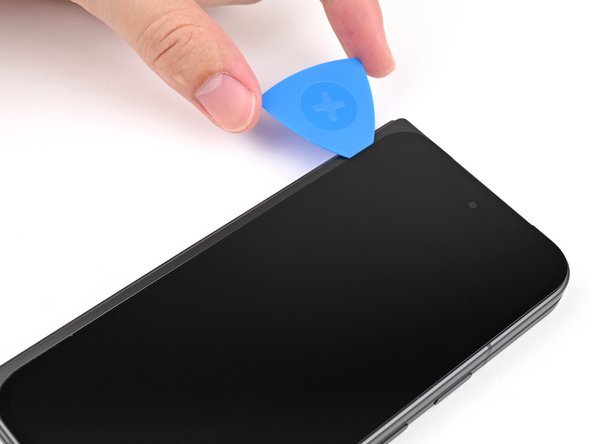
  4. Google Pixel 9 Pro Fold Flip Battery Replacement: 手順 4、 3の画像 1 Google Pixel 9 Pro Fold Flip Battery Replacement: 手順 4、 3の画像 2 Google Pixel 9 Pro Fold Flip Battery Replacement: 手順 4、 3の画像 3
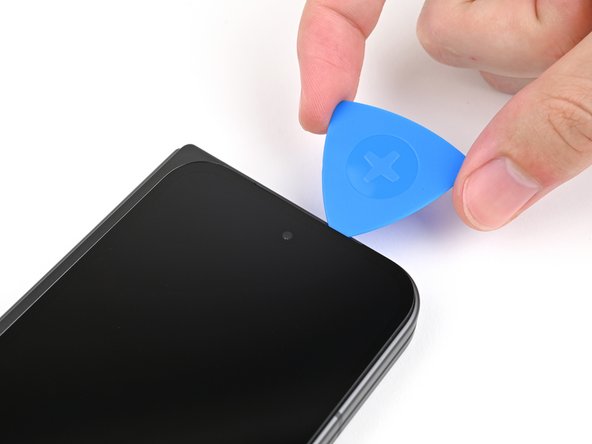
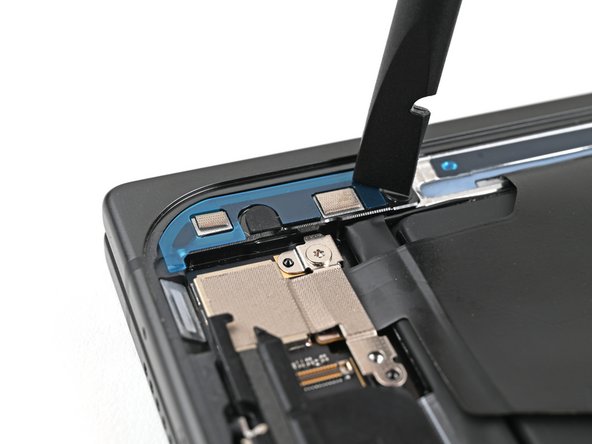
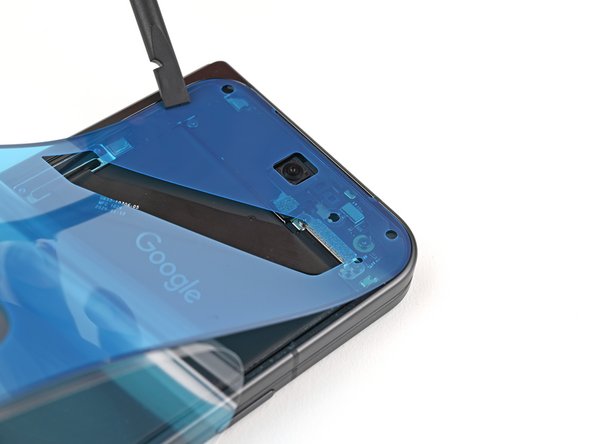
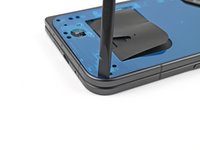
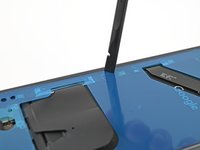
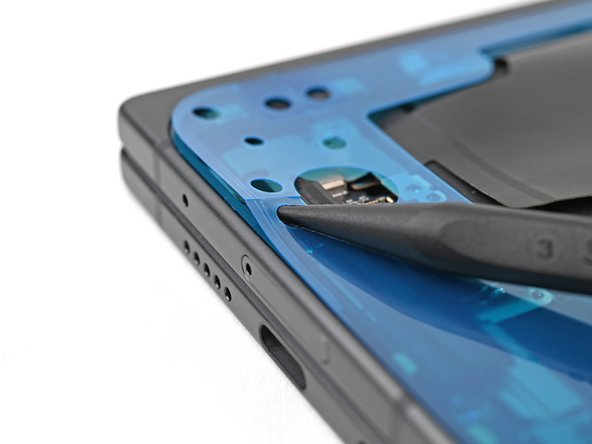
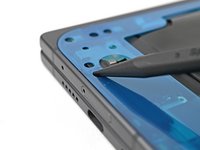
    • Slide the pick around the top right corner and stop before the front camera.

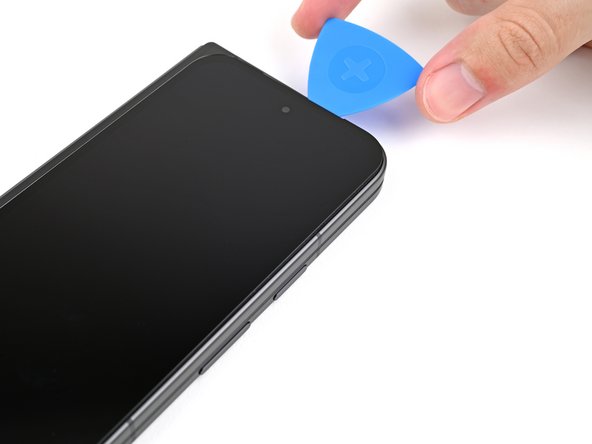
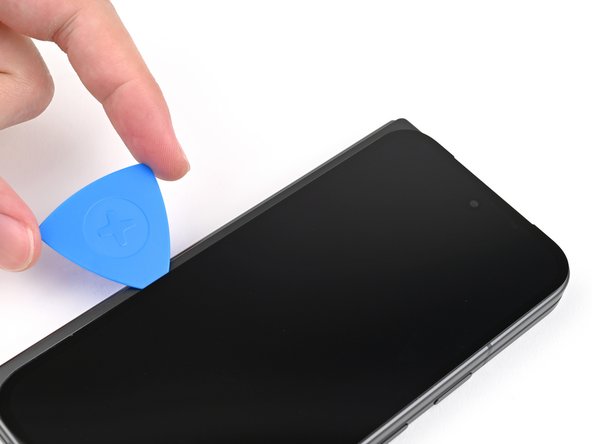
  5. Google Pixel 9 Pro Fold Flip Battery Replacement: 手順 5、 3の画像 1 Google Pixel 9 Pro Fold Flip Battery Replacement: 手順 5、 3の画像 2 Google Pixel 9 Pro Fold Flip Battery Replacement: 手順 5、 3の画像 3
    • Pull the opening pick out so only the tip is under the screen.

    • Slide the opening pick across the top edge of the screen until you're past the front camera.

    • Push your pick to its original depth before continuing.

  6. Google Pixel 9 Pro Fold Flip Battery Replacement: 手順 6、 3の画像 1 Google Pixel 9 Pro Fold Flip Battery Replacement: 手順 6、 3の画像 2 Google Pixel 9 Pro Fold Flip Battery Replacement: 手順 6、 3の画像 3
    • Slide the opening pick around the top left corner and stop about two‑thirds down the left edge of the screen.

    • Don't slide the pick any farther, or you risk damaging the display cable.

  7. Google Pixel 9 Pro Fold Flip Battery Replacement: 手順 7、 3の画像 1 Google Pixel 9 Pro Fold Flip Battery Replacement: 手順 7、 3の画像 2 Google Pixel 9 Pro Fold Flip Battery Replacement: 手順 7、 3の画像 3
    • Pull the opening pick out to a 2 mm depth and rotate the pick around the bottom left corner to separate the remaining adhesive.

  8. Google Pixel 9 Pro Fold Flip Battery Replacement: 手順 8、 3の画像 1 Google Pixel 9 Pro Fold Flip Battery Replacement: 手順 8、 3の画像 2 Google Pixel 9 Pro Fold Flip Battery Replacement: 手順 8、 3の画像 3
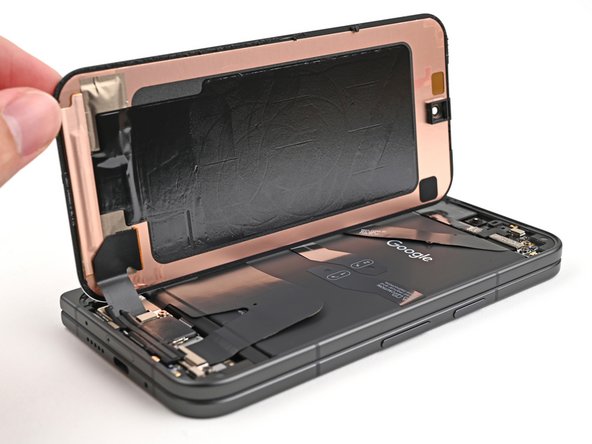
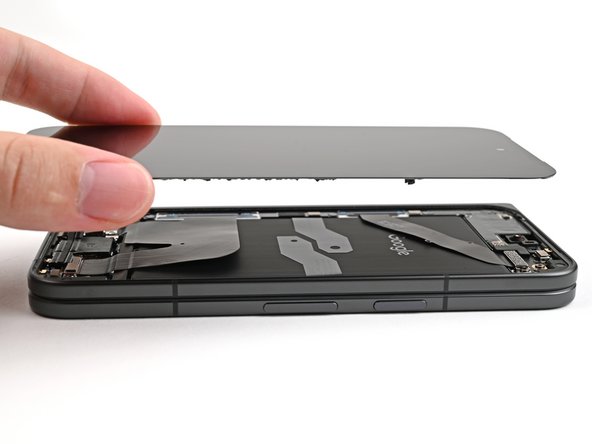
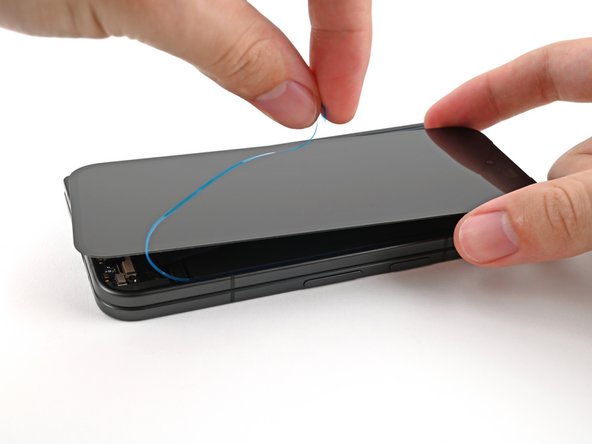
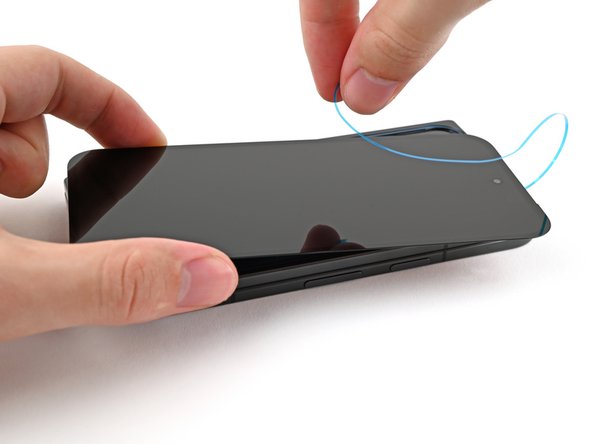
    • Don't fully remove the screen yet, as it's still connected to the phone by a cable.

    • At this point, the screen should be free from the frame. If there's still resistance around the edges, use an opening pick to separate any remaining adhesive.

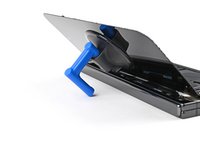
    • Lift the right edge of the screen and swing it over the left edge of the phone, like opening a book.

    • Prop up the screen with your suction handle or a clean, sturdy object.

  9. Google Pixel 9 Pro Fold Flip Battery Replacement, Remove the display cable bracket screw: 手順 9、 2の画像 1 Google Pixel 9 Pro Fold Flip Battery Replacement, Remove the display cable bracket screw: 手順 9、 2の画像 2
    この手順で使用する道具:
    FixMat
    $31.41
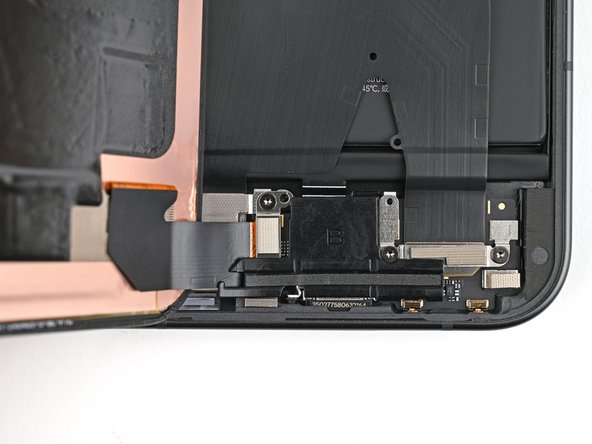
    • Throughout this repair, keep track of each screw and make sure it goes back exactly where it came from.

    • While the Pixel 9 Pro Fold uses Torx Plus screws, standard Torx bits also work. Use the same size or one size larger (T3 or T4 Torx bits with 3IP Torx Plus screws) and apply constant, downward force to prevent stripping.

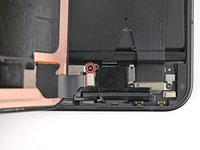
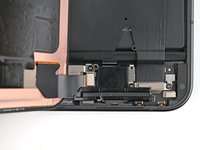
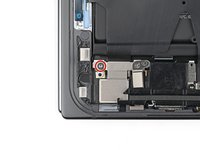
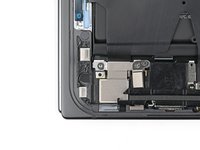
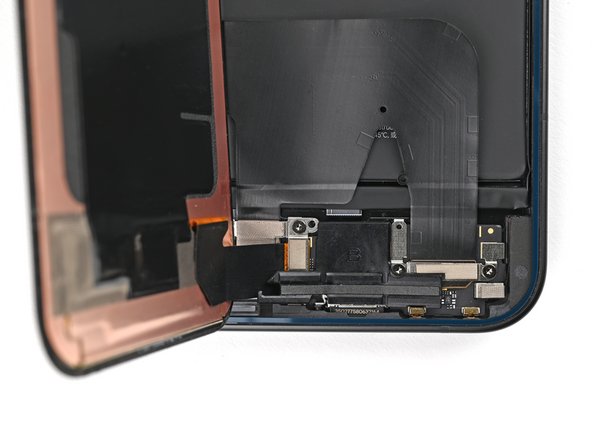
    • Use a Torx Plus 3IP driver to remove the 2.2 mm‑long screw securing the display cable bracket.

  10. Google Pixel 9 Pro Fold Flip Battery Replacement: 手順 10、 2の画像 1 Google Pixel 9 Pro Fold Flip Battery Replacement: 手順 10、 2の画像 2
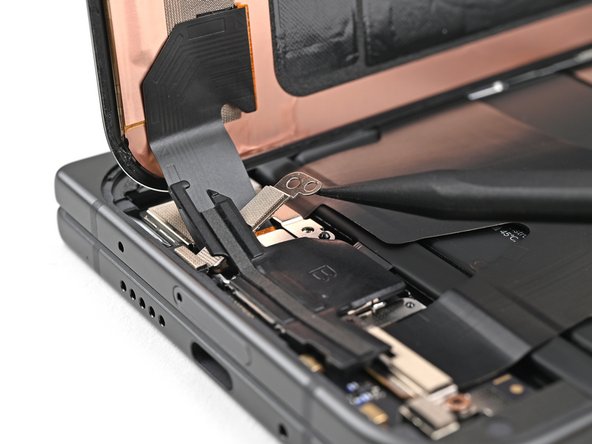
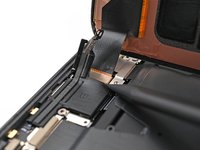
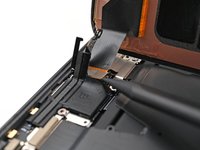
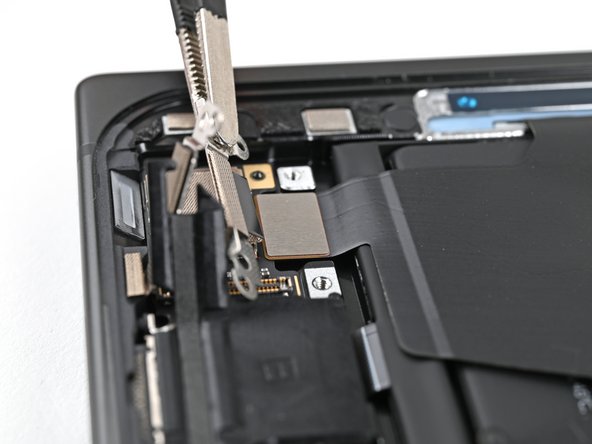
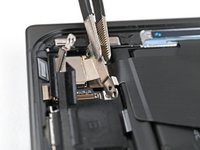
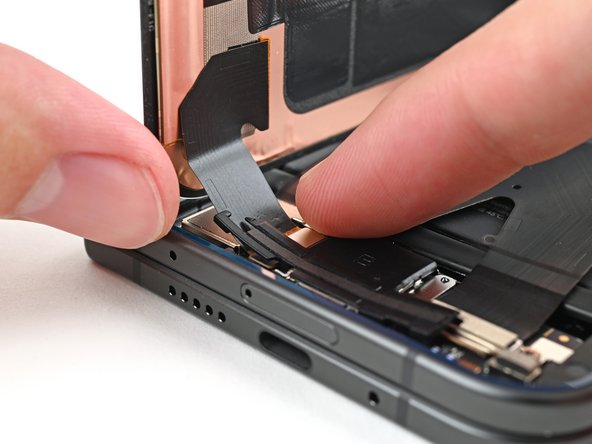
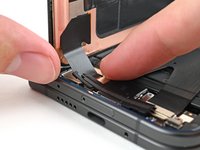
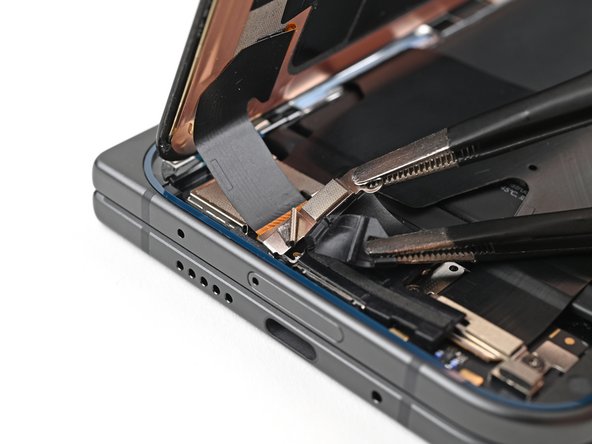
    • Conductive tape secures the display cable bracket to the frame.

    • Use a spudger, or your fingers, to lift the display cable bracket enough to access the press connector underneath.

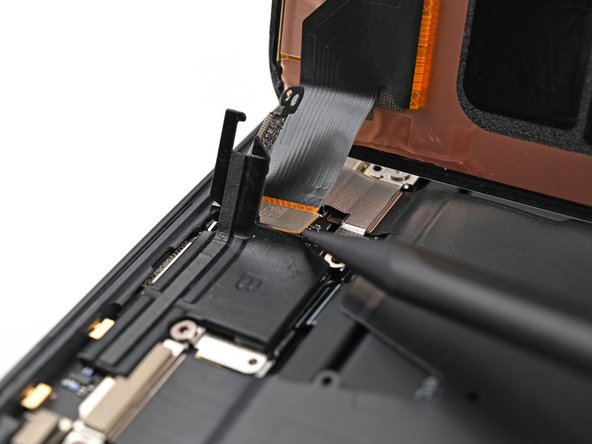
  11. Google Pixel 9 Pro Fold Flip Battery Replacement, Disconnect the display cable: 手順 11、 2の画像 1 Google Pixel 9 Pro Fold Flip Battery Replacement, Disconnect the display cable: 手順 11、 2の画像 2
    • Use the point of a spudger to pry up and disconnect the display cable press connector.

  12. Google Pixel 9 Pro Fold Flip Battery Replacement, Remove the screen: 手順 12、 1の画像 1
    • Lift the screen off the frame and remove it.

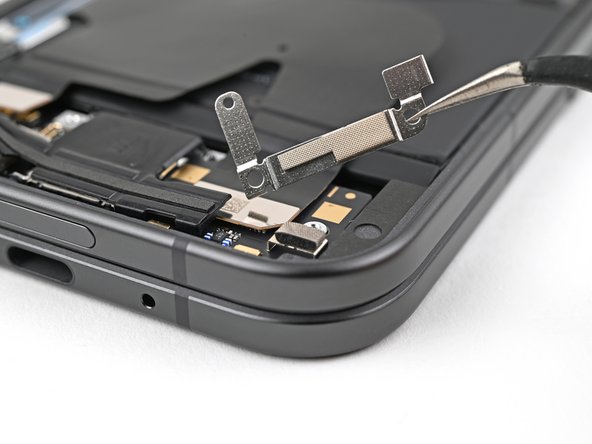
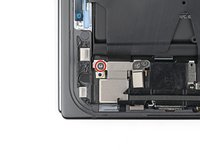
  13. Google Pixel 9 Pro Fold Flip Battery Replacement, Remove the battery bracket screw: 手順 13、 2の画像 1 Google Pixel 9 Pro Fold Flip Battery Replacement, Remove the battery bracket screw: 手順 13、 2の画像 2
    • Use a Torx Plus 3IP driver to remove the 2.0 mm‑long screw securing the battery bracket.

  14. Google Pixel 9 Pro Fold Flip Battery Replacement, Disconnect the battery: 手順 14、 2の画像 1 Google Pixel 9 Pro Fold Flip Battery Replacement, Disconnect the battery: 手順 14、 2の画像 2
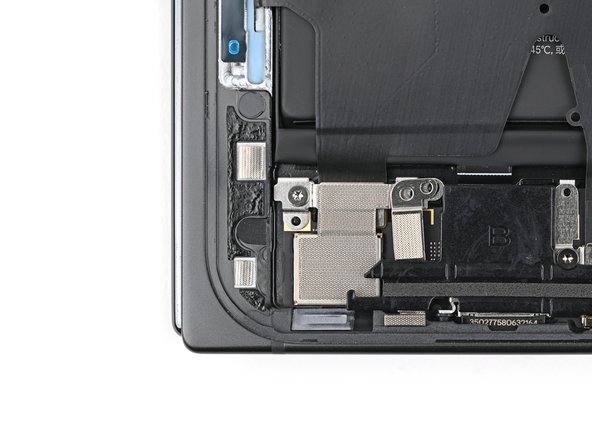
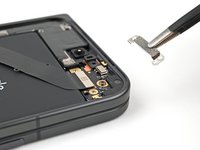
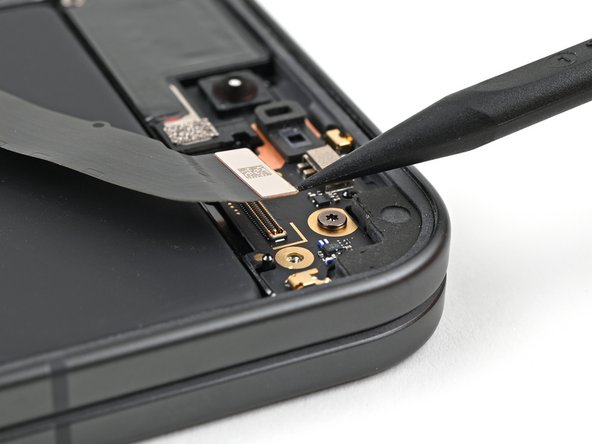
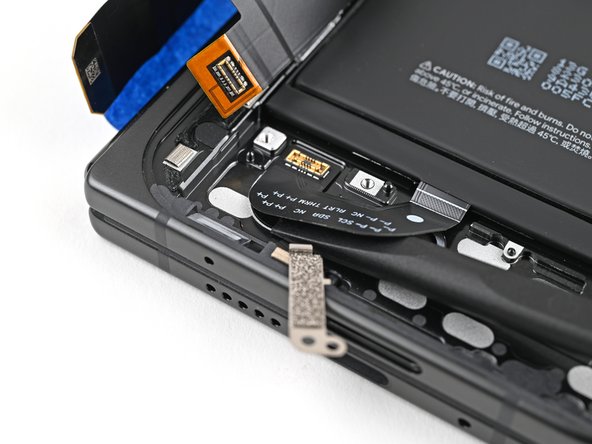
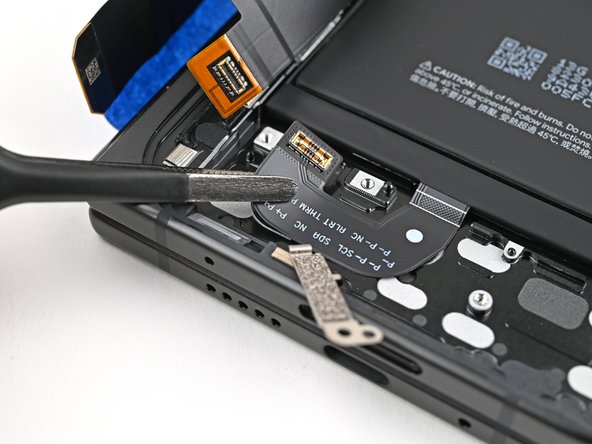
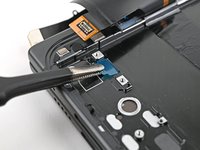
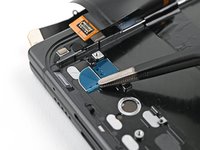
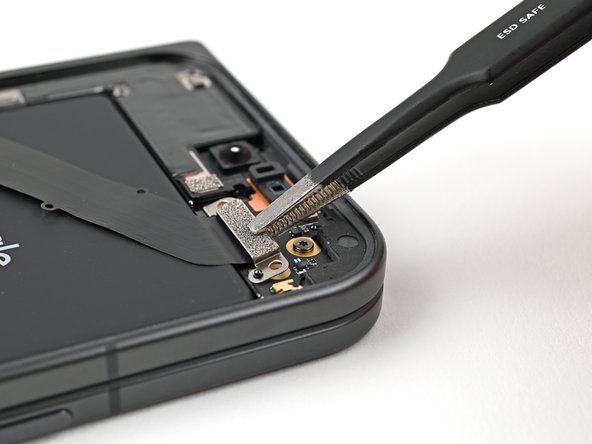
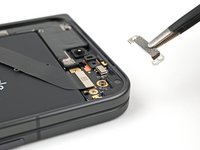
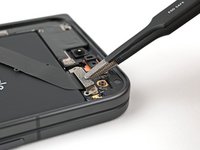
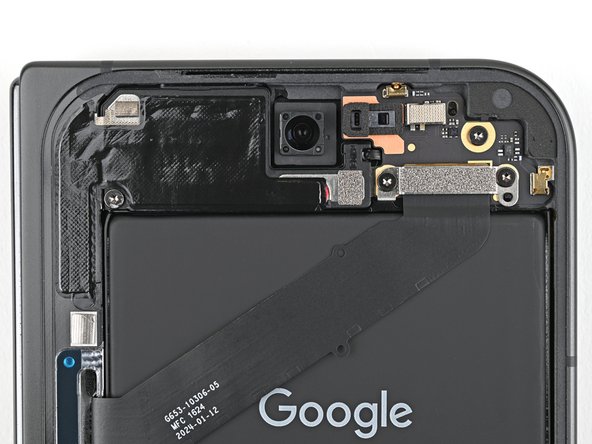
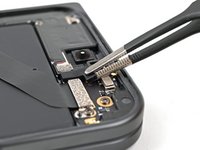
    • Conductive tape secures the battery connector bracket to the lower board.

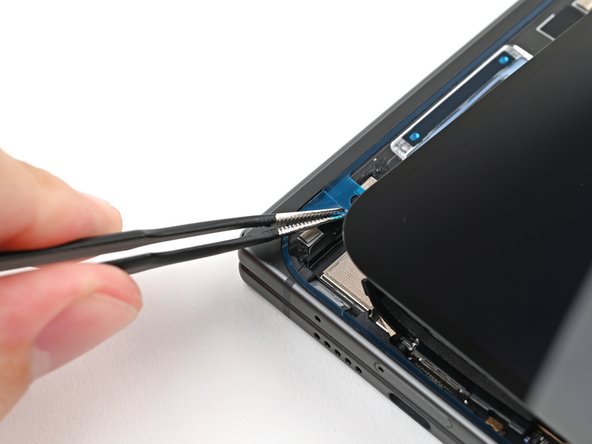
    • Use tweezers, or your fingers, to move the battery bracket out of the way of the battery press connector.

  15. Google Pixel 9 Pro Fold Flip Battery Replacement: 手順 15、 2の画像 1 Google Pixel 9 Pro Fold Flip Battery Replacement: 手順 15、 2の画像 2
    • Use the point of a spudger to pry up and disconnect the battery press connector.

  16. Google Pixel 9 Pro Fold Flip Battery Replacement, Remove the rubber block: 手順 16、 2の画像 1 Google Pixel 9 Pro Fold Flip Battery Replacement, Remove the rubber block: 手順 16、 2の画像 2
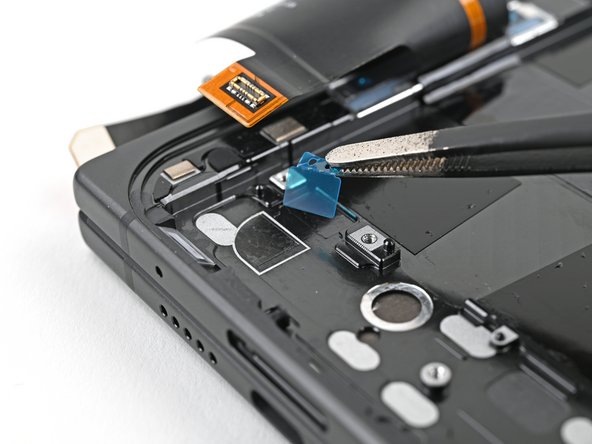
    • Use tweezers, or your fingers, to remove the rubber block covering a screw on the top board.

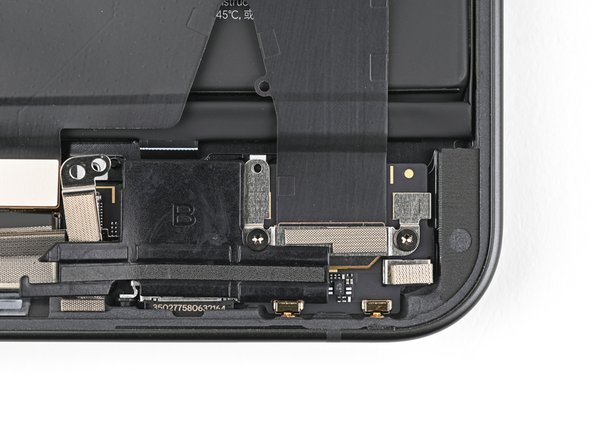
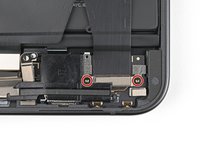
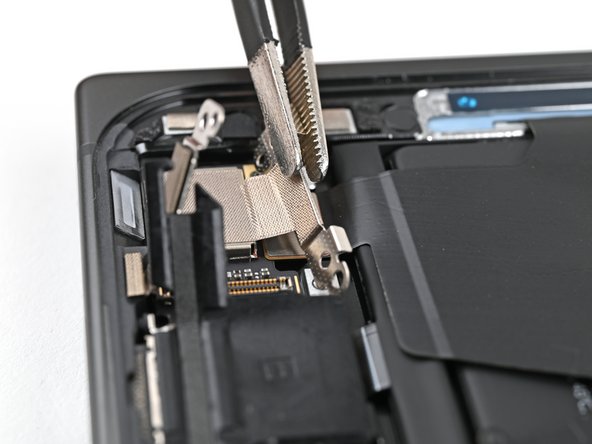
  17. Google Pixel 9 Pro Fold Flip Battery Replacement, Remove the top interconnect cable bracket screws: 手順 17、 2の画像 1 Google Pixel 9 Pro Fold Flip Battery Replacement, Remove the top interconnect cable bracket screws: 手順 17、 2の画像 2
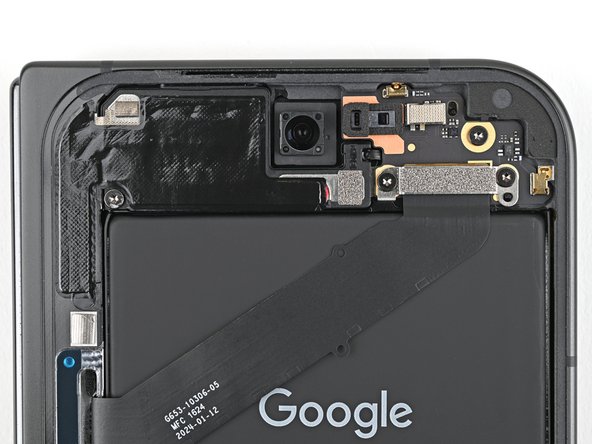
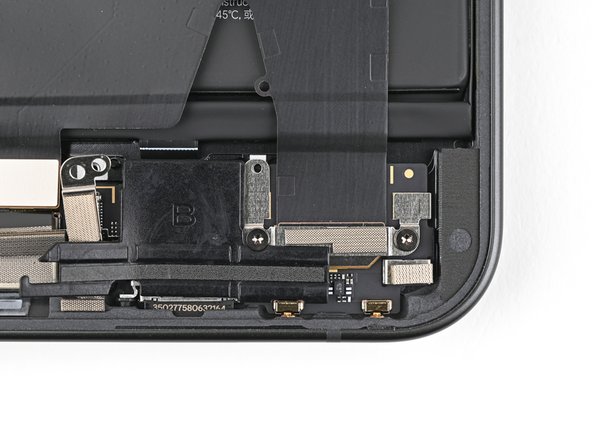
    • Use a Torx Plus 3IP driver to remove the two 2.2 mm‑long screws securing the top interconnect cable bracket.

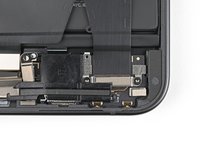
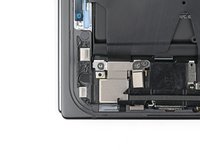
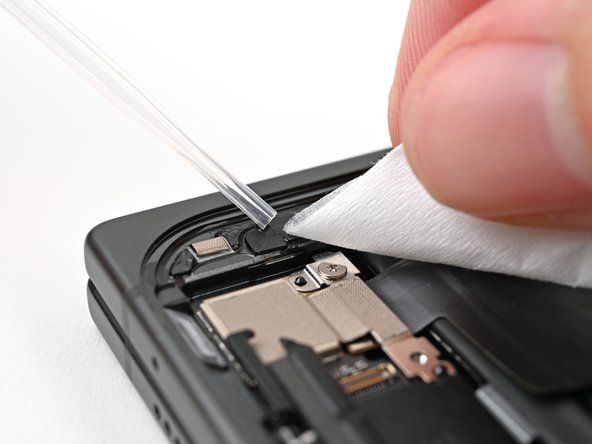
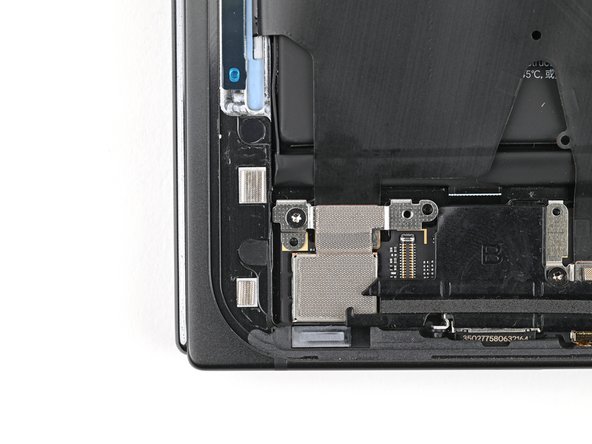
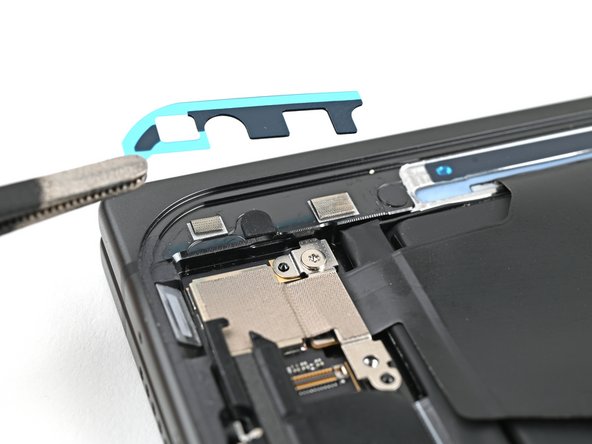
  18. Google Pixel 9 Pro Fold Flip Battery Replacement, Remove the top interconnect cable bracket: 手順 18、 2の画像 1 Google Pixel 9 Pro Fold Flip Battery Replacement, Remove the top interconnect cable bracket: 手順 18、 2の画像 2
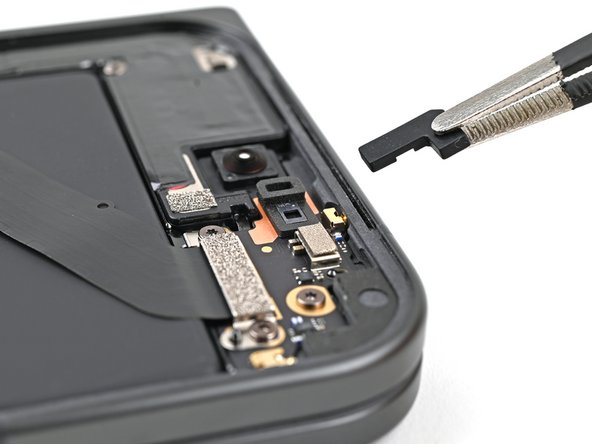
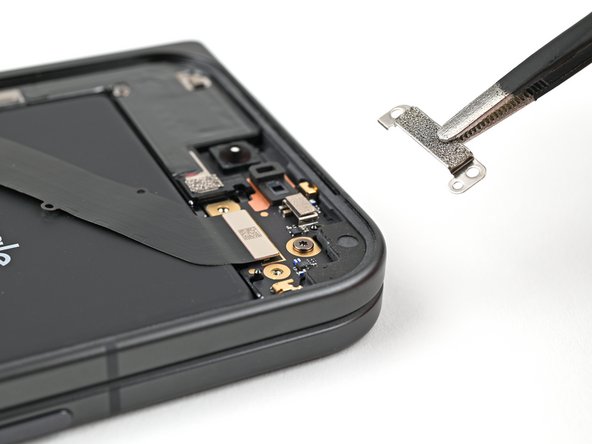
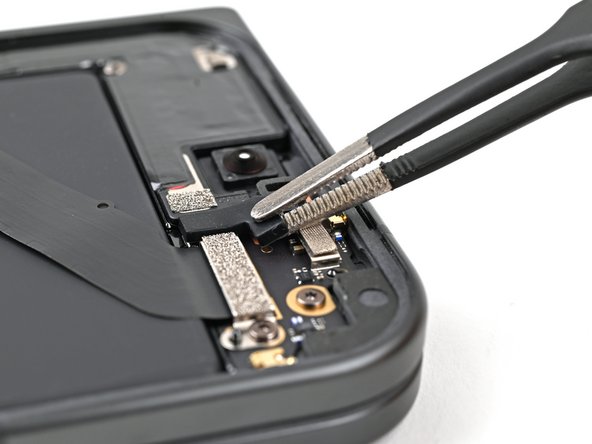
    • Use tweezers, or your fingers, to remove the top interconnect cable bracket.

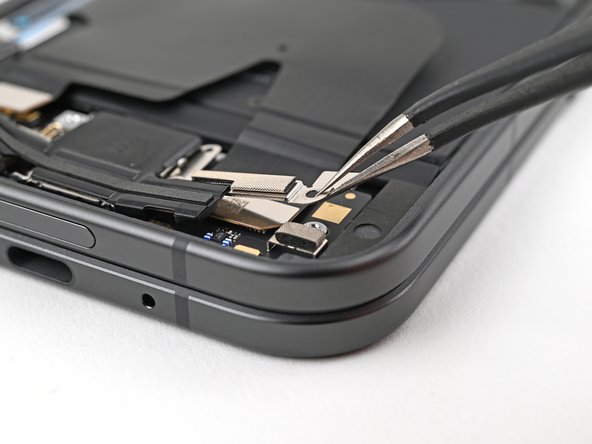
  19. Google Pixel 9 Pro Fold Flip Battery Replacement, Disconnect the top interconnect cable: 手順 19、 2の画像 1 Google Pixel 9 Pro Fold Flip Battery Replacement, Disconnect the top interconnect cable: 手順 19、 2の画像 2
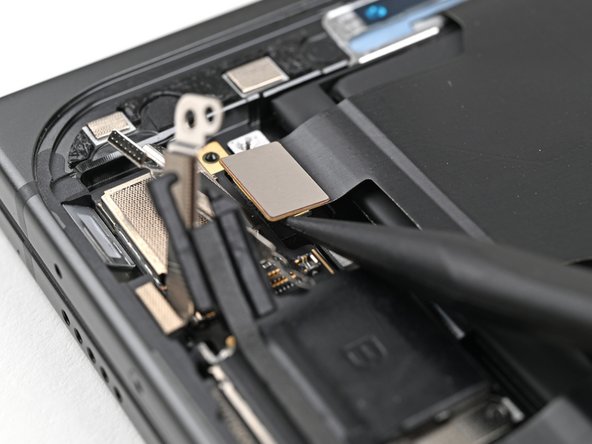
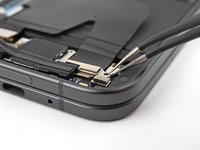
    • Insert the point of a spudger under the top right corner of the top interconnect cable press connector, near the golden marker.

    • Pry up and disconnect the top interconnect cable press connector.

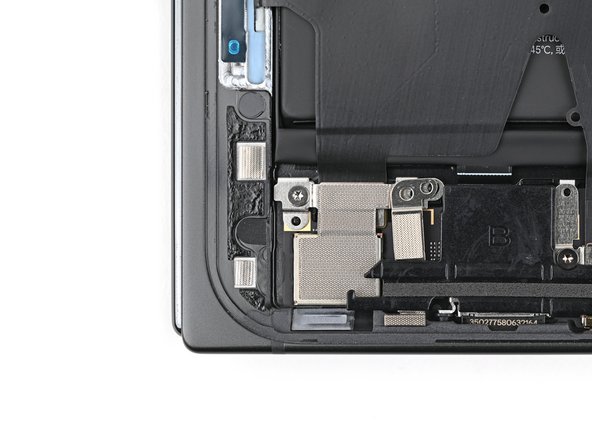
  20. Google Pixel 9 Pro Fold Flip Battery Replacement, Remove the bottom interconnect cable bracket screws: 手順 20、 2の画像 1 Google Pixel 9 Pro Fold Flip Battery Replacement, Remove the bottom interconnect cable bracket screws: 手順 20、 2の画像 2
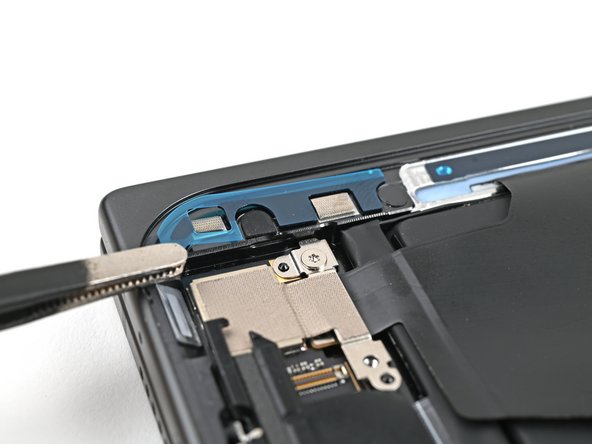
    • Use a Torx Plus 3IP driver to remove the two 2.2 mm‑long screws securing the bottom interconnect cable bracket.

  21. Google Pixel 9 Pro Fold Flip Battery Replacement, Remove the bottom interconnect cable bracket: 手順 21、 3の画像 1 Google Pixel 9 Pro Fold Flip Battery Replacement, Remove the bottom interconnect cable bracket: 手順 21、 3の画像 2 Google Pixel 9 Pro Fold Flip Battery Replacement, Remove the bottom interconnect cable bracket: 手順 21、 3の画像 3
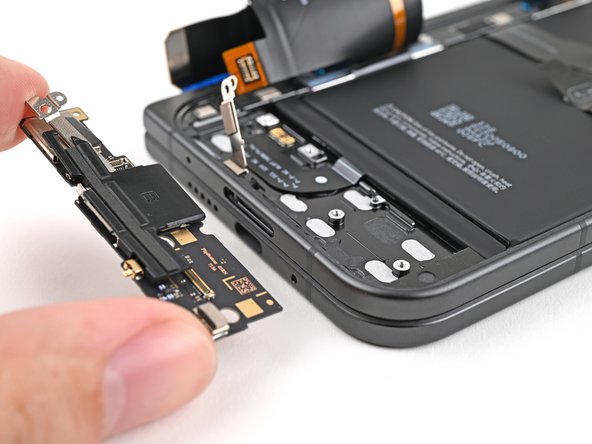
    • Use tweezers, or your fingers, to remove the bottom interconnect cable bracket from the lower board.

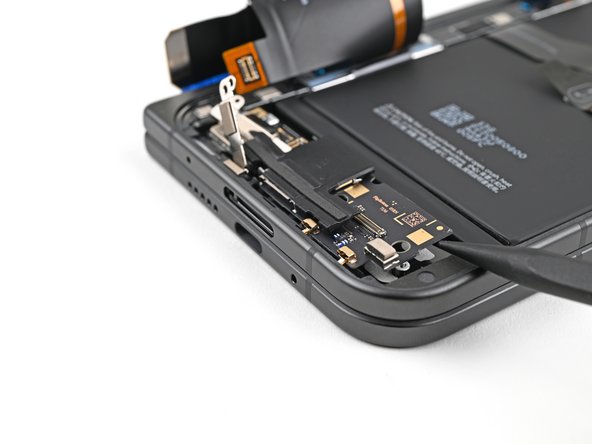
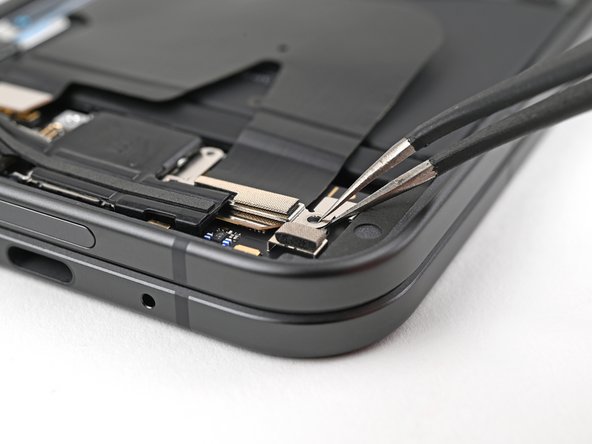
  22. Google Pixel 9 Pro Fold Flip Battery Replacement, Disconnect the bottom interconnect cable: 手順 22、 2の画像 1 Google Pixel 9 Pro Fold Flip Battery Replacement, Disconnect the bottom interconnect cable: 手順 22、 2の画像 2
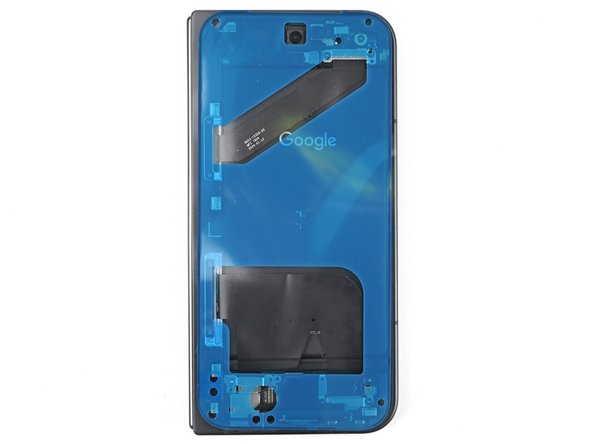
    • Insert a spudger under the right edge of the bottom interconnect cable press connector.

    • Don't insert your spudger anywhere else, as you risk dislodging surface‑mounted components.

    • Pry up and disconnect the bottom interconnect cable.

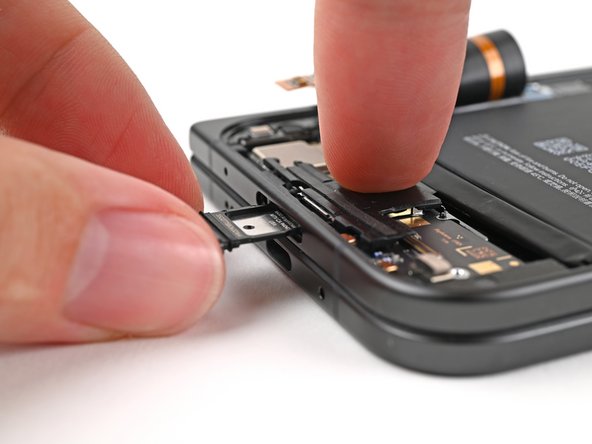
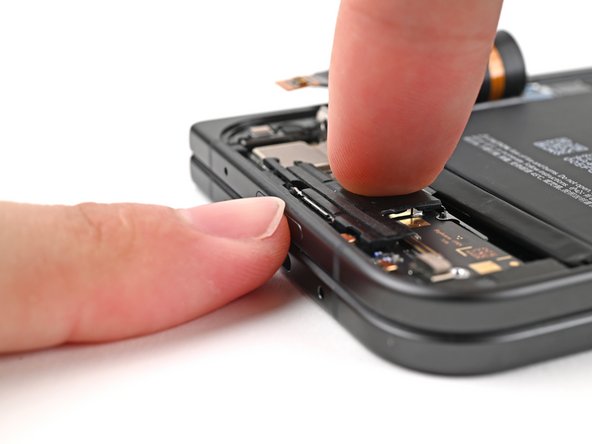
  23. Google Pixel 9 Pro Fold Flip Battery Replacement, Remove the SIM card tray: 手順 23、 3の画像 1 Google Pixel 9 Pro Fold Flip Battery Replacement, Remove the SIM card tray: 手順 23、 3の画像 2 Google Pixel 9 Pro Fold Flip Battery Replacement, Remove the SIM card tray: 手順 23、 3の画像 3
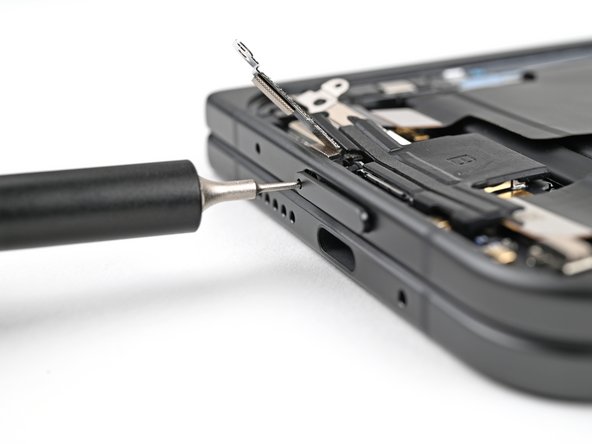
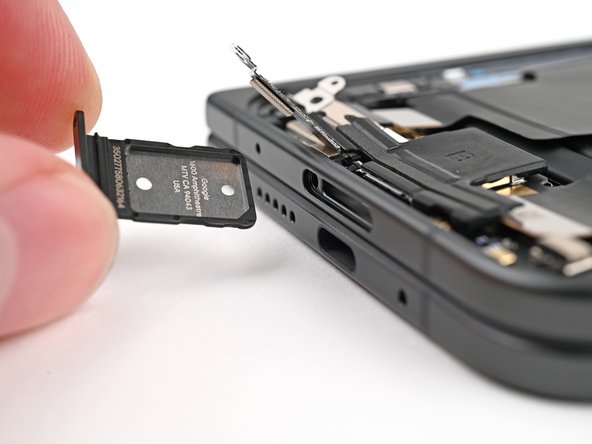
    • Insert a SIM eject tool, bit, or straightened paper clip into the SIM card tray hole and press firmly to eject it.

    • Remove the SIM card tray.

  24. Google Pixel 9 Pro Fold Flip Battery Replacement, Reposition the bottom interconnect cable: 手順 24、 2の画像 1 Google Pixel 9 Pro Fold Flip Battery Replacement, Reposition the bottom interconnect cable: 手順 24、 2の画像 2
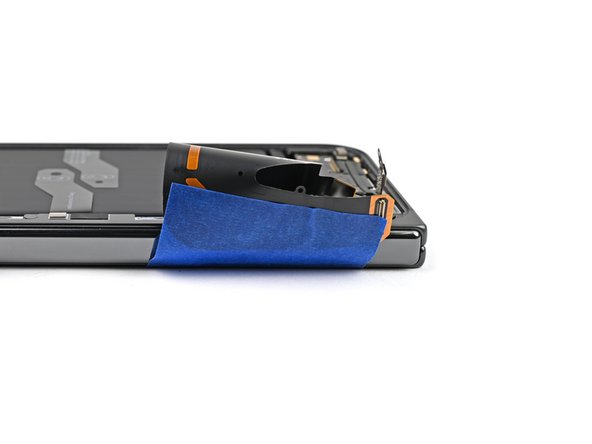
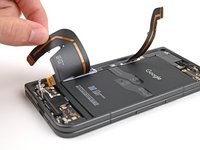
    • During the next step, you'll need to hold the bottom interconnect cable out of the way. Alternatively, you can use tape with a light adhesive, like painter's tape, to secure the cable to the side of the phone.

  25. Google Pixel 9 Pro Fold Flip Battery Replacement, Remove the lower board: 手順 25、 3の画像 1 Google Pixel 9 Pro Fold Flip Battery Replacement, Remove the lower board: 手順 25、 3の画像 2 Google Pixel 9 Pro Fold Flip Battery Replacement, Remove the lower board: 手順 25、 3の画像 3
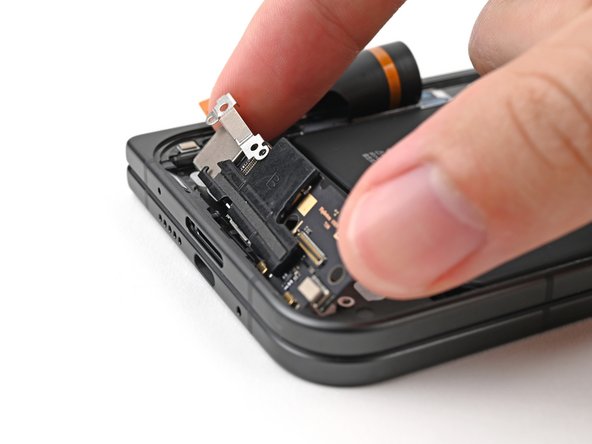
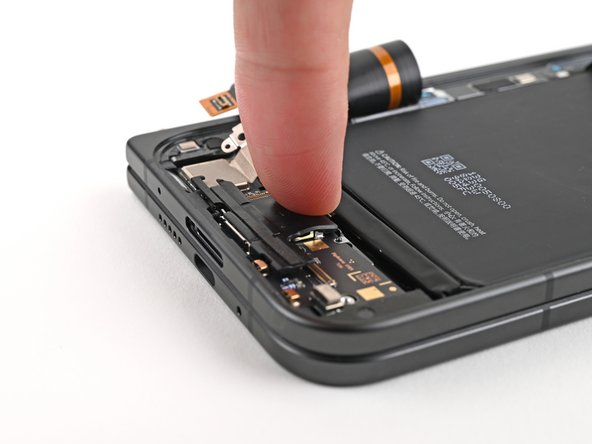
    • Use the tip of a spudger to lift up the top right corner of the lower board and unclip it from the frame.

    • Remove the lower board.

  26. Google Pixel 9 Pro Fold Flip Battery Replacement, Separate the battery cable adhesive: 手順 26、 3の画像 1 Google Pixel 9 Pro Fold Flip Battery Replacement, Separate the battery cable adhesive: 手順 26、 3の画像 2 Google Pixel 9 Pro Fold Flip Battery Replacement, Separate the battery cable adhesive: 手順 26、 3の画像 3
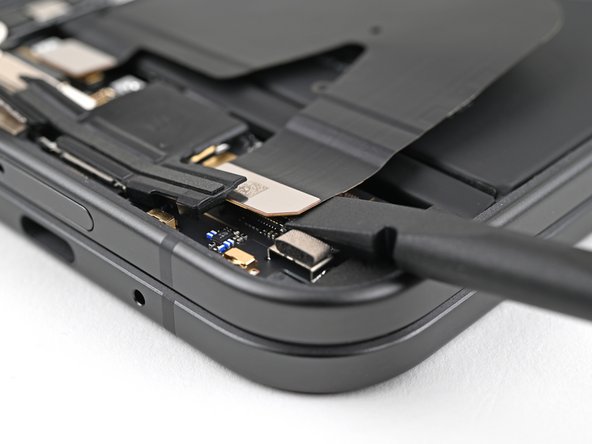
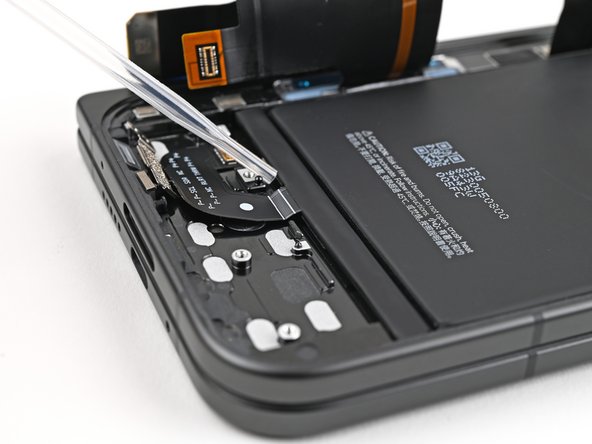
    • Slide the flat end of a spudger under the flip battery cable to separate the adhesive.

    • Use tweezers, or your fingers, to lift the flip battery cable connector and fully separate it from the frame.

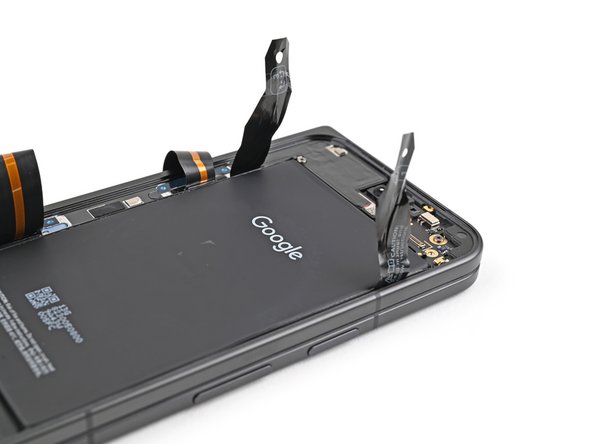
  27. Google Pixel 9 Pro Fold Flip Battery Replacement, Remove the flip battery: 手順 27、 3の画像 1 Google Pixel 9 Pro Fold Flip Battery Replacement, Remove the flip battery: 手順 27、 3の画像 2 Google Pixel 9 Pro Fold Flip Battery Replacement, Remove the flip battery: 手順 27、 3の画像 3
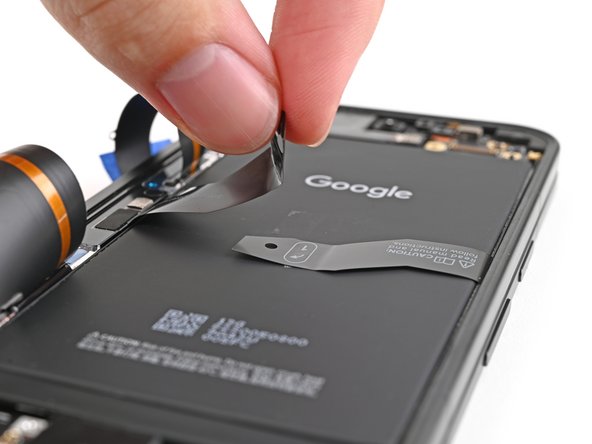
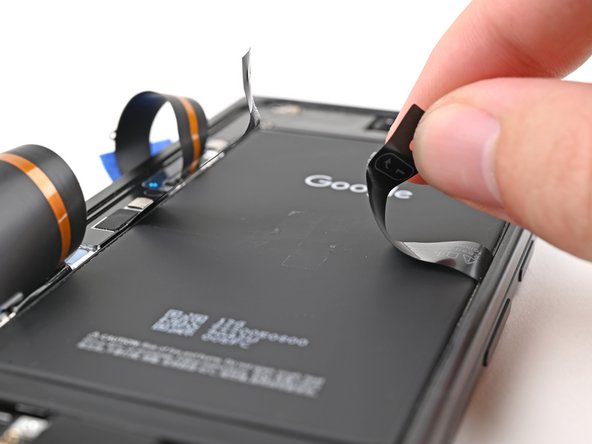
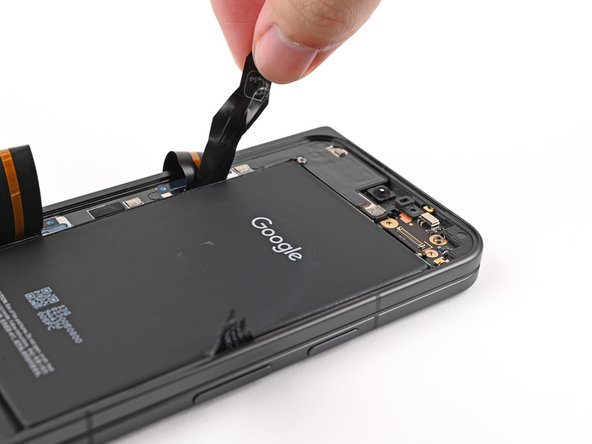
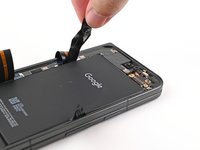
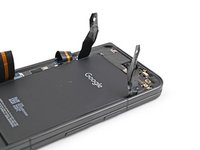
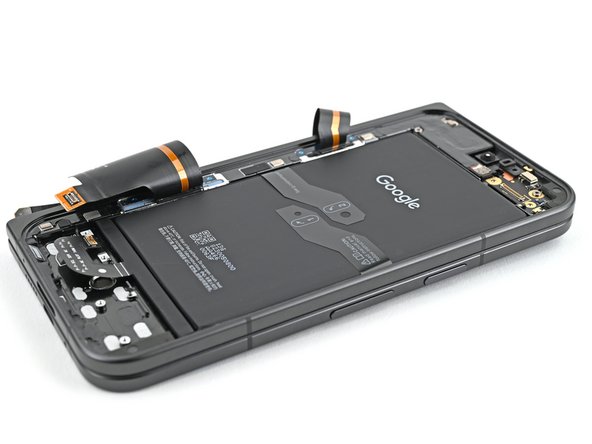
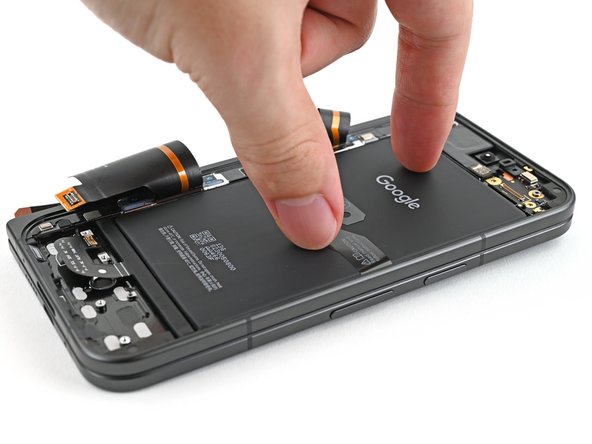
    • Use your fingers to peel both edges of the flip battery pull tabs off the battery.

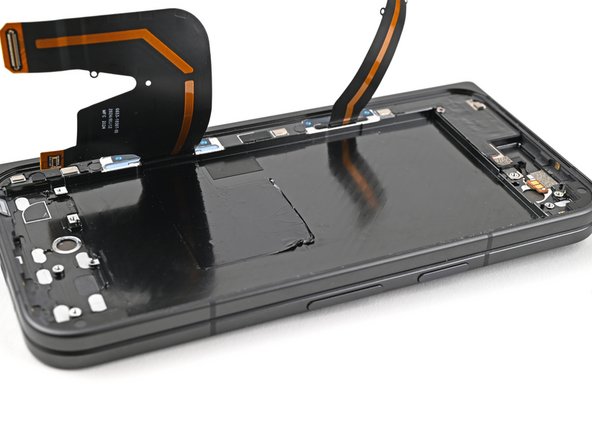
  28. Google Pixel 9 Pro Fold Flip Battery Replacement: 手順 28、 1の画像 1
    • Unfold your phone and flip it so the inner screen is facing upward.

    • Use a hair dryer, or a heat gun, to heat the section of inner screen behind the flip battery (the side with the SIM card cutout) until it's barely too hot to touch.

    • Don't heat the screen longer than 30 seconds, as it's susceptible to heat damage.

  29. Google Pixel 9 Pro Fold Flip Battery Replacement: 手順 29、 3の画像 1 Google Pixel 9 Pro Fold Flip Battery Replacement: 手順 29、 3の画像 2 Google Pixel 9 Pro Fold Flip Battery Replacement: 手順 29、 3の画像 3
    • Fold your phone and turn it so the flip battery is facing up.

    • Pull up on alternating sides of the pull tab to slice through the adhesive on the upper half of the flip battery, stopping once you get to the top edge.

    • Try to not lose one of the sides of the pull tab under the battery. If you do, don't worry! Move to the next step for an alternate method to remove the battery.

  30. Google Pixel 9 Pro Fold Flip Battery Replacement, Apply isopropyl alcohol: 手順 30、 2の画像 1 Google Pixel 9 Pro Fold Flip Battery Replacement, Apply isopropyl alcohol: 手順 30、 2の画像 2
    • The remaining adhesive is extremely strong. To avoid bending the battery, the next three steps show how to use isopropyl alcohol and a suction handle to remove it.

    • Apply a few drops of isopropyl alcohol (>90%) under the bottom edge of the flip battery.

  31. Google Pixel 9 Pro Fold Flip Battery Replacement: 手順 31、 2の画像 1 Google Pixel 9 Pro Fold Flip Battery Replacement: 手順 31、 2の画像 2
    • Lift the bottom edge of the phone to let the isopropyl alcohol flow under the battery.

    • Wait one minute for the alcohol to soften the adhesive.

  32. Google Pixel 9 Pro Fold Flip Battery Replacement, Remove the flip battery: 手順 32、 3の画像 1 Google Pixel 9 Pro Fold Flip Battery Replacement, Remove the flip battery: 手順 32、 3の画像 2 Google Pixel 9 Pro Fold Flip Battery Replacement, Remove the flip battery: 手順 32、 3の画像 3
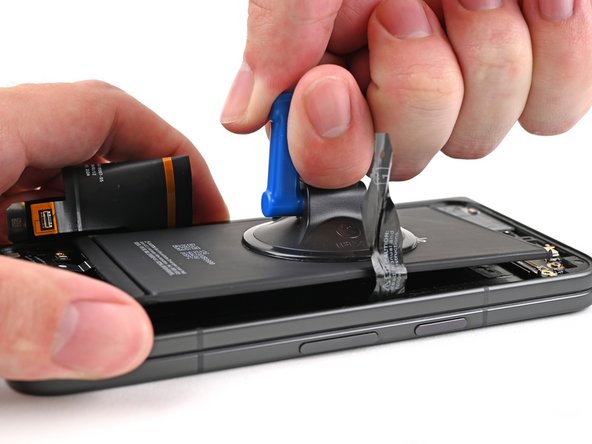
    • Apply a suction handle to the center of the flip battery.

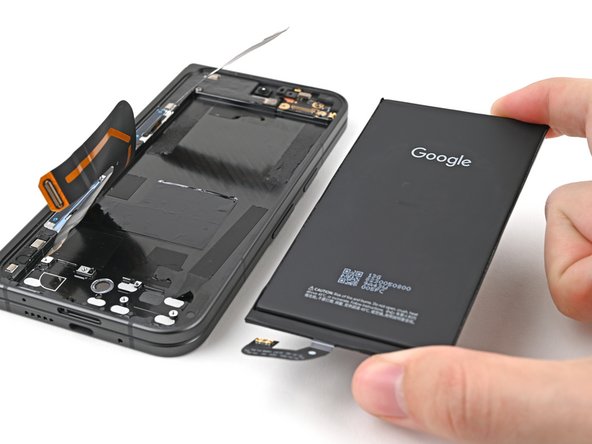
    • While securing the phone with one hand, pull up on the suction cup with strong, steady force to separate the flip battery from the frame.

    • If the flip battery doesn't budge after applying constant pressure, apply more isopropyl alcohol and try again.

    • Remove the flip battery.

  33. Google Pixel 9 Pro Fold Flip Battery Replacement, End of disassembly: 手順 33、 1の画像 1
    • Congratulations on completing disassembly! The remaining steps will show you how to reassemble your device.

  34. Google Pixel 9 Pro Fold Flip Battery Replacement, Remove the old adhesive: 手順 34、 3の画像 1 Google Pixel 9 Pro Fold Flip Battery Replacement, Remove the old adhesive: 手順 34、 3の画像 2 Google Pixel 9 Pro Fold Flip Battery Replacement, Remove the old adhesive: 手順 34、 3の画像 3
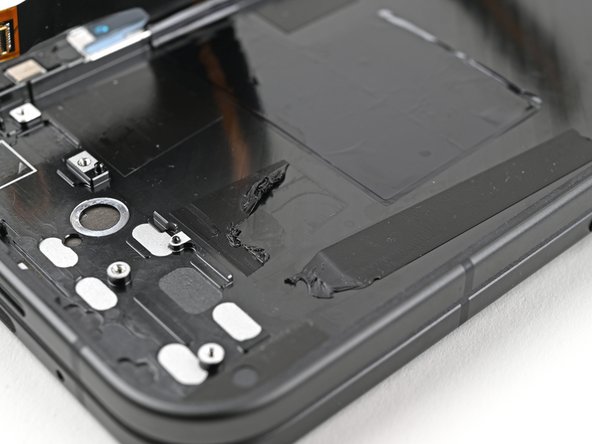
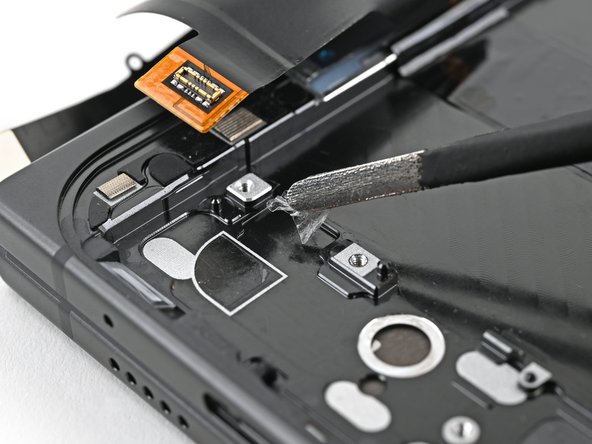
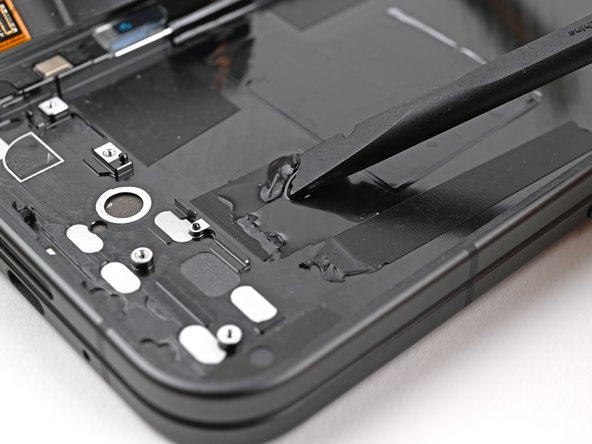
    • Use tweezers, or your fingers, to remove the old flip battery adhesive from the frame.

  35. Google Pixel 9 Pro Fold Flip Battery Replacement: 手順 35、 3の画像 1 Google Pixel 9 Pro Fold Flip Battery Replacement: 手順 35、 3の画像 2 Google Pixel 9 Pro Fold Flip Battery Replacement: 手順 35、 3の画像 3
    • Apply isopropyl alcohol (>90%) and use a coffee filter or microfiber cloth to clean any adhesive residue.

  36. Google Pixel 9 Pro Fold Flip Battery Replacement, Apply the new adhesive: 手順 36、 3の画像 1 Google Pixel 9 Pro Fold Flip Battery Replacement, Apply the new adhesive: 手順 36、 3の画像 2 Google Pixel 9 Pro Fold Flip Battery Replacement, Apply the new adhesive: 手順 36、 3の画像 3
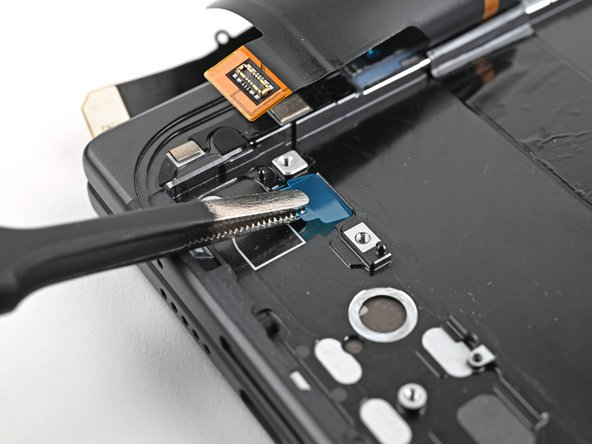
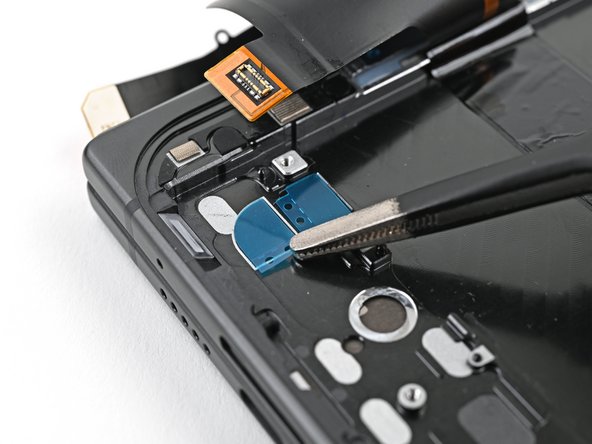
    • The adhesives for the flip battery cable and connector are separate from the main adhesive strip.

    • Place the flip battery cable and connector adhesives over the frame, using the white outlines to confirm their orientation.

    • The clear liners should face the frame.

    • Peel the adhesive strips off their liners and place them over their respective spots on the frame.

  37. Google Pixel 9 Pro Fold Flip Battery Replacement: 手順 37、 2の画像 1 Google Pixel 9 Pro Fold Flip Battery Replacement: 手順 37、 2の画像 2
    • Use the flat end of a spudger, or your fingers, to press down on the adhesive strips to adhere them to the frame.

  38. Google Pixel 9 Pro Fold Flip Battery Replacement: 手順 38、 3の画像 1 Google Pixel 9 Pro Fold Flip Battery Replacement: 手順 38、 3の画像 2 Google Pixel 9 Pro Fold Flip Battery Replacement: 手順 38、 3の画像 3
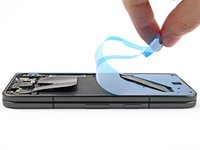
    • Peel the main flip battery adhesive strip from its clear liner.

    • Align the top edge of the adhesive strip with the top edge of the battery recess.

    • The pull tab should be in the bottom left corner of the frame.

    • Lay the adhesive strip on the frame.

  39. Google Pixel 9 Pro Fold Flip Battery Replacement: 手順 39、 2の画像 1 Google Pixel 9 Pro Fold Flip Battery Replacement: 手順 39、 2の画像 2
    • Use the flat end of a spudger, or your fingers, to press down the individual adhesive strips to adhere them to the frame.

  40. Google Pixel 9 Pro Fold Flip Battery Replacement: 手順 40、 3の画像 1 Google Pixel 9 Pro Fold Flip Battery Replacement: 手順 40、 3の画像 2 Google Pixel 9 Pro Fold Flip Battery Replacement: 手順 40、 3の画像 3
    • Use the pull tab to peel the colored liner off to expose the adhesive.

  41. Google Pixel 9 Pro Fold Flip Battery Replacement: 手順 41、 2の画像 1 Google Pixel 9 Pro Fold Flip Battery Replacement: 手順 41、 2の画像 2
    • Peel off the colored liners on the flip battery cable and connector adhesive.

  42. Google Pixel 9 Pro Fold Flip Battery Replacement, Secure the flip battery: 手順 42、 2の画像 1 Google Pixel 9 Pro Fold Flip Battery Replacement, Secure the flip battery: 手順 42、 2の画像 2
    • Align the top edge of the flip battery with the top edge of the battery well.

    • Lay the battery over the frame.

  43. Google Pixel 9 Pro Fold Flip Battery Replacement: 手順 43、 3の画像 1 Google Pixel 9 Pro Fold Flip Battery Replacement: 手順 43、 3の画像 2 Google Pixel 9 Pro Fold Flip Battery Replacement: 手順 43、 3の画像 3
    • Press down along the perimeter of the flip battery to adhere it to the frame.

    • Press down the flip battery cable and its connector to adhere it.

    • Let the phone sit for an hour for the adhesive to cure.

  44. Google Pixel 9 Pro Fold Flip Battery Replacement, Reinstall the lower board: 手順 44、 3の画像 1 Google Pixel 9 Pro Fold Flip Battery Replacement, Reinstall the lower board: 手順 44、 3の画像 2 Google Pixel 9 Pro Fold Flip Battery Replacement, Reinstall the lower board: 手順 44、 3の画像 3
    • Press the bottom edge of the lower board against the frame at a downward angle to engage its metal spring.

    • Press the board flat to the frame, making sure the screw holes are aligned.

  45. Google Pixel 9 Pro Fold Flip Battery Replacement, Reinsert the SIM card tray: 手順 45、 3の画像 1 Google Pixel 9 Pro Fold Flip Battery Replacement, Reinsert the SIM card tray: 手順 45、 3の画像 2 Google Pixel 9 Pro Fold Flip Battery Replacement, Reinsert the SIM card tray: 手順 45、 3の画像 3
    • While holding the lower board in place, reinsert the SIM card tray.

  46. Google Pixel 9 Pro Fold Flip Battery Replacement, Reconnect the bottom interconnect cable: 手順 46、 1の画像 1
    • Reconnect the bottom interconnect cable press connector.

  47. Google Pixel 9 Pro Fold Flip Battery Replacement, Reinstall the bottom interconnect cable bracket: 手順 47、 2の画像 1 Google Pixel 9 Pro Fold Flip Battery Replacement, Reinstall the bottom interconnect cable bracket: 手順 47、 2の画像 2
    • Place the bottom interconnect cable bracket on the lower board and align its screw holes.

  48. Google Pixel 9 Pro Fold Flip Battery Replacement: 手順 48、 2の画像 1 Google Pixel 9 Pro Fold Flip Battery Replacement: 手順 48、 2の画像 2
    • Use a Torx Plus 3IP driver to install the two 2.2 mm‑long screws securing the bottom interconnect cable bracket.

  49. Google Pixel 9 Pro Fold Flip Battery Replacement, Reconnect the top interconnect cable: 手順 49、 1の画像 1
    • Reconnect the top interconnect cable press connector.

  50. Google Pixel 9 Pro Fold Flip Battery Replacement, Reinstall the top interconnect cable bracket: 手順 50、 2の画像 1 Google Pixel 9 Pro Fold Flip Battery Replacement, Reinstall the top interconnect cable bracket: 手順 50、 2の画像 2
    • Place the top interconnect cable bracket on the top board and align its screw holes.

  51. Google Pixel 9 Pro Fold Flip Battery Replacement: 手順 51、 2の画像 1 Google Pixel 9 Pro Fold Flip Battery Replacement: 手順 51、 2の画像 2
    • Use a Torx Plus 3IP driver to install the two 2.2 mm‑long screws securing the top interconnect cable bracket.

  52. Google Pixel 9 Pro Fold Flip Battery Replacement, Reinstall the rubber block: 手順 52、 2の画像 1 Google Pixel 9 Pro Fold Flip Battery Replacement, Reinstall the rubber block: 手順 52、 2の画像 2
    • Place the rubber block over its spot on the top board and press it down.

  53. Google Pixel 9 Pro Fold Flip Battery Replacement, Reconnect the flip battery: 手順 53、 1の画像 1
    • Reconnect the flip battery press connector.

  54. Google Pixel 9 Pro Fold Flip Battery Replacement, Reinstall the flip battery bracket: 手順 54、 2の画像 1 Google Pixel 9 Pro Fold Flip Battery Replacement, Reinstall the flip battery bracket: 手順 54、 2の画像 2
    • Lay the flip battery bracket over the press connector and align the screw holes.

  55. Google Pixel 9 Pro Fold Flip Battery Replacement: 手順 55、 2の画像 1 Google Pixel 9 Pro Fold Flip Battery Replacement: 手順 55、 2の画像 2
    • Use a Torx Plus 3IP driver to install the 2.0 mm‑long screw securing the battery bracket.

  56. Google Pixel 9 Pro Fold Flip Battery Replacement, Remove the old adhesive: 手順 56、 2の画像 1 Google Pixel 9 Pro Fold Flip Battery Replacement, Remove the old adhesive: 手順 56、 2の画像 2
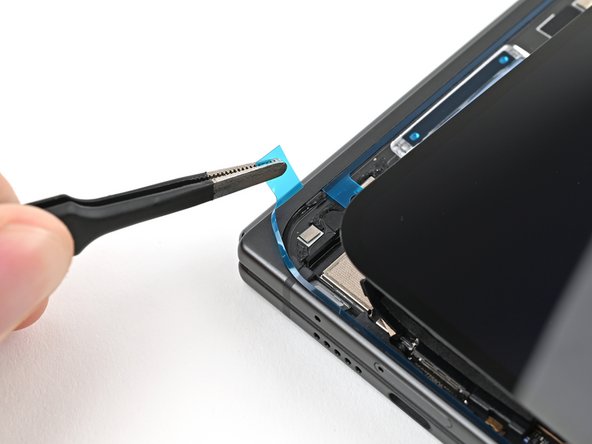
    • If your outer screen adhesive at the bottom left corner isn't sticky anymore, follow the next four steps to replace it. Otherwise, skip the next four steps.

    • Use a spudger, or your fingers, to remove the old bottom left outer screen adhesive.

    • Use isopropyl alcohol (>90%) and a coffee filter or a microfiber cloth to remove any adhesive residue.

  57. Google Pixel 9 Pro Fold Flip Battery Replacement, Compare your new adhesive: 手順 57、 2の画像 1 Google Pixel 9 Pro Fold Flip Battery Replacement, Compare your new adhesive: 手順 57、 2の画像 2
    • Before removing any liners, check if the bottom left outer screen adhesive matches the frame.

    • The clear liner should face the frame.

  58. Google Pixel 9 Pro Fold Flip Battery Replacement, Apply the new adhesive: 手順 58、 3の画像 1 Google Pixel 9 Pro Fold Flip Battery Replacement, Apply the new adhesive: 手順 58、 3の画像 2 Google Pixel 9 Pro Fold Flip Battery Replacement, Apply the new adhesive: 手順 58、 3の画像 3
    • Peel the bottom left outer screen adhesive off its clear liner to expose the adhesive.

    • Put the adhesive into place on the frame.

  59. Google Pixel 9 Pro Fold Flip Battery Replacement: 手順 59、 2の画像 1 Google Pixel 9 Pro Fold Flip Battery Replacement: 手順 59、 2の画像 2
    • Use the flat end of a spudger to press along the adhesive strip to adhere it to the frame.

  60. Google Pixel 9 Pro Fold Flip Battery Replacement, Apply the new adhesive: 手順 60、 2の画像 1 Google Pixel 9 Pro Fold Flip Battery Replacement, Apply the new adhesive: 手順 60、 2の画像 2
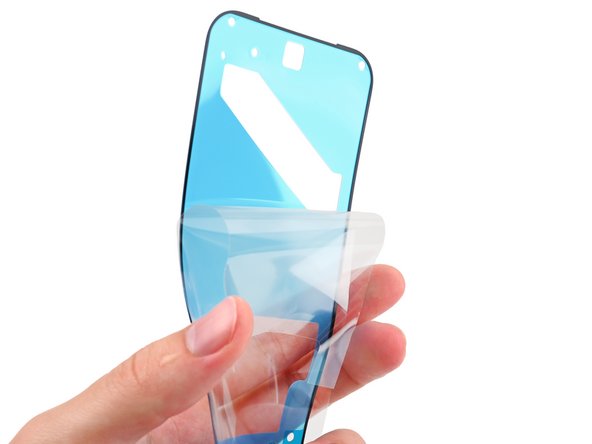
    • Before removing any liners, check if the perimeter outer screen adhesive matches the frame.

    • The clear liner should face the frame.

  61. Google Pixel 9 Pro Fold Flip Battery Replacement: 手順 61、 2の画像 1 Google Pixel 9 Pro Fold Flip Battery Replacement: 手順 61、 2の画像 2
    • Be careful during this step, as it's easy to stick the adhesive in the wrong spot. Take your time and work slowly.

    • Peel away the top half of the new adhesive strip from its clear liner and keep it folded.

  62. Google Pixel 9 Pro Fold Flip Battery Replacement: 手順 62、 2の画像 1 Google Pixel 9 Pro Fold Flip Battery Replacement: 手順 62、 2の画像 2
    • Align the top half of the adhesive over the frame, using the corners as reference points.

    • Place the adhesive on the frame.

  63. Google Pixel 9 Pro Fold Flip Battery Replacement: 手順 63、 3の画像 1 Google Pixel 9 Pro Fold Flip Battery Replacement: 手順 63、 3の画像 2 Google Pixel 9 Pro Fold Flip Battery Replacement: 手順 63、 3の画像 3
    • Use the flat end of a spudger, or your fingers, to press down the top edge of the adhesive and adhere it to the frame.

  64. Google Pixel 9 Pro Fold Flip Battery Replacement: 手順 64、 3の画像 1 Google Pixel 9 Pro Fold Flip Battery Replacement: 手順 64、 3の画像 2 Google Pixel 9 Pro Fold Flip Battery Replacement: 手順 64、 3の画像 3
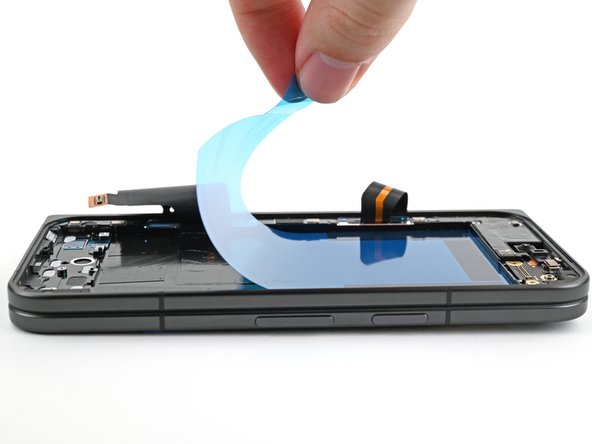
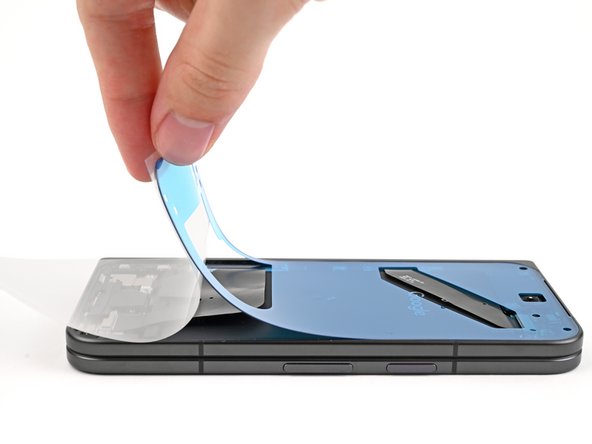
    • While peeling away the rest of the clear liner, slowly lay the rest of the adhesive over the perimeter of the phone.

  65. Google Pixel 9 Pro Fold Flip Battery Replacement: 手順 65、 3の画像 1 Google Pixel 9 Pro Fold Flip Battery Replacement: 手順 65、 3の画像 2 Google Pixel 9 Pro Fold Flip Battery Replacement: 手順 65、 3の画像 3
    • Use the flat end of a spudger, or your fingers, to press down the rest of the adhesive and adhere it to the frame.

  66. Google Pixel 9 Pro Fold Flip Battery Replacement: 手順 66、 2の画像 1 Google Pixel 9 Pro Fold Flip Battery Replacement: 手順 66、 2の画像 2
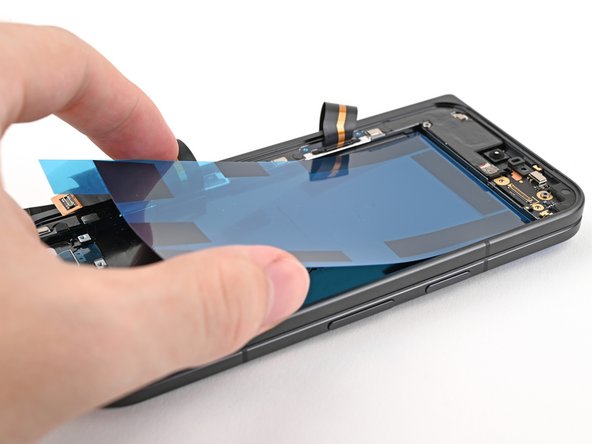
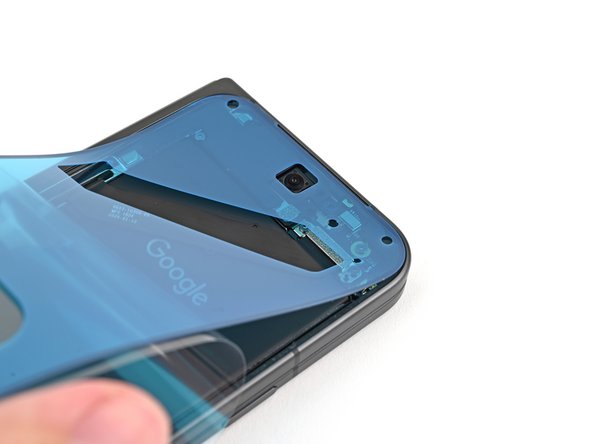
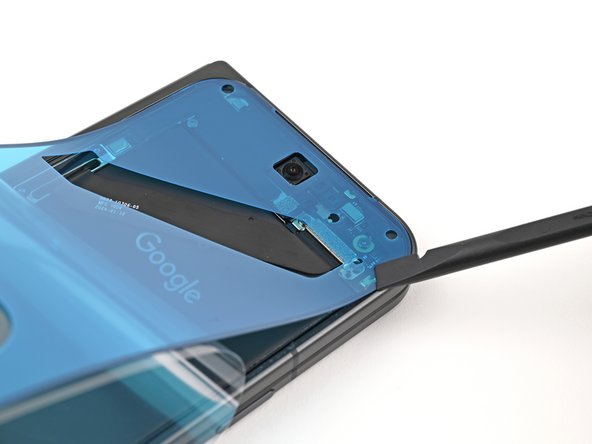
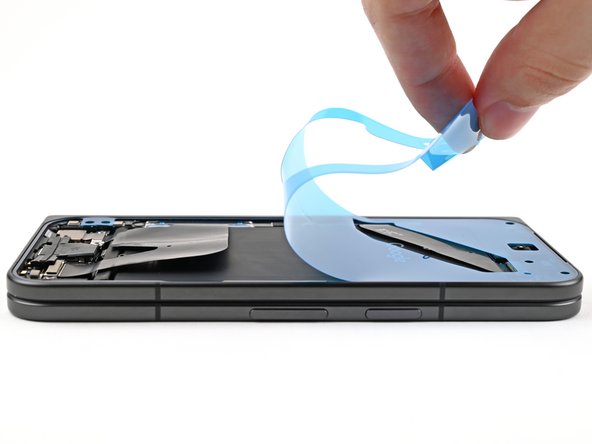
    • Use the tip of a spudger to pry up the segmented tab on the bottom left corner of the large blue liner.

  67. Google Pixel 9 Pro Fold Flip Battery Replacement: 手順 67、 3の画像 1 Google Pixel 9 Pro Fold Flip Battery Replacement: 手順 67、 3の画像 2 Google Pixel 9 Pro Fold Flip Battery Replacement: 手順 67、 3の画像 3
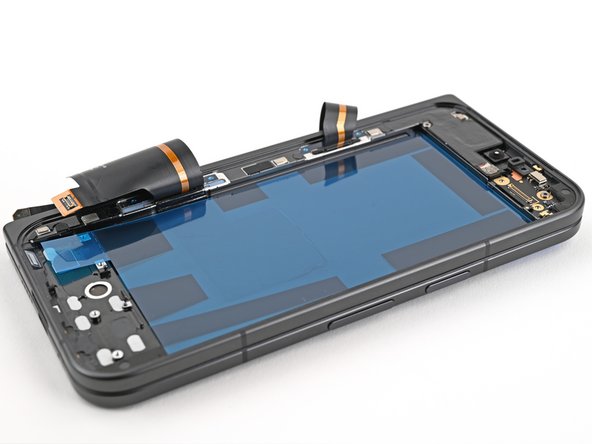
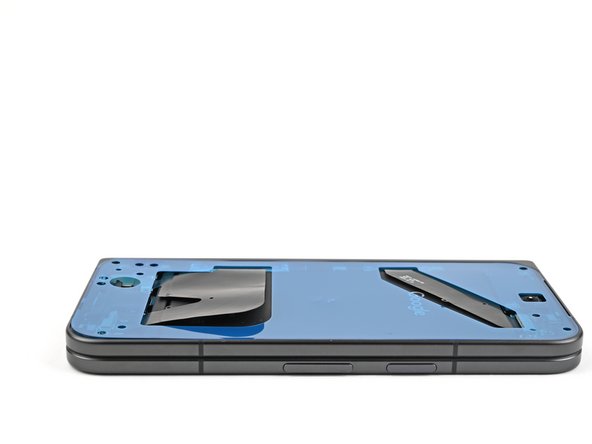
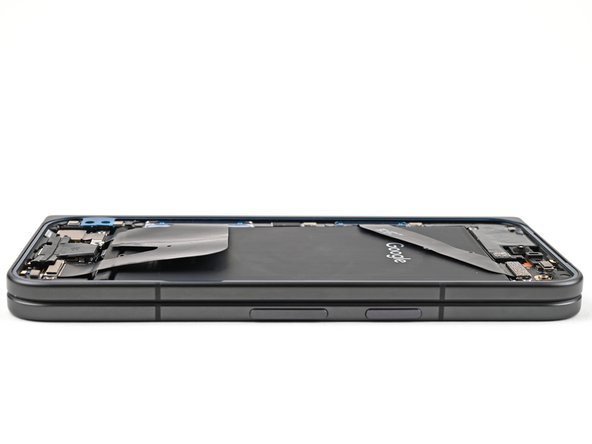
    • Lift the tab and peel off the large blue liner to expose the secondary liner.

    • If any of the adhesive starts to peel up with the liner, gently lay it back on the frame and use the flat end of a spudger to secure it to the frame.

  68. Google Pixel 9 Pro Fold Flip Battery Replacement, Reconnect the outer screen: 手順 68、 2の画像 1 Google Pixel 9 Pro Fold Flip Battery Replacement, Reconnect the outer screen: 手順 68、 2の画像 2
    • Support the screen with your hand or prop it up on something sturdy.

    • Reconnect the outer screen cable press connector.

  69. Google Pixel 9 Pro Fold Flip Battery Replacement, Reinstall the outer screen cable bracket: 手順 69、 2の画像 1 Google Pixel 9 Pro Fold Flip Battery Replacement, Reinstall the outer screen cable bracket: 手順 69、 2の画像 2
    • Reinsert the outer screen cable bracket clip under the frame and align its screw hole.

  70. Google Pixel 9 Pro Fold Flip Battery Replacement: 手順 70、 2の画像 1 Google Pixel 9 Pro Fold Flip Battery Replacement: 手順 70、 2の画像 2
    • Use a Torx Plus 3IP driver to install the 2.2 mm‑long screw securing the display cable bracket.

  71. Google Pixel 9 Pro Fold Flip Battery Replacement, Expose the adhesive: 手順 71、 3の画像 1 Google Pixel 9 Pro Fold Flip Battery Replacement, Expose the adhesive: 手順 71、 3の画像 2 Google Pixel 9 Pro Fold Flip Battery Replacement, Expose the adhesive: 手順 71、 3の画像 3
    • Remove the blue liner from the bottom left outer screen adhesive strip.

    • While holding the screen above the frame, separate one of the secondary liner's pull tabs at the bottom left corner.

  72. Google Pixel 9 Pro Fold Flip Battery Replacement: 手順 72、 3の画像 1 Google Pixel 9 Pro Fold Flip Battery Replacement: 手順 72、 3の画像 2 Google Pixel 9 Pro Fold Flip Battery Replacement: 手順 72、 3の画像 3
    • Still holding the screen, peel off the secondary liner to expose the adhesive.

    • If any of the adhesive starts to peel up with the liner, gently lay it back on the frame and use the flat end of a spudger to secure it to the frame.

  73. Google Pixel 9 Pro Fold Flip Battery Replacement, Secure the outer screen: 手順 73、 2の画像 1 Google Pixel 9 Pro Fold Flip Battery Replacement, Secure the outer screen: 手順 73、 2の画像 2
    • Align the outer screen over the frame and press it into place.

  74. Google Pixel 9 Pro Fold Flip Battery Replacement: 手順 74、 2の画像 1 Google Pixel 9 Pro Fold Flip Battery Replacement: 手順 74、 2の画像 2
    • Press along the perimeter of the outer screen to adhere it to the frame.

    • Optionally, you can use a hair dryer or heat gun to lightly heat the edges of the back cover and create a stronger bond.

    • Let the phone sit a few hours for the adhesive to cure.

終わりに

Congratulations on completing your repair!

For optimal performance, calibrate your newly installed batteries after completing this guide.

Take your e-waste to an R2 or e-Stewards certified recycler.

Repair didn’t go as planned? Try some basic troubleshooting, or ask our Google Pixel 9 Pro Fold Answers Community for help.

作成者

1人の作成者と共同作成されました。

Alex Diaz-Kokaisl

メンバー登録日: 01/16/22

213,038 ポイント

1,040のガイドは作成済み

チーム

iFixit iFixit人のメンバー

Staff

123 メンバー

23,623のガイドは作成済み

0件のガイドコメント

コメントを追加

統計データ:

過去 24時間: 3

過去 7 日: 19

過去 30 日: 80

今までの合計 974