メインコンテンツにスキップ
リペアコミュニティに参加 - アカウントの作成

ZTE Axon 7 Screen Replacement

必要な工具と部品

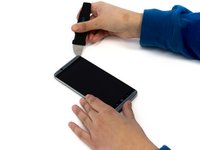
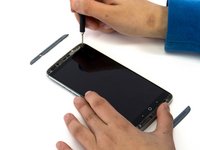
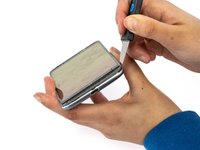
  1. ZTE Axon 7 Screen Replacement, Back Case: 手順 1、 2の画像 1 ZTE Axon 7 Screen Replacement, Back Case: 手順 1、 2の画像 2
    • Make sure the device is powered off.

    • Using the SIM Tray Removal Tool, press the pin into the hole on the SIM Tray (located on the top left of the device) to eject the tray.

    FixBotに聞いてみる

    コメントを追加

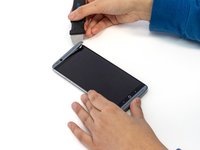
  2. ZTE Axon 7 Screen Replacement: 手順 2、 2の画像 1 ZTE Axon 7 Screen Replacement: 手順 2、 2の画像 2
    • Heat the iOpener in the microwave for 15-30 seconds.

    • iOpener will be HOT! Use oven mitts if necessary.

    • Place the iOpener on top of the top and bottom speaker grills to loosen up the adhesive underneath.

    FixBotに聞いてみる

    コメントを追加

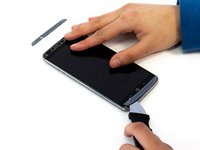
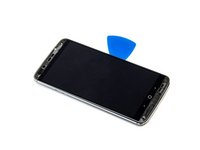
  3. ZTE Axon 7 Screen Replacement: 手順 3、 3の画像 1 ZTE Axon 7 Screen Replacement: 手順 3、 3の画像 2 ZTE Axon 7 Screen Replacement: 手順 3、 3の画像 3
    • Use a Jimmy to pry off the top and bottom speaker grills.

    • Remove the speaker grills gently so they don't crack or break off.

    FixBotに聞いてみる

    コメントを追加

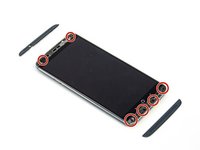
  4. ZTE Axon 7 Screen Replacement: 手順 4、 2の画像 1 ZTE Axon 7 Screen Replacement: 手順 4、 2の画像 2
    • Use a Phillips #00 screwdriver to remove the six 3 mm screws located under the speaker grills.

    • There may be remaining adhesive covering some screws. Take time to gently scrape away the adhesive using a spudger or opening tool.

    FixBotに聞いてみる

    コメントを追加

  5. ZTE Axon 7 Screen Replacement: 手順 5、 2の画像 1 ZTE Axon 7 Screen Replacement: 手順 5、 2の画像 2
    • Carefully wedge the Jimmy between the screen and aluminum back plate of the device.

    • Begin near the bottom right of the device and carefully work under the screen and slide the Jimmy up the edge of the device to remove the back case.

    • Use plastic picks to keep the display and back aluminum casing from closing as you pry along the perimeter of the phone with the Jimmy.

    FixBotに聞いてみる

    コメントを追加

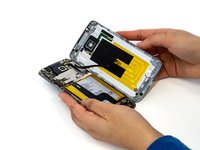
  6. ZTE Axon 7 Screen Replacement: 手順 6、 3の画像 1 ZTE Axon 7 Screen Replacement: 手順 6、 3の画像 2 ZTE Axon 7 Screen Replacement: 手順 6、 3の画像 3
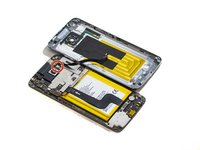
    • Separate the front and back of the phone, (like a book) to open and gain access to the internal components.

    • Careful to not damage the fingerprint sensor cable attached to the motherboard from the back casing.

    • Place the tip of your opening tool under the edge of the connector, and pry the connector straight up from its socket.

    • Be very careful to pry only under the edge of the connector, and not under the socket itself. If you pry under the socket, you will separate it from the circuit board, which requires specialized microsoldering skills and equipment to repair.

    • To reconnect, align the connector carefully over its socket and press down with your fingertip—first at one side, then the other—until it clicks into place. Don't press down on the middle of the connector until it's fully aligned and seated. If misaligned the connector can be permanently damaged.

    FixBotに聞いてみる

    コメントを追加

  7. ZTE Axon 7 Screen Replacement: 手順 7、 1の画像 1
    • The back is now completely removed.

    FixBotに聞いてみる

    コメントを追加

  8. ZTE Axon 7 Screen Replacement, Battery: 手順 8、 3の画像 1 ZTE Axon 7 Screen Replacement, Battery: 手順 8、 3の画像 2 ZTE Axon 7 Screen Replacement, Battery: 手順 8、 3の画像 3
    この手順で使用する道具:
    Tweezers
    $3.99
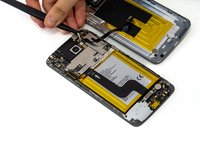
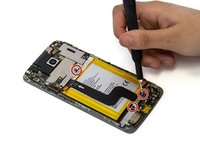
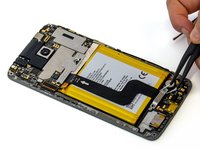
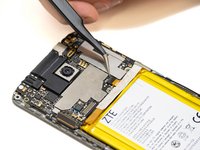
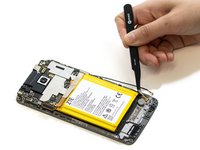
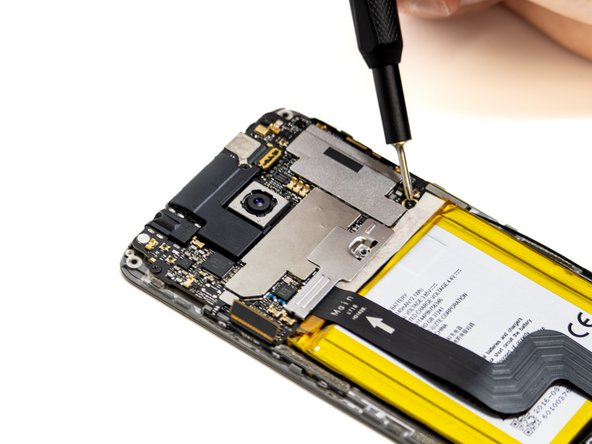
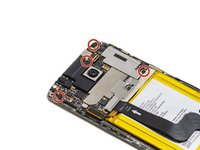
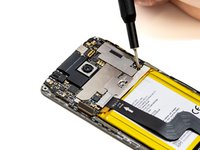
    • Use a Phillips #00 screwdriver to remove three 2.0 mm screw securing brackets on the top and bottom of the battery.

    • Use the angled tweezers and lift the bottom bracket up and off the phone.

    • Use the angled tweezers to slide the top bracket up and off the phone.

    FixBotに聞いてみる

    コメントを追加

  9. ZTE Axon 7 Screen Replacement: 手順 9、 2の画像 1 ZTE Axon 7 Screen Replacement: 手順 9、 2の画像 2
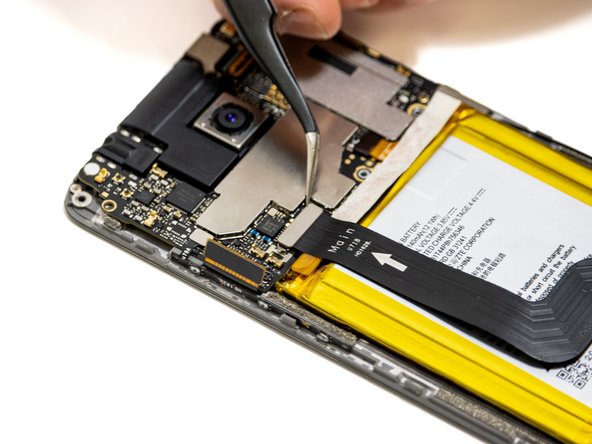
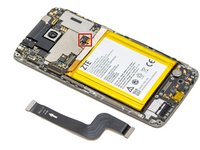
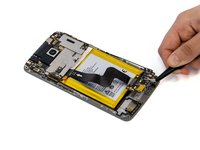
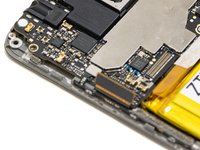
    • Disconnect both ends of the cable covering the battery by placing the tip of your opening tool or spudger under the edge of the connector and prying the connector straight up from its socket.

    • Be very careful to pry only under the edge of the connector, and not under the socket itself. If you pry under the socket, you will separate it from the circuit board, which requires specialized microsoldering skills and equipment to repair.

    • Remove the press fit cable.

    • To reconnect, align the connector carefully over its socket and press down with your fingertip—first at one side, then the other—until it clicks into place.

    • Do not press down on the middle of wider connectors until they're fully seated—if misaligned, the connector or the pins underneath can bend or break, causing permanent damage.

    FixBotに聞いてみる

    コメントを追加

  10. ZTE Axon 7 Screen Replacement: 手順 10、 2の画像 1 ZTE Axon 7 Screen Replacement: 手順 10、 2の画像 2
    • Place the tip of your opening tool or spudger under the edge of the battery connector, and pry the connector straight up from its socket to disconnect from the motherboard.

    FixBotに聞いてみる

    コメントを追加

  11. ZTE Axon 7 Screen Replacement: 手順 11、 1の画像 1
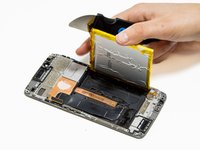
    • To remove the battery, use a spudger to carefully pry and slide along the edges of the battery in small increments to release the adhesive.

    • The adhesive under the battery is strong. Be sure to avoid puncturing and bending the battery.

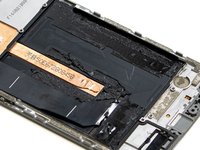
    • Under the battery, on the left side, is a display cable. Be careful not to damage this cable if future intentions are to reuse the display for any purpose.

    FixBotに聞いてみる

    コメントを追加

  12. ZTE Axon 7 Screen Replacement: 手順 12、 2の画像 1 ZTE Axon 7 Screen Replacement: 手順 12、 2の画像 2
    • Gently apply force and lift the battery out.

    • If you're having trouble lifting the battery, use the opening pick to slide further under the battery. This will help separate it from the adhesive.

    • Remove the battery, and replace with a new battery. Recycle old batteries as stated by your local regulations.

    FixBotに聞いてみる

    コメントを追加

  13. ZTE Axon 7 Screen Replacement, Screen: 手順 13、 1の画像 1
    • Use a Phillips #00 screwdriver to remove a single 2.0 mm screw near the vibration motor.

    FixBotに聞いてみる

    コメントを追加

  14. ZTE Axon 7 Screen Replacement: 手順 14、 2の画像 1 ZTE Axon 7 Screen Replacement: 手順 14、 2の画像 2
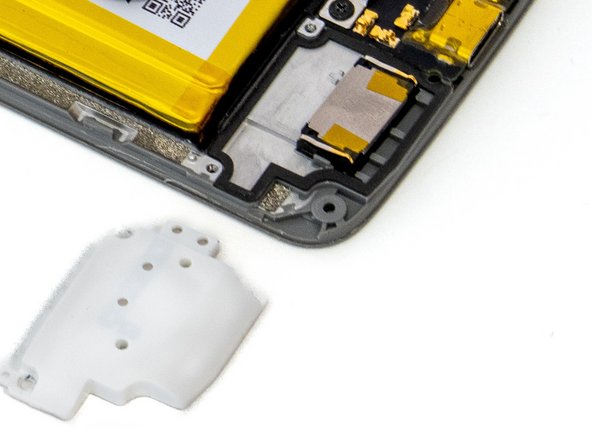
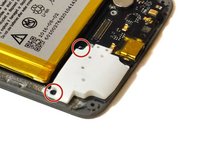
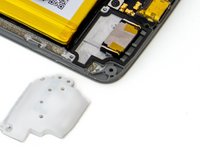
    • Use a Phillips #00 screwdriver to remove the two 2.0 mm screws securing the white speaker cover.

    • Remove the speaker cover.

    FixBotに聞いてみる

    コメントを追加

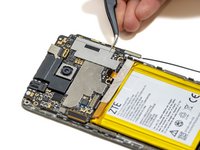
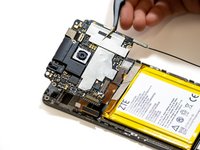
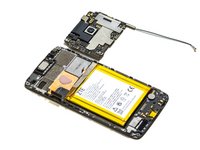
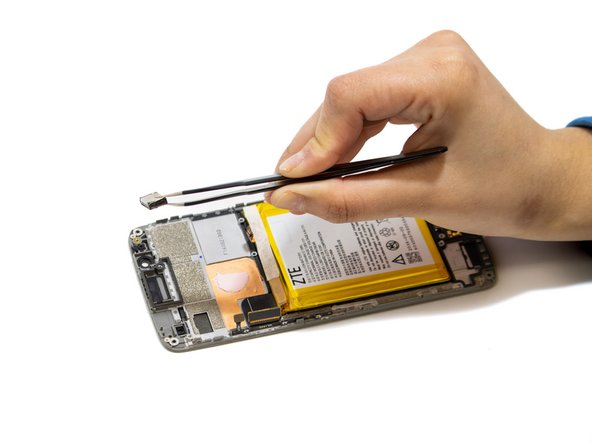
  15. ZTE Axon 7 Screen Replacement: 手順 15、 2の画像 1 ZTE Axon 7 Screen Replacement: 手順 15、 2の画像 2
    この手順で使用する道具:
    Tweezers
    $4.99
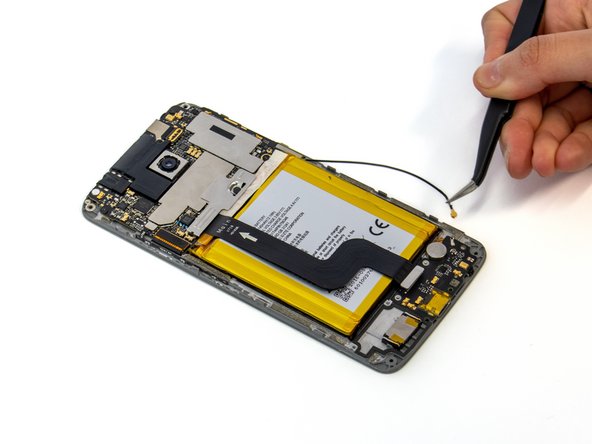
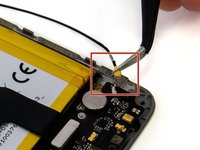
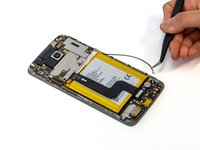
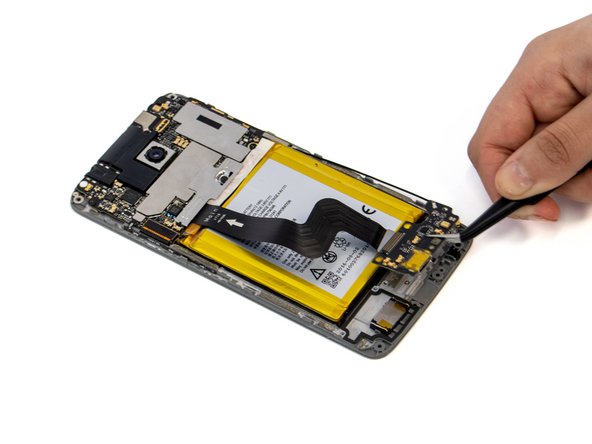
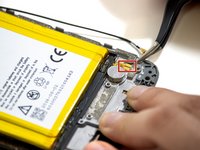
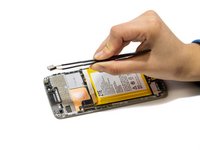
    • Slide a thin, ESD-safe pry tool or tweezers under the wire until it's snug against the connector, and pry straight up from the board to disconnect the coaxial antenna cable.

    • To reinstall, hold the connector in place and gently press it straight down. This connector should “snap” into the socket much like the metal snaps on a jacket.

    FixBotに聞いてみる

    コメントを追加

  16. ZTE Axon 7 Screen Replacement: 手順 16、 3の画像 1 ZTE Axon 7 Screen Replacement: 手順 16、 3の画像 2 ZTE Axon 7 Screen Replacement: 手順 16、 3の画像 3
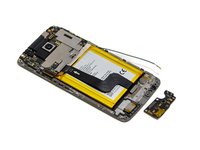
    • Use a spudger to pry under the USB-C board and lift it from the chassis.

    • There is adhesive underneath the charging port so work the spudger around the perimeter of the USB-C board to ease it out before trying to remove it fully.

    FixBotに聞いてみる

    コメントを追加

  17. ZTE Axon 7 Screen Replacement: 手順 17、 2の画像 1 ZTE Axon 7 Screen Replacement: 手順 17、 2の画像 2
    • Disconnect the vibration motor cable by placing the tip of an opening tool or spudger under the edge of the connector.

    • Pry the connector straight up from its socket.

    FixBotに聞いてみる

    コメントを追加

  18. ZTE Axon 7 Screen Replacement: 手順 18、 3の画像 1 ZTE Axon 7 Screen Replacement: 手順 18、 3の画像 2 ZTE Axon 7 Screen Replacement: 手順 18、 3の画像 3
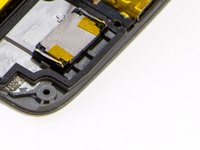
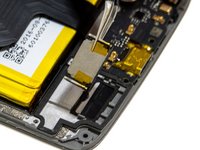
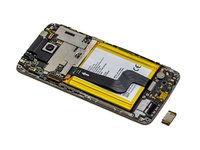
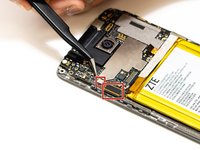
    • Use a spudger to pry the lower speaker from the case.

    • The speaker is set in tight so you may need to use slight force to get it out.

    • Use tweezers to remove the lower speaker out of the device.

    FixBotに聞いてみる

    コメントを追加

  19. ZTE Axon 7 Screen Replacement: 手順 19、 2の画像 1 ZTE Axon 7 Screen Replacement: 手順 19、 2の画像 2
    • Place the tip of your opening tool or spudger under the edge of the two press connectors on the left side of the motherboard.

    • Pry the connector straight up from its socket to disconnect from the motherboard.

    • Be very careful to pry only under the edge of the connector, and not under the socket itself. If you pry under the socket, you will separate it from the circuit board, which requires specialized microsoldering skills and equipment to repair.

    • To reconnect, align the connector carefully over its socket and press down with your fingertip—first at one side, then the other—until it clicks into place.

    FixBotに聞いてみる

    コメントを追加

  20. ZTE Axon 7 Screen Replacement: 手順 20、 2の画像 1 ZTE Axon 7 Screen Replacement: 手順 20、 2の画像 2
    • Use a Phillips #00 screwdriver to remove the four 3.0 mm screws securing the motherboard.

    FixBotに聞いてみる

    コメントを追加

  21. ZTE Axon 7 Screen Replacement: 手順 21、 3の画像 1 ZTE Axon 7 Screen Replacement: 手順 21、 3の画像 2 ZTE Axon 7 Screen Replacement: 手順 21、 3の画像 3
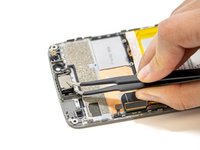
    • Lift and remove the motherboard using tweezers.

    FixBotに聞いてみる

    コメントを追加

  22. ZTE Axon 7 Screen Replacement: 手順 22、 3の画像 1 ZTE Axon 7 Screen Replacement: 手順 22、 3の画像 2 ZTE Axon 7 Screen Replacement: 手順 22、 3の画像 3
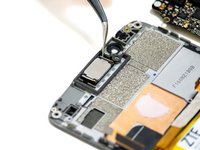
    • Use a spudger to pry the top speaker out from the phone chassis.

    • Remove the top speaker with tweezers.

    FixBotに聞いてみる

    コメントを追加

  23. ZTE Axon 7 Screen Replacement: 手順 23、 1の画像 1
    • Use tweezers to pull the volume/power buttons up and out from the display frame.

    FixBotに聞いてみる

    コメントを追加

終わりに

Repeat the steps in reverse order to reassemble into new display assembly. Use the 2mm Tesa Tape to secure the battery and speaker grills into place during reassembly.

キャンセル: このガイドを終了できませんでした。

ある他の人がこのガイドを完成しました。

作成者

2人の作成者と共同で作成されました。

Justin Kerr

メンバー登録日: 01/18/23

343 ポイント

1ガイドが承認済み

チーム

Linn Benton Community College, Team 1-2, Karnes Winter 2023 Linn Benton Community College, Team 1-2, Karnes Winter 2023人のメンバー

LBCC-KARNES-W23S1G2

4 メンバー

5のガイドは作成済み

0件のガイドコメント

コメントを追加

統計データ:

過去 24時間: 1

過去 7 日: 5

過去 30 日: 22

今までの合計 820