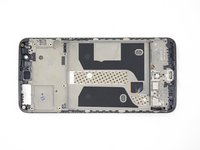
OnePlus 5 Screen and Digitizer Assembly Replacement
はじめに
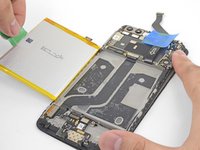
This guide shows how to remove and replace the screen and digitizer assembly for the OnePlus 5.
Use this guide for screens that come pre-mounted on a frame.
This procedure requires significant disassembly, including battery replacement, and transferring small parts from the old screen to the replacement. The two most difficult parts are getting the frame clips of the back cover free, and not damaging the fingerprint scanner cable.
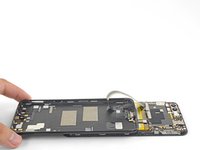
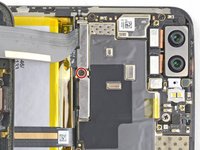
Some guide images will show the dual rear-facing camera module already removed from the phone. You do not need to remove it for this procedure.
For your safety, discharge your battery below 25% before disassembling your phone. This reduces the risk of a dangerous thermal event if the battery is accidentally damaged during the repair.
Insert a SIM card eject tool, bit, or a straightened paperclip into the small hole below the SIM card tray, located near the rear cameras on the edge of the phone.
Press firmly to eject the tray.
During reassembly, be sure to properly orient the SIM tray you you insert it.
As you work, try not to accidentally power on the phone. If you do, turn the phone off before resuming disassembly.
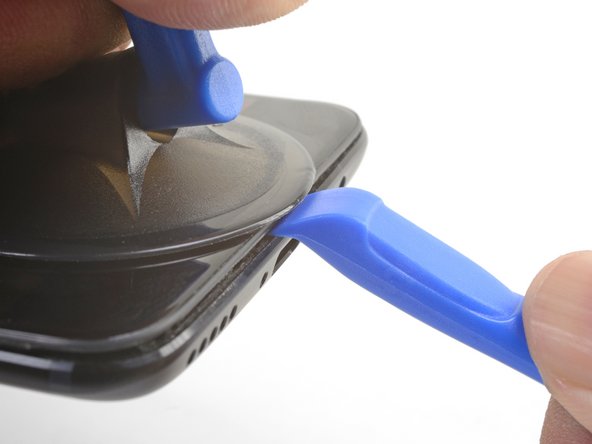
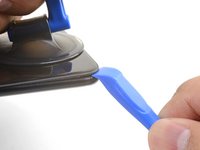
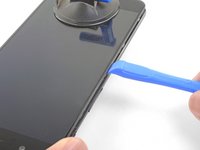
Place a suction cup near the bottom edge of the display.
Pull on the suction cup with strong steady force.
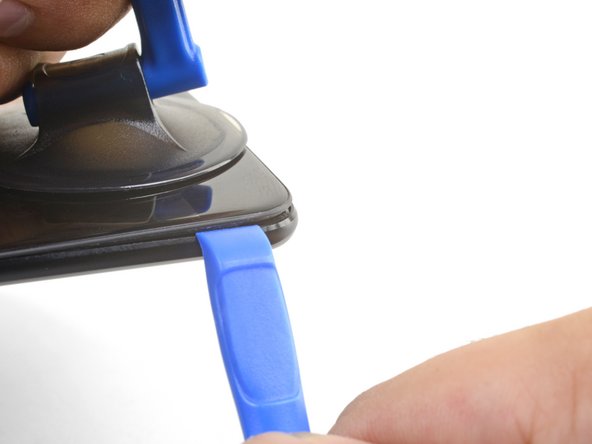
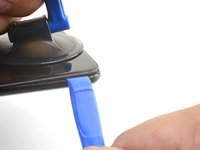
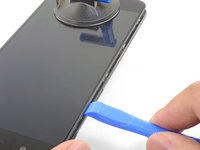
Press the edge of an opening tool straight into the frame seam near the suction cup until the edge wedges between the plastic frame and the back cover's lip.
Due to tight tolerances, this will take substantial force. Using a new opening tool with an unmarred edge will help with this step.
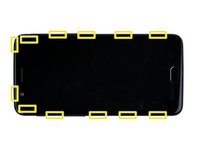
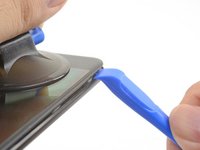
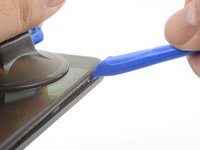
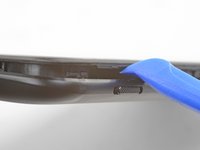
Continue sliding the opening tool along the long edge, releasing the clips along the way.
The last clip in the top-left corner near the front-facing camera is recessed and can be difficult to release. Take your time and use the flat end of a spudger or an opening pick to help.
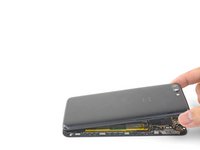
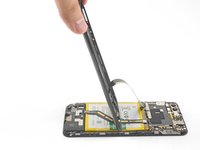
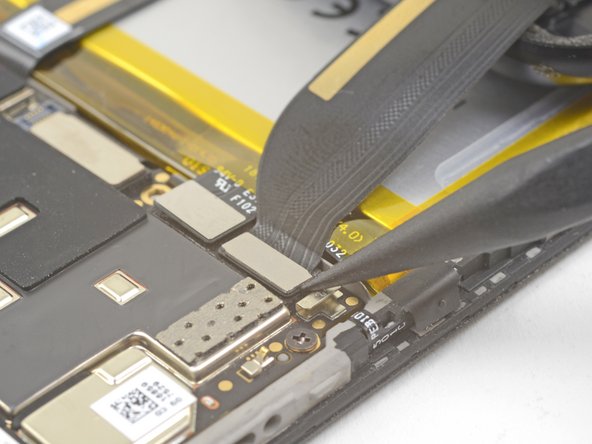
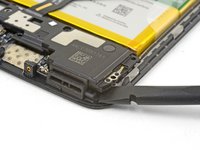
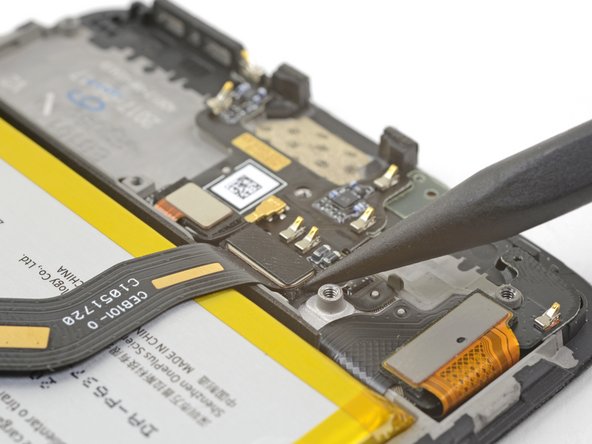
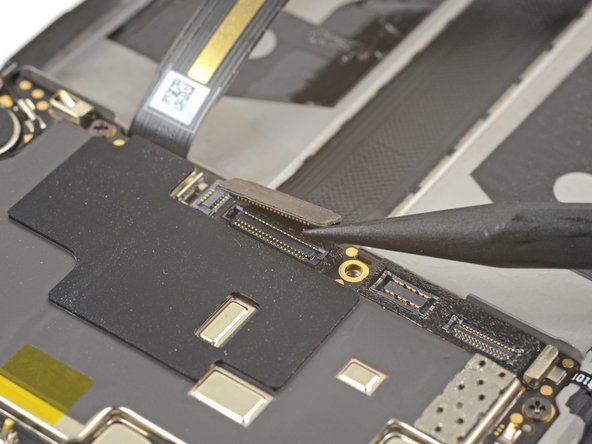
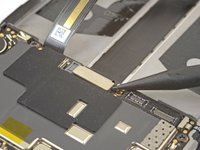
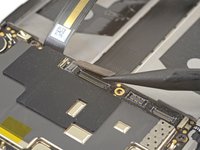
Use the point of a spudger to pry up and disconnect the back cover flex cable from its socket.
To re-attach press connectors like this one, carefully align and press down on one side until it clicks into place, then repeat on the other side. Do not press down on the middle. If the connector is misaligned, the pins can bend, causing permanent damage.
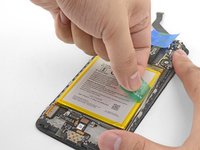
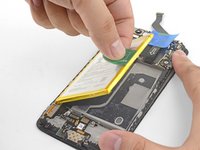
Do not reuse the battery after it has been removed. Reusing a battery that is bent or otherwise stressed is a potential safety hazard.
If your replacement battery did not come with a green pull tab, you can transfer the old tab to the new battery to help with subsequent replacements.
While installing a new battery, temporarily connect the battery to the phone to ensure proper battery alignment.
If you are installing a battery onto a new screen and digitizer assembly, be sure to peel off the dark blue adhesive liners to expose the battery adhesive for the new battery.
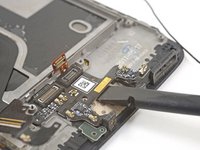
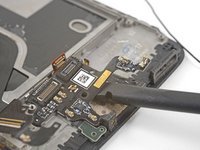
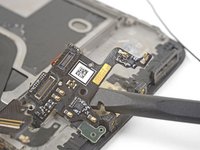
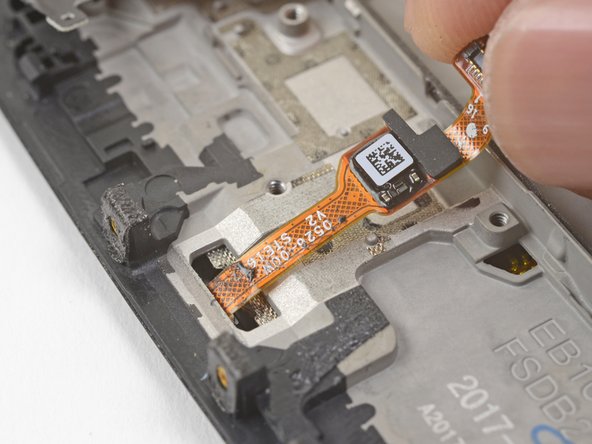
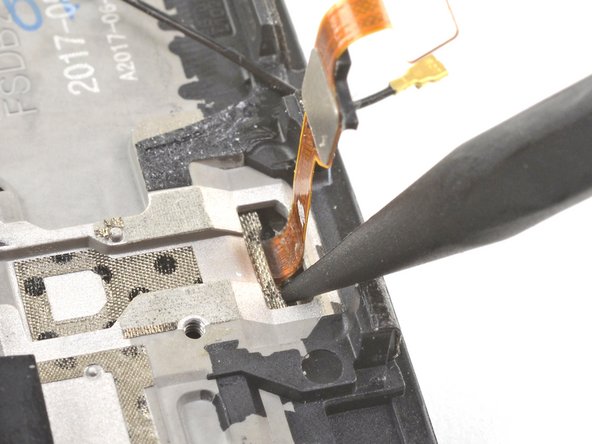
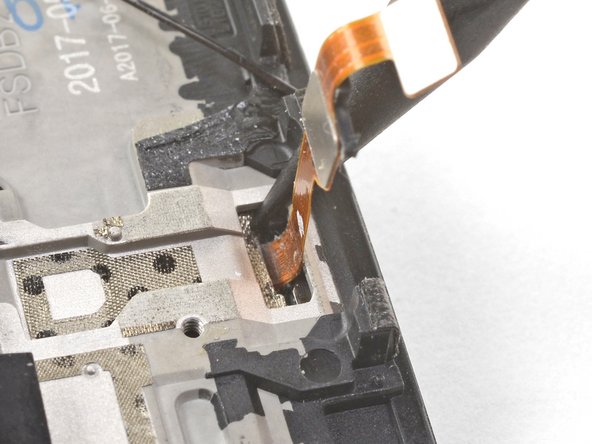
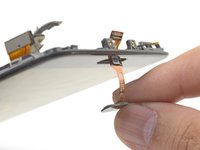
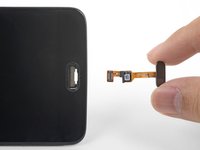
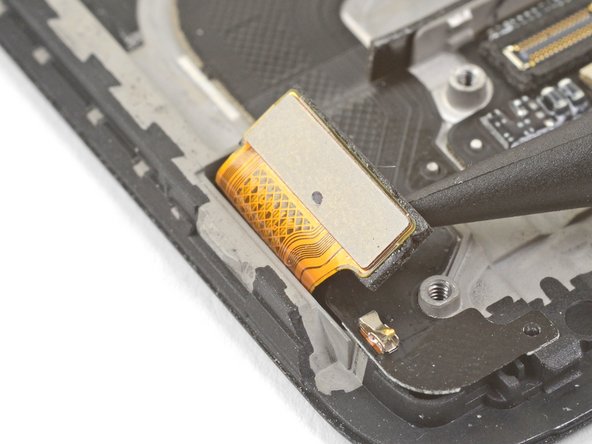
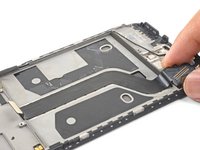
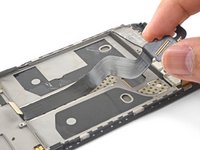
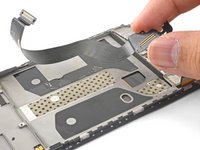
If you are planning to reuse the fingerprint scanner, be extremely careful pulling the flex cable up. It is very delicate and prone to breaking.
Use your finger to gently lift up the connector end of the fingerprint scanner. Pull upwards slowly. Do not pull directly away from the fingerprint scanner.
Keep pulling upwards until the fingerprint scanner cable is freed from its recess.
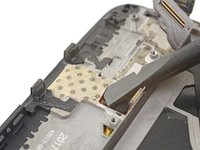
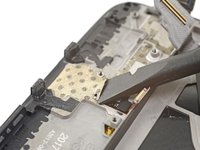
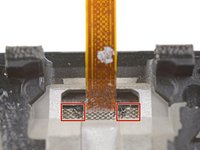
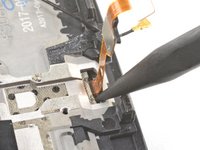
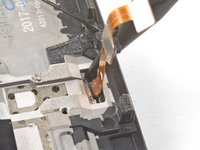
Insert the point of a spudger into the marked areas on either side of the flex cable, and push until the fingerprint scanner is loosened from its recess.
Do not apply pressure directly onto the delicate flex cable.
If the fingerprint scanner is not coming loose, make sure you are pressing the spudger's point against the backside of the scanner as indicated in the first image, and not the metal plate below it.
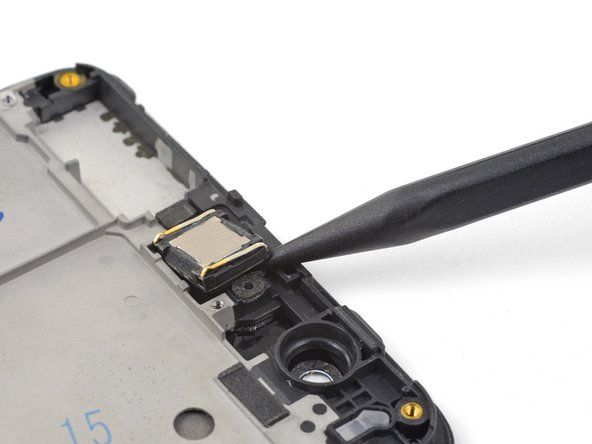
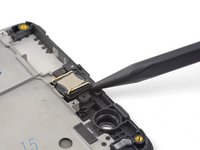
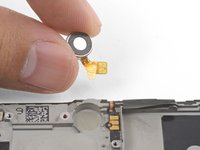
During reinstallation, be sure that the earpiece module is properly oriented such that the gold contacts face downwards.
If you are transferring the earpiece module to a replacement frame, be sure to peel and remove the white adhesive liner before pressing the earpiece module into place.
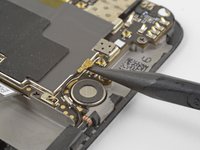
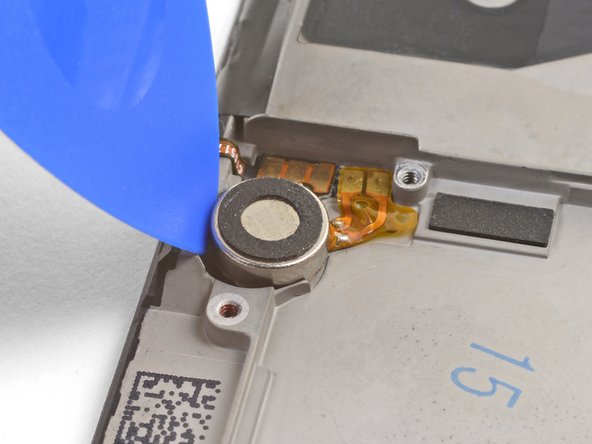
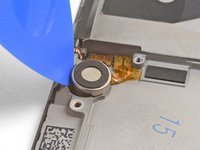
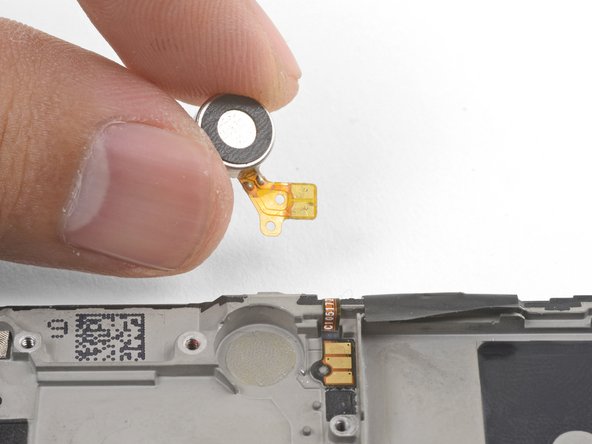
Wedge the point of an opening pick between the vibration motor and the frame and push downward to loosen the vibration motor from its recess.
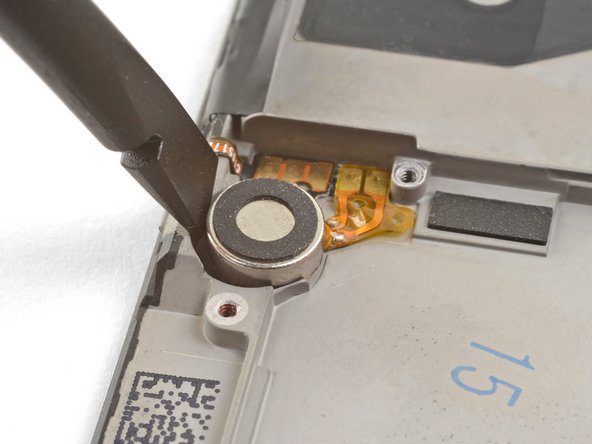
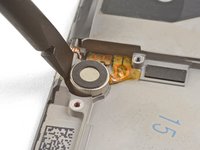
Once the vibration motor is slightly loosened, you can wedge the flat end of a spudger between the motor and the frame to help free it from its recess.
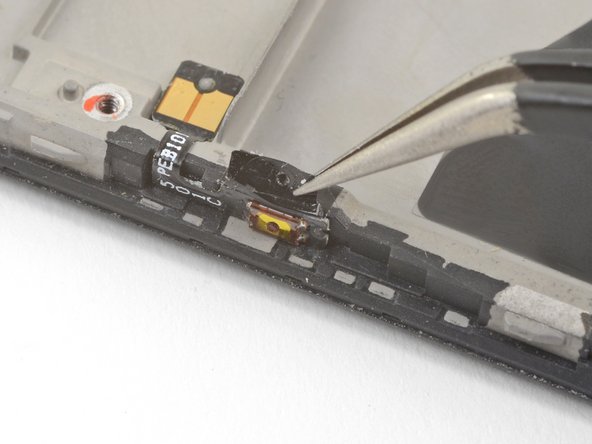
Try not to tear the black tape pieces in this step so that you can reuse them during re-assembly. If you do tear the tape, replace them with pieces of electrical tape.
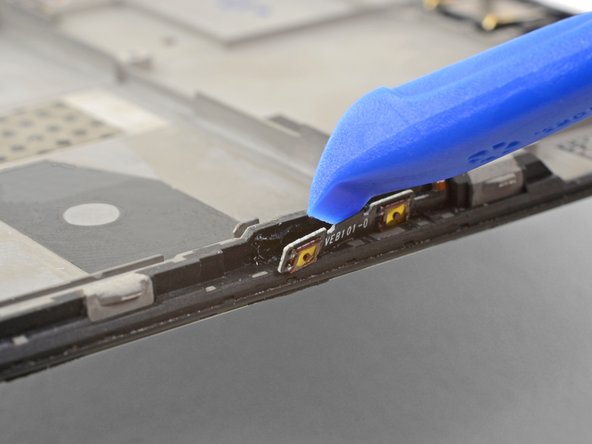
Use tweezers or the point of a spudger to pry up and remove the black tape covering the volume buttons on the right edge of the phone.
Repeat the process with the black tape covering the power button on the left edge of the phone.
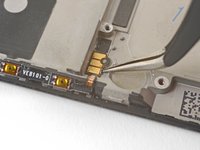
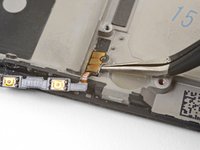
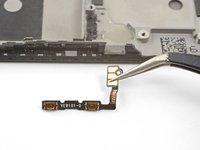
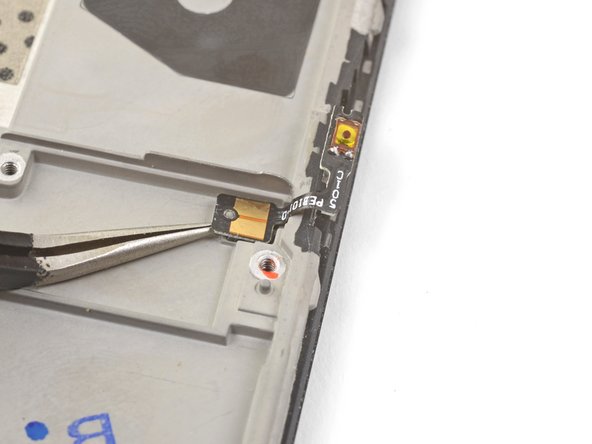
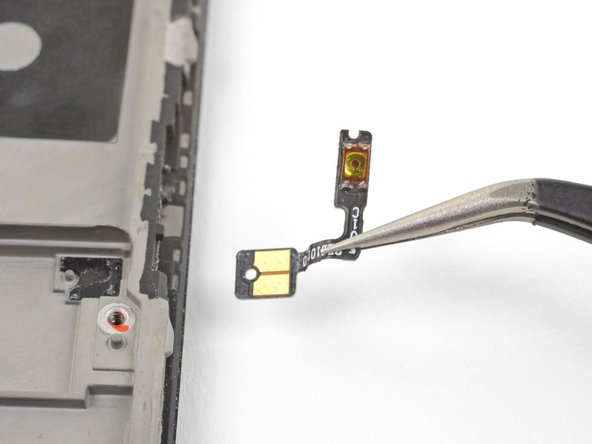
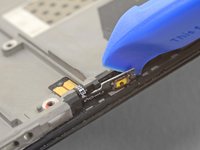
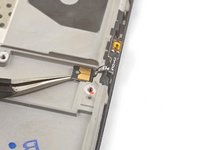
Squeeze the tweezer tips together and insert the point underneath the volume button board's contact pad near the top right edge of the frame.
Pry upwards to loosen the contact pad from the frame.
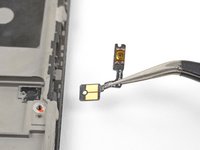
Remove the volume buttons.
To install the volume button board onto a used frame, cut a small piece of adhesive from the pre-cut adhesive card or a roll of Tesa tape, and use it to stick the volume button board back onto the frame.
To install the volume button board onto a new replacement frame, peel the blue liner on the right edge of the frame to expose the adhesive. Then, stick the board onto the edge of the frame.
Repeat the previous two steps to remove the power button from the left edge of the frame.
If you are transferring the power button onto a replacement frame, peel the blue liner on the left edge of the frame to expose the adhesive. Then, stick the button onto the edge of the frame.
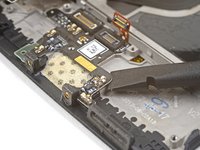
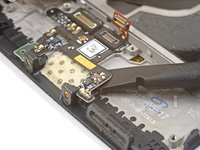
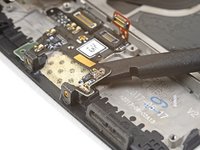
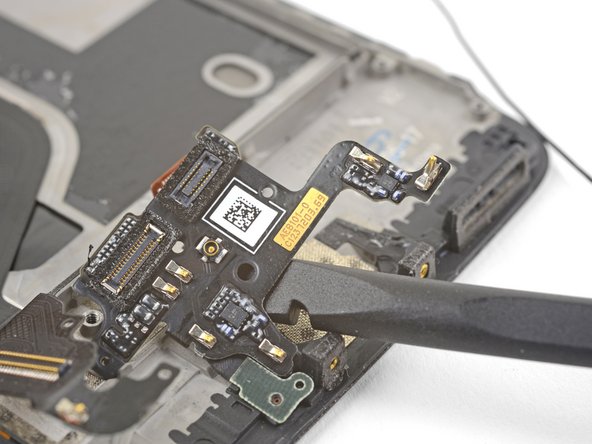
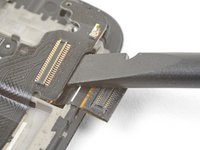
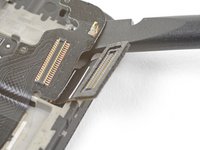
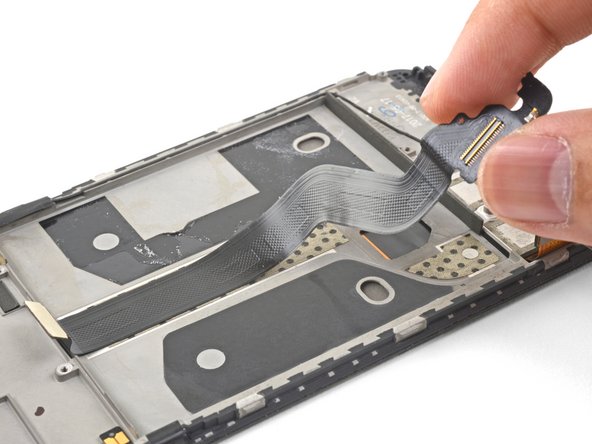
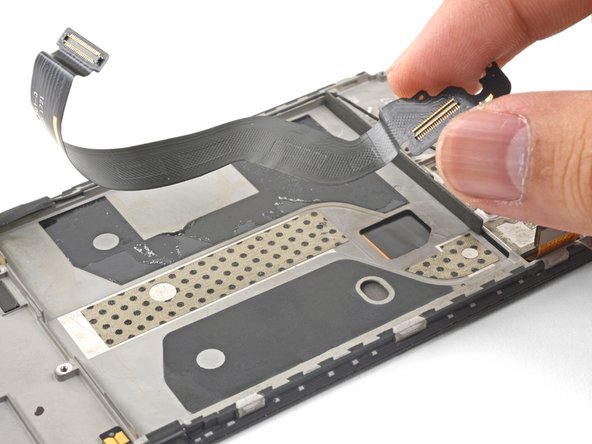
Insert the flat end of a spudger underneath the display interconnect cable socket, near where it connected with the display connector in the bottom left corner of the frame.
Pry upwards and slide the spudger underneath the cable to loosen the cable from the frame.
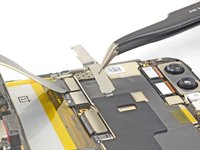
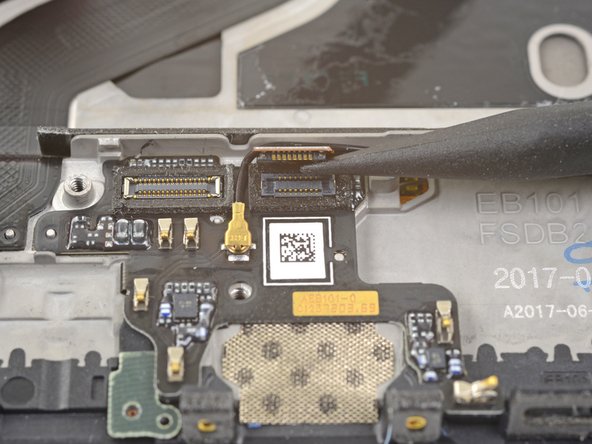
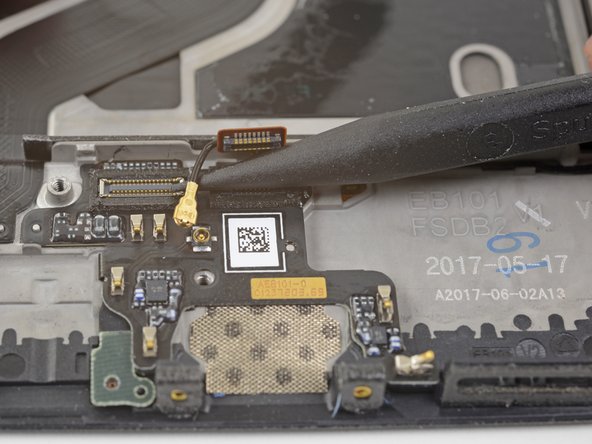
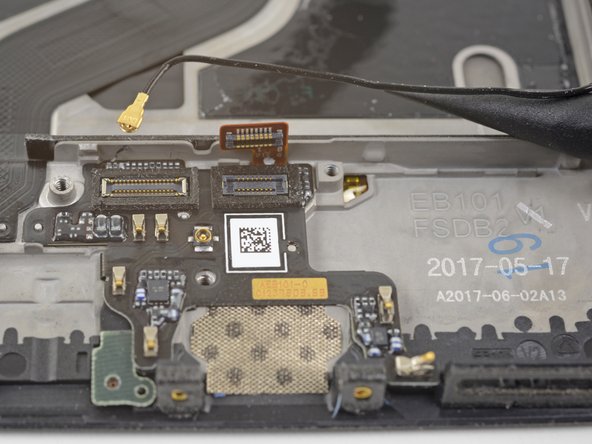
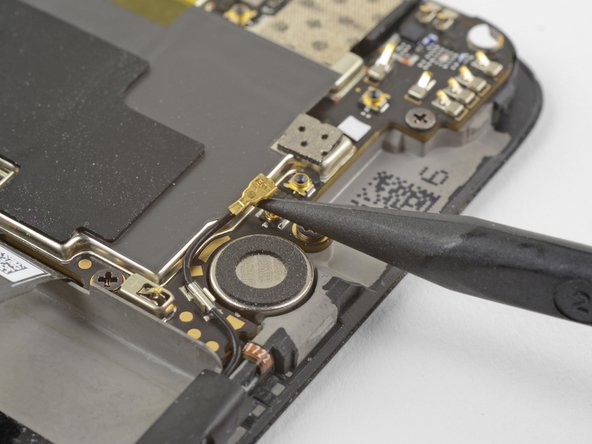
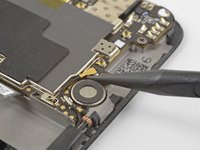
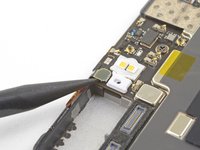
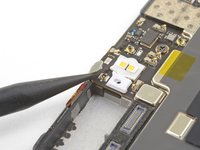
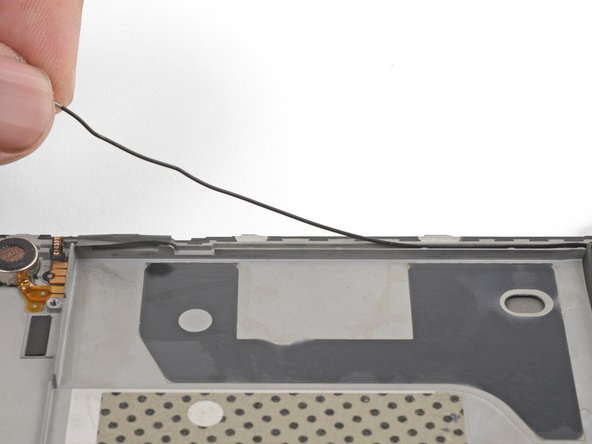
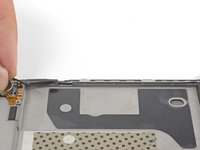
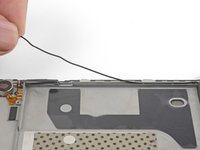
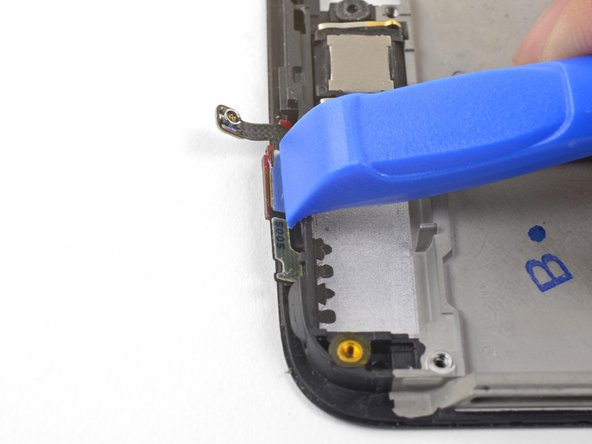
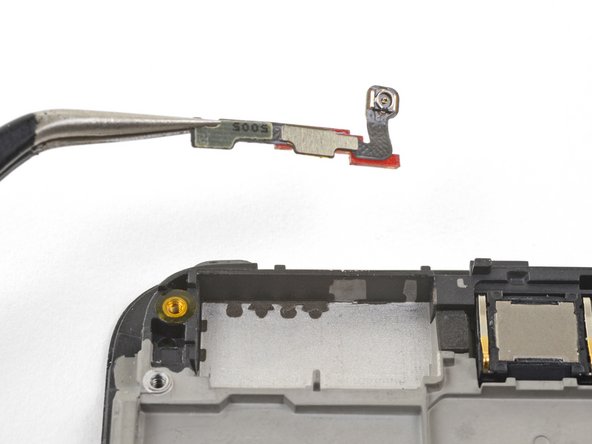
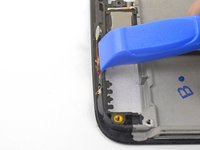
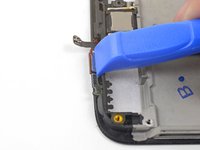
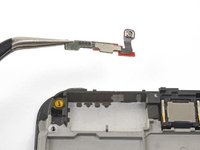
Use the edge of an opening tool to push the back cover antenna connector away from the frame. It is located on the top edge of the frame.
Remove the back cover antenna connector.
If you are transferring the connector onto a replacement frame, peel the blue liner on the top edge of the replacement frame before sticking the connector onto the edge.
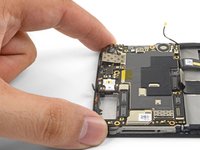
Transfer all of the parts you removed in the previous steps from the old assembly to the new one.
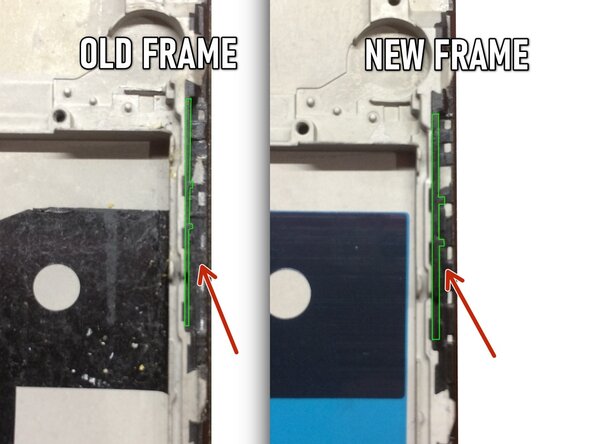
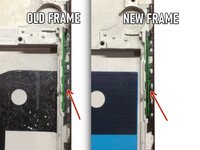
Check the thickness of border between the battery and volume buttons! This thickness may differ between the old and new screen frame. This can cause the volume buttons to be pinched when assembly is done. If the border is thicker on the new frame, you need to gently scrape plastic in the places where the two buttons will be physically located.
You do not need an original, but that is probably the best quality. The original screen is AMOLED. There are also OLED and LCD replacement screens. These will not be as bright as the original AMOLED panel.
Hi, I need to know if this screen is like the original (Amoled) or not, and approximately how long it takes to send by mail to Miami Florida. Thank you OnePlus 5 Screen