メインコンテンツにスキップ
リペアコミュニティに参加 - アカウントの作成

MacBook Core 2 Duo Upper Case Cable Replacement

必要な工具と部品

  1. MacBook Core 2 Duo Upper Case Cable Replacement, Battery: 手順 1、 1の画像 1
    • Use a coin or spudger to rotate the battery-locking screw 90 degrees clockwise.

    FixBotに聞いてみる

    コメントを追加

  2. MacBook Core 2 Duo Upper Case Cable Replacement: 手順 2、 1の画像 1
    • Lift the battery out of the computer.

    FixBotに聞いてみる

    コメントを追加

  3. MacBook Core 2 Duo Upper Case Cable Replacement, Memory Cover: 手順 3、 1の画像 1
    • Unscrew the three evenly-spaced Phillips 000 screws from along the rear wall of the battery compartment.

    • The screws are captive to the metal memory cover so you cannot lose them.

    • Using The Flexible Extension sold by iFixit will help with this step.

    FixBotに聞いてみる

    コメントを追加

  4. MacBook Core 2 Duo Upper Case Cable Replacement: 手順 4、 1の画像 1
    • Grasp the right end of the L-shaped memory cover, then pull it towards you so it clears the battery compartment opening.

    • Lift the memory cover up and out of the computer.

    FixBotに聞いてみる

    コメントを追加

  5. MacBook Core 2 Duo Upper Case Cable Replacement, Upper Case: 手順 5、 1の画像 1
    • Remove the following 3 screws:

    • One 11 mm Phillips#00 in the middle of the lower case. (Head: 5mm dia. x .75mm thick)

    • Two 14.5 mm Phillips #00 (Head: 5mm dia. x .75mm thick)

    • If the screws stick in the case, you can use a magnetized screwdriver to draw them out.

    • The shorter of the three screws goes in the middle of the lower case.

    FixBotに聞いてみる

    コメントを追加

  6. MacBook Core 2 Duo Upper Case Cable Replacement: 手順 6、 1の画像 1
    • Take extra caution with these screws as they can strip easily!

    • You could use a flexible extension to minimize stripping.

    • Remove the following 3 screws from the rear wall of the battery compartment:

    • One 3 mm Phillips #0. (Head: 2.75 mm. dia.)

    • Two 4 mm Phillips #0 on the either side. (Head: 2.75mm dia.)

    FixBotに聞いてみる

    コメントを追加

  7. MacBook Core 2 Duo Upper Case Cable Replacement: 手順 7、 1の画像 1
    • Remove the two Phillips screws from either side of the right wall of the battery compartment (not the ones closest to the battery connector).

    • Two 6.25 mm Phillips #000. (Head: 4 mm. dia. x .5mm thick)

    FixBotに聞いてみる

    コメントを追加

  8. MacBook Core 2 Duo Upper Case Cable Replacement: 手順 8、 1の画像 1
    • Remove the four indicated Phillips screws from the front wall of the battery compartment. When working from the left, remove the 2nd, 4th, 7th and 9th screws.

    • Four 3.25 mm Phillips #000. (Head: 4 mm. dia. x 4mm thick)

    FixBotに聞いてみる

    コメントを追加

  9. MacBook Core 2 Duo Upper Case Cable Replacement: 手順 9、 1の画像 1
    • Remove the following 4 screws from the back of the computer:

    • Two 11 mm Phillips #00, with Shank (2.2mm dia. x 2 mm len.) (Head: 3.2 mm. dia. x .5mm thick)

    • Two 7.25 mm Phillips #00, with Shank (2mm dia. x 3.75 mm len.) (Head: 3.2 mm. dia. x .5mm thick)

    • During reassembly, the two longer screws go on the inside, and the two shorter screws go on the outside.

    FixBotに聞いてみる

    コメントを追加

  10. MacBook Core 2 Duo Upper Case Cable Replacement: 手順 10、 1の画像 1
    • Remove the two Phillips screws from the optical drive (right) side of the computer:

    • Two 5.2 mm Phillips #00, with shank (2.3mm dia. x 3.25 mm len.) (Head: 3.2 mm. dia. x .5mm thick)

    • It is not necessary to remove the similar screws on the ports (left) side of the computer.

    FixBotに聞いてみる

    コメントを追加

  11. MacBook Core 2 Duo Upper Case Cable Replacement: 手順 11、 1の画像 1
    この手順で使用する道具:
    Plastic Cards
    $2.99
    • There's a trackpad and keyboard ribbon cable connecting the upper case to the logic board, so don't pull the upper case off entirely just yet.

    • Use a plastic opening tool, an expired plastic credit, or a similarly-thick card to pry up on the upper case, starting in the upper-left corner and working around to the front of the computer.

    • The upper case is likely to stick at its connection above the front edge of the optical drive. If this happens, first free all other sides, then proceed to pull upward on the upper case from either side of the optical drive opening. Here again, inserting a plastic card, guitar pick, etc. can be useful.

    • If you stand the base of the MacBook on one end to get a better look, you may displace the four grey plastic clips that hold the right side of the upper case in place. Don't panic. They slide into slots at the top rightmost edge of the lower frame, above the front edge of the optical drive.

    • During reassembly, make sure the clips on the right side, above the optical drive, click firmly into place. They're different from the clips on the left side, and so normally they require a little firmer pressure to click into place.

    FixBotに聞いてみる

    コメントを追加

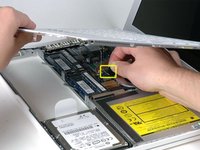
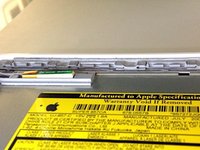
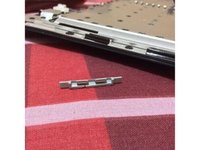
  12. MacBook Core 2 Duo Upper Case Cable Replacement: 手順 12、 3の画像 1 MacBook Core 2 Duo Upper Case Cable Replacement: 手順 12、 3の画像 2 MacBook Core 2 Duo Upper Case Cable Replacement: 手順 12、 3の画像 3
    • While holding up the upper case, pull up the black tab on the connector end of the silver ribbon cable away from the connector's socket on the logic board.

    • If there is no black tab, you can also use a spudger to gently pry the connector out of its socket on the logic board. This connector is tall, so be sure to pry straight up.

    • If you happen to break your upper case cable when removing the upper case, we stock the cable individually and we have a guide that makes replacing it easy.

    • While you have the upper case removed, it's a good time to remove dust, hair, etc. It's best to use a can of compressed air, though if you use a brush, make sure that its bristles are made of a material (usually animal hair) that doesn't generate static electricity, which can destroy electronics.

    • Upon reassembly, there are 4 grey plastic clips installed in slots running along the top of the frame in front of the optical drive (refer to second and third pictures). These clips must be installed in their slots for their mating tabs on the underside of the right side of the upper case to snap into them.

    FixBotに聞いてみる

    コメントを追加

  13. MacBook Core 2 Duo Upper Case Cable Replacement, Upper Case Cable: 手順 13、 1の画像 1
    • If you have a silver upper case cable, skip to Step 22.

    • If you have a brown upper case cable, follow this and the following steps to replace your upper case cable.

    • Carefully peel the upper case cable off the adhesive securing it to the upper case.

    FixBotに聞いてみる

    コメントを追加

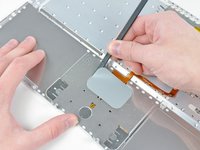
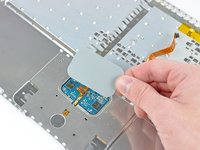
  14. MacBook Core 2 Duo Upper Case Cable Replacement: 手順 14、 2の画像 1 MacBook Core 2 Duo Upper Case Cable Replacement: 手順 14、 2の画像 2
    • Use the flat end of a spudger to carefully peel up the adhesive around the perimeter of the plastic panel stuck to the underside of the trackpad.

    • Remove the panel from the upper case.

    FixBotに聞いてみる

    コメントを追加

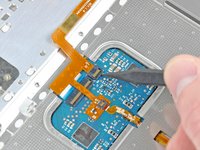
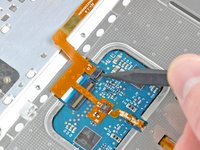
  15. MacBook Core 2 Duo Upper Case Cable Replacement: 手順 15、 2の画像 1 MacBook Core 2 Duo Upper Case Cable Replacement: 手順 15、 2の画像 2
    • Use the tip of a spudger or your fingernail to flip up the retaining flap on the upper case cable ZIF socket near the keyboard cable.

    • Be sure you are prying up on the retaining flap, not the socket itself.

    FixBotに聞いてみる

    コメントを追加

  16. MacBook Core 2 Duo Upper Case Cable Replacement: 手順 16、 1の画像 1
    • Gently peel up the section of the upper case cable stuck to the keyboard ribbon cable, being careful not to disturb the keyboard ribbon cable in the process.

    FixBotに聞いてみる

    コメントを追加

  17. MacBook Core 2 Duo Upper Case Cable Replacement: 手順 17、 1の画像 1
    • Pull the top upper case ribbon cable connector out of its socket under the trackpad.

    FixBotに聞いてみる

    コメントを追加

  18. MacBook Core 2 Duo Upper Case Cable Replacement: 手順 18、 2の画像 1 MacBook Core 2 Duo Upper Case Cable Replacement: 手順 18、 2の画像 2
    • Use the tip of a spudger to flip up the retaining flap on the mouse button ribbon cable socket.

    • Be sure you are prying up on the retaining flap, not the socket itself.

    FixBotに聞いてみる

    コメントを追加

  19. MacBook Core 2 Duo Upper Case Cable Replacement: 手順 19、 1の画像 1
    • Pull the mouse button ribbon cable out of its socket.

    FixBotに聞いてみる

    コメントを追加

  20. MacBook Core 2 Duo Upper Case Cable Replacement: 手順 20、 1の画像 1
    • Use the flat end of a spudger to help peel the last portion of the upper case ribbon cable off the adhesive securing it to the underside of the trackpad.

    FixBotに聞いてみる

    コメントを追加

  21. MacBook Core 2 Duo Upper Case Cable Replacement: 手順 21、 1の画像 1
    • Remove the upper case cable from the upper case.

    FixBotに聞いてみる

    コメントを追加

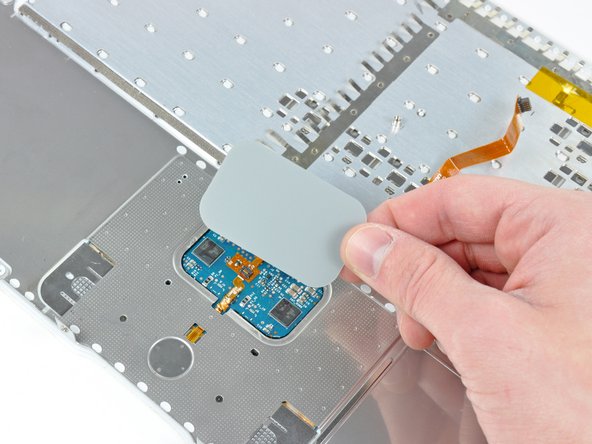
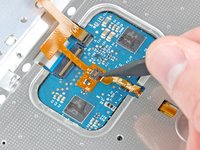
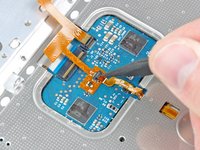
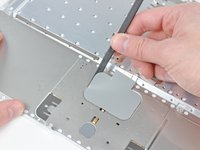
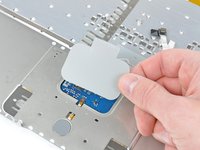
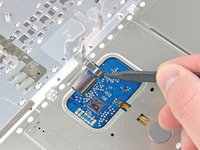
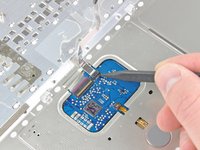
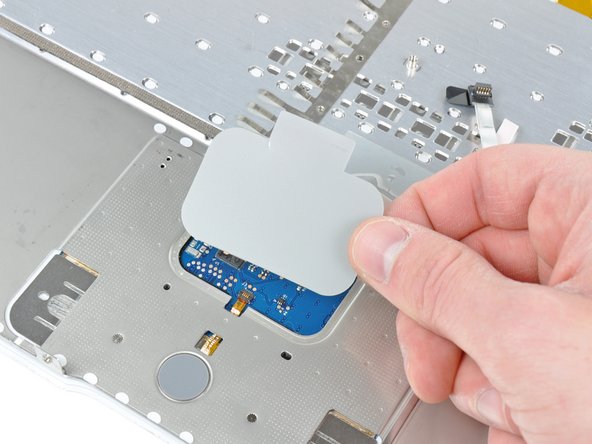
  22. MacBook Core 2 Duo Upper Case Cable Replacement: 手順 22、 2の画像 1 MacBook Core 2 Duo Upper Case Cable Replacement: 手順 22、 2の画像 2
    • Use the flat end of a spudger to carefully peel up the adhesive around the perimeter of the plastic panel stuck to the underside of the trackpad.

    • Remove the panel from the upper case.

    FixBotに聞いてみる

    コメントを追加

  23. MacBook Core 2 Duo Upper Case Cable Replacement: 手順 23、 1の画像 1
    • Carefully peel the upper case cable and the piece of clear tape off the bottom of the upper case.

    FixBotに聞いてみる

    コメントを追加

  24. MacBook Core 2 Duo Upper Case Cable Replacement: 手順 24、 2の画像 1 MacBook Core 2 Duo Upper Case Cable Replacement: 手順 24、 2の画像 2
    • Use the tip of a spudger to flip up the retaining flap on the upper case cable ZIF socket.

    • Be sure you are prying up on the hinged retaining flap, not the socket itself.

    FixBotに聞いてみる

    コメントを追加

  25. MacBook Core 2 Duo Upper Case Cable Replacement: 手順 25、 1の画像 1
    • Pull the upper case cable out of its socket and remove it from the upper case.

    FixBotに聞いてみる

    コメントを追加

終わりに

To reassemble your device, follow these instructions in reverse order.

キャンセル: このガイドを終了できませんでした。

32 の人々がこのガイドを完成させました。

作成者

4人の作成者と共同で作成されました。

Andrew Bookholt

600,001 ポイント

619のガイドは作成済み

1件のガイドコメント

I’m in need of this MacBook a1181 keyboard and trackpad connector flex. Just identical to the one they are using in the pictures give demo.

Rahbar Ali - 返信 共有
コメントを追加

統計データ:

過去 24時間: 2

過去 7 日: 21

過去 30 日: 76

今までの合計 34,083