メインコンテンツにスキップ
リペアコミュニティに参加 - アカウントの作成

Samsung Glyde LCD Screen Replacement

必要な工具と部品

  1. Samsung Glyde LCD Screen Replacement, Battery: 手順 1、 1の画像 1
    • Using your thumb, press down and slide the back cover away from the camera.

    FixBotに聞いてみる

    コメントを追加

  2. Samsung Glyde LCD Screen Replacement: 手順 2、 1の画像 1
    • Remove the battery from the phone by using your plastic opening tool to find a gap at any edge of the battery and lifting the battery up.

    FixBotに聞いてみる

    コメントを追加

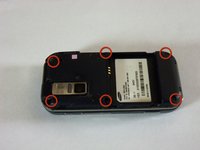
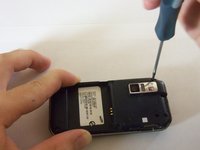
  3. Samsung Glyde LCD Screen Replacement, Keyboard: 手順 3、 2の画像 1 Samsung Glyde LCD Screen Replacement, Keyboard: 手順 3、 2の画像 2
    • Use a Phillips #00 screwdriver to remove the six 4mm screws.

    FixBotに聞いてみる

    コメントを追加

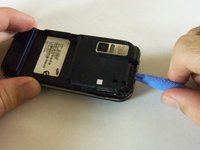
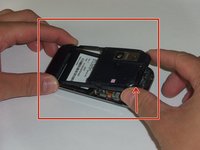
  4. Samsung Glyde LCD Screen Replacement: 手順 4、 2の画像 1 Samsung Glyde LCD Screen Replacement: 手順 4、 2の画像 2
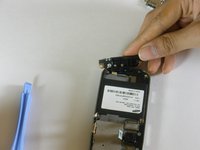
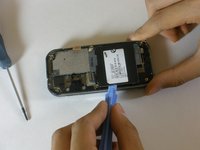
    • Find a gap on the top side of the phone and pry apart the phone case using the plastic opening tool . Use moderate pressure to slowly maneuver around until the case is pryed apart.

    • Take the case off with your fingers

    FixBotに聞いてみる

    コメントを追加

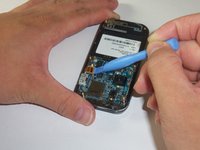
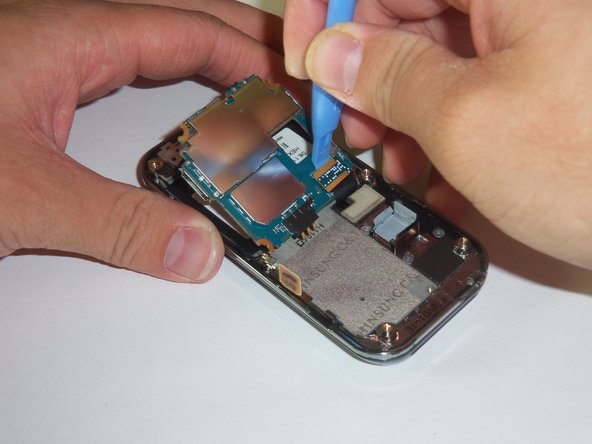
  5. Samsung Glyde LCD Screen Replacement: 手順 5、 2の画像 1 Samsung Glyde LCD Screen Replacement: 手順 5、 2の画像 2
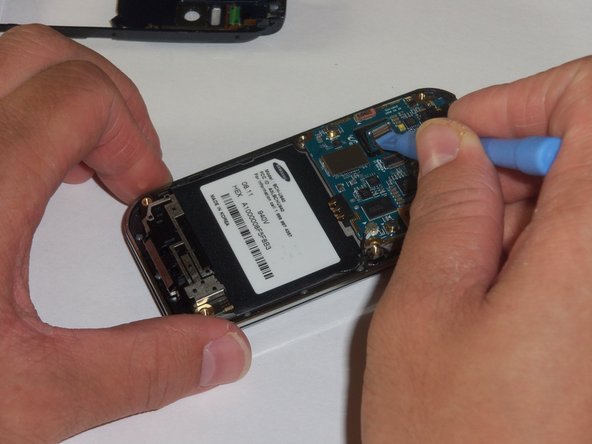
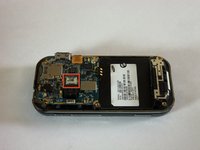
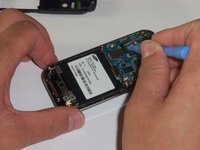
    • The green film is located above the camera. It is the camera connector to the motherboard.

    • Disconnect the camera connector with the plastic opening tool.

    FixBotに聞いてみる

    コメントを追加

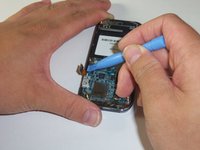
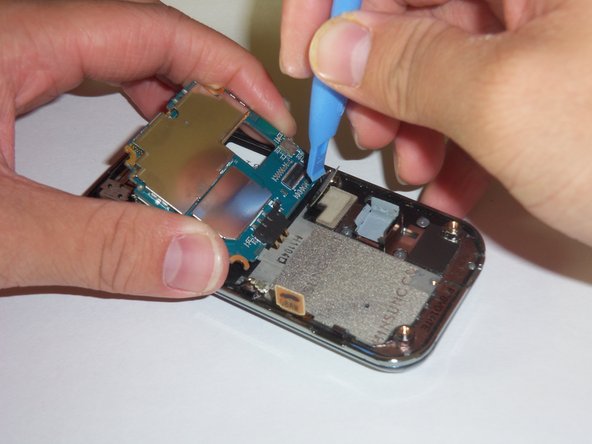
  6. Samsung Glyde LCD Screen Replacement: 手順 6、 2の画像 1 Samsung Glyde LCD Screen Replacement: 手順 6、 2の画像 2
    • Take a close up of the picture for this step for a better view.

    • Use a plastic opening tool to disconnect the keyboard connector.

    FixBotに聞いてみる

    コメントを追加

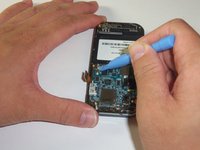
  7. Samsung Glyde LCD Screen Replacement: 手順 7、 2の画像 1 Samsung Glyde LCD Screen Replacement: 手順 7、 2の画像 2
    • The motherboard is held in place by the circular connector.

    • Using a plastic opening tool, disconnect the circular connector.

    FixBotに聞いてみる

    コメントを追加

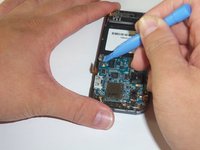
  8. Samsung Glyde LCD Screen Replacement: 手順 8、 3の画像 1 Samsung Glyde LCD Screen Replacement: 手順 8、 3の画像 2 Samsung Glyde LCD Screen Replacement: 手順 8、 3の画像 3
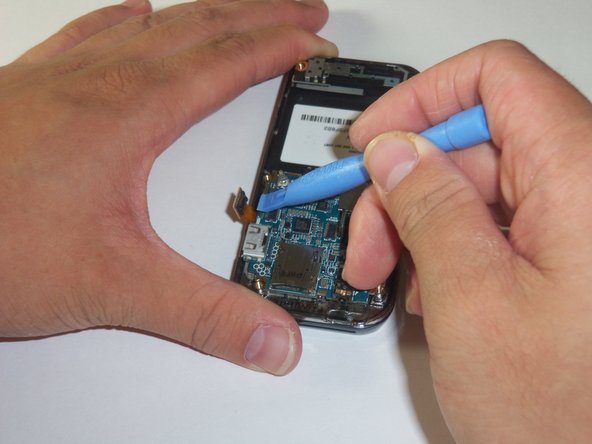
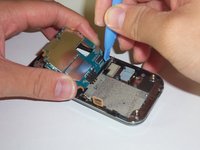
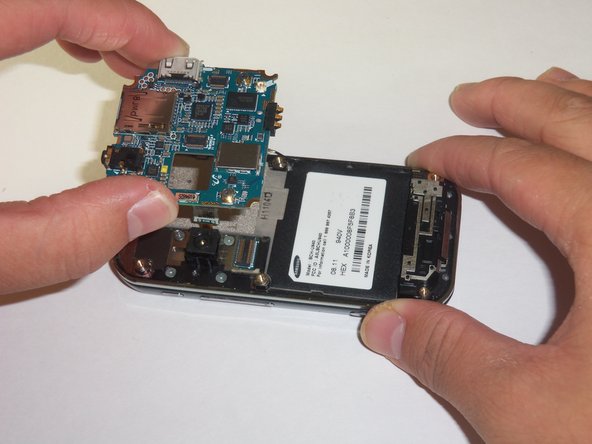
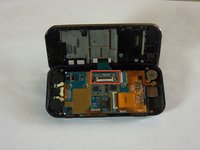
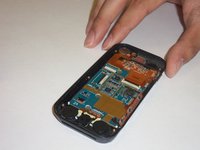
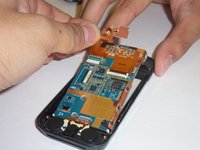
    • A LCD connector is located underneath the motherboard.

    • Lift the far edge of the motherboard gently upwards toward the center.

    • Using a plastic opening tool, disconnect the LCD connector.

    FixBotに聞いてみる

    コメントを追加

  9. Samsung Glyde LCD Screen Replacement: 手順 9、 2の画像 1 Samsung Glyde LCD Screen Replacement: 手順 9、 2の画像 2
    • Lift the motherboard up with your fingers.

    • Place the motherboard in a secure area.

    FixBotに聞いてみる

    コメントを追加

  10. Samsung Glyde LCD Screen Replacement: 手順 10、 3の画像 1 Samsung Glyde LCD Screen Replacement: 手順 10、 3の画像 2 Samsung Glyde LCD Screen Replacement: 手順 10、 3の画像 3
    • Look for the antenna which is located at the bottom end of the device. Prop the antenna out by using the plastic opening tool and slipping the tip of the tool into the edges of the antenna.

    • Using the plastic opening tool, disconnect the connector that leads from the phone to the antenna.

    • With your hands finish prying apart the antenna by lifting it up.

    FixBotに聞いてみる

    コメントを追加

  11. Samsung Glyde LCD Screen Replacement: 手順 11、 2の画像 1 Samsung Glyde LCD Screen Replacement: 手順 11、 2の画像 2
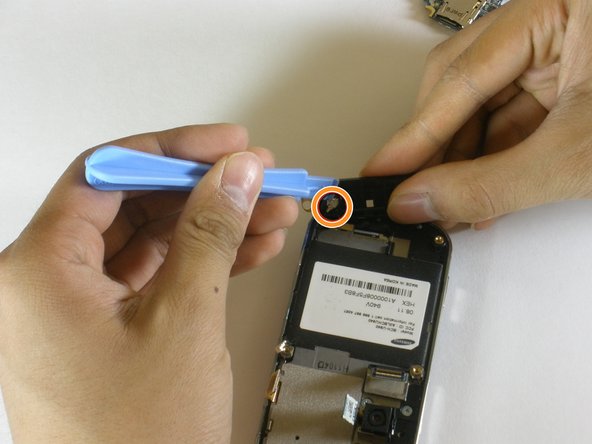
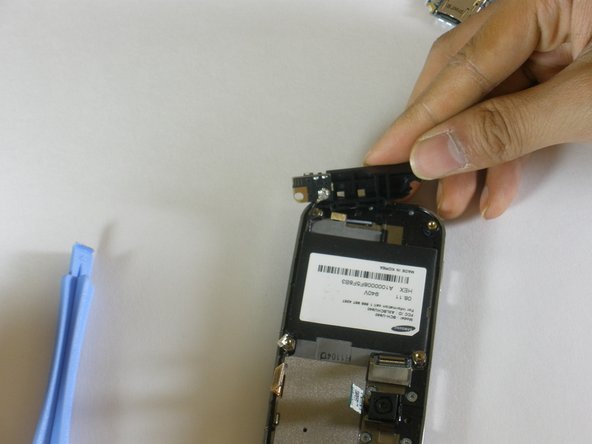
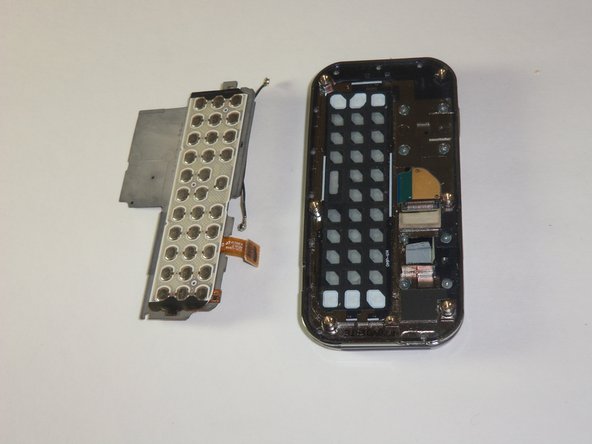
    • The keyboard chip is located on top of the device. Pry the keyboard off of the case with the plastic opening tool.

    FixBotに聞いてみる

    コメントを追加

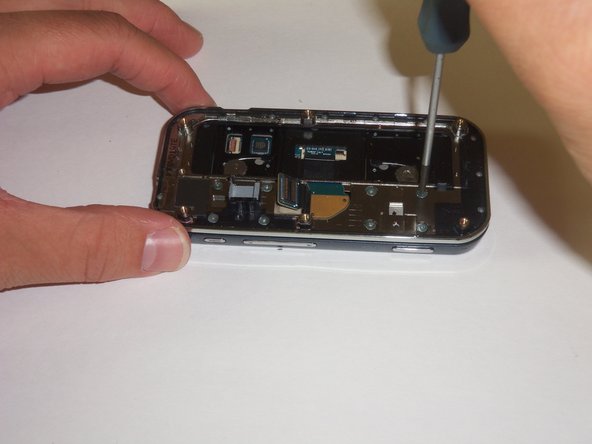
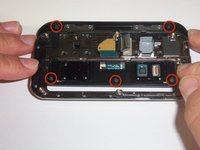
  12. Samsung Glyde LCD Screen Replacement, LCD Screen: 手順 12、 2の画像 1 Samsung Glyde LCD Screen Replacement, LCD Screen: 手順 12、 2の画像 2
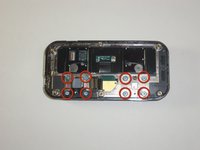
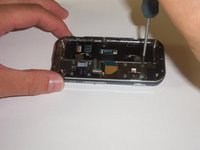
    • Using a #00 screwdriver, remove the 8 2mm screws connecting the display case to the sliding mechanism.

    FixBotに聞いてみる

    コメントを追加

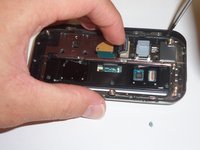
  13. Samsung Glyde LCD Screen Replacement: 手順 13、 2の画像 1 Samsung Glyde LCD Screen Replacement: 手順 13、 2の画像 2
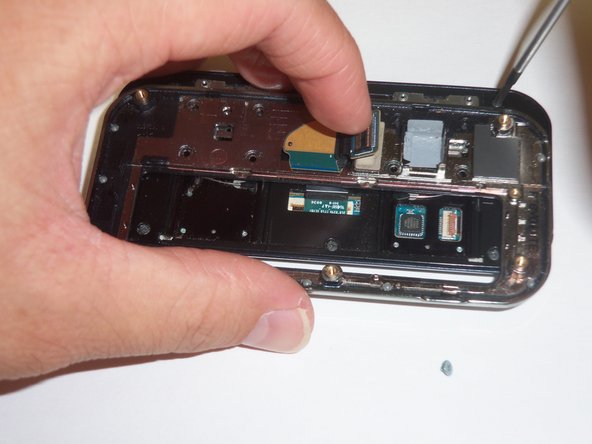
    • Now remove the 5 4mm screws located under the sliding mechanism connecting the back-plate to the display.

    • You will need to maneuver the sliding mechanism around to reach all of the screws.

    FixBotに聞いてみる

    コメントを追加

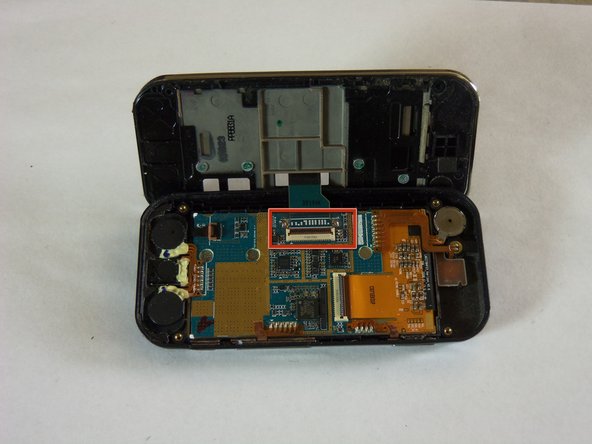
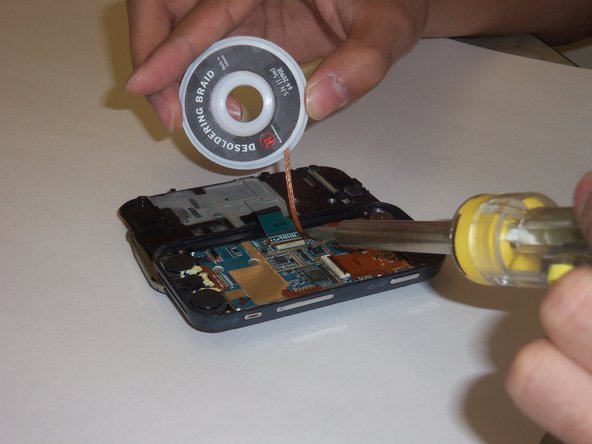
  14. Samsung Glyde LCD Screen Replacement: 手順 14、 3の画像 1 Samsung Glyde LCD Screen Replacement: 手順 14、 3の画像 2 Samsung Glyde LCD Screen Replacement: 手順 14、 3の画像 3
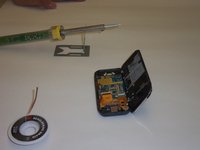
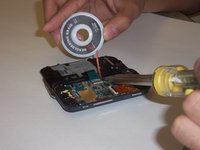
    • Now it's time to desolder some components. You can gain some instruction from here.

    • Using your soldering wick and a soldering iron, desolder the contacts of the flex cable.

    FixBotに聞いてみる

    コメントを追加

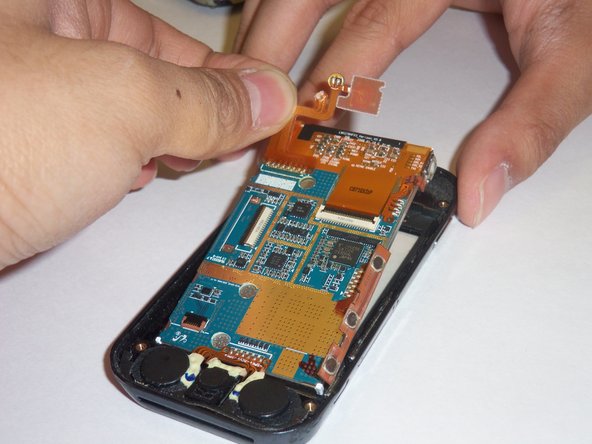
  15. Samsung Glyde LCD Screen Replacement: 手順 15、 1の画像 1
    • After desoldering, verify that the gates on the two flex cables are in the "up" position and remove them.

    FixBotに聞いてみる

    コメントを追加

  16. Samsung Glyde LCD Screen Replacement: 手順 16、 3の画像 1 Samsung Glyde LCD Screen Replacement: 手順 16、 3の画像 2 Samsung Glyde LCD Screen Replacement: 手順 16、 3の画像 3
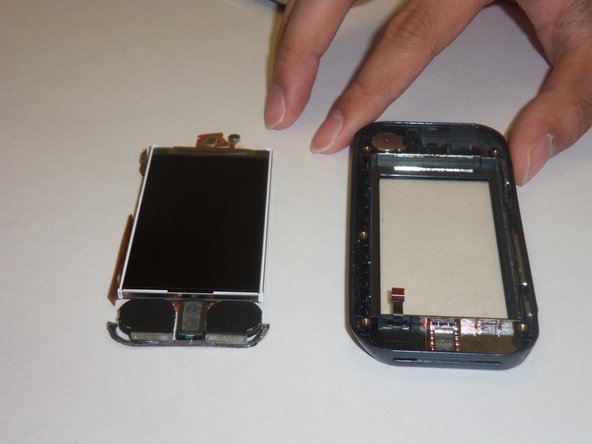
    • Using gentle fingers, pry the LCD screen out of its housing.

    • The flex cables connecting everything to the LCD screen are very sensitive to touch, and don't react well to pulling/tearing motions.

    FixBotに聞いてみる

    コメントを追加

終わりに

To reassemble your device, follow these instructions in reverse order.

キャンセル: このガイドを終了できませんでした。

ある他の人がこのガイドを完成しました。

作成者

5人の作成者と共同で作成されました。

Cameron Law

メンバー登録日: 10/12/11

142 ポイント

5のガイドは作成済み

チーム

Cal Poly, Team 3-12, Regan Fall 2011 Cal Poly, Team 3-12, Regan Fall 2011人のメンバー

CPSU-REGAN-F11S3G12

4 メンバー

14のガイドは作成済み

0件のガイドコメント

コメントを追加

統計データ:

過去 24時間: 2

過去 7 日: 11

過去 30 日: 55

今までの合計 2,583