メインコンテンツにスキップ
リペアコミュニティに参加 - アカウントの作成

Samsung Galaxy A50 Screen Replacement

閲覧: 11万

統計データ:

過去24時間:
20
過去7日:
123
過去30日:
521
今までの合計
112,547
コメント: 35

手順に関する11件のコメント, 24 guide comments.

修理ガイドのコメントへ
完了済み: 84

84人のユーザーがこのガイドを「完了」させました。あなたも加わりませんか?

お気に入り: 7

7人のユーザーがこのガイドをお気に入りに登録しています。あなたもリストに入れませんか?

所要時間: 1 - 2 時間
難易度: 難しい
おすすめのガイド

このガイドはiFixitスタッフによって太鼓判が押されています。

Samsung Galaxy A50 Screen Replacement

はじめに

手順 1 に進む ↓

Use this guide to replace a cracked or broken screen in your Samsung Galaxy A50.

Note: The function of the fingerprint sensor might be lost after this screen replacement. Security patches installed after September 2020 don’t support this repair.

This guide instructs you to replace only the screen while leaving the original frame and motherboard in place. However, some replacement screens for this phone come pre-installed in a new frame (a.k.a. chassis), which requires a very different procedure. Make sure you have the correct part before starting this guide.

Before disassembling your phone, discharge the battery below 25%. The battery can catch fire and/or explode if accidentally punctured, but the chances of that happening are much lower if discharged.

You’ll need replacement adhesive to reattach components when reassembling the device.

必要な工具と部品

パーツ

ツール

    1. Samsung Galaxy A50 Screen Replacement, Samsung Galaxy A50 SIM Tray Replacement: 手順 1、 3の画像 1 Samsung Galaxy A50 Screen Replacement, Samsung Galaxy A50 SIM Tray Replacement: 手順 1、 3の画像 2 Samsung Galaxy A50 Screen Replacement, Samsung Galaxy A50 SIM Tray Replacement: 手順 1、 3の画像 3
      • Insert a SIM card eject tool, a SIM eject bit or a straightened paper clip into the hole on the SIM tray located at the left side of the phone.

      • Press firmly to eject the tray.

      • Remove the SIM card tray.

      • When reinserting the cards, make sure to properly orient them in the tray.

      FixBotに聞いてみる

      コメントを追加

    1. Samsung Galaxy A50 Screen Replacement, Back Cover: 手順 2、 1の画像 1
      • Start by switching off your phone.

      • Heat an iOpener and apply it to the back cover to soften the adhesive.

      • The adhesive of the Samsung Galaxy A50 is very strong. A hair dryer, heat gun, or hot plate may also be used if you aren't able to open the device with the iOpener. Be careful not to overheat the phone—the AMOLED display and internal battery are both susceptible to heat damage.

      FixBotに聞いてみる

      コメントを追加

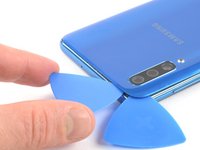
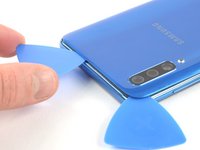
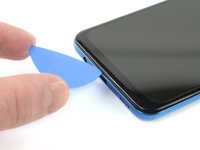
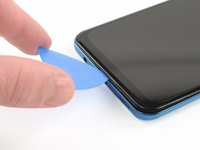
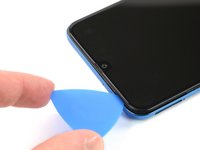
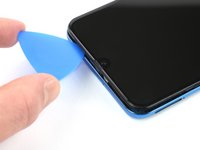
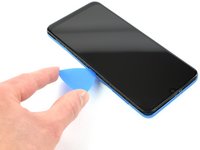
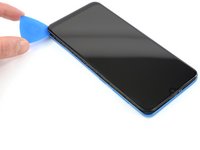
    2. Samsung Galaxy A50 Screen Replacement: 手順 3、 3の画像 1 Samsung Galaxy A50 Screen Replacement: 手順 3、 3の画像 2 Samsung Galaxy A50 Screen Replacement: 手順 3、 3の画像 3
      • Insert an opening pick at the bottom of your phone near the USB-C port.

      • If you can't get between the back cover and midframe with your opening pick, you can use a suction handle or strong tape to pull up the back cover to create a gap.

      • Slide the opening pick to the bottom left corner.

      FixBotに聞いてみる

      コメントを追加

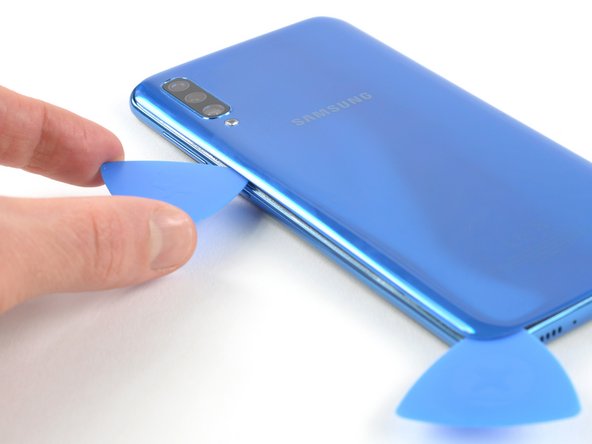
    3. Samsung Galaxy A50 Screen Replacement: 手順 4、 2の画像 1 Samsung Galaxy A50 Screen Replacement: 手順 4、 2の画像 2
      • Insert a second opening pick and slide it from the bottom to the top left corner to cut the adhesive.

      • If you have trouble, apply more heat to further soften the adhesive. Follow the iOpener instructions to avoid overheating.

      • Leave the opening picks in place to prevent the adhesive from resealing.

      FixBotに聞いてみる

      コメントを追加

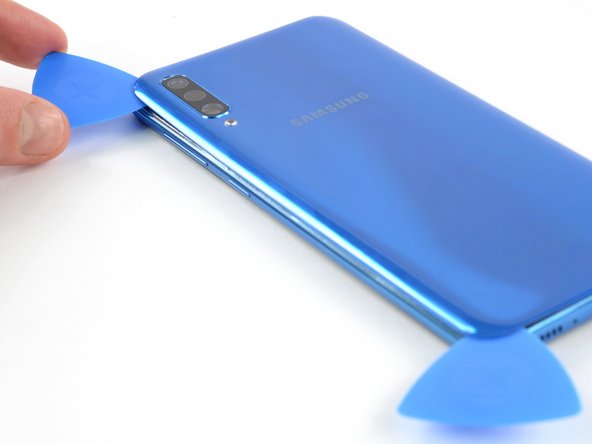
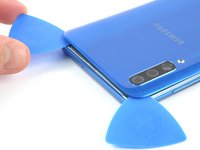
    4. Samsung Galaxy A50 Screen Replacement: 手順 5、 3の画像 1 Samsung Galaxy A50 Screen Replacement: 手順 5、 3の画像 2 Samsung Galaxy A50 Screen Replacement: 手順 5、 3の画像 3
      • Insert a third opening pick under the top left corner of the back cover.

      • Slide the opening pick along the top edge of the phone.

      • Leave the opening pick in the top right corner to prevent the adhesive from resealing.

      FixBotに聞いてみる

      コメントを追加

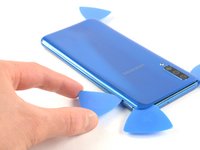
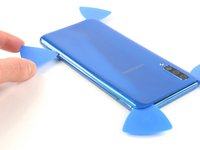
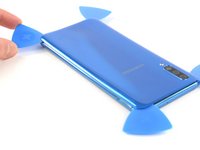
    5. Samsung Galaxy A50 Screen Replacement: 手順 6、 3の画像 1 Samsung Galaxy A50 Screen Replacement: 手順 6、 3の画像 2 Samsung Galaxy A50 Screen Replacement: 手順 6、 3の画像 3
      • Insert a fourth opening pick under the top right corner of the back cover.

      • Slide the tip of the opening pick along the side of the phone to the bottom right corner to cut the adhesive.

      • Leave the opening pick in the bottom right corner to prevent the adhesive from resealing.

      FixBotに聞いてみる

      コメントを追加

    6. Samsung Galaxy A50 Screen Replacement: 手順 7、 1の画像 1
      • Remove the back cover.

      • After installing the back cover, apply strong, steady pressure to your phone for several minutes to help the adhesive form a good bond—a stack of heavy books works well.

      FixBotに聞いてみる

      コメントを追加

    1. Samsung Galaxy A50 Screen Replacement, Midframe: 手順 8、 1の画像 1
      • Remove the 13 Phillips #00 screws (4 mm length).

      FixBotに聞いてみる

      コメントを追加

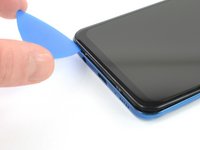
    2. Samsung Galaxy A50 Screen Replacement: 手順 9、 3の画像 1 Samsung Galaxy A50 Screen Replacement: 手順 9、 3の画像 2 Samsung Galaxy A50 Screen Replacement: 手順 9、 3の画像 3
      • Insert an opening pick between the display and the midframe at the bottom of your phone above the USB-C port.

      • Slide the pick along the bottom edge to release the clips.

      FixBotに聞いてみる

      コメントを追加

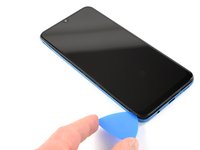
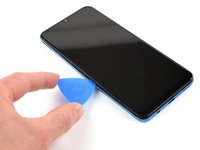
    3. Samsung Galaxy A50 Screen Replacement: 手順 10、 3の画像 1 Samsung Galaxy A50 Screen Replacement: 手順 10、 3の画像 2 Samsung Galaxy A50 Screen Replacement: 手順 10、 3の画像 3
      • Continue sliding the pick along the left edge of the phone to release the clips.

      FixBotに聞いてみる

      コメントを追加

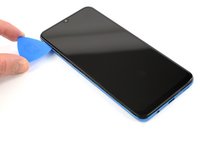
    4. Samsung Galaxy A50 Screen Replacement: 手順 11、 2の画像 1 Samsung Galaxy A50 Screen Replacement: 手順 11、 2の画像 2
      • Slide the opening pick along the top edge.

      FixBotに聞いてみる

      コメントを追加

    5. Samsung Galaxy A50 Screen Replacement: 手順 12、 3の画像 1 Samsung Galaxy A50 Screen Replacement: 手順 12、 3の画像 2 Samsung Galaxy A50 Screen Replacement: 手順 12、 3の画像 3
      • Slide your opening pick along the right edge towards the bottom right corner.

      FixBotに聞いてみる

      コメントを追加

    6. Samsung Galaxy A50 Screen Replacement: 手順 13、 2の画像 1 Samsung Galaxy A50 Screen Replacement: 手順 13、 2の画像 2
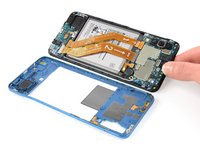
      • Make sure you free all the clips securing the midframe.

      • Separate the midframe from the phone.

      FixBotに聞いてみる

      コメントを追加

    1. Samsung Galaxy A50 Screen Replacement, Battery Disconnect: 手順 14、 2の画像 1 Samsung Galaxy A50 Screen Replacement, Battery Disconnect: 手順 14、 2の画像 2
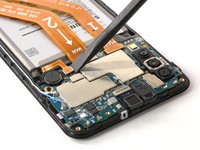
      • Use a spudger to disconnect the battery by prying the connector straight up from its socket.

      FixBotに聞いてみる

      コメントを追加

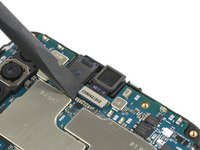
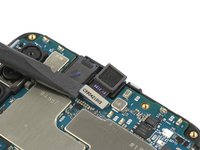
    1. Samsung Galaxy A50 Screen Replacement, Front Camera: 手順 15、 2の画像 1 Samsung Galaxy A50 Screen Replacement, Front Camera: 手順 15、 2の画像 2
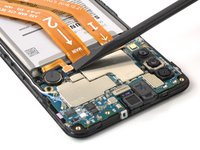
      • Use a spudger to disconnect the front camera by prying the connector straight up from its socket.

      FixBotに聞いてみる

      コメントを追加

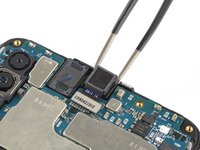
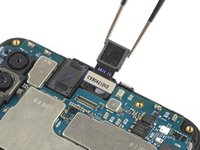
    2. Samsung Galaxy A50 Screen Replacement: 手順 16、 2の画像 1 Samsung Galaxy A50 Screen Replacement: 手順 16、 2の画像 2
      この手順で使用する道具:
      Tweezers
      $4.99
      • Carefully remove the camera with a pair of tweezers.

      FixBotに聞いてみる

      コメントを追加

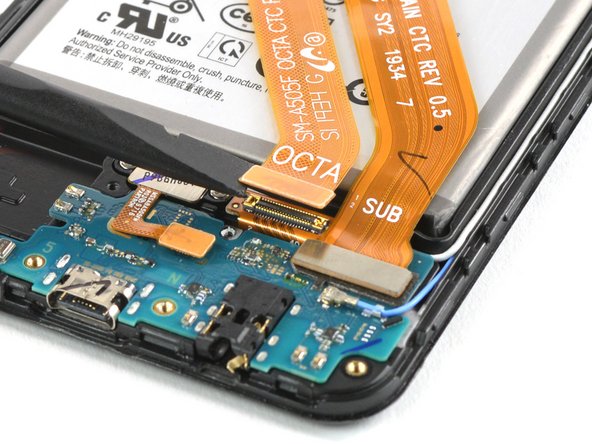
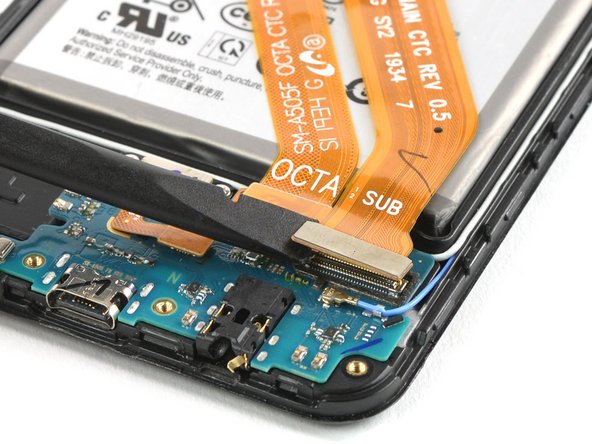
    1. Samsung Galaxy A50 Screen Replacement, Screen: 手順 17、 3の画像 1 Samsung Galaxy A50 Screen Replacement, Screen: 手順 17、 3の画像 2 Samsung Galaxy A50 Screen Replacement, Screen: 手順 17、 3の画像 3
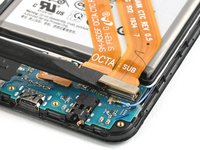
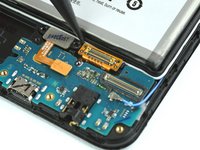
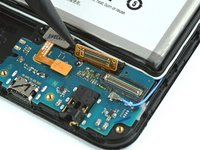
      • Use the flat end of a spudger to pry up and disconnect the interconnect and display flex cable from the daughterboard.

      • Carefully bend both cables out of the way.

      FixBotに聞いてみる

      コメントを追加

    2. Samsung Galaxy A50 Screen Replacement: 手順 18、 2の画像 1 Samsung Galaxy A50 Screen Replacement: 手順 18、 2の画像 2
      • Use the tip of a spudger to loosen the display connector above the daughterboard.

      FixBotに聞いてみる

      コメントを追加

    3. Samsung Galaxy A50 Screen Replacement: 手順 19、 2の画像 1 Samsung Galaxy A50 Screen Replacement: 手順 19、 2の画像 2
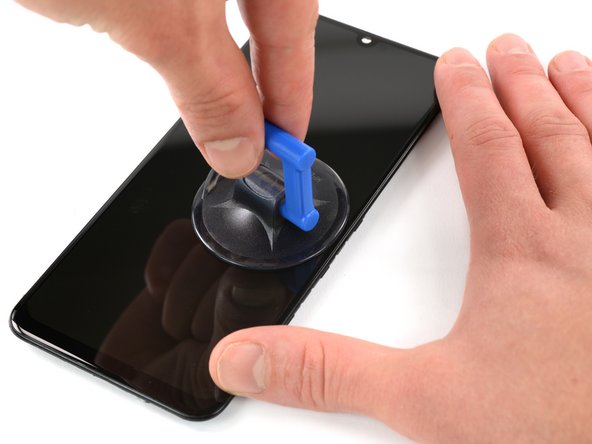
      • Heat an iOpener and apply it on the display for at least two minutes to soften the adhesive underneath.

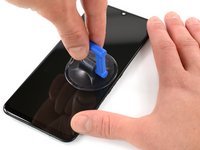
      • Place a suction handle close to the right edge of the display and pull with firm steady force for 30 seconds to loosen the adhesive.

      • If the phone's screen is cracked, the suction handle may not stick. Try lifting it with strong tape, or superglue the suction handle in place and allow it to cure so you can proceed.

      FixBotに聞いてみる

      コメントを追加

    4. Samsung Galaxy A50 Screen Replacement: 手順 20、 2の画像 1 Samsung Galaxy A50 Screen Replacement: 手順 20、 2の画像 2
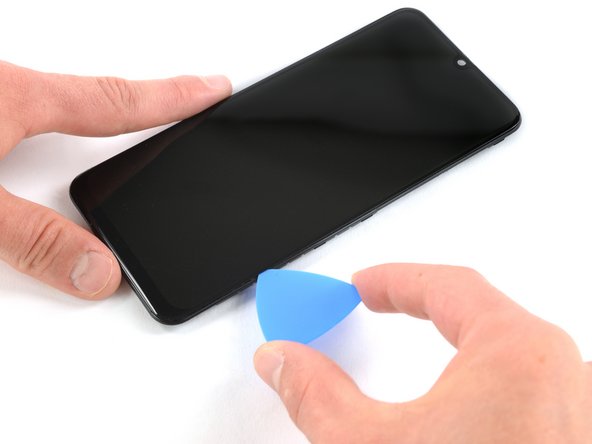
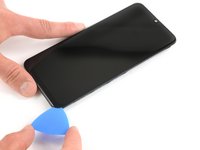
      • Re-apply a heated iOpener to the display for about one minute.

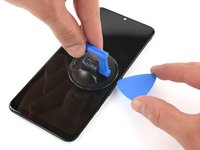
      • Pull the suction cup upwards and insert an opening pick into the gap between the display and the frame.

      • Only insert the opening pick about 2 mm.

      FixBotに聞いてみる

      コメントを追加

    5. Samsung Galaxy A50 Screen Replacement: 手順 21、 3の画像 1 Samsung Galaxy A50 Screen Replacement: 手順 21、 3の画像 2 Samsung Galaxy A50 Screen Replacement: 手順 21、 3の画像 3
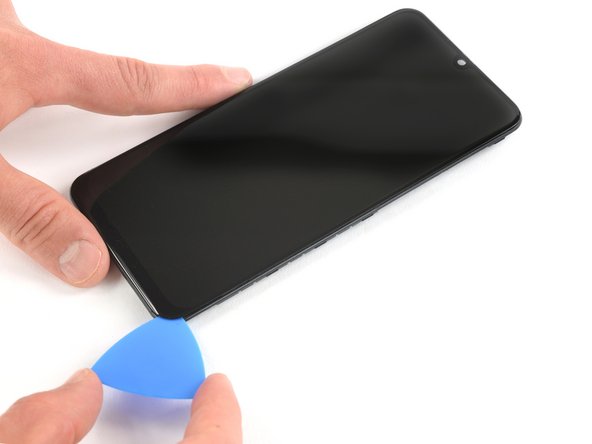
      • Slide the opening pick down to the bottom right corner.

      • Leave it there to prevent the adhesive from resealing.

      FixBotに聞いてみる

      コメントを追加

    6. Samsung Galaxy A50 Screen Replacement: 手順 22、 3の画像 1 Samsung Galaxy A50 Screen Replacement: 手順 22、 3の画像 2 Samsung Galaxy A50 Screen Replacement: 手順 22、 3の画像 3
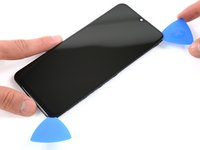
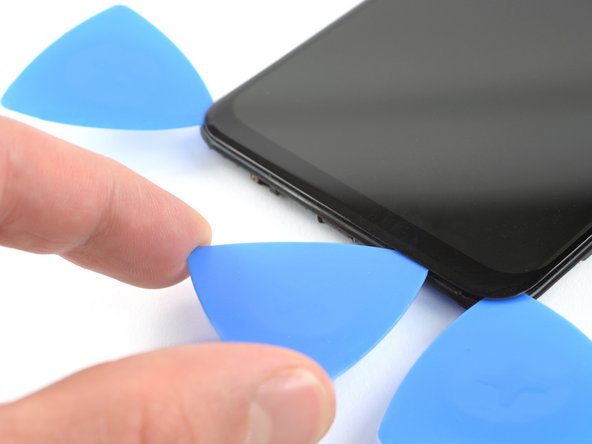
      • Insert a second opening pick and slide it to the top right corner of the phone to cut the adhesive.

      • Leave the pick in its place to prevent the adhesive from resealing.

      FixBotに聞いてみる

      コメントを追加

    7. Samsung Galaxy A50 Screen Replacement: 手順 23、 3の画像 1 Samsung Galaxy A50 Screen Replacement: 手順 23、 3の画像 2 Samsung Galaxy A50 Screen Replacement: 手順 23、 3の画像 3
      • Insert a third opening pick and slide it to the top left corner.

      • Leave the picks in their place to prevent the adhesive from resealing.

      • If cutting becomes too difficult, reheat and reapply the iOpener.

      FixBotに聞いてみる

      コメントを追加

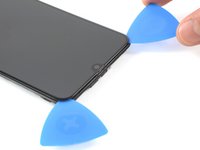
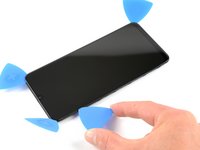
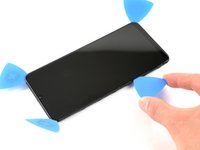
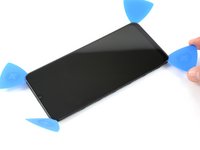
    8. Samsung Galaxy A50 Screen Replacement: 手順 24、 3の画像 1 Samsung Galaxy A50 Screen Replacement: 手順 24、 3の画像 2 Samsung Galaxy A50 Screen Replacement: 手順 24、 3の画像 3
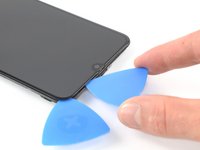
      • Insert a fourth opening pick at the top left corner.

      • Slide the opening pick up to the bottom left corner to cut the adhesive. Leave it there to prevent the adhesive from resealing.

      FixBotに聞いてみる

      コメントを追加

    9. Samsung Galaxy A50 Screen Replacement: 手順 25、 2の画像 1 Samsung Galaxy A50 Screen Replacement: 手順 25、 2の画像 2
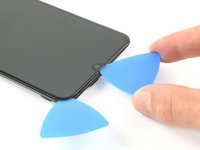
      • Insert a fifth opening pick and slide it along the bottom edge of the phone to cut the remaining adhesive.

      • Only insert the opening pick about 2 mm to avoid damaging components.

      FixBotに聞いてみる

      コメントを追加

    10. Samsung Galaxy A50 Screen Replacement: 手順 26、 2の画像 1 Samsung Galaxy A50 Screen Replacement: 手順 26、 2の画像 2
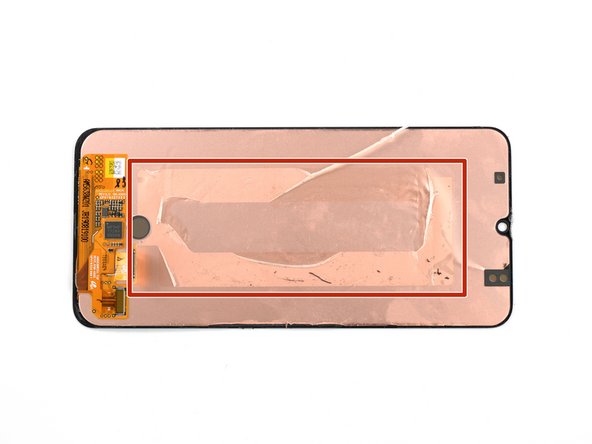
      • Apply a heated iOpener to the display to loosen the adhesive underneath the screen.

      • As you wait, take note of the rectangular-shaped adhesive placed on the back of the screen.

      FixBotに聞いてみる

      コメントを追加

    11. Samsung Galaxy A50 Screen Replacement: 手順 27、 3の画像 1 Samsung Galaxy A50 Screen Replacement: 手順 27、 3の画像 2 Samsung Galaxy A50 Screen Replacement: 手順 27、 3の画像 3
      この手順で使用する道具:
      Plastic Cards
      $2.99
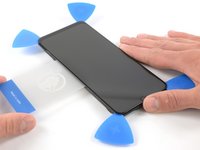
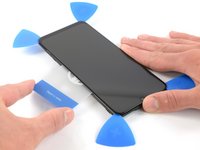
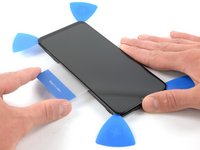
      • Insert a plastic card into the loosened left edge of the phone.

      • Press the plastic card in and slide it back and forth until you cut through the entire adhesive.

      • Once you are sure you cut through the adhesive, remove the four opening picks from the corners.

      FixBotに聞いてみる

      コメントを追加

    12. Samsung Galaxy A50 Screen Replacement: 手順 28、 3の画像 1 Samsung Galaxy A50 Screen Replacement: 手順 28、 3の画像 2 Samsung Galaxy A50 Screen Replacement: 手順 28、 3の画像 3
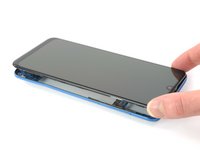
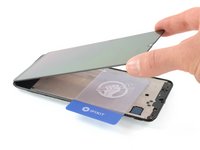
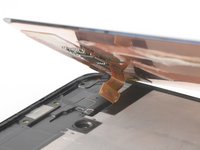
      • Lift the screen from the top edge of the phone.

      • Carefully thread the display cable through the frame.

      • Remove the screen.

      FixBotに聞いてみる

      コメントを追加

終わりに

If possible, turn on your device and test your repair before installing new adhesive and resealing.

The best way to secure the new screen is to apply a sheet of custom-cut double-sided tape to the back of the screen.

To reassemble your device, follow these instructions in reverse order. Apply new adhesive where necessary after cleaning the relevant areas with isopropyl alcohol (>90%).

Take your e-waste to an R2 or e-Stewards certified recycler.

Repair didn’t go as planned? Try some basic troubleshooting, or ask our Answers community for help.

キャンセル: このガイドを終了できませんでした。

84 の人々がこのガイドを完成させました。

作成者

3人の作成者と共同で作成されました。

Adriana Zwink

メンバー登録日: 12/18/19

69,190 ポイント

167のガイドは作成済み

チーム

iFixit iFixit人のメンバー

Staff

121 メンバー

72,885のガイドは作成済み

24件のガイドコメント

considering it is embedded within the display assembly, any chance that the fingerprint sensor is affected by replacing the screen?

Steve B - 返信 共有
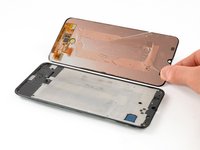
Hi Steve, the fingerprint sensor is not embedded within the display as you can see here. The sensor is fixed under the frame and can be seen through the hole in the frame.

Adriana Zwink - 返信 共有
Hey, I followed this procedure to replace my screen and now, whenever I am charging my phone it keeps on rebooting itself every 3-5 seconds, or even when it’s not charging and is just idle. I tried to open it up and realign everything however it didn’t help and kept rebooting. So I am not quite sure what I did wrong and was wondering if you have ever experienced that, and what to do about it.

Nishtha Sharma - 返信 共有

sounds like you may have damaged the battery in some way, try replacing the battery!

Braydon Vanvelzor - 返信 共有

A good instruction, but if you change the screen without a midframe, it will not work.

Kaig - 返信 共有

コメントを追加

統計データ:

過去 24時間: 20

過去 7 日: 123

過去 30 日: 521

今までの合計 112,547