メインコンテンツにスキップ

RetroMini Miyoo Mini Plus Button Replacement

必要な工具と部品

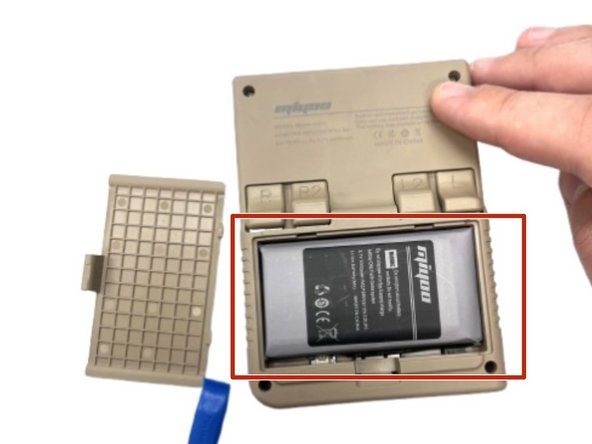
  1. RetroMini Miyoo Mini Plus Button Replacement, Battery: 手順 1、 2の画像 1 RetroMini Miyoo Mini Plus Button Replacement, Battery: 手順 1、 2の画像 2
    • Lay the device face down on a flat surface.

    • You may want to lay the device on a towel or other soft surface to avoid scratching the screen.

  2. RetroMini Miyoo Mini Plus Button Replacement: 手順 2、 2の画像 1 RetroMini Miyoo Mini Plus Button Replacement: 手順 2、 2の画像 2
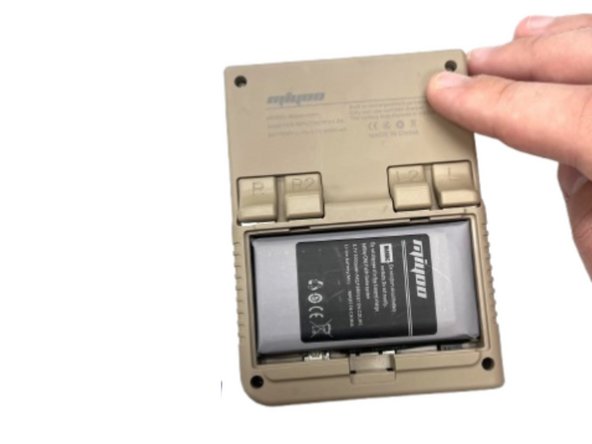
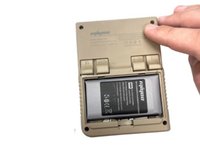
    • Use your fingernail to push in the battery compartment tab.

    • Lift the cover up to expose the battery.

  3. RetroMini Miyoo Mini Plus Button Replacement: 手順 3、 1の画像 1
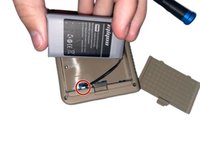
    • Use an opening tool to gently lift the the battery from its compartment.

    • Gently pull the battery out and set the battery next to the system, with care not to strain the attached wire.

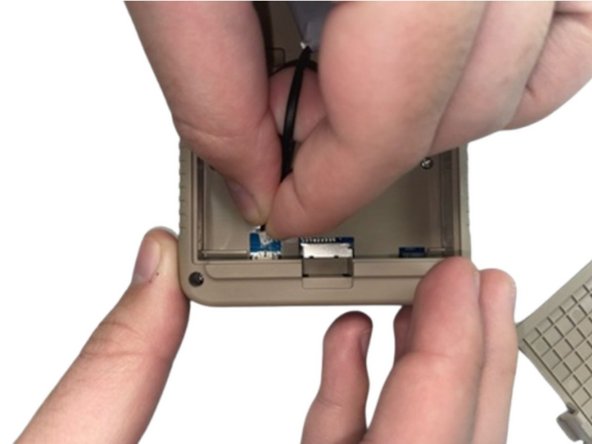
  4. RetroMini Miyoo Mini Plus Button Replacement: 手順 4、 2の画像 1 RetroMini Miyoo Mini Plus Button Replacement: 手順 4、 2の画像 2
    • Pinch the white battery connector and pull it directly out of its socket.

    • Completely remove the battery.

  5. RetroMini Miyoo Mini Plus Button Replacement: 手順 5、 2の画像 1 RetroMini Miyoo Mini Plus Button Replacement: 手順 5、 2の画像 2
    • When you have the new battery, put the new battery wire into the connecter.

    • Place the battery back into the empty space with the wire at the bottom of the battery.

  6. RetroMini Miyoo Mini Plus Button Replacement, Button: 手順 6、 2の画像 1 RetroMini Miyoo Mini Plus Button Replacement, Button: 手順 6、 2の画像 2
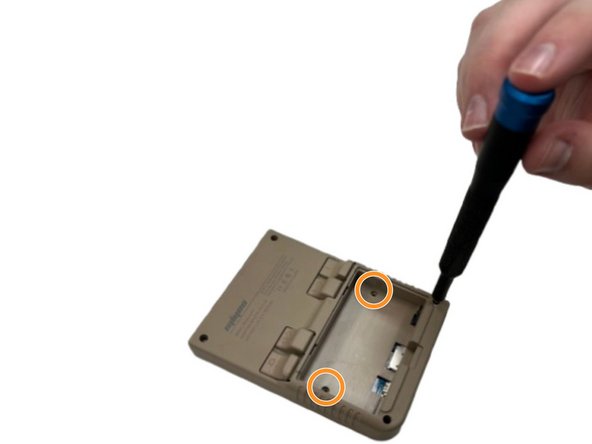
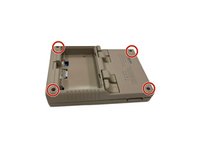
    • Remove the four screws securing the rear case with a Phillips screwdriver.

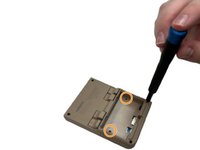
    • Remove the two Phillips screws inside the battery compartment.

  7. RetroMini Miyoo Mini Plus Button Replacement: 手順 7、 2の画像 1 RetroMini Miyoo Mini Plus Button Replacement: 手順 7、 2の画像 2
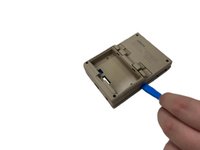
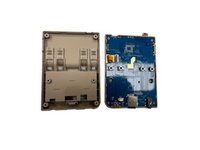
    • Insert an opening tool into the seam between the front and rear case.

    • Pry the front and rear case apart.

  8. RetroMini Miyoo Mini Plus Button Replacement: 手順 8、 2の画像 1 RetroMini Miyoo Mini Plus Button Replacement: 手順 8、 2の画像 2
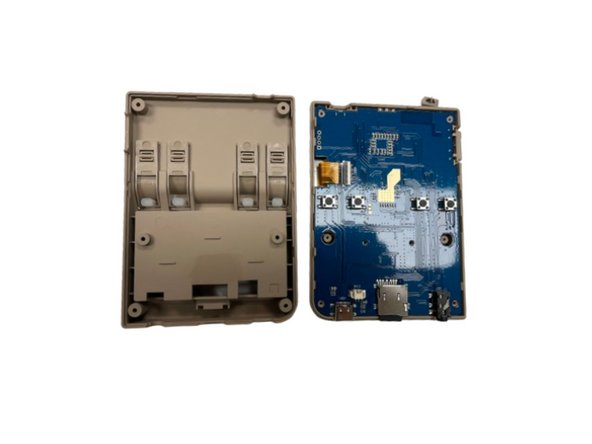
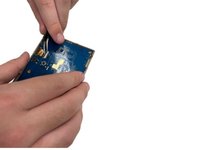
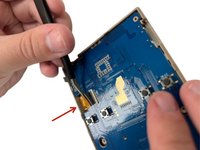
    • Gently set the rear case aside.

    • Make sure you lift the black tab on the left side of the motherboard and gently remove the ribbon cable as to not damage it when removing the motherboard from the case.

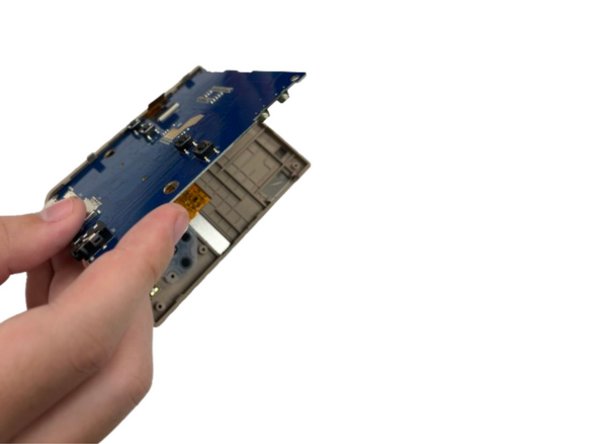
  9. RetroMini Miyoo Mini Plus Button Replacement: 手順 9、 2の画像 1 RetroMini Miyoo Mini Plus Button Replacement: 手順 9、 2の画像 2
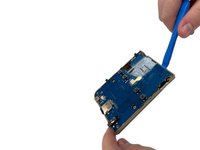
    • Use an opening tool to lift the motherboard from the chassis.

  10. RetroMini Miyoo Mini Plus Button Replacement: 手順 10、 3の画像 1 RetroMini Miyoo Mini Plus Button Replacement: 手順 10、 3の画像 2 RetroMini Miyoo Mini Plus Button Replacement: 手順 10、 3の画像 3
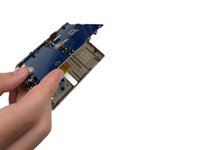
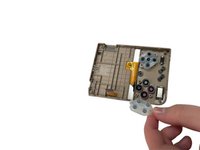
    • Gently set the motherboard to the side.

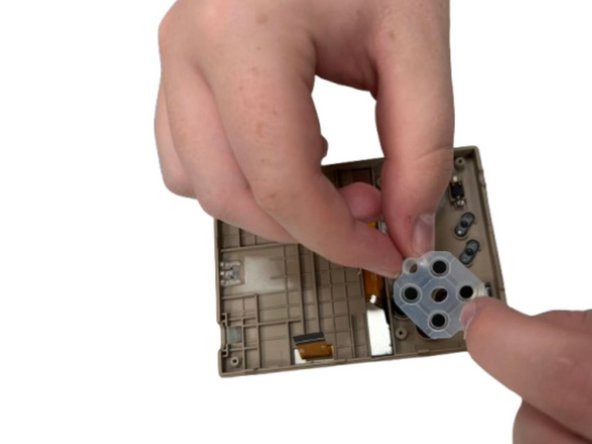
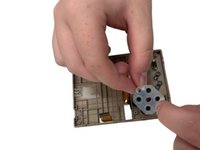
    • Remove the rubber button gasket.

  11. RetroMini Miyoo Mini Plus Button Replacement: 手順 11、 1の画像 1
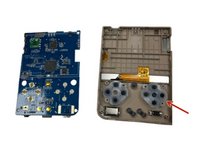
    • Remove the button(s) you want to replace.

終わりに

To reassemble your device, follow the above steps in reverse order.

Take your e-waste to an R2 or e-Stewards certified recycler.
Repair didn’t go as planned? Try some basic troubleshooting, or ask our Steam Deck answers community for help.

作成者

2人の作成者と共同で作成されました。

Kaden

メンバー登録日: 08/28/24

578 ポイント

4のガイドは作成済み

チーム

University of North Texas, Team 5-2, Kilpatrick Fall 2024 University of North Texas, Team 5-2, Kilpatrick Fall 2024人のメンバー

UNT-KILPATRICK-F24S5G2

4 メンバー

4のガイドは作成済み

0件のガイドコメント

コメントを追加

統計データ:

過去 24時間: 2

過去 7 日: 13

過去 30 日: 32

今までの合計 385