この翻訳は機械によって生成されたものであり、まだ人間による校正は行われていません。 日本語を話せますか? レビューはこちらから。

Logitech K750 キーボードのバッテリー交換

Carsten Frauenheim とその他 9 人の作成者
最終更新日: 2026年8月15日
閲覧: 29万
統計データ:
- 過去24時間:
- 43
- 過去7日:
- 249
- 過去30日:
- 1,104
- 今までの合計
- 291,724
コメント: 125
手順に関する30件のコメント, 95件のガイドコメント
修理ガイドのコメントへ完了済み: 213 214
213人のユーザーがこのガイドを「完了」させました。あなたも加わりませんか?
あなたを含む、214人のユーザーがこのガイドを使って修理を「完了」させました。素晴らしいです!
お気に入り: 10 11
10人のユーザーがこのガイドをお気に入りに登録しています。あなたもリストに入れませんか?
あなたを含む、11人のユーザーがこのガイドをお気に入りに登録しています。
おすすめのガイド
このガイドはiFixitスタッフによって太鼓判が押されています。
OEM ガイド
iFixit はメーカーと協力してこのガイドを作成しました。
ロジクール(Logitech)
ロジクール(Logitech)とiFixitは、ロジクール製品の修理を支援するために協力しています。
はじめに
手順 1 に進む ↓この修理ガイドを使用して、Logitech K750 ソーラーワイヤレスキーボードのバッテリーを安全に取り外し、交換してください。
注意: K750 ソーラーには、交換用として充電式の ML2032 コイン型電池が必要です。より一般的な CR2032 とサイズや形状は同じですが、CR2032 は充電式ではありません。充電式の LIR2032 バッテリーも使用可能です。
必要な工具と部品


-
-
-
-
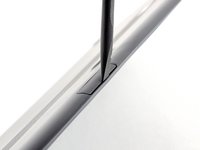
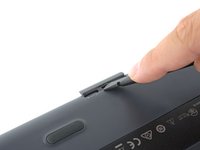
スパッジャーの平らな端を、電池トレイとキーボード上面の隙間に差し込みます。
-
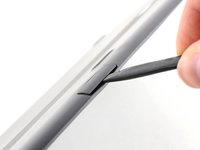
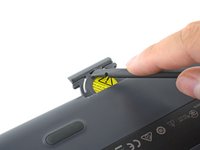
キーボードの上面に向かってスパッジャーを倒し、トレイをくぼみからこじ開けて外します。
-
-
-
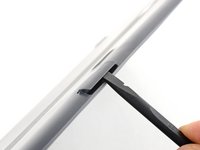
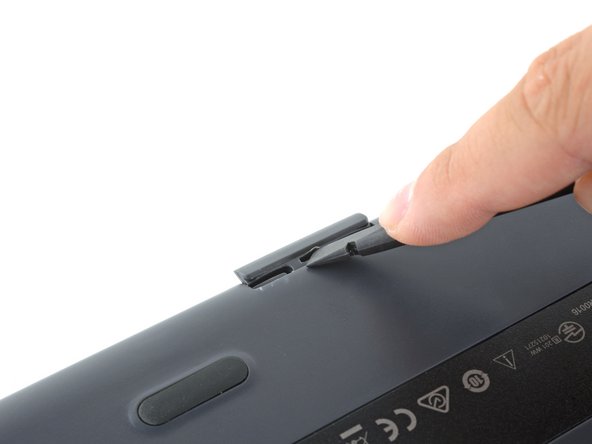
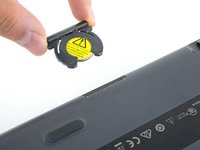
スパッジャーの平らな端を使って、バッテリートレイをキーボードから押し出します。
-
取り外しが難しい場合は、スパッジャーの先端や平たいドライバーを使って、中央を直接押すのではなく、左右を交互に押し出すようにしてトレイを少しずつ動かします。
-
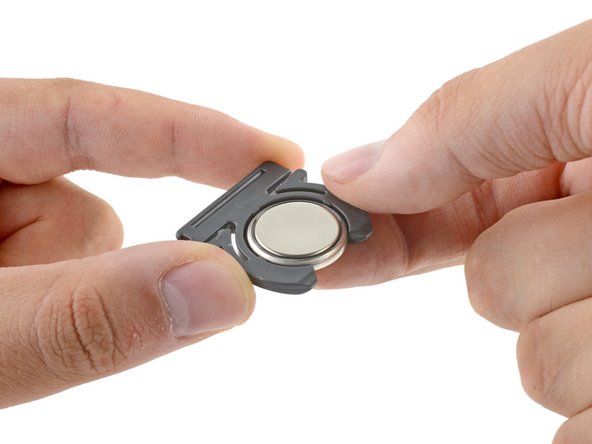
バッテリートレイを取り外します。
-

 FixBotに聞いてみる





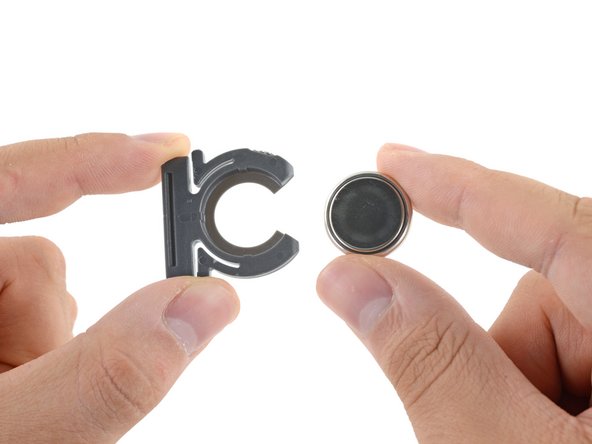
デバイスを組み立て直すには、上記の手順を逆に行ってください。
電子廃棄物(e-waste)は、R2 または e-Stewards 認証を受けたリサイクル業者にお持ち込みください。
修理がうまくいきませんでしたか?トラブルシューティングについては、アンサーコミュニティをご確認ください。
213 の人々がこのガイドを完成させました。

95件のガイドコメント
There a better way to open it
put the knife or better a screwdriver on the other side (keys upside); worked for me without damage the keyboard :D
yannick NR - 返信 共有
Thank You! That did work much better!
Here is an even better method.
You can also totally prevent damage by finding a laminated biz card and cutting it into 2 one inch strips and inserting both of them into the slot on the top side (solar side) of the battery compartment.
Then get your tool ( I like small pointed scissors) and pry it out between the cards.
Very easy!
David Powers - 返信 共有
