メインコンテンツにスキップ
リペアコミュニティに参加 - アカウントの作成

Beats Studio3 Wireless Hinge Replacement

必要な工具と部品

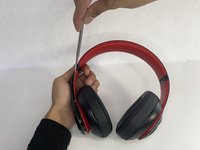
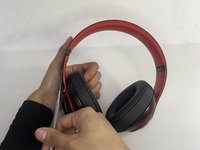
  1. Beats Studio3 Wireless Hinge Replacement, Ear Pad: 手順 1、 2の画像 1 Beats Studio3 Wireless Hinge Replacement, Ear Pad: 手順 1、 2の画像 2
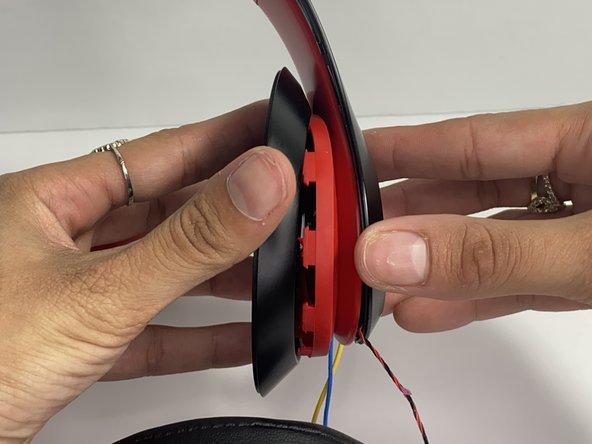
    • Find the separation between the headset and ear cushion.

    • Use an opening tool to go underneath the separation site and split the pieces apart.

  2. Beats Studio3 Wireless Hinge Replacement: 手順 2、 3の画像 1 Beats Studio3 Wireless Hinge Replacement: 手順 2、 3の画像 2 Beats Studio3 Wireless Hinge Replacement: 手順 2、 3の画像 3
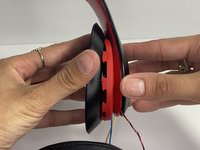
    • You can also use your hands to remove it completely.

    • Pulling it off can be challenging; make sure to apply enough pressure.

  3. Beats Studio3 Wireless Hinge Replacement, Left Driver Assembly: 手順 3、 2の画像 1 Beats Studio3 Wireless Hinge Replacement, Left Driver Assembly: 手順 3、 2の画像 2
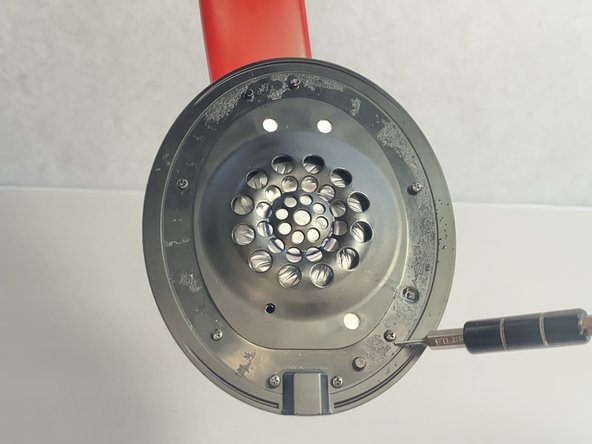
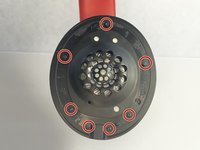
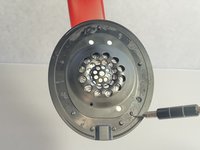
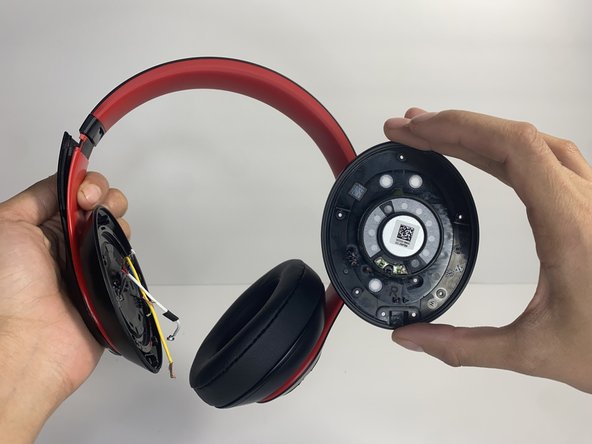
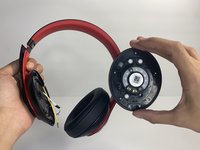
    • Remove seven 3.6 mm screws holding the speaker assembly in place using a Phillips #0 screwdriver.

    • Make sure the screws aren't close to the speaker; due to it being a magnet, the screws could get stuck and damage the speaker.

    • Open the speaker by pulling the top layer of the speaker.

  4. Beats Studio3 Wireless Hinge Replacement: 手順 4、 3の画像 1 Beats Studio3 Wireless Hinge Replacement: 手順 4、 3の画像 2 Beats Studio3 Wireless Hinge Replacement: 手順 4、 3の画像 3
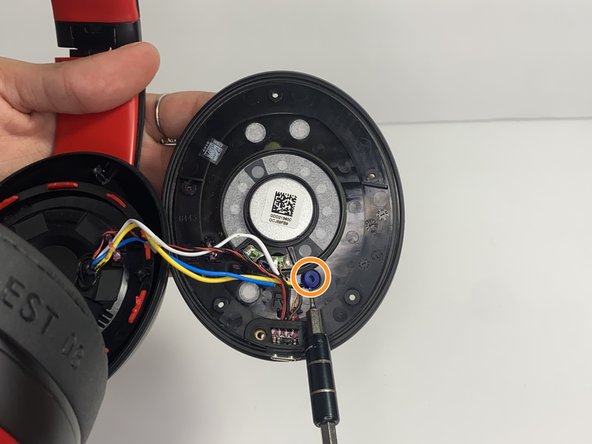
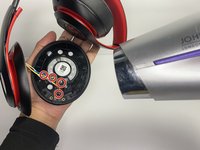
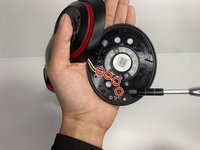
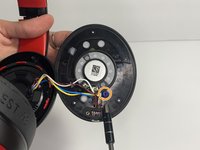
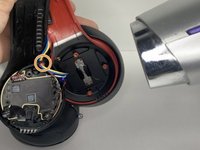
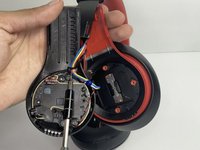
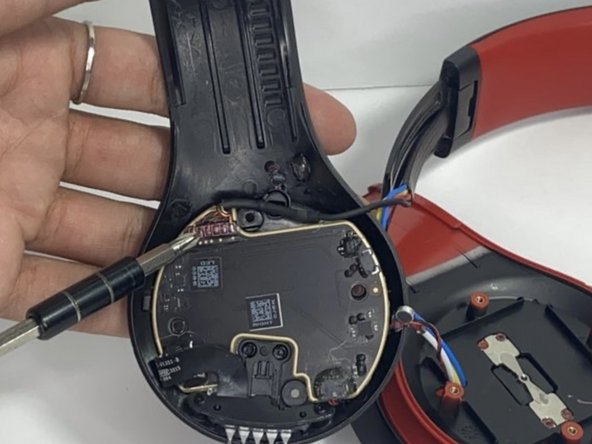
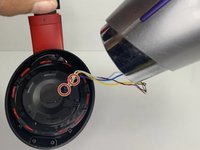
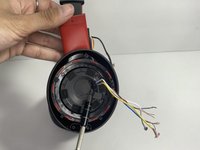
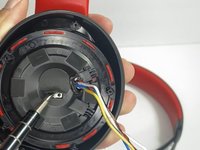
    • With a heat gun or hair dryer, heat the glue that is sticking the wires down until the glue softens.

    • Use a nylon spudger to remove the glue.

    • Pull on the wire to remove it while also removing the blue rubber band.

  5. Beats Studio3 Wireless Hinge Replacement: 手順 5、 3の画像 1 Beats Studio3 Wireless Hinge Replacement: 手順 5、 3の画像 2 Beats Studio3 Wireless Hinge Replacement: 手順 5、 3の画像 3
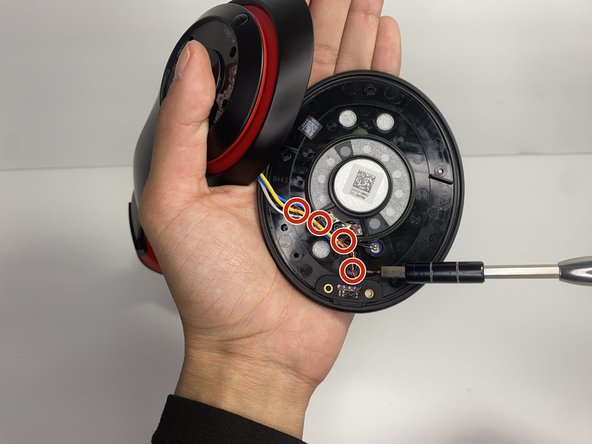
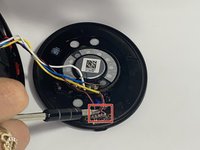
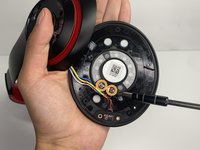
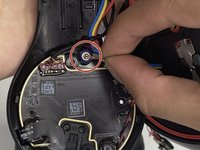
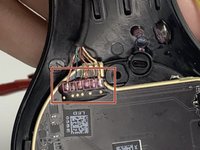
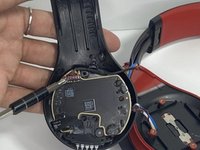
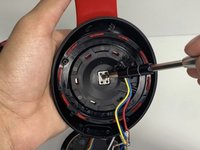
    • Using a soldering iron to remove the cables on the charger port.

    • For help with soldering, check out the How to Solder and Desolder Connections guide.

    • Remove the two wires connected in the middle of the speaker using a soldering iron.

    • Remove the speaker from the headset.

  6. Beats Studio3 Wireless Hinge Replacement, Battery: 手順 6、 2の画像 1 Beats Studio3 Wireless Hinge Replacement, Battery: 手順 6、 2の画像 2
    • Use a pointed nylon spudger to remove the center circular panel on the right side of your device.

    • Be gentle while removing this piece as it is glued on with adhesive.

  7. Beats Studio3 Wireless Hinge Replacement: 手順 7、 2の画像 1 Beats Studio3 Wireless Hinge Replacement: 手順 7、 2の画像 2
    • Remove the four 3.5 mm screws using a Phillips #0 screwdriver.

  8. Beats Studio3 Wireless Hinge Replacement: 手順 8、 3の画像 1 Beats Studio3 Wireless Hinge Replacement: 手順 8、 3の画像 2 Beats Studio3 Wireless Hinge Replacement: 手順 8、 3の画像 3
    • Using a pointed nylon spudger, remove the tab located on the inner part of the headband labeled "R."

    • Place the nylon spudger in between the side panels and push inward going from bottom to top to separate both sides of the panel.

    • The panel will pop open after separating.

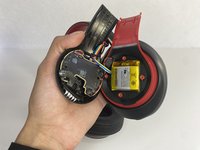
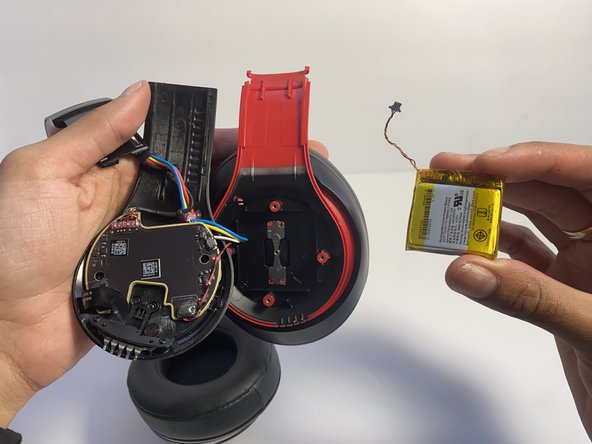
  9. Beats Studio3 Wireless Hinge Replacement: 手順 9、 1の画像 1
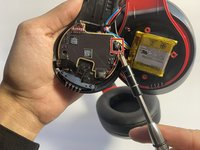
    • Place the nylon spudger underneath the battery, push inward and separate the battery from the inside.

    • Never use sharp tools to pry batteries. Metal spudgers can puncture an unprotected battery, potentially causing a fire.

  10. Beats Studio3 Wireless Hinge Replacement: 手順 10、 2の画像 1 Beats Studio3 Wireless Hinge Replacement: 手順 10、 2の画像 2
    • Use a nylon spudger to lift up the glue sticking the wires down.

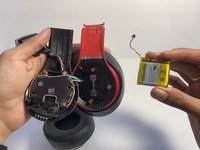
    • Use a nylon spudger to lift the connector to disconnect the battery.

  11. Beats Studio3 Wireless Hinge Replacement, Hinge: 手順 11、 3の画像 1 Beats Studio3 Wireless Hinge Replacement, Hinge: 手順 11、 3の画像 2 Beats Studio3 Wireless Hinge Replacement, Hinge: 手順 11、 3の画像 3
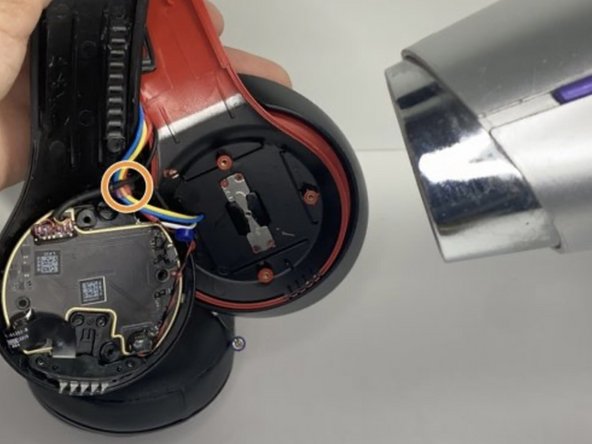
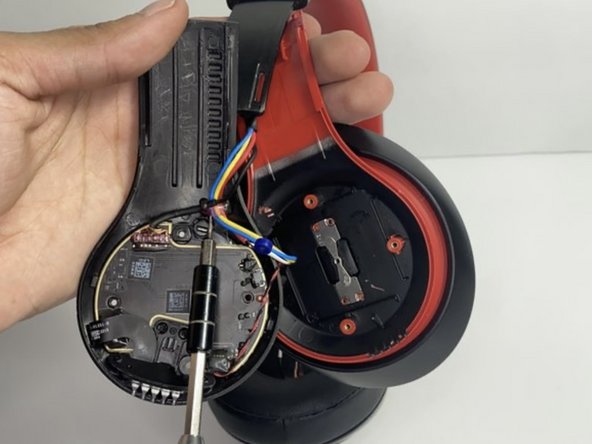
    • Pull the wire making sure that the blue rubber band is off.

    • Heat the glue holding the wires down with a hair dryer or heat gun until the glue softens.

    • Make sure not to overheat any device part, which could cause damage to the sound.

    • With a pointed nylon spudger, remove the glue.

  12. Beats Studio3 Wireless Hinge Replacement: 手順 12、 2の画像 1 Beats Studio3 Wireless Hinge Replacement: 手順 12、 2の画像 2
  13. Beats Studio3 Wireless Hinge Replacement: 手順 13、 3の画像 1 Beats Studio3 Wireless Hinge Replacement: 手順 13、 3の画像 2 Beats Studio3 Wireless Hinge Replacement: 手順 13、 3の画像 3
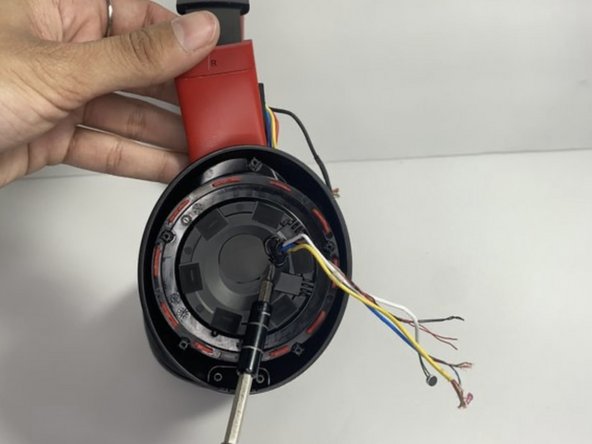
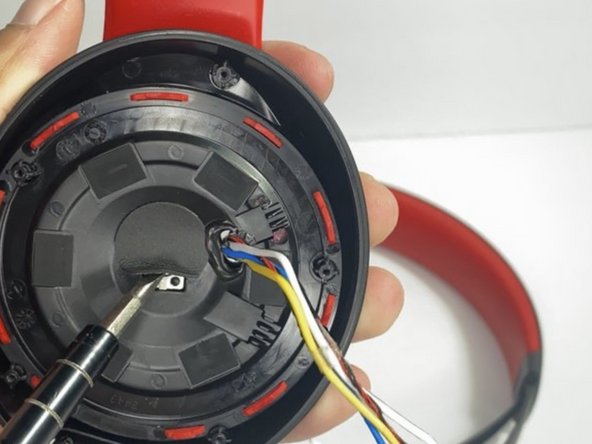
    • With a hair dryer or heating gun, heat the glue that is sticking the wires down.

    • Use a nylon spudger to remove the softened glue.

    • Remove the circular tape inside of the ear pad.

  14. Beats Studio3 Wireless Hinge Replacement: 手順 14、 2の画像 1 Beats Studio3 Wireless Hinge Replacement: 手順 14、 2の画像 2
    • Remove the single 3.5 mm screw with a Phillips #0 screwdriver.

    • Pull apart the top layer of the earpiece.

  15. Beats Studio3 Wireless Hinge Replacement: 手順 15、 2の画像 1 Beats Studio3 Wireless Hinge Replacement: 手順 15、 2の画像 2
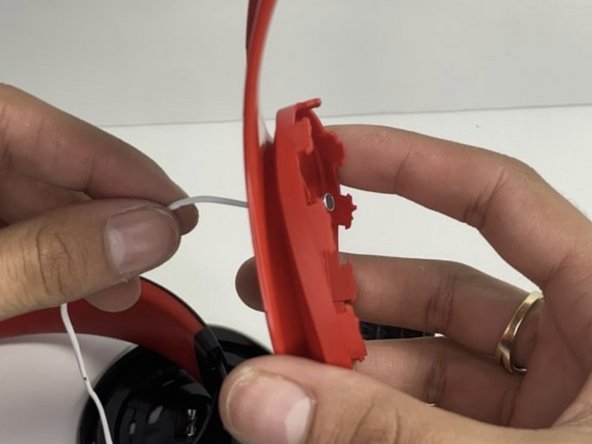
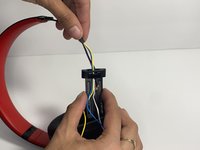
    • Remove the tape holding the wires in place.

    • Pull the wires through the hole with your hand.

  16. Beats Studio3 Wireless Hinge Replacement: 手順 16、 1の画像 1
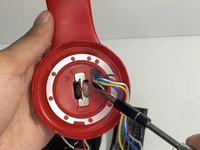
    • Bend the hinge and remove the two 3.5 mm screws with a Phillips #0 screwdriver.

  17. Beats Studio3 Wireless Hinge Replacement: 手順 17、 3の画像 1 Beats Studio3 Wireless Hinge Replacement: 手順 17、 3の画像 2 Beats Studio3 Wireless Hinge Replacement: 手順 17、 3の画像 3
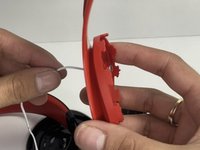
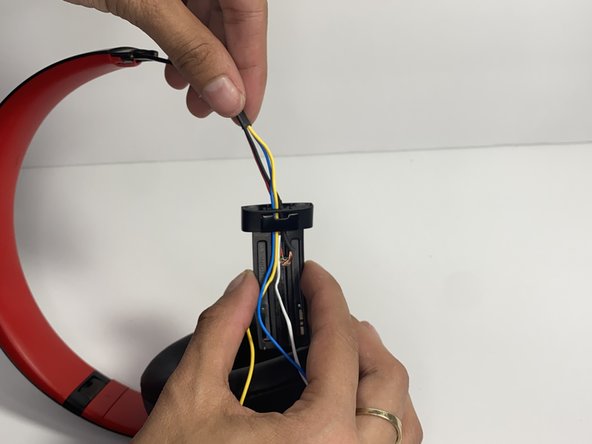
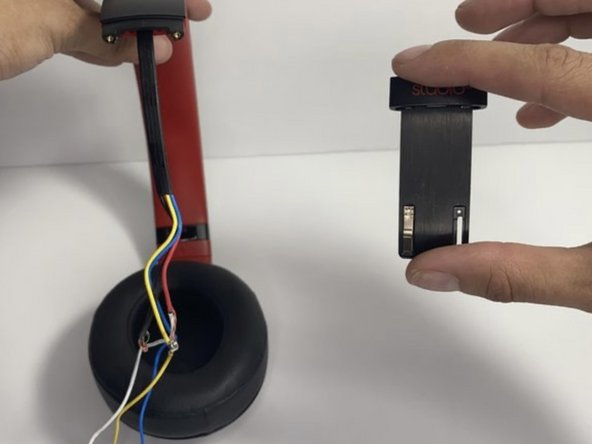
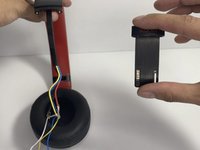
    • Pull the hinge down.

    • Pull on the wires one at a time making sure you don't damage them.

  18. Beats Studio3 Wireless Hinge Replacement: 手順 18、 2の画像 1 Beats Studio3 Wireless Hinge Replacement: 手順 18、 2の画像 2
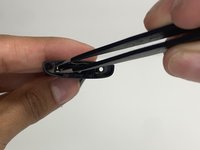
    この手順で使用する道具:
    Tweezers
    $4.99
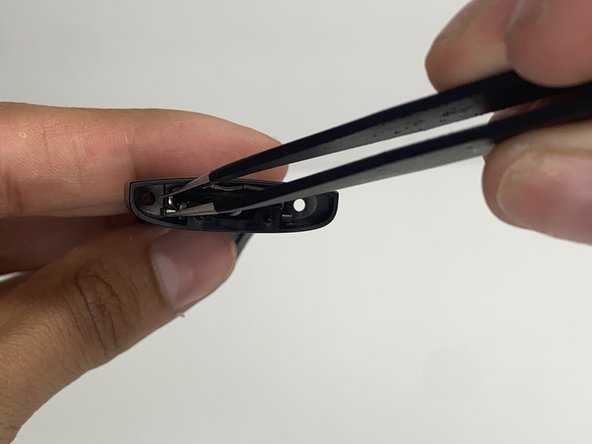
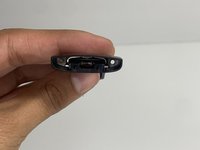
    • With tweezers, remove the pin located inside of the hinge.

終わりに

To reassemble your device, follow these instructions in reverse order.

ある他の人がこのガイドを完成しました。

作成者

3人の作成者と共同で作成されました。

Nayeli watts

メンバー登録日: 03/16/23

528 ポイント

3のガイドは作成済み

チーム

UMass Dartmouth, Team 7-4, Ryckebusch Spring 2023 UMass Dartmouth, Team 7-4, Ryckebusch Spring 2023人のメンバー

UMASSD-RYCKEBUSCH-S23S7G4

3 メンバー

9のガイドは作成済み

0件のガイドコメント

コメントを追加

統計データ:

過去 24時間: 7

過去 7 日: 57

過去 30 日: 254

今までの合計 9,300