はじめに
The motherboard is the central component of the Alienware AW610M mouse. It connects and powers all other parts. Damage, wear, or electrical failure can lead to performance issues like unresponsive clicks, erratic cursor movement, or complete power loss. Replacing the motherboard should restore full functionality and ensure reliable performance.
This guide assumes a basic familiarity with disassembling electronic devices and handling delicate components. Before starting the replacement, make sure the mouse is completely turned off as well as unplugged to avoid any accidental breakage or shortage of wires. If you are unsure about the motherboard being the source of the problem, refer back to our troubleshooting page before you continue.
必要な工具と部品
-
-
-
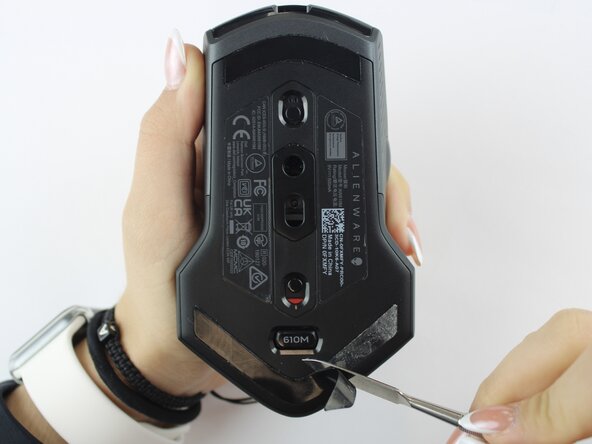
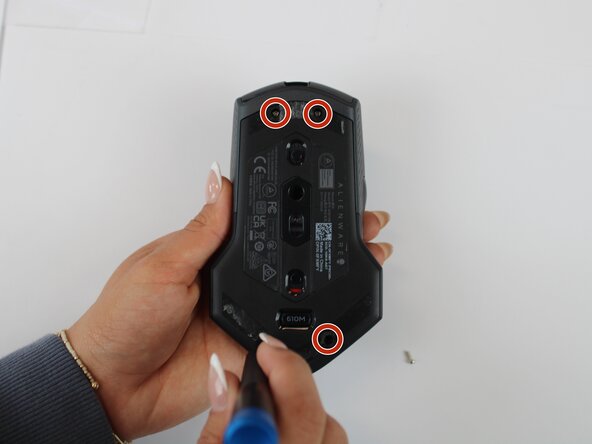
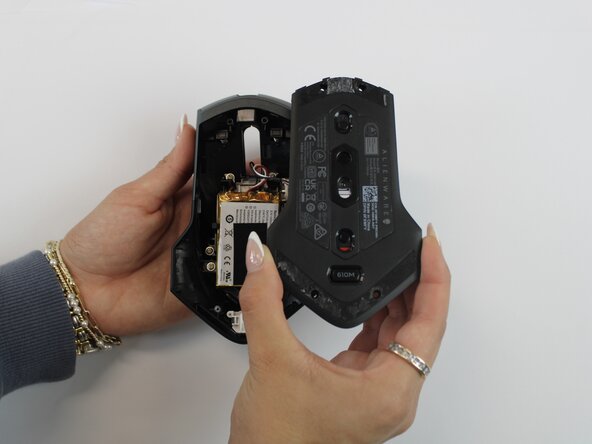
Using an opening tool, gently pry apart the two halves of the mouse case. Start at the seam and work your way around until the housing is separated.
-
-
-
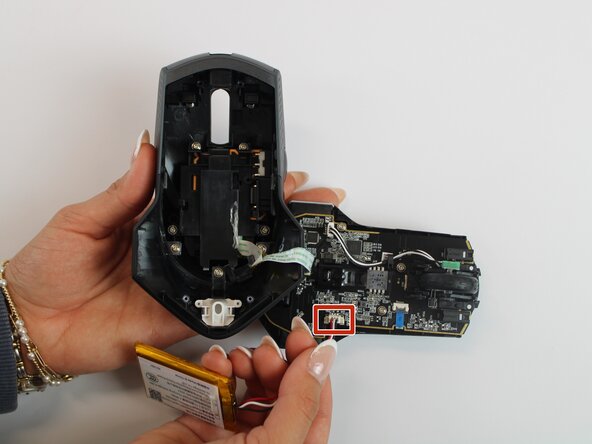
Remove the old battery from its spot. Lift the wire connector away from the mainboard to disconnect it.
-
-
-
Remove the single 5.4 mm screw using a Phillips #1 screwdriver.
-
Detach the cable connector, and remove the scroll wheel.
-
Gently detach the last connector using your fingers.
-
-
-
Detach the blue ribbon that connects the motherboard to the shell casing.
-
Using a Phillips #1 screw driver, remove two 5.4 mm screws to detach the motherboard from the base shell casing.
-


 FixBotに聞いてみる









To reassemble your device, follow these instructions in reverse order.

チーム

Texas Tech, Team 46-4, Johansen Fall 2025 Texas Tech, Team 46-4, Johansen Fall 2025人のメンバー
TTU-JOHANSEN-F25S46G4
4 メンバー
5のガイドは作成済み
