学生によって寄稿されたWiki
iFixit学生教育プログラムに参加している素晴らしい学生チームが、このWikiを作成しました。
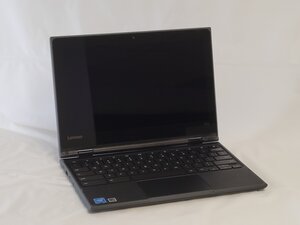
Lenovo 500e Chromebook 81ESの電源が入らない場合、このトラブルシューティングガイドを使用して原因を診断してください。
損傷によるバッテリーの劣化
デバイスのバッテリーは万能ではなく、特定の充電サイクル数があります。制限に達すると急速に劣化します。これはノートパソコンの電源が入らない場合の非常によくある問題です。
- 電源ボタンを30秒間長押ししてから、画面やノートパソコンのライトが点灯するか確認してください。
- バッテリー、特にリチウムイオンバッテリーは、損傷すると膨張して盛り上がることがあり、その場合バッテリーが充電を保持できなくなります。ノートパソコンのバッテリーが膨張しているかどうかを確認するには、こちらのガイドをご覧ください。
- バッテリーの交換については、こちらの修理ガイド Lenovo 500e Chromebook 81ESのバッテリー交換 を参照してください。
SSD/HDDハードドライブの損傷
- ノートパソコンが起動するにはオペレーションシステムが必要です。SSD/HDDハードドライブが破損または損傷していると、デバイスの電源が入らない原因となることがあります。
- デバイスのハードドライブを確認するには、コンピュータを別のコンピュータに接続し、動作しているコンピュータから動作していないノートパソコンへファイルを転送できるかどうかを試してください。
- また、オペレーションシステムがロードされたUSBスティックをUSBポートに接続し、正しいオペレーションシステムをアップロードできるかどうかを確認することもできます。
マザーボードの損傷による問題
コンピュータが起動しない場合、マザーボードの故障や誤作動が原因である可能性が高いです。
- マザーボードを点検して部品の緩みがないか確認し、すべての部品が良好な状態で損傷していないことを確認してください。部品が損傷している場合は、損傷した部品を交換してください。
- 損傷した部品の修理や交換については、こちらのステップごとの修理ガイドを参照してください。
- マザーボードの冷却が適切か確認し、すべての接着およびはんだ付けされた接続部分が正しく密閉されているか確認してください。また、すべてが正しく接続されているかも確認してください。
接続不良によりUSB-Cが電力を受け付けない
コンピュータが起動しない場合、充電ポート(この場合はUSB-Cポート)がシステムを充電するための電力を受け付けていない可能性があります。
- USB-Cポートを点検し、水やほこりが混入していないか確認してください。水やほこりが混入している場合は、エアダスターを使用して30秒から1分間ほどポートを掃除してからテストしてください。
- USB-Cポートが損傷していないことを確認してください。別のUSB-Cケーブルを試して、ケーブルに問題があるのか、それともポートの問題なのかを確認してください。
- ケーブルとコンピュータに互換性があることを確認し、USB-Cケーブルがそのコンピュータに対して適切な電力を供給していることを確認してください。
チーム

University of North Texas, Team 2-3, Harold Fall 2025 University of North Texas, Team 2-3, Harold Fall 2025人のメンバー
UNT-HAROLD-F25S2G3
4 メンバー
60のガイドは作成済み

0 件のコメント