メインコンテンツにスキップ
リペアコミュニティに参加 - アカウントの作成

VTech InnoTab Max Motherboard Replacement

必要な工具と部品

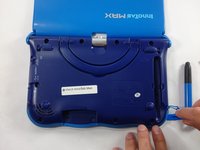
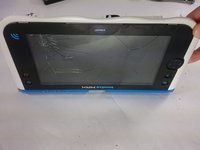
  1. VTech InnoTab Max Motherboard Replacement, Cover: 手順 1、 3の画像 1 VTech InnoTab Max Motherboard Replacement, Cover: 手順 1、 3の画像 2 VTech InnoTab Max Motherboard Replacement, Cover: 手順 1、 3の画像 3
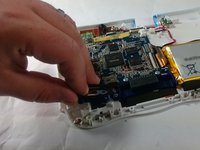
    • Remove all screw caps from the back panel using a metal spudger.

    FixBotに聞いてみる
    コメントを追加

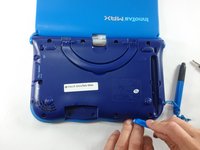
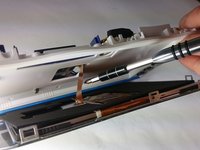
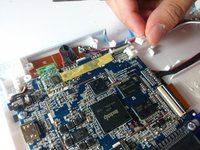
  2. VTech InnoTab Max Motherboard Replacement: 手順 2、 3の画像 1 VTech InnoTab Max Motherboard Replacement: 手順 2、 3の画像 2 VTech InnoTab Max Motherboard Replacement: 手順 2、 3の画像 3
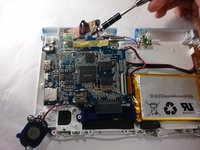
    • Next remove all of the now uncovered screws.

    • If there is a cartridge in the device make sure to remove it.

    FixBotに聞いてみる
    コメントを追加

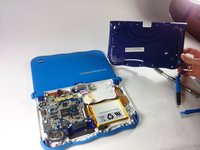
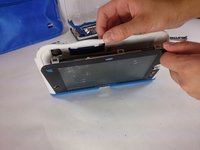
  3. VTech InnoTab Max Motherboard Replacement: 手順 3、 2の画像 1 VTech InnoTab Max Motherboard Replacement: 手順 3、 2の画像 2
    • Now that all of the screws have been removed, pry the back cover off using a plastic opening tool.

    FixBotに聞いてみる

    コメントを追加

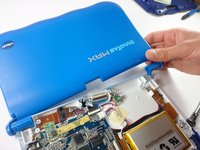
  4. VTech InnoTab Max Motherboard Replacement: 手順 4、 2の画像 1 VTech InnoTab Max Motherboard Replacement: 手順 4、 2の画像 2
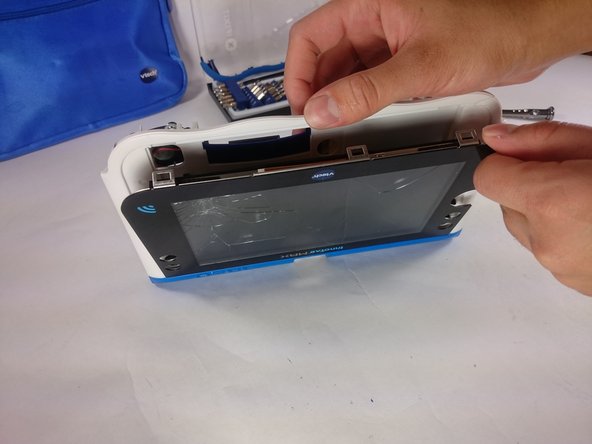
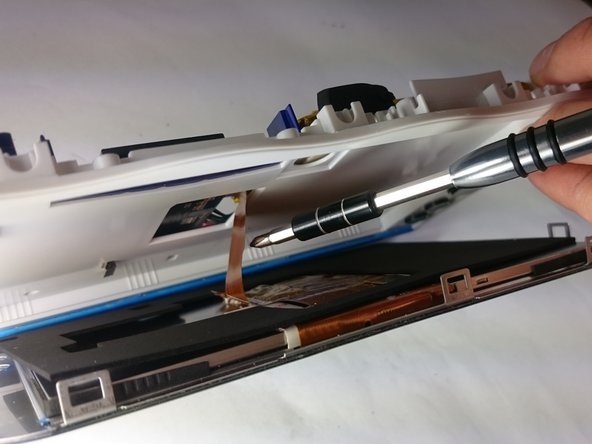
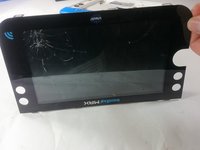
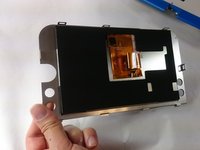
    • Here you can see the back cover has been fully removed and you can now access the front cover.

    • To remove the front cover, remove the springs holding the pictured brackets in place, then pull it away.

    FixBotに聞いてみる

    コメントを追加

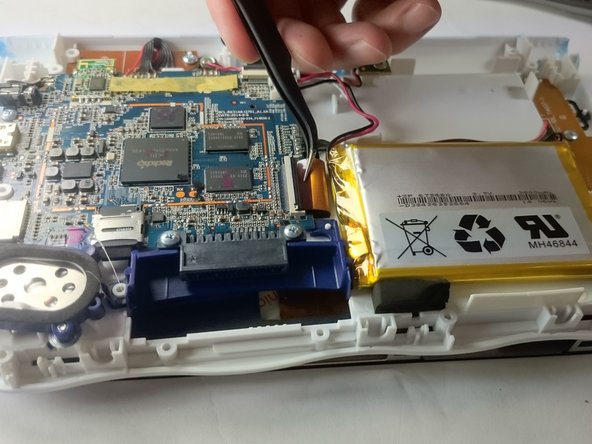
  5. VTech InnoTab Max Motherboard Replacement, Battery: 手順 5、 1の画像 1
    • Once the back cover is removed the battery will be located in the bottom right as you can see in the image to the right.

    FixBotに聞いてみる

    コメントを追加

  6. VTech InnoTab Max Motherboard Replacement: 手順 6、 3の画像 1 VTech InnoTab Max Motherboard Replacement: 手順 6、 3の画像 2 VTech InnoTab Max Motherboard Replacement: 手順 6、 3の画像 3
    この手順で使用する道具:
    Plastic Cards
    $2.99
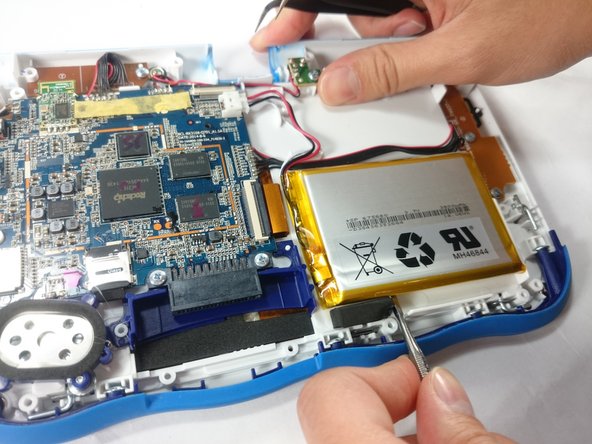
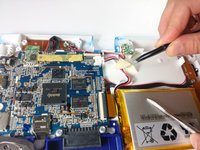
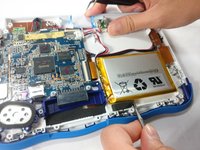
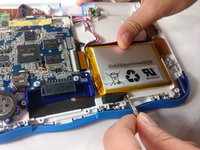
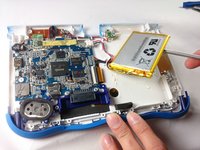
    • Remove the tape holding down the wires, and carefully pry the battery off of the base of the device.

    • Pry carefully to avoid damaging the battery. The battery may start to bend slightly, this is normal and not a cause for concern.

    • It is best to use a plastic card or nylon spudger to remove the battery. Metal tools can puncture a battery, potentially causing a fire.

    FixBotに聞いてみる

    コメントを追加

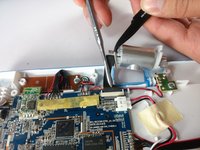
  7. VTech InnoTab Max Motherboard Replacement: 手順 7、 3の画像 1 VTech InnoTab Max Motherboard Replacement: 手順 7、 3の画像 2 VTech InnoTab Max Motherboard Replacement: 手順 7、 3の画像 3
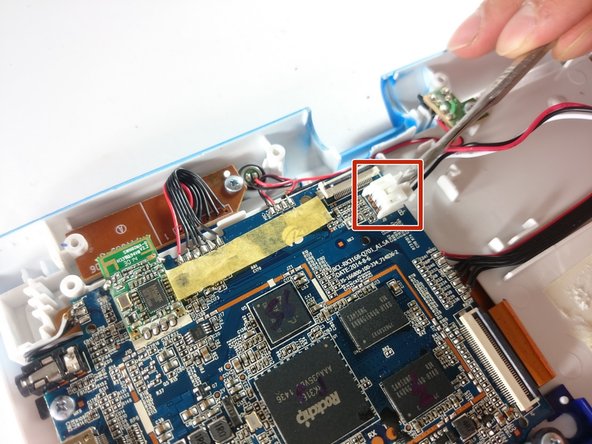
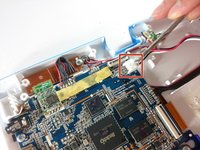
    • Now that the battery is free to be moved, unplug the wire connecting the battery to the motherboard.

    FixBotに聞いてみる
    コメントを追加

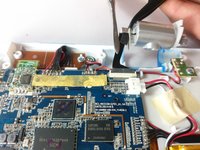
  8. VTech InnoTab Max Motherboard Replacement: 手順 8、 1の画像 1
    • The battery is now fully disconnected.

    FixBotに聞いてみる
    コメントを追加

  9. VTech InnoTab Max Motherboard Replacement, Camera: 手順 9、 1の画像 1
    • The camera is not held down by anything, so simply remove it from it's spot to prepare for unplugging it.

    FixBotに聞いてみる

    コメントを追加

  10. VTech InnoTab Max Motherboard Replacement: 手順 10、 2の画像 1 VTech InnoTab Max Motherboard Replacement: 手順 10、 2の画像 2
    • Carefully remove the wire connecting the camera to the motherboard, using a tool to grip it if needed.

    • Be careful to only pull from the end of the connector (closest to the motherboard), as the strip is easy to tear.

    FixBotに聞いてみる

    コメントを追加

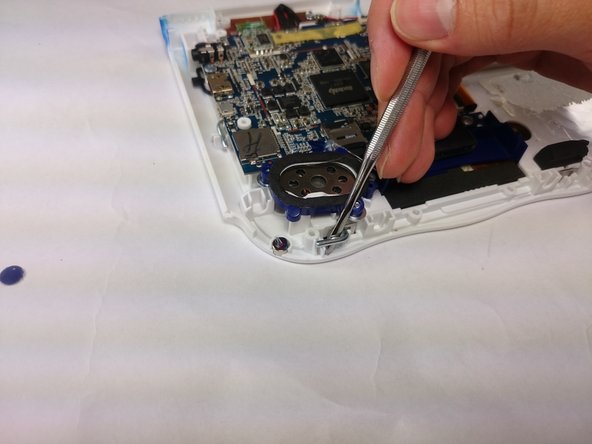
  11. VTech InnoTab Max Motherboard Replacement: 手順 11、 1の画像 1
    • The camera is now removed completely removed from the device.

    FixBotに聞いてみる
    コメントを追加

  12. VTech InnoTab Max Motherboard Replacement, Screen: 手順 12、 2の画像 1 VTech InnoTab Max Motherboard Replacement, Screen: 手順 12、 2の画像 2
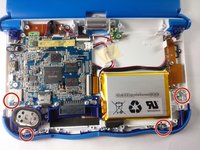
    • In order to unlock the screen you need to remove the 4 pins that can be seen in the picture.

    • To remove simply just turn and pull them out. Use a metal or nylon spudger if they are too small to grip.

    FixBotに聞いてみる
    コメントを追加

  13. VTech InnoTab Max Motherboard Replacement: 手順 13、 3の画像 1 VTech InnoTab Max Motherboard Replacement: 手順 13、 3の画像 2 VTech InnoTab Max Motherboard Replacement: 手順 13、 3の画像 3
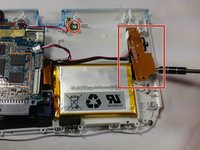
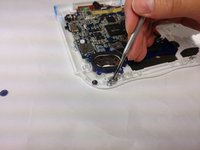
    • Once the pins are removed the screen should be loose from the frame and only connected by the brown film pictured.

    FixBotに聞いてみる
    コメントを追加

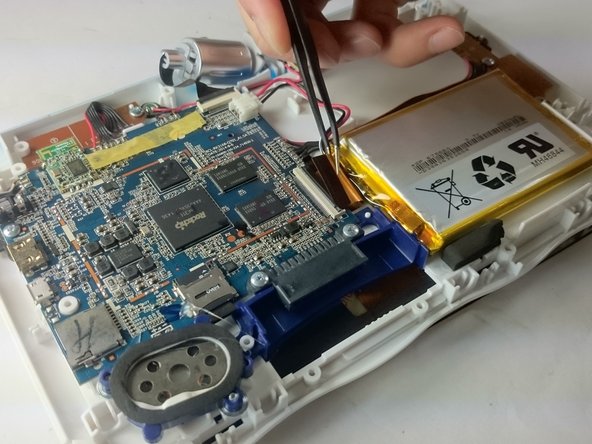
  14. VTech InnoTab Max Motherboard Replacement: 手順 14、 3の画像 1 VTech InnoTab Max Motherboard Replacement: 手順 14、 3の画像 2 VTech InnoTab Max Motherboard Replacement: 手順 14、 3の画像 3
    この手順で使用する道具:
    Tweezers
    $4.99
    • In order to completely remove the screen you need to unclip the film from the motherboard by simply using a pair of tweezers and gently pulling.

    • Be careful not to tear the film when pulling.

    FixBotに聞いてみる

    コメントを追加

  15. VTech InnoTab Max Motherboard Replacement: 手順 15、 2の画像 1 VTech InnoTab Max Motherboard Replacement: 手順 15、 2の画像 2
    • Once unclipped from the motherboard the screen should be entirely free from the device

    FixBotに聞いてみる

    コメントを追加

  16. VTech InnoTab Max Motherboard Replacement, Motherboard: 手順 16、 1の画像 1
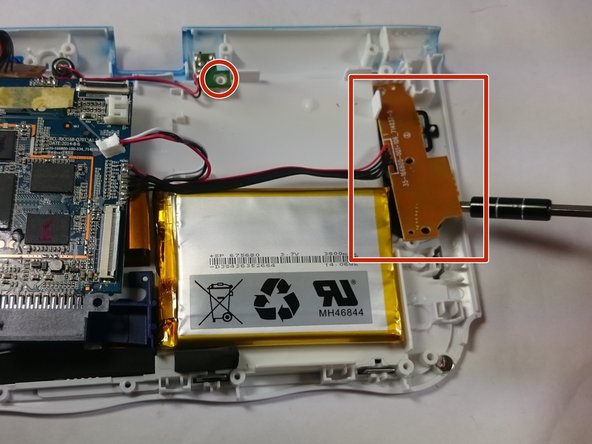
    • Remove the circled screws that are holding down the motherboard and components.

    • Every component that will need to be unscrewed will have wires running to it from the motherboard. These wires will not be disconnected.

    FixBotに聞いてみる

    コメントを追加

  17. VTech InnoTab Max Motherboard Replacement: 手順 17、 3の画像 1 VTech InnoTab Max Motherboard Replacement: 手順 17、 3の画像 2 VTech InnoTab Max Motherboard Replacement: 手順 17、 3の画像 3
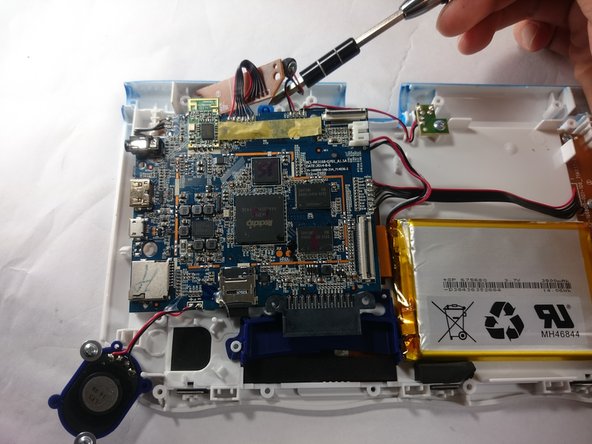
    • With all of the screws out, lift up the speaker, the two visible bronze plates, and the small green chip at the top.

    • Do not try to disconnect any of the wires running to these devices, as you will not be able to reconnect them.

    • All of these components can be located by following wires leaving the motherboard.

    FixBotに聞いてみる

    コメントを追加

  18. VTech InnoTab Max Motherboard Replacement: 手順 18、 1の画像 1
    • With all of these components out of their place, lift up the motherboard to reveal one more bronze plate.

    • Remove the screws holding down this plate, and remove it with the rest of the motherboard.

    FixBotに聞いてみる

    コメントを追加

  19. VTech InnoTab Max Motherboard Replacement: 手順 19、 1の画像 1
    • All components should be free from the device, and you can now completely remove the motherboard.

    FixBotに聞いてみる

    コメントを追加

終わりに

To reassemble your device, follow these instructions in reverse order.

キャンセル: このガイドを終了できませんでした。

3 の人々がこのガイドを完成させました。

作成者

2人の作成者と共同で作成されました。

Jacob Schioppo

メンバー登録日: 02/15/17

594 ポイント

4のガイドは作成済み

チーム

USF Tampa, Team S5-G5, Lacy Spring 2017 USF Tampa, Team S5-G5, Lacy Spring 2017人のメンバー

USFT-LACY-S17S5G5

3 メンバー

10のガイドは作成済み

0件のガイドコメント

コメントを追加

統計データ:

過去 24時間: 1

過去 7 日: 6

過去 30 日: 31

今までの合計 2,466