はじめに
The LCD screen is a helpful display when taking photos. A cracked or damaged screen needs replacement.
必要な工具と部品
-
-
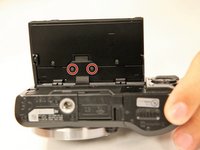
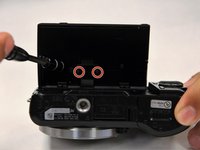
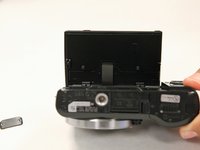
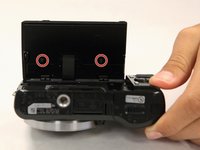
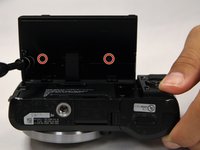
Use a Phillips head 000 screwdriver to remove the two 2.0mm screws on the bottom of the LCD screen.
-
-
-
Use a Phillips head 000 screwdriver to remove the two 1.0mm screws on the smaller backplate of the LCD screen that covers the ribbon cable.
-
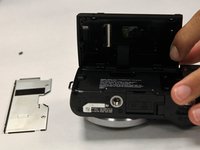
The smaller backplate should easily come off. Put it to the side.
-
-
-
-
Use a Phillips head 000 screwdriver to remove the two 1.0mm screws on the bigger backplate of the LCD.
-
-
-
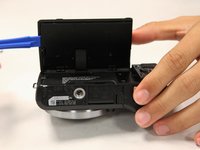
Using the plastic opening tool, remove the larger backplate from the LCD screen.
-
-
-
With your hands, gently remove the black plastic piece on the backside of the LCD screen.
-
-
この手順で使用する道具:Tweezers$4.99
-
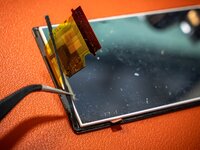
Using tweezers, gently open the connector. It pivots open. Pull up and away on the ribbon cable connected to the motherboard, after which, the LCD screen should come off.
-
-
-
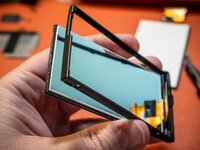
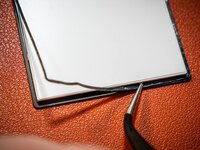
The screen is attached to a frame, via a thin strip of adhesive. Press gently on a corner of the backside of the screen, to detach it from the frame.
-
If your replacement screen did not come with it's own adhesive, carefully peel the original adhesive strip from the original screen, and apply it to the new screen.
-
-
-
Insert the new screen in to the frame, ensuring the ribbon cable and copper tab are gently folded inwards within the frame, so they are not damaged.
-
Now you may re-assemble, working backwards from step 8.
-
Enjoy your new screen!
-

 FixBotに聞いてみる








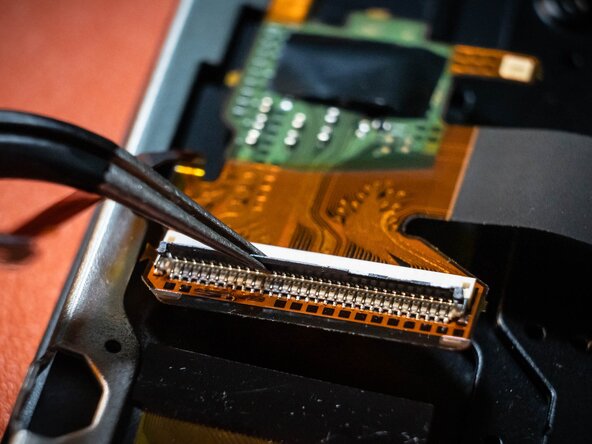
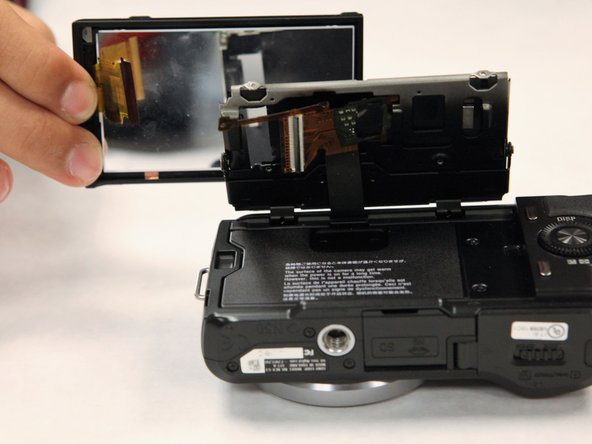

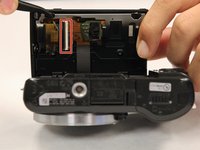
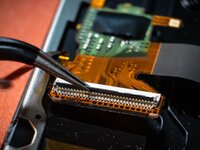



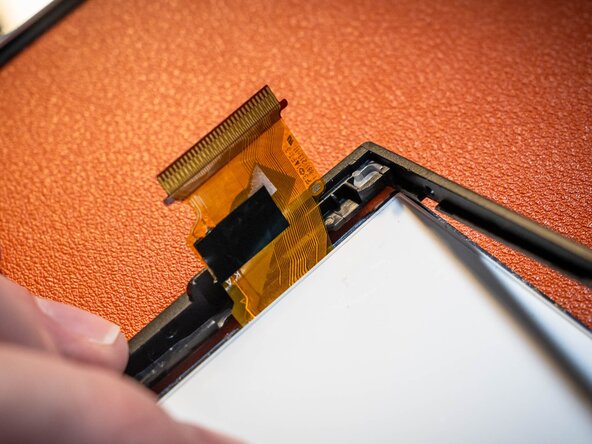
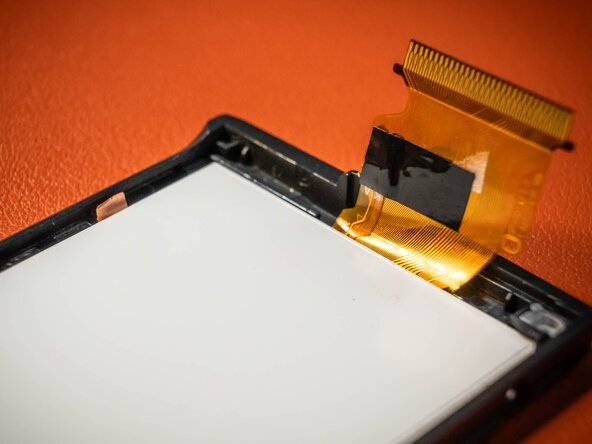
To reassemble your device, follow these instructions in reverse order. However, when installing the ribbon cable, the connector has a specific step. The connector has a tiny flap that clamps down onto the ribbon cable in order to make it secure.
ある他の人がこのガイドを完成しました。

チーム

UC Santa Barbara, Team S1-G1, Weedon Fall 2017 UC Santa Barbara, Team S1-G1, Weedon Fall 2017人のメンバー
UCSB-WEEDON-F17S1G1
3 メンバー
13のガイドは作成済み
2件のガイドコメント
Sir, my unit has many lines that appear on the screen. However, the lcd glass is pristine & has no cracks. Which part is defective? Is the lcd mother board the culprit? Thank you.
Sorry this is probably a little late, but this may mean the ribbon cable for the lcd is damaged, or not properly connected! Follow the screen replacement guide until you have access to the ribbon cable. See if it's damaged or not inserted completely!
