メインコンテンツにスキップ
リペアコミュニティに参加 - アカウントの作成

Samsung Chromebook 2 Screen Replacement

必要な工具と部品

  1. Samsung Chromebook 2 Screen Replacement, Battery: 手順 1、 1の画像 1
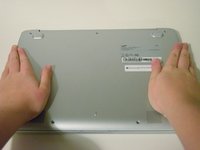
    • Make sure your Chromebook is turned off before you begin.

    • Set the labtop face down on a flat surface.

    FixBotに聞いてみる

    コメントを追加

  2. Samsung Chromebook 2 Screen Replacement: 手順 2、 3の画像 1 Samsung Chromebook 2 Screen Replacement: 手順 2、 3の画像 2 Samsung Chromebook 2 Screen Replacement: 手順 2、 3の画像 3
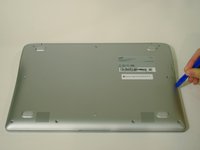
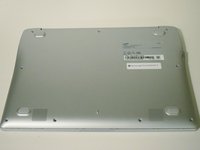
    • Remove the nine 5 mm screws on the bottom cover using a Phillips #0 screwdriver.

    FixBotに聞いてみる

    コメントを追加

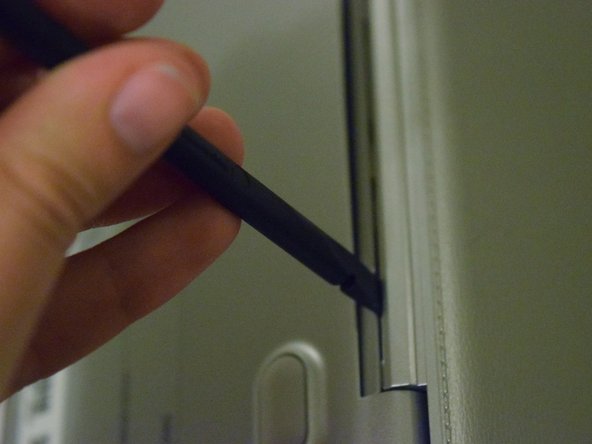
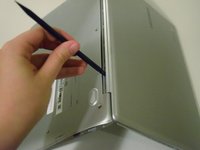
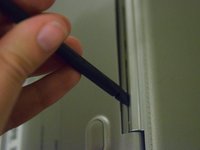
  3. Samsung Chromebook 2 Screen Replacement: 手順 3、 2の画像 1 Samsung Chromebook 2 Screen Replacement: 手順 3、 2の画像 2
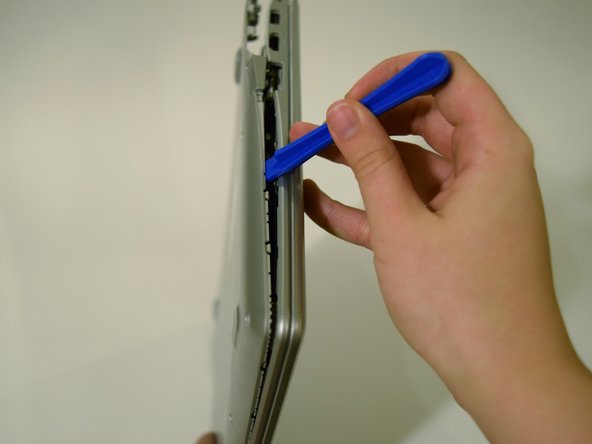
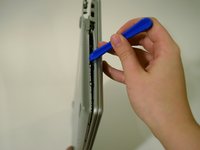
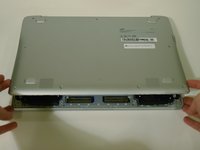
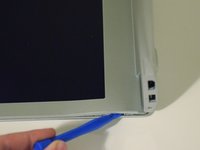
    • Loosen the back cover panel with a plastic opening tool, and work it all the way around the computer.

    FixBotに聞いてみる

    コメントを追加

  4. Samsung Chromebook 2 Screen Replacement: 手順 4、 2の画像 1 Samsung Chromebook 2 Screen Replacement: 手順 4、 2の画像 2
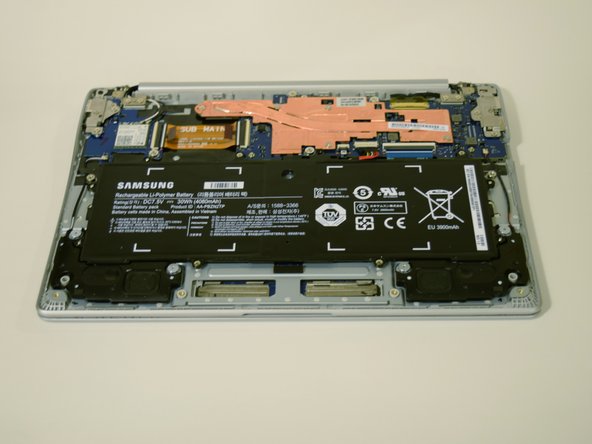
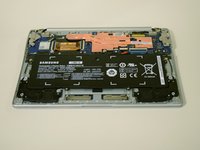
    • Once the cover is loose, remove the back cover panel using your hands.

    FixBotに聞いてみる

    コメントを追加

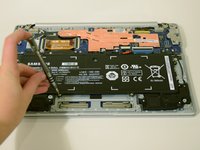
  5. Samsung Chromebook 2 Screen Replacement: 手順 5、 2の画像 1 Samsung Chromebook 2 Screen Replacement: 手順 5、 2の画像 2
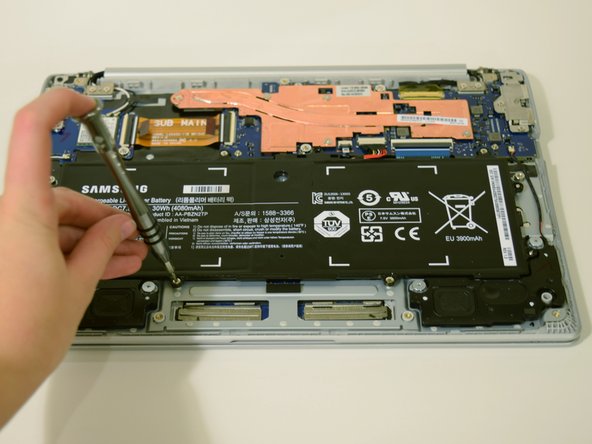
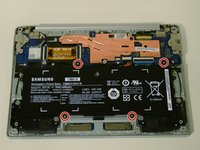
    • Unscrew the four 4 mm screws holding the battery in place with a Phillips #0 screwdriver.

    FixBotに聞いてみる

    コメントを追加

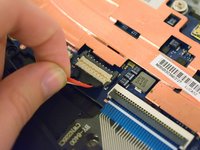
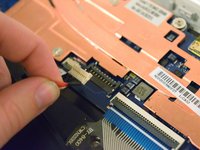
  6. Samsung Chromebook 2 Screen Replacement: 手順 6、 3の画像 1 Samsung Chromebook 2 Screen Replacement: 手順 6、 3の画像 2 Samsung Chromebook 2 Screen Replacement: 手順 6、 3の画像 3
    • Disconnect the wire that connects the battery to the motherboard by pulling upward.

    FixBotに聞いてみる

    コメントを追加

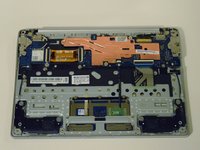
  7. Samsung Chromebook 2 Screen Replacement, Screen: 手順 7、 2の画像 1 Samsung Chromebook 2 Screen Replacement, Screen: 手順 7、 2の画像 2
    • Replace the back cover by clicking it into place with your hands.

    • No need to replace the screws, this is just to protect the internal hardware while working on the screen.

    FixBotに聞いてみる

    コメントを追加

  8. Samsung Chromebook 2 Screen Replacement: 手順 8、 2の画像 1 Samsung Chromebook 2 Screen Replacement: 手順 8、 2の画像 2
    • Open the laptop and place it so that the back of the screen is laying on a flat surface.

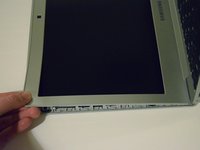
    • Insert a plastic opening tool between the front cover and plastic screen trim.

    • Work the plastic opening tool all around the trim.

    • Don't be afraid to use your hands to pull the trim from the front panel.

    FixBotに聞いてみる

    コメントを追加

  9. Samsung Chromebook 2 Screen Replacement: 手順 9、 2の画像 1 Samsung Chromebook 2 Screen Replacement: 手順 9、 2の画像 2
    • Flip the computer over so that the keys and screen are facing down.

    • Insert the spudger between the back and front panel, at the hinge, and push the trim out.

    FixBotに聞いてみる

    コメントを追加

  10. Samsung Chromebook 2 Screen Replacement: 手順 10、 1の画像 1
    • Place the laptop in a position where it is resting on the back of the screen.

    • Remove the trim from the front panel by pulling up with your hands.

    FixBotに聞いてみる

    コメントを追加

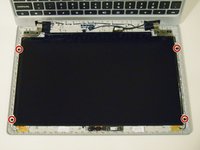
  11. Samsung Chromebook 2 Screen Replacement: 手順 11、 2の画像 1 Samsung Chromebook 2 Screen Replacement: 手順 11、 2の画像 2
    • Using a Phillips #0 screwdriver to unscrew the four 3 mm screws keeping the screen in place.

    FixBotに聞いてみる

    コメントを追加

  12. Samsung Chromebook 2 Screen Replacement: 手順 12、 2の画像 1 Samsung Chromebook 2 Screen Replacement: 手順 12、 2の画像 2
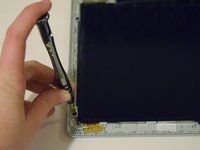
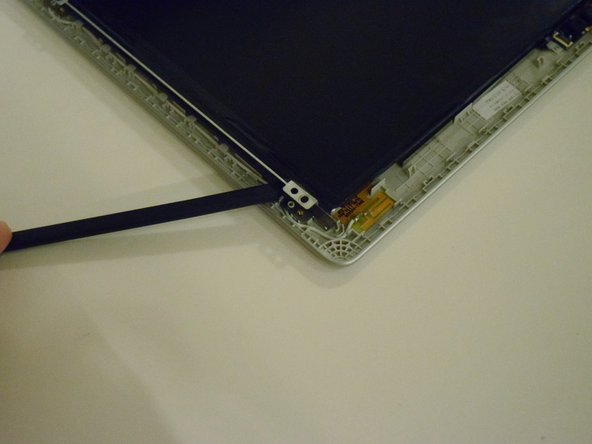
    • Using the spudger, pry the screen loose from the front panel.

    • Do not try to remove the screen yet, it is still connect by a wire.

    FixBotに聞いてみる

    コメントを追加

  13. Samsung Chromebook 2 Screen Replacement: 手順 13、 3の画像 1 Samsung Chromebook 2 Screen Replacement: 手順 13、 3の画像 2 Samsung Chromebook 2 Screen Replacement: 手順 13、 3の画像 3
    • Place the laptop in an upright position.

    • When you place the Chromebook in this position the screen may fall off, so make sure to hold onto it.

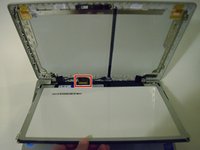
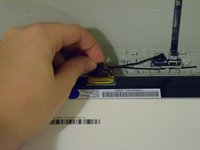
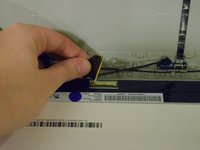
    • Pull back the screen to locate the LCD cable, and disconnect it by pulling the black tape that surrounds it towards you.

    FixBotに聞いてみる

    コメントを追加

  14. Samsung Chromebook 2 Screen Replacement: 手順 14、 1の画像 1
    • Pull the screen from the front panel using your hands to fully remove it.

    FixBotに聞いてみる

    コメントを追加

終わりに

To reassemble your device, follow these instructions in reverse order.

キャンセル: このガイドを終了できませんでした。

12 の人々がこのガイドを完成させました。

作成者

3人の作成者と共同で作成されました。

MacKenzie Colson

メンバー登録日: 01/25/16

679 ポイント

1ガイドが承認済み

チーム

UW Tacoma, Team 1-3, Rose Winter 2016 UW Tacoma, Team 1-3, Rose Winter 2016人のメンバー

UWT-ROSE-W16S1G3

4 メンバー

4のガイドは作成済み

0件のガイドコメント

コメントを追加

統計データ:

過去 24時間: 4

過去 7 日: 18

過去 30 日: 70

今までの合計 8,105