メインコンテンツにスキップ
リペアコミュニティに参加 - アカウントの作成

Replacement or expansion RAM

必要な工具と部品

    1. Replacement or expansion RAM, Battery: 手順 1、 3の画像 1 Replacement or expansion RAM, Battery: 手順 1、 3の画像 2 Replacement or expansion RAM, Battery: 手順 1、 3の画像 3
      • Unlock the battery latch on the right.

      • Unlock the battery lock on the left.

      • Remove the battery pack from its slot.

      FixBotに聞いてみる

      コメントを追加

    1. Replacement or expansion RAM, Access to Components 2: 手順 2、 3の画像 1 Replacement or expansion RAM, Access to Components 2: 手順 2、 3の画像 2 Replacement or expansion RAM, Access to Components 2: 手順 2、 3の画像 3
      • Using the Philips # 0 screwdriver, unscrew the 2 screws of the top cover

      • Check the marks indicating the direction in which the cover must be removed.

      • Remove the bottom cover by removing it in the direction of the markers.

      FixBotに聞いてみる

      コメントを追加

    2. Replacement or expansion RAM: 手順 3、 1の画像 1
      • Then appear the other components of the Laptop.

      FixBotに聞いてみる

      コメントを追加

    1. Replacement or expansion RAM, RAM: 手順 4、 3の画像 1 Replacement or expansion RAM, RAM: 手順 4、 3の画像 2 Replacement or expansion RAM, RAM: 手順 4、 3の画像 3
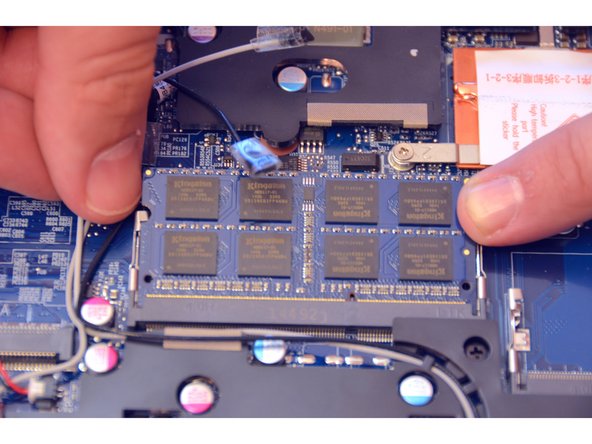
      • Here is the RAM bar installed by default.

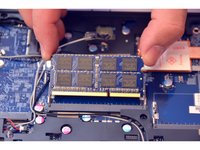
      • Locate and remove the spring blades that hold the memory module in place.

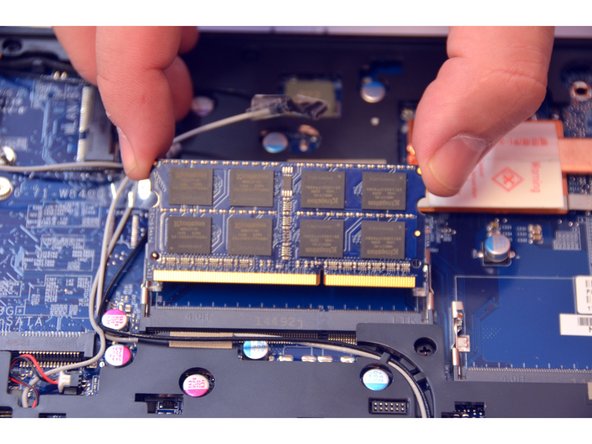
      • Remove the memory module (RAM).

      FixBotに聞いてみる

      コメントを追加

    2. Replacement or expansion RAM: 手順 5、 1の画像 1
      • Here is the RAM bar out of its location.

      FixBotに聞いてみる

      コメントを追加

終わりに

To reassemble your device follow the instructions in reverse order

キャンセル: このガイドを終了できませんでした。

以下の翻訳者の皆さんにお礼を申し上げます:

fr en

100%

irlandaさんは世界中で修理する私たちを助けてくれています! あなたも貢献してみませんか?
翻訳を始める ›

作成者

1人の作成者と共同作成されました。

Felice Suglia

メンバー登録日: 06/15/13

33,634 ポイント

283のガイドは作成済み

0件のガイドコメント

コメントを追加

統計データ:

過去 24時間: 0

過去 7 日: 6

過去 30 日: 33

今までの合計 591