メインコンテンツにスキップ
リペアコミュニティに参加 - アカウントの作成

Razer DeathAdder Chroma USB Cable Replacement

必要な工具と部品

    1. Razer DeathAdder Chroma USB Cable Replacement, Outer Casing: 手順 1、 1の画像 1
      • Opening the mouse casing will void any warranty that exists for the mouse.

      • Turn the mouse over so the bottom is facing up.

      FixBotに聞いてみる
      コメントを追加

    2. Razer DeathAdder Chroma USB Cable Replacement: 手順 2、 2の画像 1 Razer DeathAdder Chroma USB Cable Replacement: 手順 2、 2の画像 2
      • Use the blunt end of the spudger to pry the adhesive rubber pads from the top left and right edges.

      FixBotに聞いてみる
      コメントを追加

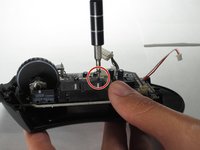
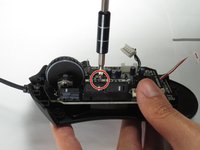
    3. Razer DeathAdder Chroma USB Cable Replacement: 手順 3、 2の画像 1 Razer DeathAdder Chroma USB Cable Replacement: 手順 3、 2の画像 2
      • Use a Phillips #0 screwdriver to remove two 6.7 mm screws.

      FixBotに聞いてみる
      コメントを追加

    4. Razer DeathAdder Chroma USB Cable Replacement: 手順 4、 1の画像 1
      • Use your fingers to identify the location of the screw under the bottom label.

      FixBotに聞いてみる

      コメントを追加

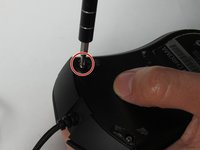
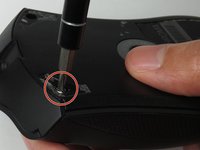
    5. Razer DeathAdder Chroma USB Cable Replacement: 手順 5、 1の画像 1
      • Use a Phillips #0 screwdriver to remove one 6.7 mm screw.

      • Clear the label away from around the screw for easier removal.

      FixBotに聞いてみる

      コメントを追加

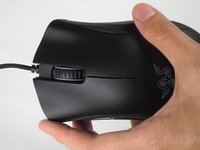
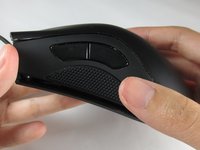
    6. Razer DeathAdder Chroma USB Cable Replacement: 手順 6、 3の画像 1 Razer DeathAdder Chroma USB Cable Replacement: 手順 6、 3の画像 2 Razer DeathAdder Chroma USB Cable Replacement: 手順 6、 3の画像 3
      • Turn the mouse over so the bottom is facing down.

      • Separate the top casing from the bottom base by pulling the top casing upwards.

      • Separating the casing too quickly could damage the ribbon connector between the motherboard and the LED lights.

      FixBotに聞いてみる

      コメントを追加

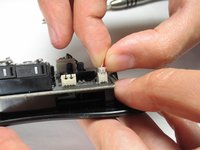
    7. Razer DeathAdder Chroma USB Cable Replacement: 手順 7、 2の画像 1 Razer DeathAdder Chroma USB Cable Replacement: 手順 7、 2の画像 2
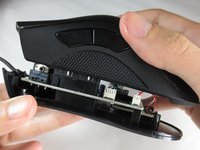
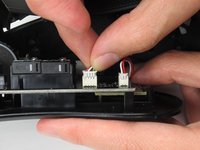
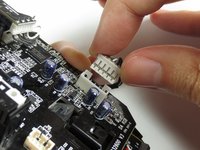
      • Disconnect the ribbon connector between the motherboard and the LED lights by pulling upward.

      • Pulling too hard could damage the wire connections.

      FixBotに聞いてみる
      コメントを追加

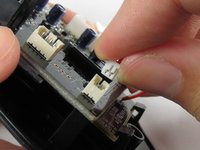
    1. Razer DeathAdder Chroma USB Cable Replacement, Motherboard: 手順 8、 2の画像 1 Razer DeathAdder Chroma USB Cable Replacement, Motherboard: 手順 8、 2の画像 2
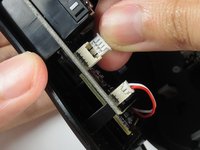
      • Disconnect the ribbon connector between the motherboard and the USB cable by pulling upward.

      FixBotに聞いてみる
      コメントを追加

    2. Razer DeathAdder Chroma USB Cable Replacement: 手順 9、 1の画像 1
      • Use a Phillips #0 screwdriver to remove three 5.5 mm screws.

      FixBotに聞いてみる

      コメントを追加

    3. Razer DeathAdder Chroma USB Cable Replacement: 手順 10、 2の画像 1 Razer DeathAdder Chroma USB Cable Replacement: 手順 10、 2の画像 2
      • Use a Phillips #0 screwdriver to remove two 11.5 mm screws on the side buttons.

      FixBotに聞いてみる

      コメントを追加

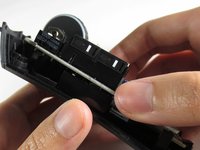
    4. Razer DeathAdder Chroma USB Cable Replacement: 手順 11、 1の画像 1
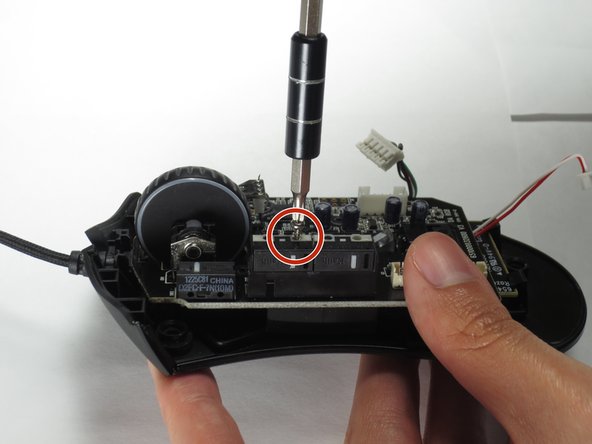
      • Use a Phillips #000 screwdriver to remove one 5.0 mm screw.

      FixBotに聞いてみる
      コメントを追加

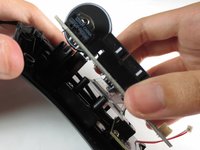
    5. Razer DeathAdder Chroma USB Cable Replacement: 手順 12、 2の画像 1 Razer DeathAdder Chroma USB Cable Replacement: 手順 12、 2の画像 2
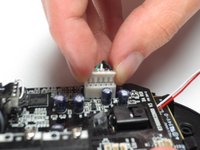
      • Disconnect the ribbon connector between the motherboard and the optical sensor.

      FixBotに聞いてみる
      コメントを追加

    6. Razer DeathAdder Chroma USB Cable Replacement: 手順 13、 2の画像 1 Razer DeathAdder Chroma USB Cable Replacement: 手順 13、 2の画像 2
      • Remove the motherboard by grasping the sides and gently pulling upward.

      FixBotに聞いてみる

      コメントを追加

    1. Razer DeathAdder Chroma USB Cable Replacement, USB Cable: 手順 14、 1の画像 1
      • Locate the USB cable.

      FixBotに聞いてみる

      コメントを追加

    2. Razer DeathAdder Chroma USB Cable Replacement: 手順 15、 2の画像 1 Razer DeathAdder Chroma USB Cable Replacement: 手順 15、 2の画像 2
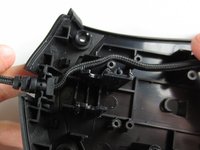
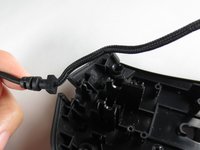
      • Remove the USB cable by pulling it up and out.

      FixBotに聞いてみる

      コメントを追加

終わりに

To reassemble your device, follow these instructions in reverse order.

キャンセル: このガイドを終了できませんでした。

8 の人々がこのガイドを完成させました。

作成者

2人の作成者と共同で作成されました。

Henry Shi

メンバー登録日: 03/26/17

236 ポイント

1ガイドが承認済み

チーム

Baylor, Team S5-G2, Williams Spring 2017 Baylor, Team S5-G2, Williams Spring 2017人のメンバー

BU-WILLIAMS-S17S5G2

3 メンバー

6のガイドは作成済み

5件のガイドコメント

Thank you! It realy worked. Btw: The cable for the Deathadder 2013 is working for the Chroma and Elite as well. I Just tried it :)

Pokefreeks - 返信 共有

Thanks for the advice

João Costa Santos - 返信 共有

Great and easy guide thanx alot, saved me a new mouse :)

jesperkb - 返信 共有

Is there a reliable website where I can get a replacement cable with low delivery time?

Bubbles EXE - 返信 共有

where can i get the cable from?

Mourya Singham - 返信 共有

コメントを追加

統計データ:

過去 24時間: 2

過去 7 日: 14

過去 30 日: 49

今までの合計 15,509