メインコンテンツにスキップ
リペアコミュニティに参加 - アカウントの作成

Logitech UE Boom USB Port Replacement

必要な工具と部品

    1. Logitech UE Boom USB Port Replacement, D-ring: 手順 1、 1の画像 1
      • Turn the device over. The D-ring will be on the left face of the speaker when viewing the device from this orientation.

      FixBotに聞いてみる

      コメントを追加

    2. Logitech UE Boom USB Port Replacement: 手順 2、 2の画像 1 Logitech UE Boom USB Port Replacement: 手順 2、 2の画像 2
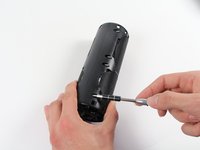
      • Lift the handle on the D-ring and unscrew it.

      • Remove the D-ring.

      FixBotに聞いてみる

      コメントを追加

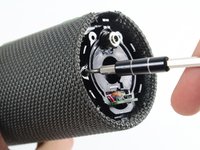
    1. Logitech UE Boom USB Port Replacement, Bluetooth Adapter: 手順 3、 1の画像 1
      • Any repairs made from this point forward will void your device's warranty.

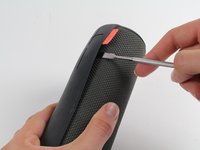
      • Holding the speaker upright, wedge the metal spudger in between the casing and the speaker. Gently pry open the tabs as they are easily broken.

      FixBotに聞いてみる

      コメントを追加

    2. Logitech UE Boom USB Port Replacement: 手順 4、 3の画像 1 Logitech UE Boom USB Port Replacement: 手順 4、 3の画像 2 Logitech UE Boom USB Port Replacement: 手順 4、 3の画像 3
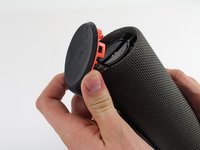
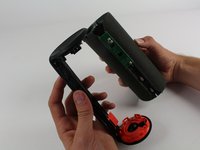
      • Find the part of the casing that covers the volume controls. Wedge the metal spudger under this and pry open all of the tabs as in the previous step.

      • Repeat for the bottom of the speaker and pry the casing open with your fingers.

      FixBotに聞いてみる

      コメントを追加

    3. Logitech UE Boom USB Port Replacement: 手順 5、 2の画像 1 Logitech UE Boom USB Port Replacement: 手順 5、 2の画像 2
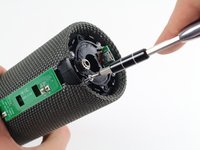
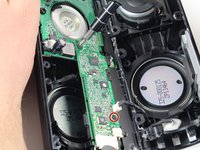
      • Using the Phillips J0 head screwdriver, unscrew the four silver 9 mm screws.

      • Do the same for the two black 7 mm screws.

      FixBotに聞いてみる

      コメントを追加

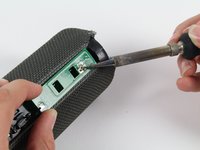
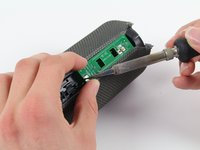
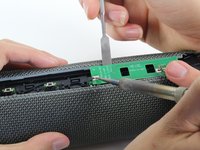
    4. Logitech UE Boom USB Port Replacement: 手順 6、 3の画像 1 Logitech UE Boom USB Port Replacement: 手順 6、 3の画像 2 Logitech UE Boom USB Port Replacement: 手順 6、 3の画像 3
      • This next step involves the use of a hot soldering iron. Remember to be careful during this step since it can be easy to burn yourself.

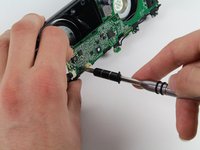
      • Using a soldering iron, de-solder the two ends of the switch plate. Desolder the two terminals on headphone jack side first, as the middle connection is notched and should be slid out when molten.

      FixBotに聞いてみる

      コメントを追加

    5. Logitech UE Boom USB Port Replacement: 手順 7、 1の画像 1
      • With the switch plate disconnected, remove it and your device should now look like this.

      FixBotに聞いてみる

      コメントを追加

    1. Logitech UE Boom USB Port Replacement, Lithium Battery: 手順 8、 1の画像 1
      • With a metal spudger, pry open the tabs on the speaker sleeve along the length of the speaker.

      FixBotに聞いてみる

      コメントを追加

    2. Logitech UE Boom USB Port Replacement: 手順 9、 1の画像 1
      • Use a plastic opening tool to pry the sleeve off from the bottom of the speaker.

      FixBotに聞いてみる

      コメントを追加

    3. Logitech UE Boom USB Port Replacement: 手順 10、 3の画像 1 Logitech UE Boom USB Port Replacement: 手順 10、 3の画像 2 Logitech UE Boom USB Port Replacement: 手順 10、 3の画像 3
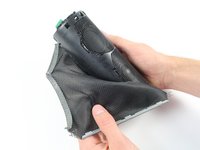
      • Peel off the sleeve.

      FixBotに聞いてみる

      コメントを追加

    4. Logitech UE Boom USB Port Replacement: 手順 11、 2の画像 1 Logitech UE Boom USB Port Replacement: 手順 11、 2の画像 2
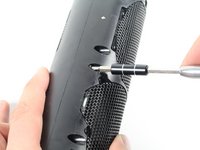
      • Use a Phillips 1 screwdriver to unscrew the eight black 14 mm screws along the length of the casing.

      FixBotに聞いてみる

      コメントを追加

    5. Logitech UE Boom USB Port Replacement: 手順 12、 2の画像 1 Logitech UE Boom USB Port Replacement: 手順 12、 2の画像 2
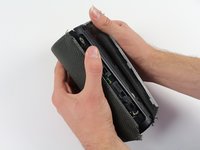
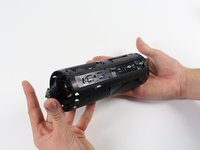
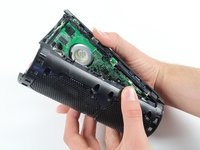
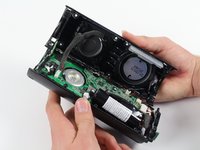
      • With the screws removed, pry open the casing to be able to get to the components inside.

      • Try prying the case open from one of the ends if that is easier.

      FixBotに聞いてみる

      コメントを追加

    6. Logitech UE Boom USB Port Replacement: 手順 13、 2の画像 1 Logitech UE Boom USB Port Replacement: 手順 13、 2の画像 2
      • With a Phillips #00 screwdriver, unscrew two 5.6 mm screws from the rectangular shaped circuit board.

      FixBotに聞いてみる

      コメントを追加

    7. Logitech UE Boom USB Port Replacement: 手順 14、 1の画像 1
      • With the Phillips #2 screwdriver, unscrew the 9.9 mm screw from the larger circuit board surrounding the speaker.

      FixBotに聞いてみる

      コメントを追加

    8. Logitech UE Boom USB Port Replacement: 手順 15、 1の画像 1
      • Once all of the screws are gone, you should be able to remove the circuit boards and find the battery.

      FixBotに聞いてみる

      コメントを追加

    9. Logitech UE Boom USB Port Replacement: 手順 16、 2の画像 1 Logitech UE Boom USB Port Replacement: 手順 16、 2の画像 2
      • Remove the battery by pulling it from the terminal as marked in the picture.

      FixBotに聞いてみる

      コメントを追加

    1. Logitech UE Boom USB Port Replacement, USB Port: 手順 17、 2の画像 1 Logitech UE Boom USB Port Replacement, USB Port: 手順 17、 2の画像 2
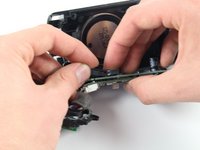
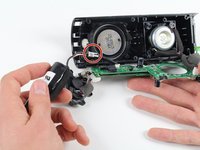
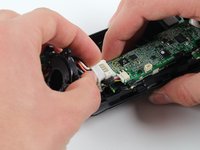
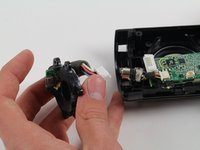
      • Finally, after opening the speaker, locate the USB plate on the left face of the speaker and remove it from the motherboard.

      FixBotに聞いてみる

      コメントを追加

終わりに

To reassemble your device, follow these instructions in reverse order.

キャンセル: このガイドを終了できませんでした。

9 の人々がこのガイドを完成させました。

作成者

2人の作成者と共同で作成されました。

Sean Reilly

メンバー登録日: 10/01/15

1,784 ポイント

2のガイドは作成済み

チーム

Cal Poly, Team 4-1, Maness Fall 2015 Cal Poly, Team 4-1, Maness Fall 2015人のメンバー

CPSU-MANESS-F15S4G1

4 メンバー

34のガイドは作成済み

13件のガイドコメント

Hello,

does anyone know where to get new usb port, the logitech support didn´t really help.

cheers marius

kok0dora94 - 返信 共有
Same question as above, where can i buy a replacement USB port?

Corbett Hix - 返信 共有
i found 10 of them on ebay for 3-4 dollars

johnsonjohnsonalexalex - 返信 共有

Hi there , can you give me a link to Ebay where to find this port, thanks

katiecrow - 返信 共有

can you send me a link on ebay where to find this replacement port , thanks

katiecrow - 返信 共有

コメントを追加

統計データ:

過去 24時間: 5

過去 7 日: 32

過去 30 日: 149

今までの合計 38,801