はじめに
This guide is for the Logitech UE Boom 3 - model number: S-00171. Alternative model numbers could be S-00171-A, S-00171-B, S-00171-C.
The primary objective of this guide is to provide step-by-step instructions for replacing the battery of the Logitech UE BOOM 3. By following these instructions carefully, users can address issues such as low battery life, device not turning on, or poor speaker function.
The battery is essential as it provides the power needed for its portable operation.
必要な工具と部品
-
-
-
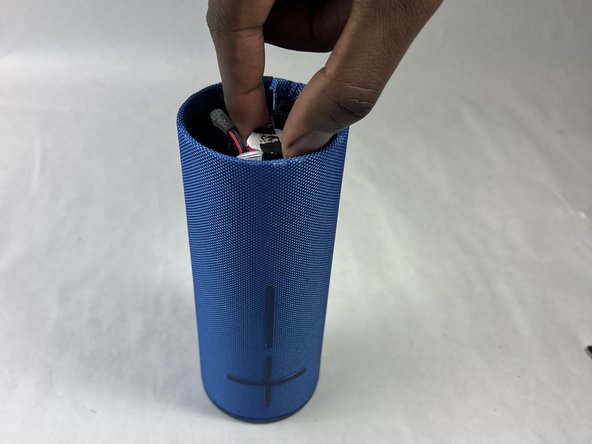
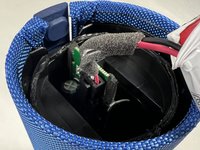
Remove the adhesive strap holding the battery in place.
-
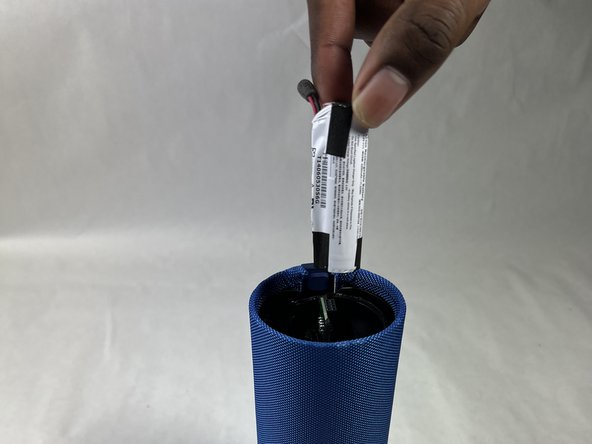
Pull out the battery by hand until it is out of the casing and being held by the cable only.
-
-
-
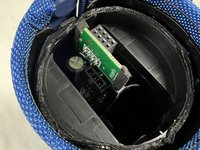
Carefully press down on the lever on the end of the cable and disconnect it from the motherboard.
-
Remove the battery from the motherboard.
-


 FixBotに聞いてみる





To reassemble your device, follow these instructions in reverse order.
ある他の人がこのガイドを完成しました。

チーム

UMass Dartmouth, Team 1-4, Konn Spring 2024 UMass Dartmouth, Team 1-4, Konn Spring 2024人のメンバー
UMASSD-KONN-S24S1G4
4 メンバー
8のガイドは作成済み
