メインコンテンツにスキップ
リペアコミュニティに参加 - アカウントの作成

IBM ThinkPad T43 WiFi Card Replacement

必要な工具と部品

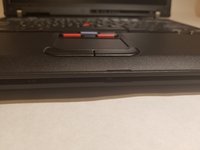
  1. IBM ThinkPad T43 WiFi Card Replacement, Removing Screws: 手順 1、 2の画像 1 IBM ThinkPad T43 WiFi Card Replacement, Removing Screws: 手順 1、 2の画像 2
    • Set the laptop top-down onto the workstation.

    • Remove all screws circled in red.

    • When removing screws, group them by size. The bottom case of the laptop includes a sticker that shows the size of the screws.

    • When reassembling the device, note the numbers by the screw holes and use them to know what size screw correlates to what hole.

  2. IBM ThinkPad T43 WiFi Card Replacement: 手順 2、 2の画像 1 IBM ThinkPad T43 WiFi Card Replacement: 手順 2、 2の画像 2
    • Flip the laptop so that the IBM ThinkPad logo is facing up.

    • Slide the unlocking switch to open the device, and lift the display (not the palmrest assembly).

    • Make sure to unlock the laptop before opening, as the palmrest assembly is not screwed in to the bottom case.

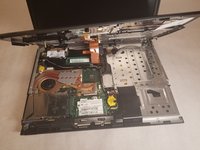
  3. IBM ThinkPad T43 WiFi Card Replacement: 手順 3、 2の画像 1 IBM ThinkPad T43 WiFi Card Replacement: 手順 3、 2の画像 2
    • With the laptop open, hold the bottom edges of the top case and slowly lift.

    • Be sure to not lift the palmrest completely, since there is a ribbon cable still attached to the bottom case.

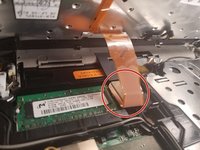
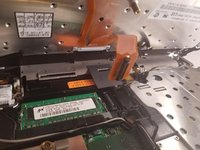
  4. IBM ThinkPad T43 WiFi Card Replacement: 手順 4、 2の画像 1 IBM ThinkPad T43 WiFi Card Replacement: 手順 4、 2の画像 2
    • Disconnect the ribbon cable by lifting on the plastic backing square.

    • Do not lift by the ribbon cable itself, as this can cause it to tear.

  5. IBM ThinkPad T43 WiFi Card Replacement: 手順 5、 1の画像 1
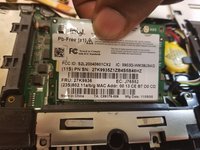
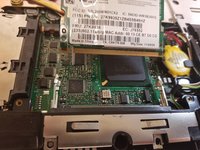
    • The Wi-Fi Card is located towards the middle bottom of the laptop

  6. IBM ThinkPad T43 WiFi Card Replacement: 手順 6、 2の画像 1 IBM ThinkPad T43 WiFi Card Replacement: 手順 6、 2の画像 2
    この手順で使用する道具:
    Tweezers
    $4.99
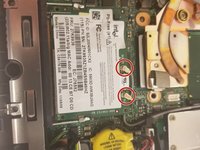
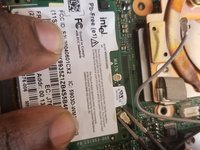
    • Locate the two wires connected at the top of the Wi-Fi card.

    • Hold the card down and use the tweezers to pinch the plug and pull up.

  7. IBM ThinkPad T43 WiFi Card Replacement: 手順 7、 3の画像 1 IBM ThinkPad T43 WiFi Card Replacement: 手順 7、 3の画像 2 IBM ThinkPad T43 WiFi Card Replacement: 手順 7、 3の画像 3
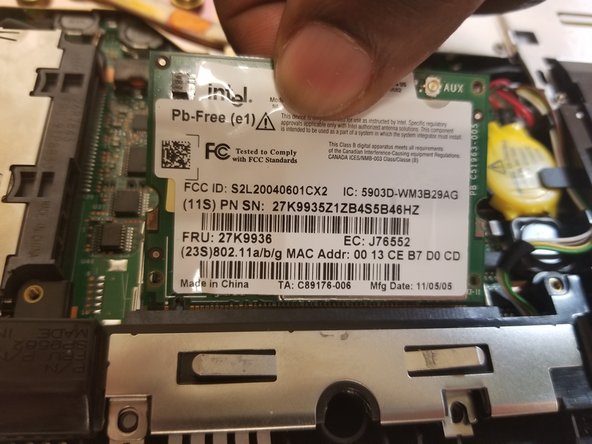
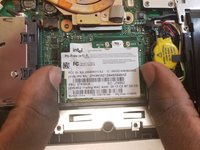
    • Place fingers on the two clips holding the card in place

    • Pull the clips outwards until the the card pops up

    • Pull the card out by pulling out away from your body

    • To replace, follow these steps in reverse order

    • Make sure that the side with the short end is on the left when you put it back in.

終わりに

To reassemble your device, follow these instructions in reverse order.

2 の人々がこのガイドを完成させました。

作成者

3人の作成者と共同で作成されました。

aLiX pIeRRe

メンバー登録日: 03/19/18

855 ポイント

5のガイドは作成済み

チーム

UMass Dartmouth, Team S6-G4, Bernier Spring 2018 UMass Dartmouth, Team S6-G4, Bernier Spring 2018人のメンバー

UMASSD-BERNIER-S18S6G4

4 メンバー

10のガイドは作成済み

2件のガイドコメント

I need to know what's role of the cables AUX and MAIN because i cut one

M a n i _001 - 返信

AUX and MAIN cables are antenna cables. In this laptop there are two antennas, MAIN and AUX.

If you have a soldering iron, simply solder the two parts of the cable you cut and everything is gonna be fine.

I also recommend using shrink tubing to isolate the soldered part.

Note : laptop can work without this câble, but WiFi speed and stability will suffer.

If you can't solder the câble or can't by a new one, you can try to use only main by pluggin the only remaining antena câble to MAIN and leaving AUX unlpuged.

Brendan -

コメントを追加

統計データ:

過去 24時間: 10

過去 7 日: 26

過去 30 日: 64

今までの合計 11,722