メインコンテンツにスキップ
リペアコミュニティに参加 - アカウントの作成

IBM ThinkPad T41 Screen Replacement

必要な工具と部品

  1. IBM ThinkPad T41 Screen Replacement, Keyboard: 手順 1、 1の画像 1
    • Close the screen and turn the closed laptop over.

    • Remove all 17 screws on the bottom of the computer.

    • The multiple colors (turquoise, red, blue, orange, yellow, and purple) are for organizational purposes, indicating different screws.

    • The yellow marker at the rear denotes the UltraBay device retaining screw. This screw is optional as the UltraBay mechanism will hold the drive or battery in place anyway. The yellow marker at the front denotes the hard disk caddy retaining screw.

    FixBotに聞いてみる
  2. IBM ThinkPad T41 Screen Replacement: 手順 2、 1の画像 1
    • Remove the extra RAM cover, by lifting where the screw was and pulling out.

    FixBotに聞いてみる
  3. IBM ThinkPad T41 Screen Replacement: 手順 3、 1の画像 1
    • Turn the laptop right side up and open the screen.

    • Lift the keyboard, using a spudger at the seam between the keyboard and trackpad.

    • Careful of the ribbon cable underneath, which may tear if the keyboard is lifted too vigorously.

    FixBotに聞いてみる
  4. IBM ThinkPad T41 Screen Replacement: 手順 4、 1の画像 1
    • Unplug the keyboard’s ribbon cable, by lifting up the edges of the plug.

    • Remove the keyboard.

    FixBotに聞いてみる
  5. IBM ThinkPad T41 Screen Replacement, Trackpad: 手順 5、 1の画像 1
    • Close the laptop and turn it over.

    • Remove the five plastic stickers covering the screws on the front edge of the case.

    • In order to reuse the stickers, remove them carefully.

    FixBotに聞いてみる
  6. IBM ThinkPad T41 Screen Replacement: 手順 6、 1の画像 1
    • Unscrew the five screws that were hidden by the stickers.

    FixBotに聞いてみる
  7. IBM ThinkPad T41 Screen Replacement: 手順 7、 1の画像 1
    • Turn the computer right side up and open the screen.

    • Lift the trackpad assembly by placing hands on both edges and then pull towards you till it is free of the case.

    • Be careful of the ribbon cable underneath. It may tear if the trackpad is pulled too vigorously.

    FixBotに聞いてみる
  8. IBM ThinkPad T41 Screen Replacement: 手順 8、 1の画像 1
    • Unplug the trackpad’s ribbon cable by pulling on the white plastic tab.

    FixBotに聞いてみる
  9. IBM ThinkPad T41 Screen Replacement, Wireless Network Card: 手順 9、 1の画像 1
    • Pull off the one black and one white coaxial cables by lifting the tabs labeled main and aux (for auxiliary).

    FixBotに聞いてみる
  10. IBM ThinkPad T41 Screen Replacement: 手順 10、 1の画像 1
    • Push apart the retaining clips.

    • Note: The card should pop up a little bit.

    FixBotに聞いてみる
  11. IBM ThinkPad T41 Screen Replacement: 手順 11、 1の画像 1
    • Pull the wireless network card out.

    FixBotに聞いてみる
  12. IBM ThinkPad T41 Screen Replacement, Screen: 手順 12、 1の画像 1
    • Close the computer screen.

    • Remove the four screws on the back of the laptop, near the right and left hinges.

    FixBotに聞いてみる
  13. IBM ThinkPad T41 Screen Replacement: 手順 13、 1の画像 1
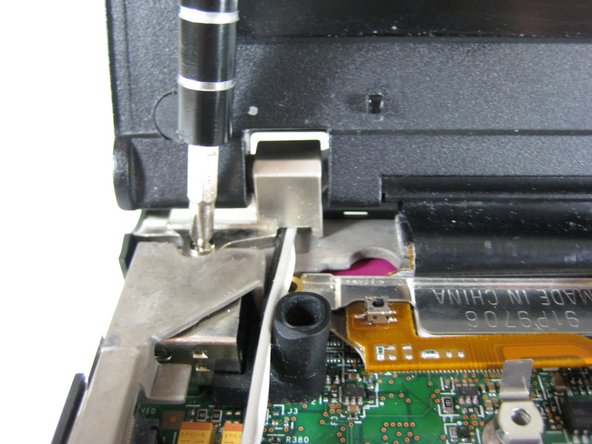
    • Open the laptop screen.

    • Remove the single screw that secures the left hinge to top of the computer.

    FixBotに聞いてみる
  14. IBM ThinkPad T41 Screen Replacement: 手順 14、 1の画像 1
    • Remove a single screw from the metal plate that secures the display cable.

    FixBotに聞いてみる
  15. IBM ThinkPad T41 Screen Replacement: 手順 15、 1の画像 1
    • Pull the metal plate away from the display cable.

    FixBotに聞いてみる
  16. IBM ThinkPad T41 Screen Replacement: 手順 16、 1の画像 1
    • Disconnect the display cable.

    FixBotに聞いてみる
  17. IBM ThinkPad T41 Screen Replacement: 手順 17、 1の画像 1
    • Carefully pull up the long antenna cables that were attached to the wireless network card.

    FixBotに聞いてみる
  18. IBM ThinkPad T41 Screen Replacement: 手順 18、 1の画像 1
    • Lift out the screen.

    FixBotに聞いてみる
終わりに

To reassemble your device, follow these instructions in reverse order.

5 の人々がこのガイドを完成させました。

作成者

7人の作成者と共同で作成されました。

Marissa Blustein

メンバー登録日: 04/16/10

543 ポイント

12のガイドは作成済み

チーム

Cal Poly, Team 7-8, Maness Spring 2010 Cal Poly, Team 7-8, Maness Spring 2010人のメンバー

CPSU-MANESS-S10S7G8

4 メンバー

29のガイドは作成済み

0件のガイドコメント

コメントを追加

統計データ:

過去 24時間: 0

過去 7 日: 7

過去 30 日: 84

今までの合計 19,098