メインコンテンツにスキップ
リペアコミュニティに参加 - アカウントの作成

Hitachi CP-X2010N Motherboard Replacement

必要な工具と部品

  1. Hitachi CP-X2010N  Motherboard Replacement, Top Panel: 手順 1、 3の画像 1 Hitachi CP-X2010N  Motherboard Replacement, Top Panel: 手順 1、 3の画像 2 Hitachi CP-X2010N  Motherboard Replacement, Top Panel: 手順 1、 3の画像 3
    • Flip the projector upside down to expose the screws on the underside.

  2. Hitachi CP-X2010N  Motherboard Replacement: 手順 2、 3の画像 1 Hitachi CP-X2010N  Motherboard Replacement: 手順 2、 3の画像 2 Hitachi CP-X2010N  Motherboard Replacement: 手順 2、 3の画像 3
    • Use a Phillips #2 screwdriver to remove eight black 14 mm screws holding the top panel to the main projector body.

  3. Hitachi CP-X2010N  Motherboard Replacement: 手順 3、 1の画像 1
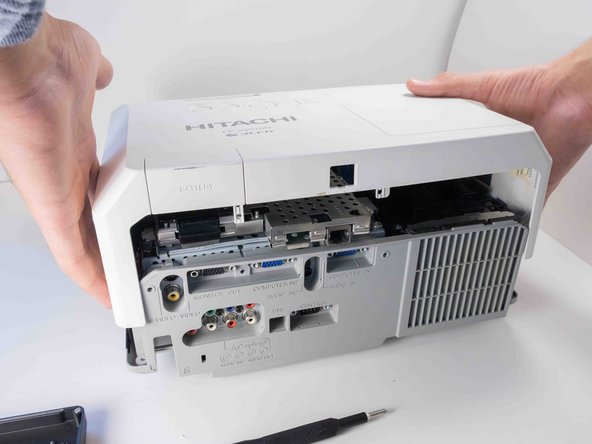
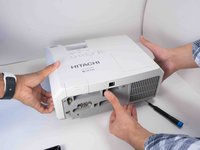
    • Flip projector right side up and orient it so you are facing the rear panel.

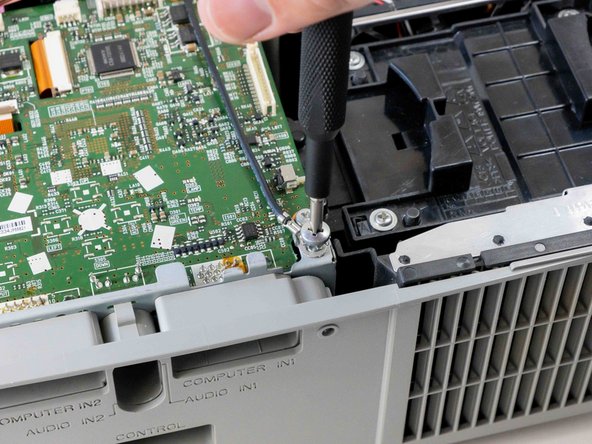
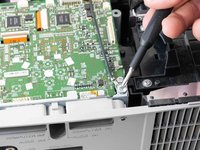
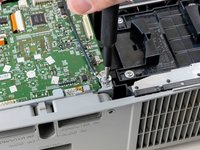
  4. Hitachi CP-X2010N  Motherboard Replacement: 手順 4、 3の画像 1 Hitachi CP-X2010N  Motherboard Replacement: 手順 4、 3の画像 2 Hitachi CP-X2010N  Motherboard Replacement: 手順 4、 3の画像 3
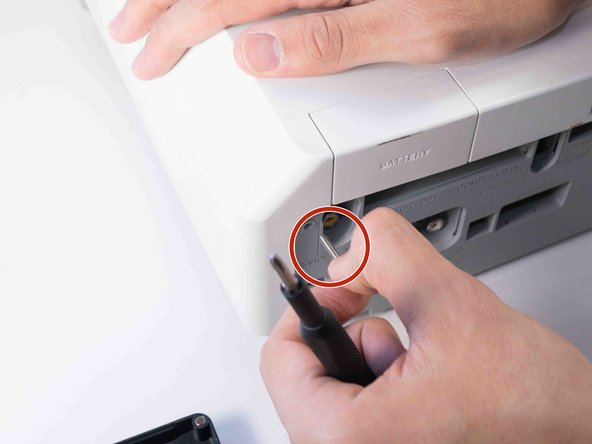
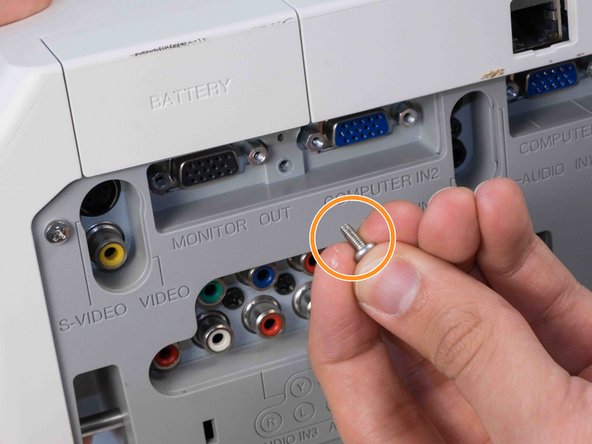
    • Use a Phillips #2 screwdriver to remove two silver 22 mm long screws.

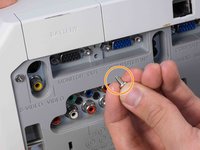
    • Use a Phillips #2 screwdriver to remove the short silver 10 mm screw.

  5. Hitachi CP-X2010N  Motherboard Replacement: 手順 5、 3の画像 1 Hitachi CP-X2010N  Motherboard Replacement: 手順 5、 3の画像 2 Hitachi CP-X2010N  Motherboard Replacement: 手順 5、 3の画像 3
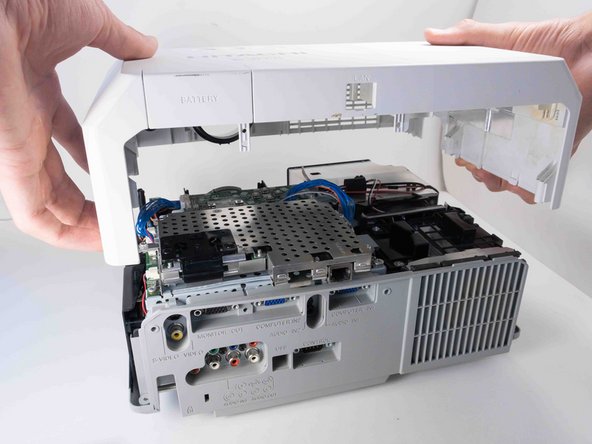
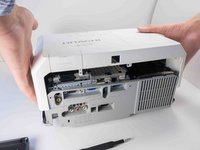
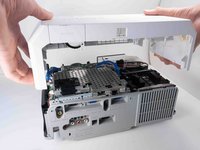
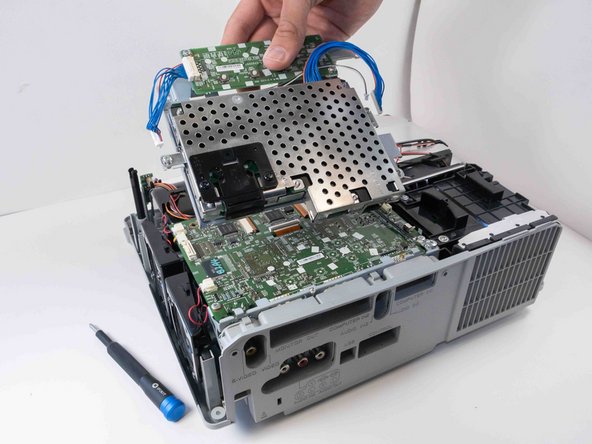
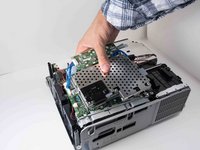
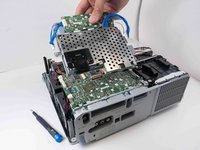
    • Carefully lift the top panel from the body of the projector, making sure it doesn't catch on anything.

    • Remove the panel from the body of the projector.

  6. Hitachi CP-X2010N  Motherboard Replacement, Motherboard: 手順 6、 3の画像 1 Hitachi CP-X2010N  Motherboard Replacement, Motherboard: 手順 6、 3の画像 2 Hitachi CP-X2010N  Motherboard Replacement, Motherboard: 手順 6、 3の画像 3
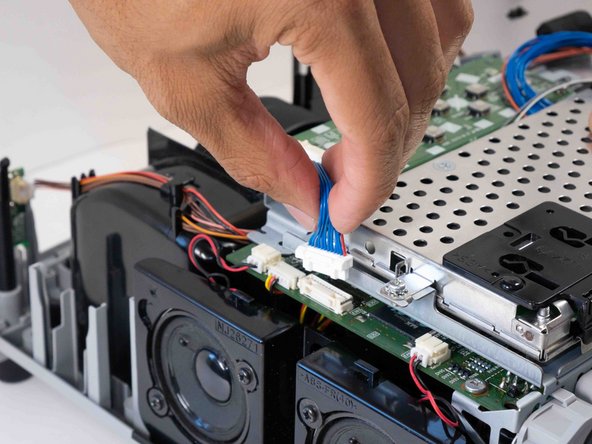
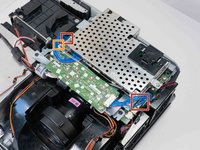
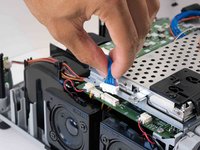
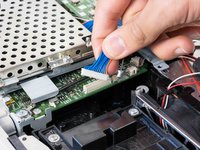
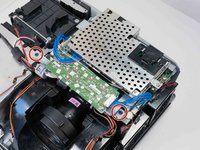
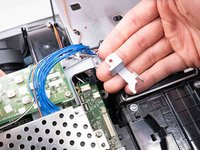
    • Carefully pinch the edges of the two blue connectors and pull upwards to remove them from the motherboard.

    • Carefully pinch and remove the small gray connector next to the blue wire opposite the speakers.

  7. Hitachi CP-X2010N  Motherboard Replacement: 手順 7、 3の画像 1 Hitachi CP-X2010N  Motherboard Replacement: 手順 7、 3の画像 2 Hitachi CP-X2010N  Motherboard Replacement: 手順 7、 3の画像 3
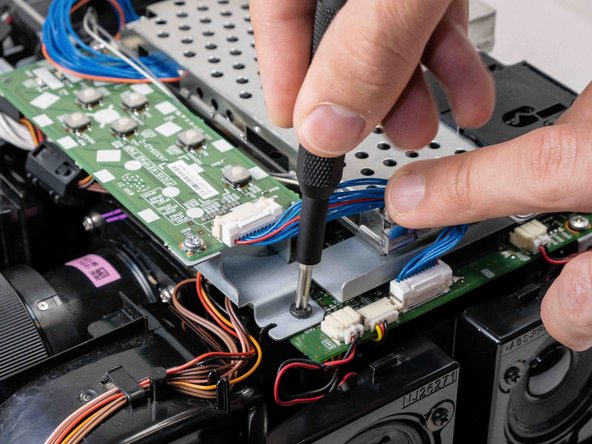
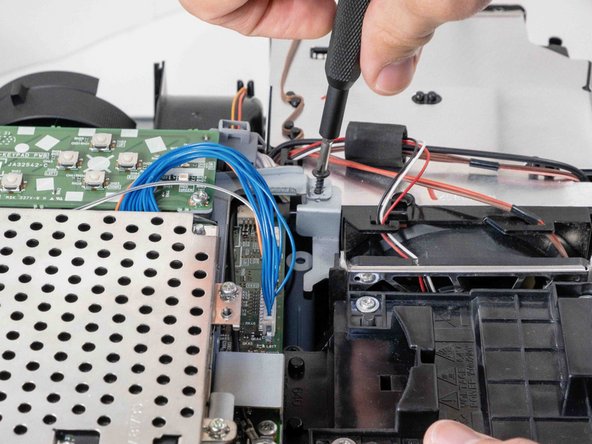
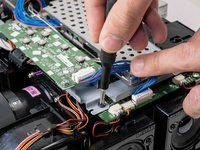
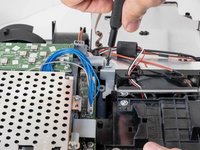
    • Use a Phillips #2 screwdriver to remove the two black 14 mm screws securing the button array.

    • Move the wires for better access to the screws if needed.

  8. Hitachi CP-X2010N  Motherboard Replacement: 手順 8、 3の画像 1 Hitachi CP-X2010N  Motherboard Replacement: 手順 8、 3の画像 2 Hitachi CP-X2010N  Motherboard Replacement: 手順 8、 3の画像 3
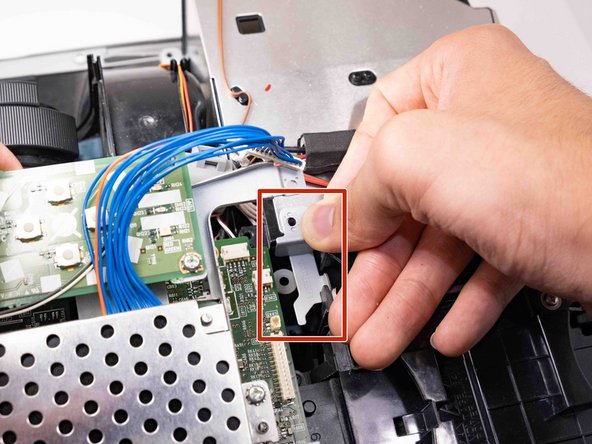
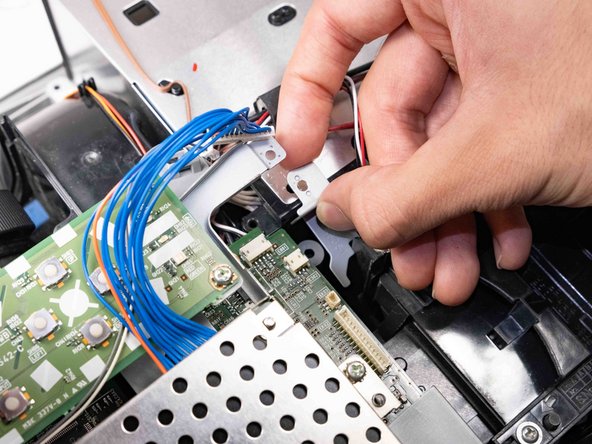
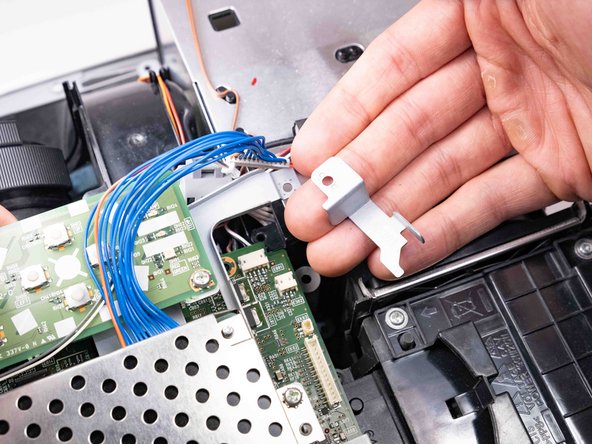
    • Remove the bracket that was being held by the screw.

    • Take a picture or memorize its orientation for easier reinstallation.

  9. Hitachi CP-X2010N  Motherboard Replacement: 手順 9、 2の画像 1 Hitachi CP-X2010N  Motherboard Replacement: 手順 9、 2の画像 2
    • Pull the button array and network adapter out carefully.

    • Make sure all the wires connected to the array are unplugged.

  10. Hitachi CP-X2010N  Motherboard Replacement: 手順 10、 2の画像 1 Hitachi CP-X2010N  Motherboard Replacement: 手順 10、 2の画像 2
    • Use a Phillips #2 screwdriver to remove the silver 10 mm screw securing the ground wire.

    • Keep the screw and washer in an easily accessible place.

  11. Hitachi CP-X2010N  Motherboard Replacement: 手順 11、 1の画像 1
    • Use a Phillips #2 screwdriver to remove the black 14 mm screw securing the motherboard to the case.

  12. Hitachi CP-X2010N  Motherboard Replacement: 手順 12、 3の画像 1 Hitachi CP-X2010N  Motherboard Replacement: 手順 12、 3の画像 2 Hitachi CP-X2010N  Motherboard Replacement: 手順 12、 3の画像 3
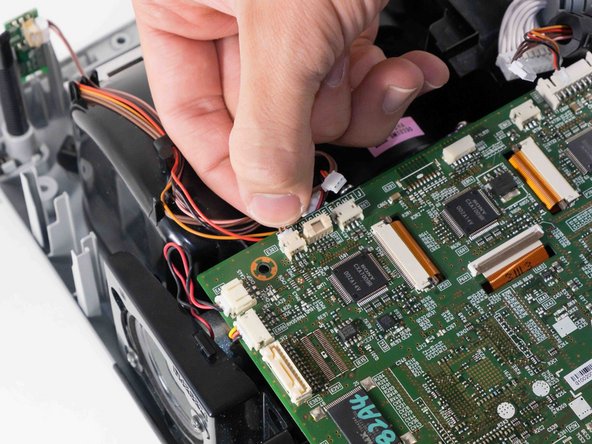
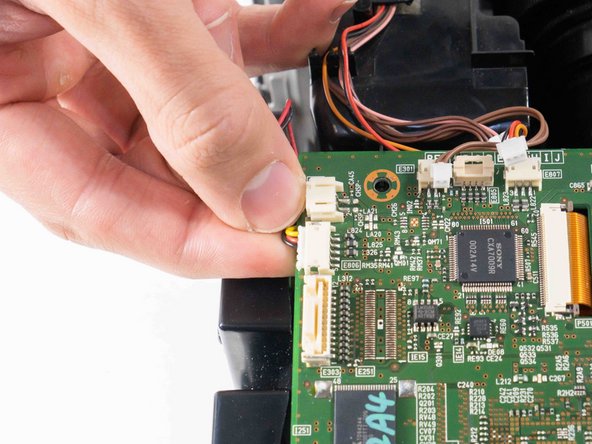
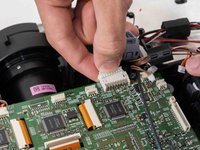
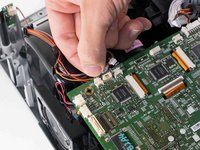
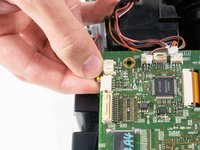
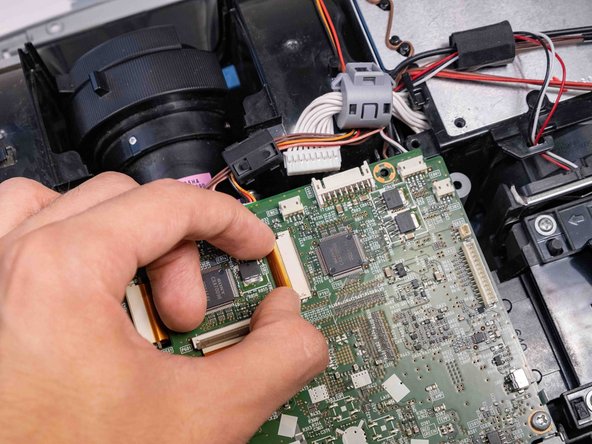
    • Delicately pinch and pull off all the wired connections surrounding the outside of the motherboard.

  13. Hitachi CP-X2010N  Motherboard Replacement: 手順 13、 3の画像 1 Hitachi CP-X2010N  Motherboard Replacement: 手順 13、 3の画像 2 Hitachi CP-X2010N  Motherboard Replacement: 手順 13、 3の画像 3
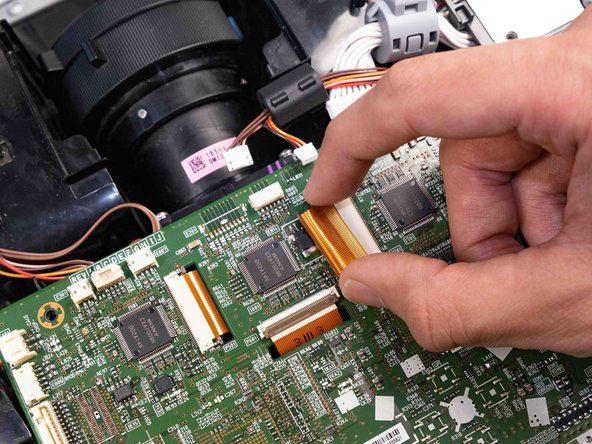
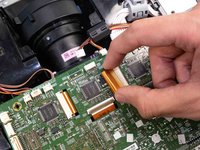
    • Use the tip of a spudger or your fingernail to flip up the small locking flap on the three orange cable locks. Then, you can safely pull the cables out.

    • Too much force could break the ribbon cable.

  14. Hitachi CP-X2010N  Motherboard Replacement: 手順 14、 2の画像 1 Hitachi CP-X2010N  Motherboard Replacement: 手順 14、 2の画像 2
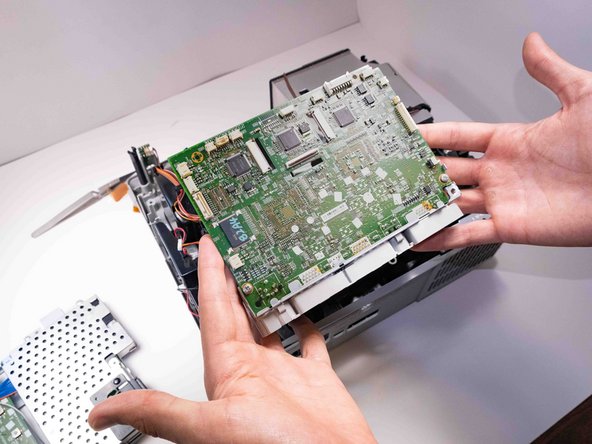
    • Lift the motherboard out from the projector carefully so that it doesn't catch on any other components.

終わりに

To reassemble your device, follow these instructions in reverse order.

4 の人々がこのガイドを完成させました。

作成者

4人の作成者と共同で作成されました。

Chance Kidd

メンバー登録日: 09/20/22

1,184 ポイント

6のガイドは作成済み

チーム

Austin Community College, Team 9-2, Watkins Fall 2022 Austin Community College, Team 9-2, Watkins Fall 2022人のメンバー

AUSTINCC-WATKINS-F22S9G2

4 メンバー

6のガイドは作成済み

0件のガイドコメント

コメントを追加

統計データ:

過去 24時間: 0

過去 7 日: 4

過去 30 日: 23

今までの合計 393