必要な工具と部品
-
-
-
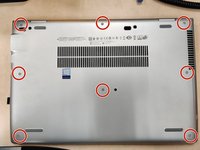
Loosen the 8 Philips screws circled in red in the photo. These screws are captive and should not come out fully.
-
Use pry tool starting at one of the hinges to release the clips all around the back plate
-
Remove plate and set aside.
 FixBotに聞いてみる
-
-
-
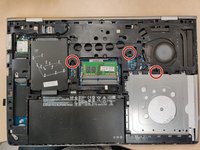
Unscrew the 3 Philips screws by the keyboard icons. (Circled in red)
-
The screws are captive and should not be removed fully.
-
Open the laptop screen
-
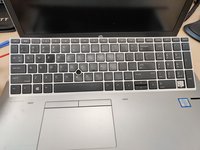
Use keyboard removal tool to push out the keyboard (circled in green)
-
anything that fits in the hole could be used if tool not available.
-
-
-
-
Work around the keyboard releasing the clips.
-
Clips are only located on the top, left, and right of the keyboard.
-
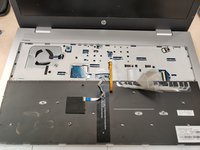
flip the keyboard towards the mouse pad taking care not to damage the ribbon cables.
-
-
-
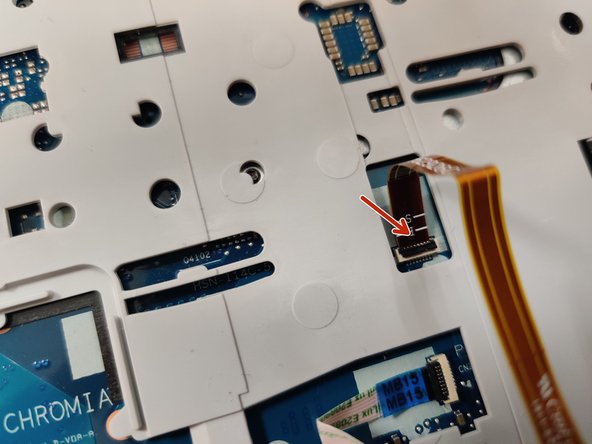
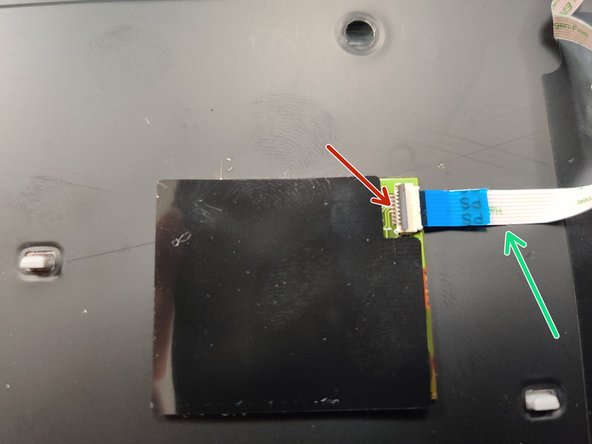
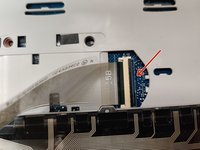
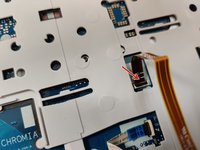
with a plastic spudger tool flip up the black clips to release the ribbon cables
-
Gently pull out the cables, there should be no resistance if the clips were opened properly.
-
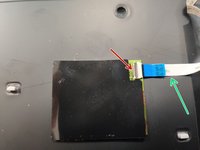
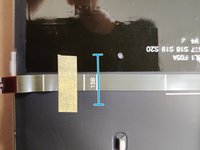
There may be some adhesive connecting the cable to the keyboard (green arrow).
-
-
-
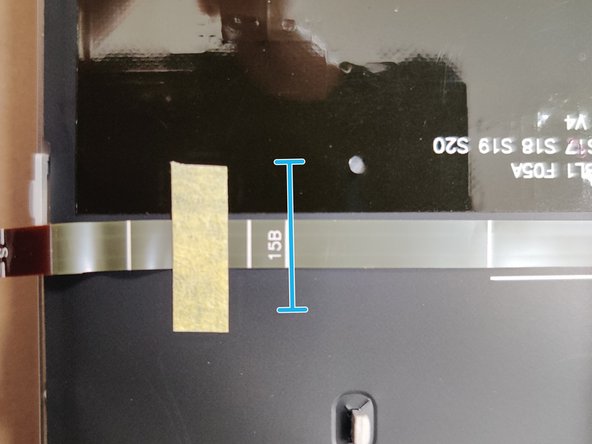
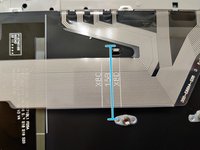
Gently fold the new ribbon cables at the 15B line
-
Gently push in the ribbon cables and press down the black clips.
-
Make sure that the cables are pushed in far enough. They have a line marking how far they should be inserted.
-
Slide in the bottom clips of the keyboard and flip towards the screen
-
Push the keyboard all around until all of the clips click into place.
-
-
-
Screw in the 3 keyboard screws
-
Push the back plate on and screw in the 8 screws
-
Go around the back plate making sure that it is clipped in all around.
-
-






To reassemble your device, follow these instructions in reverse order.
ある他の人がこのガイドを完成しました。

