メインコンテンツにスキップ
リペアコミュニティに参加 - アカウントの作成

HP G62-144DX Display Replacement

必要な工具と部品

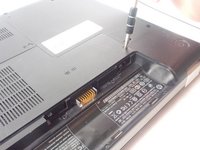
  1. HP G62-144DX Display Replacement, Battery: 手順 1、 2の画像 1 HP G62-144DX Display Replacement, Battery: 手順 1、 2の画像 2
    • Make sure to turn off the laptop before removing the battery.

    • Slide the lock to the right, located slightly above the battery location.

    • While pulling the lock, pull the battery out, keeping it flat and parallel to the laptop so that it slides out easily.

    FixBotに聞いてみる
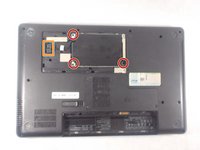
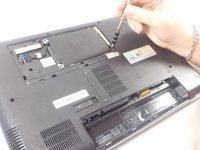
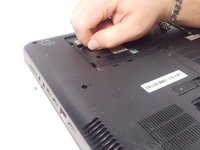
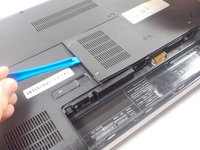
  2. HP G62-144DX Display Replacement, Hard Drive: 手順 2、 3の画像 1 HP G62-144DX Display Replacement, Hard Drive: 手順 2、 3の画像 2 HP G62-144DX Display Replacement, Hard Drive: 手順 2、 3の画像 3
    • Loosen the 2 Phillips 2.5x6 screws in the rectangular panel with a Phillips #1 screwdriver.

    • The screws will stay in the panel, but come free from the body of the computer.

    • Gently remove the panel with a plastic opening tool.

    FixBotに聞いてみる
  3. HP G62-144DX Display Replacement: 手順 3、 3の画像 1 HP G62-144DX Display Replacement: 手順 3、 3の画像 2 HP G62-144DX Display Replacement: 手順 3、 3の画像 3
    • Unscrew the three 3x4 Phillips screws holding the hard drive in with a Phillips #1 screwdriver.

    • Pull the hard drive cable out of the motherboard.

    • Pull the hard drive out of the computer.

    FixBotに聞いてみる
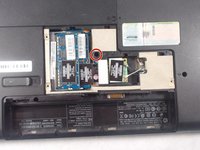
  4. HP G62-144DX Display Replacement, RAM: 手順 4、 3の画像 1 HP G62-144DX Display Replacement, RAM: 手順 4、 3の画像 2 HP G62-144DX Display Replacement, RAM: 手順 4、 3の画像 3
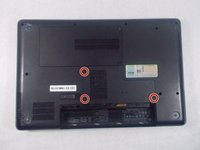
    • Unscrew the three Phillips 2.5x6 screws in the L-shaped panel on the back with a Phillips #1 screwdriver.

    • The screws will stay in the panel, but will come loose from the body of the laptop.

    • Use a plastic opening tool to gently pry the panel free from the laptop.

    FixBotに聞いてみる
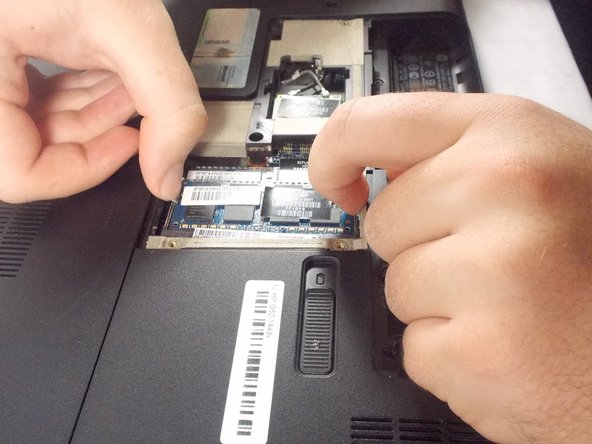
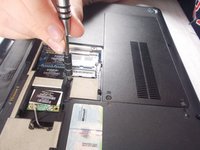
  5. HP G62-144DX Display Replacement: 手順 5、 3の画像 1 HP G62-144DX Display Replacement: 手順 5、 3の画像 2 HP G62-144DX Display Replacement: 手順 5、 3の画像 3
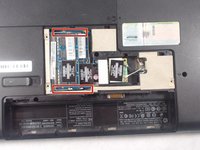
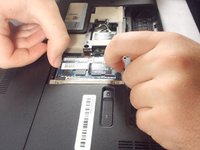
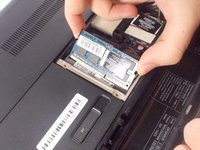
    • Pull the two metal clips to the top RAM module outwards parallel to the laptop.

    • After the RAM module pops up, gently pull in out from the computer.

    • Repeat for the second RAM module.

    FixBotに聞いてみる
  6. HP G62-144DX Display Replacement, Keyboard: 手順 6、 1の画像 1
    • Remove the 3 Phillips 2.5x5 screws (closest to the battery slot) and the 2 Phillips 2.5x6.5 screws with a Phillips #1 screwdriver.

    • This screws will have a keyboard symbol inscribed next to them.

    FixBotに聞いてみる
  7. HP G62-144DX Display Replacement: 手順 7、 3の画像 1 HP G62-144DX Display Replacement: 手順 7、 3の画像 2 HP G62-144DX Display Replacement: 手順 7、 3の画像 3
    • Use the Phillips # 1 screwdriver to unscrew the 2.5x6 Phillips screws holding the L-shaped back panel.

    • Screws should stay in panel, but come free of the laptop body.

    • Gently use a plastic opening tool to remove the panel.

    FixBotに聞いてみる
  8. HP G62-144DX Display Replacement: 手順 8、 2の画像 1 HP G62-144DX Display Replacement: 手順 8、 2の画像 2
    • Unscrew the final Phillips 2.5x5 keyboard screw with a Phillips #1 screwdriver.

    FixBotに聞いてみる
  9. HP G62-144DX Display Replacement: 手順 9、 2の画像 1 HP G62-144DX Display Replacement: 手順 9、 2の画像 2
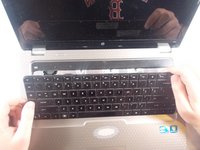
    • Flip the laptop so the top is facing up again and open the cover.

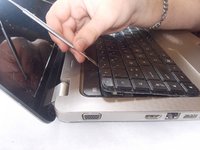
    • Use a metal spudger to pry the keyboard up and pull it back.

    • Be sure to pry up the board itself and not an individual key.

    • This process has the risk of breaking keys.

    FixBotに聞いてみる
  10. HP G62-144DX Display Replacement: 手順 10、 2の画像 1 HP G62-144DX Display Replacement: 手順 10、 2の画像 2
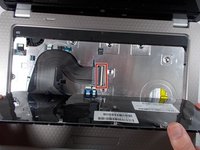
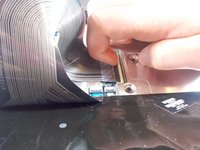
    • Pull up the latch that connects the keyboard connector the the motherboard.

    FixBotに聞いてみる
  11. HP G62-144DX Display Replacement, Motherboard: 手順 11、 2の画像 1 HP G62-144DX Display Replacement, Motherboard: 手順 11、 2の画像 2
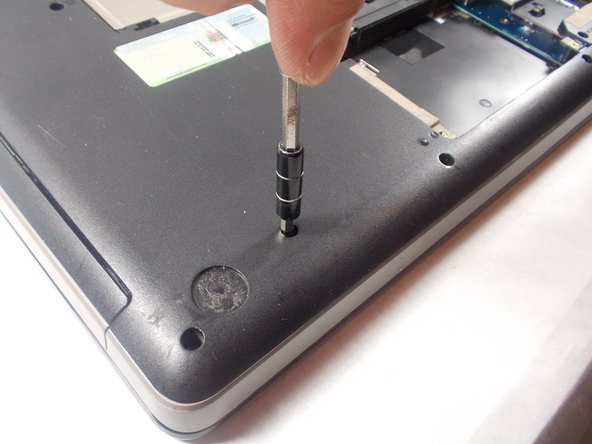
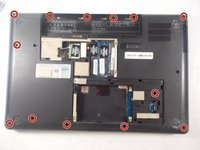
    • Remove four Phillips PM2.5x3 screws in the battery bay, and remove ten Phillips PM2.5x6.5 screws on the base enclosure with a Phillips #1 screwdriver.

    FixBotに聞いてみる
  12. HP G62-144DX Display Replacement: 手順 12、 2の画像 1 HP G62-144DX Display Replacement: 手順 12、 2の画像 2
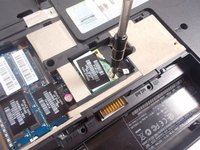
    • Remove the Phillips PM2.0×3.0 screw that secures the WLAN module to the computer with a Phillips #0 screwdriver.

    FixBotに聞いてみる
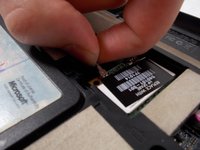
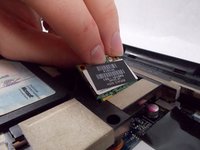
  13. HP G62-144DX Display Replacement: 手順 13、 3の画像 1 HP G62-144DX Display Replacement: 手順 13、 3の画像 2 HP G62-144DX Display Replacement: 手順 13、 3の画像 3
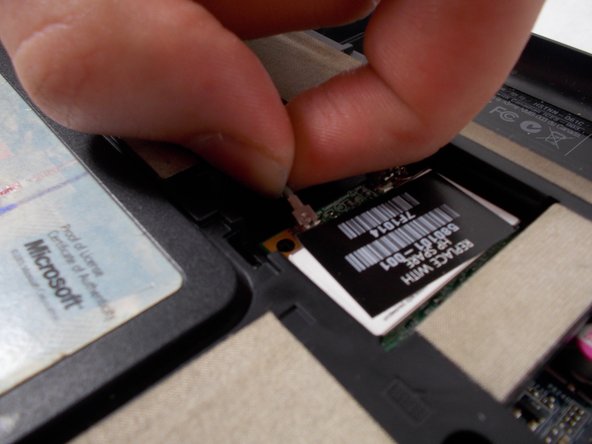
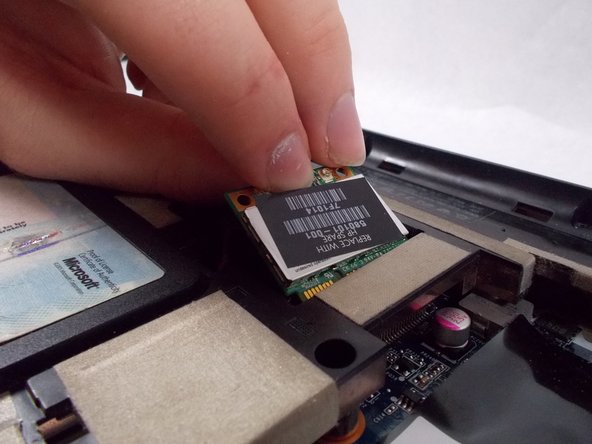
    • Disconnect the two wires that attach the card to the motherboard by pulling them up individually.

    • Grab the card gently and pull it out after it pops up.

    FixBotに聞いてみる
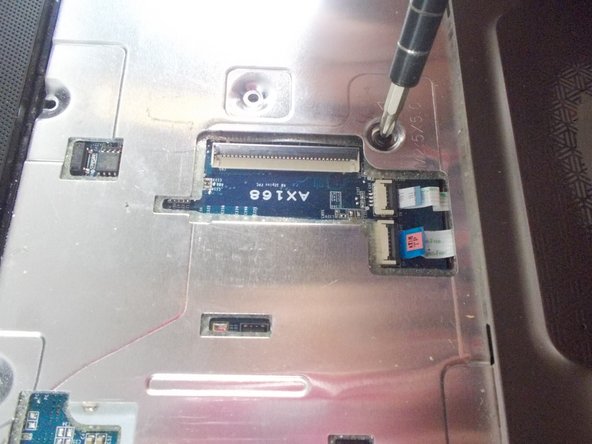
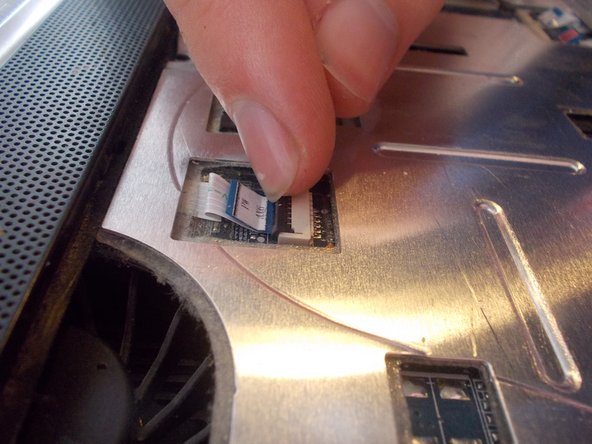
  14. HP G62-144DX Display Replacement: 手順 14、 3の画像 1 HP G62-144DX Display Replacement: 手順 14、 3の画像 2 HP G62-144DX Display Replacement: 手順 14、 3の画像 3
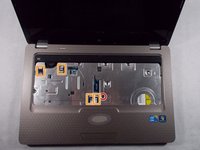
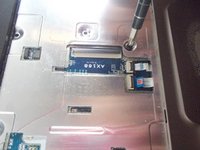
    • Flip the laptop over so that the top is facing upwards.

    • Remove the Phillips PM2.5×6.0 screw that secures the top cover to the computer with a Phillips #1 screwdriver.

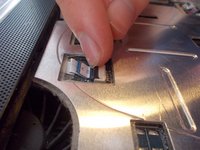
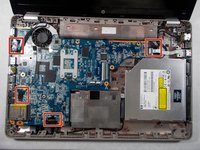
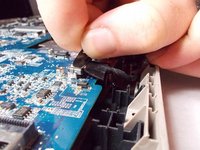
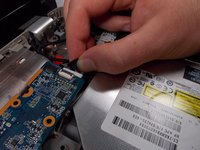
    • Disconnect the 4 connectors to the motherboard.

    FixBotに聞いてみる
  15. HP G62-144DX Display Replacement: 手順 15、 2の画像 1 HP G62-144DX Display Replacement: 手順 15、 2の画像 2
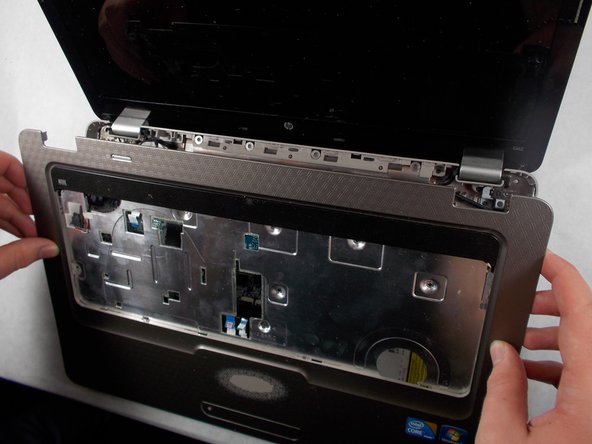
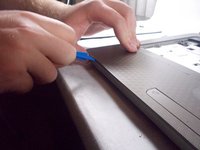
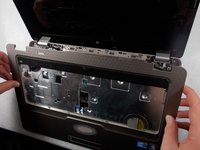
    • Take off the cover by prying open the cover with a plastic opening tool.

    • Lift the edge near the display first until it pops out, and then remove the cover by pulling it out.

    • The cover should come out with ease. If you having trouble pulling the cover out you should double check to see if any screws were left unscrew.

    FixBotに聞いてみる
  16. HP G62-144DX Display Replacement: 手順 16、 3の画像 1 HP G62-144DX Display Replacement: 手順 16、 3の画像 2 HP G62-144DX Display Replacement: 手順 16、 3の画像 3
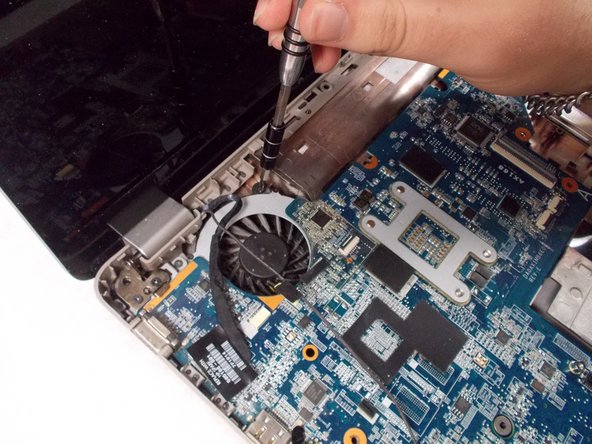
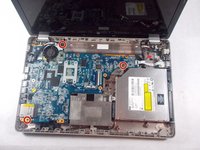
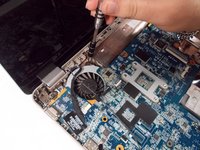
    • Remove the two motherboard screws and the fan screw that holds it on the the rest of the computer with a Phillips #1 screwdriver.

    FixBotに聞いてみる
  17. HP G62-144DX Display Replacement: 手順 17、 3の画像 1 HP G62-144DX Display Replacement: 手順 17、 3の画像 2 HP G62-144DX Display Replacement: 手順 17、 3の画像 3
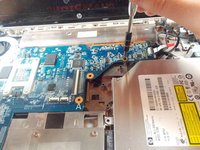
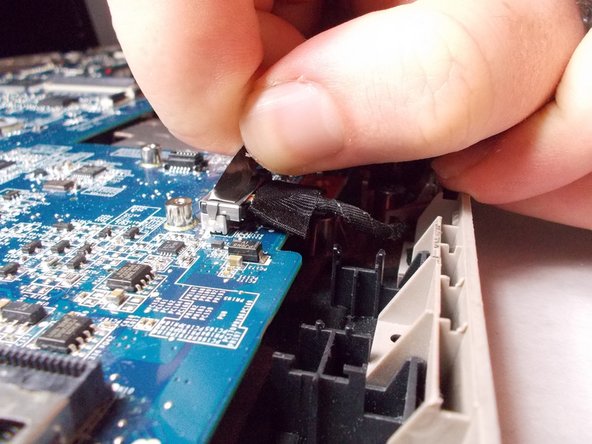
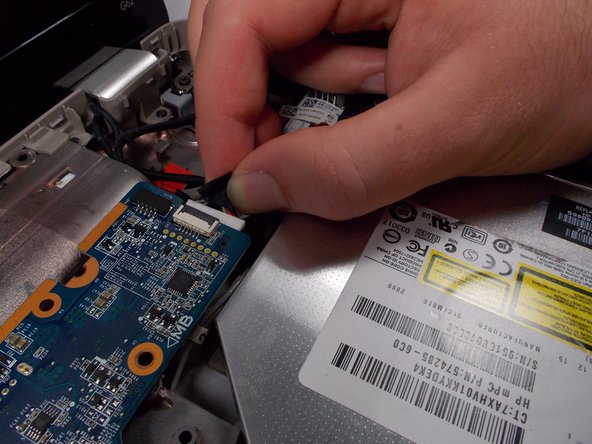
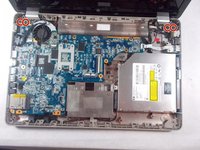
    • Remove the six connectors from the motherboard.

    • The power connector is located underneth the USB connector.

    FixBotに聞いてみる
  18. HP G62-144DX Display Replacement: 手順 18、 1の画像 1
    • Lift up the right side of the motherboard and pull it out to the right carefully.

    FixBotに聞いてみる
  19. HP G62-144DX Display Replacement, Display: 手順 19、 2の画像 1 HP G62-144DX Display Replacement, Display: 手順 19、 2の画像 2
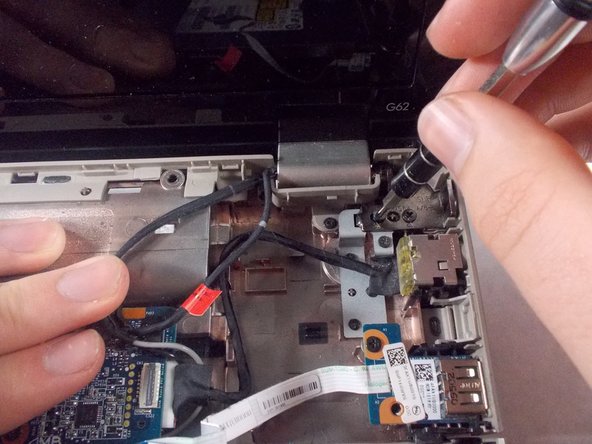
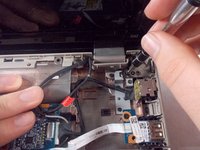
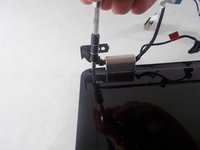
    • Remove the 4 screws holding the display to the body of the laptop with a Phillips #0 screwdriver.

    • Remove the screen from the laptop body.

    FixBotに聞いてみる
  20. HP G62-144DX Display Replacement: 手順 20、 3の画像 1 HP G62-144DX Display Replacement: 手順 20、 3の画像 2 HP G62-144DX Display Replacement: 手順 20、 3の画像 3
    この手順で使用する道具:
    Tweezers
    $4.99
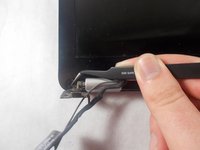
    • Find and remove the 2 cover stickers that are over the screws on the bezel using tweezers. These cover stickers are located on the bottom of the screen near the screen hinges on both sides of the screen.

    • After you remove the cover stickers you can remove the Two Phillips PM2.5×6.0 screws that are underneath with a Phillips #1 screwdriver

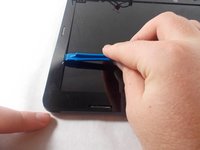
    • Start prying the screen bezel away from the screen case with a plastic opening tool and carefully snap it out from the front of the screen.

    FixBotに聞いてみる
  21. HP G62-144DX Display Replacement: 手順 21、 2の画像 1 HP G62-144DX Display Replacement: 手順 21、 2の画像 2
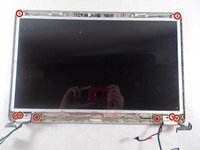
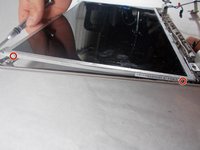
    • After the bezel is removed you have to remove the 6 screws on the bottom corners and two that are located on the top corner with a Phillips #1 screwdriver.

    FixBotに聞いてみる
  22. HP G62-144DX Display Replacement: 手順 22、 2の画像 1 HP G62-144DX Display Replacement: 手順 22、 2の画像 2
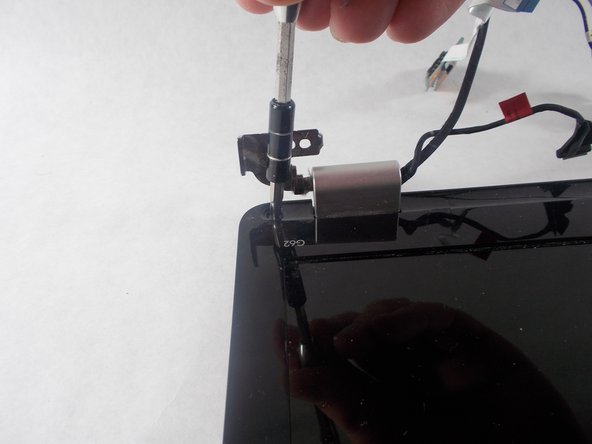
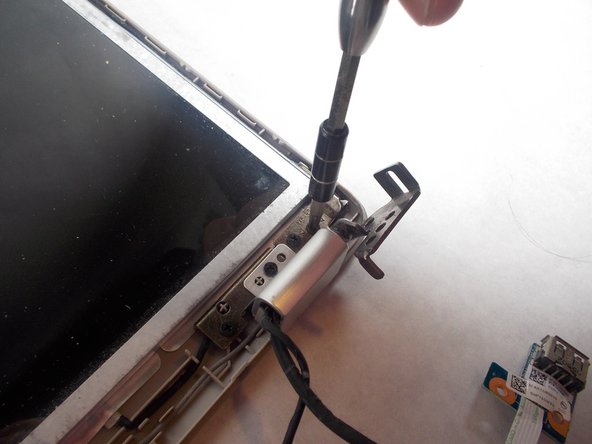
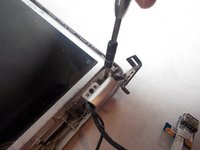
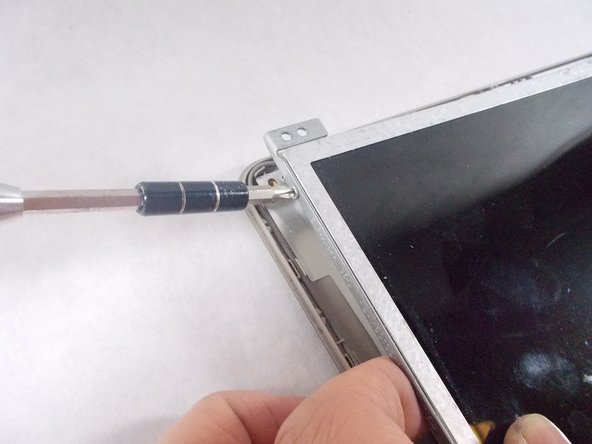
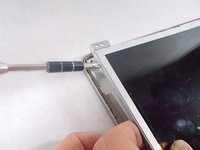
    • Then you with a Phillips #1 screwdriver must remove the 4 screws that are on the edges of the screen, which are holding the screen to the screen brackets. There are 2 on each edge.

    FixBotに聞いてみる
  23. HP G62-144DX Display Replacement: 手順 23、 2の画像 1 HP G62-144DX Display Replacement: 手順 23、 2の画像 2
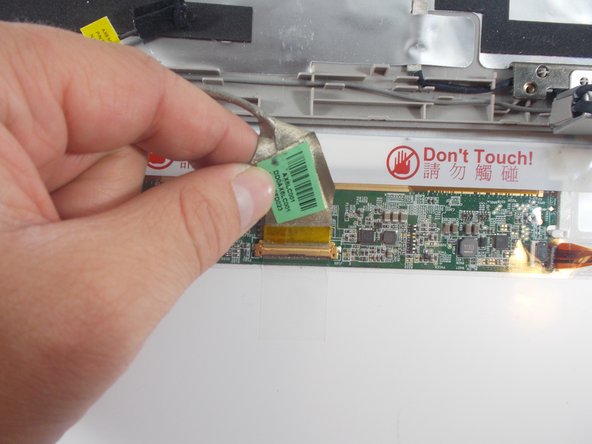
    • Lastly, place the back of the screen facing towards you and carefully unplug the connector.

    • The screen should then be disconnected and ready to be replaced.

    FixBotに聞いてみる
終わりに

To reassemble your device, follow these instructions in reverse order.

5 の人々がこのガイドを完成させました。

作成者

3人の作成者と共同で作成されました。

Tom Pawlik

メンバー登録日: 10/19/17

318 ポイント

2のガイドは作成済み

チーム

UMass Dartmouth, Team S4-G8, Julie Fall 2017 UMass Dartmouth, Team S4-G8, Julie Fall 2017人のメンバー

UMASSD-JULIE-F17S4G8

3 メンバー

7のガイドは作成済み

0件のガイドコメント

コメントを追加

統計データ:

過去 24時間: 0

過去 7 日: 6

過去 30 日: 40

今までの合計 1,765