メインコンテンツにスキップ
リペアコミュニティに参加 - アカウントの作成

HP 15-dy2702dx Keyboard Replacement

必要な工具と部品

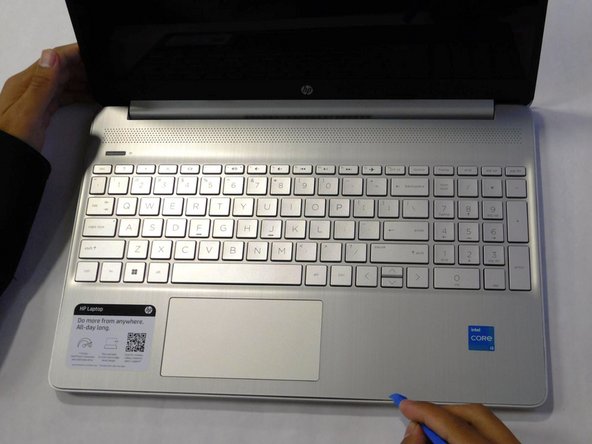
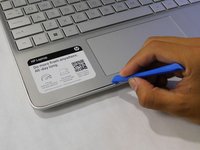
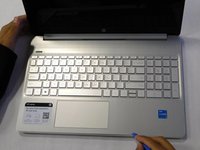
  1. HP 15-dy2702dx Keyboard Replacement, Lower Case: 手順 1、 1の画像 1
    • Remove both of the rubber strips to uncover the hidden screws.

    • You can use a prying tool to help lift an end.

    FixBotに聞いてみる
  2. HP 15-dy2702dx Keyboard Replacement: 手順 2、 1の画像 1
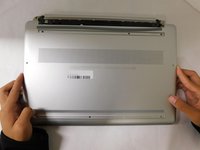
    • Unscrew all 8 Phillips #1 screws on the bottom panel:

    • Two M2.5x6

    • Six M2x6

    FixBotに聞いてみる
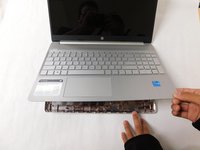
  3. HP 15-dy2702dx Keyboard Replacement: 手順 3、 2の画像 1 HP 15-dy2702dx Keyboard Replacement: 手順 3、 2の画像 2
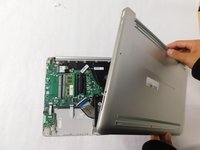
    • Flip the laptop over and open the lid.

    • Separate the bottom panel from the main body by using the iFixit opening tool.

    • Ensure that the bottom panel is completely separated along the edges.

    FixBotに聞いてみる
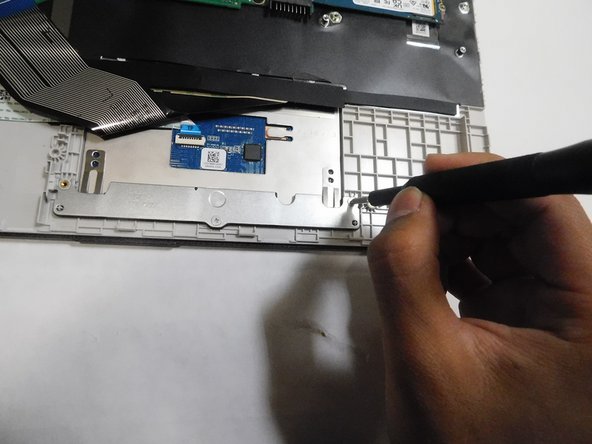
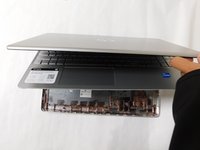
  4. HP 15-dy2702dx Keyboard Replacement: 手順 4、 2の画像 1 HP 15-dy2702dx Keyboard Replacement: 手順 4、 2の画像 2
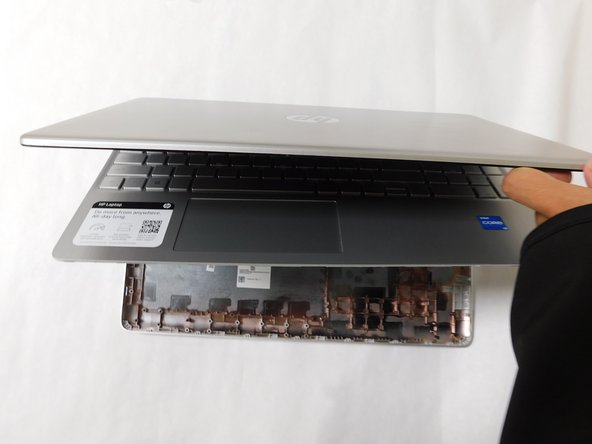
    • If you can lift the laptop like shown in the first picture, the bottom panel is nearly separated.

    • Close the laptop to allow the back edges to fully separate

    FixBotに聞いてみる
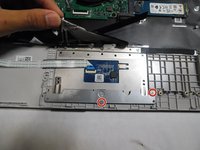
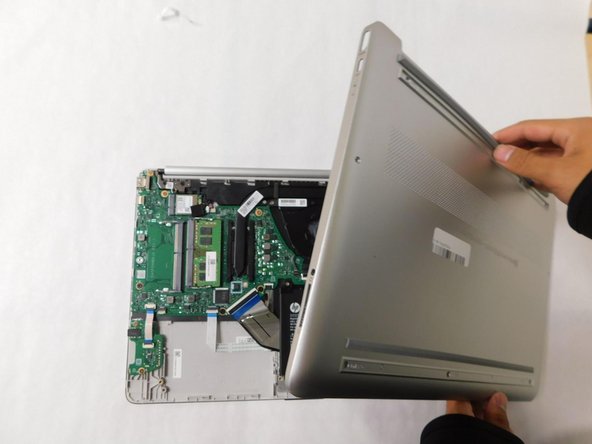
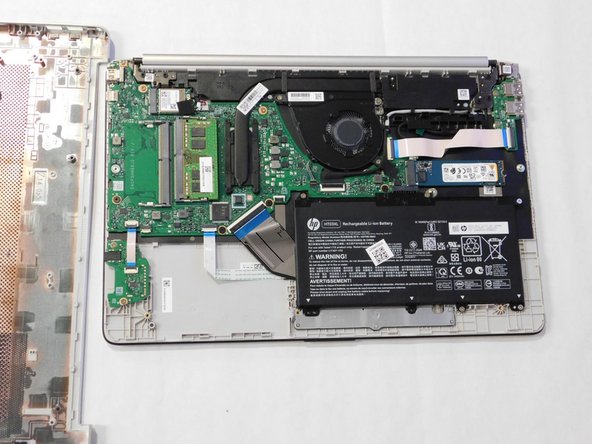
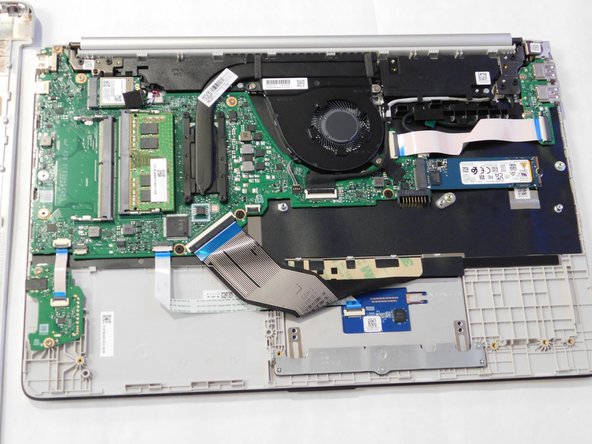
  5. HP 15-dy2702dx Keyboard Replacement: 手順 5、 3の画像 1 HP 15-dy2702dx Keyboard Replacement: 手順 5、 3の画像 2 HP 15-dy2702dx Keyboard Replacement: 手順 5、 3の画像 3
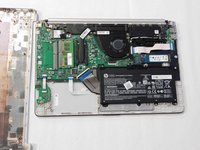
    • Flip the laptop over and carefully remove the lower case.

    FixBotに聞いてみる
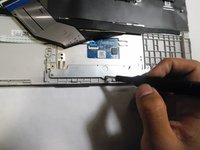
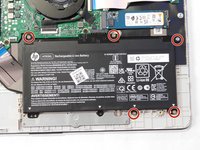
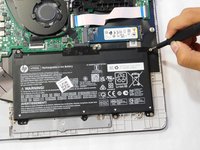
  6. HP 15-dy2702dx Keyboard Replacement, Battery: 手順 6、 2の画像 1 HP 15-dy2702dx Keyboard Replacement, Battery: 手順 6、 2の画像 2
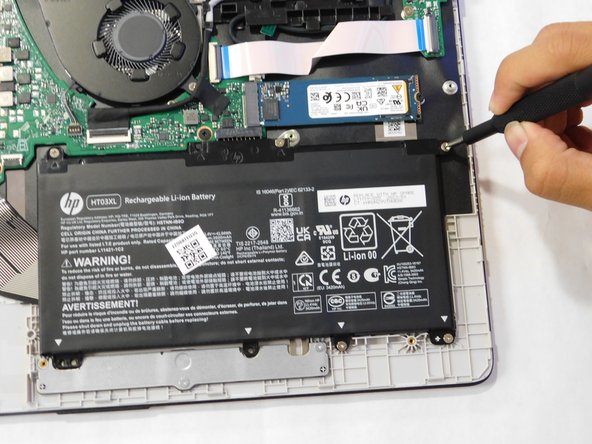
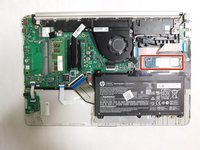
    • Remove the five M2x6 screws that secure the battery with a Phillips #1 screwdriver.

    FixBotに聞いてみる
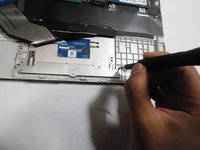
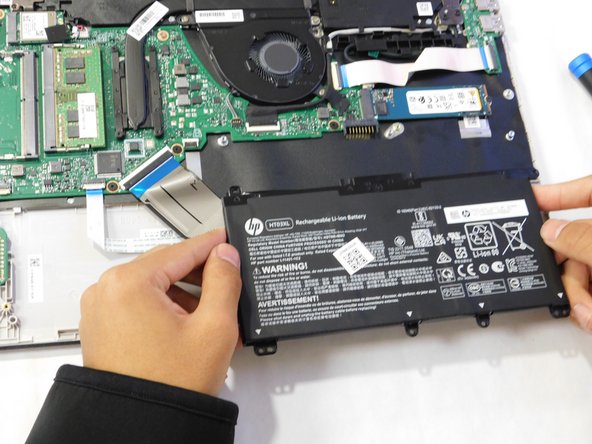
  7. HP 15-dy2702dx Keyboard Replacement: 手順 7、 3の画像 1 HP 15-dy2702dx Keyboard Replacement: 手順 7、 3の画像 2 HP 15-dy2702dx Keyboard Replacement: 手順 7、 3の画像 3
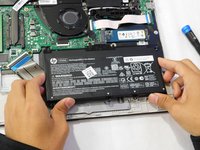
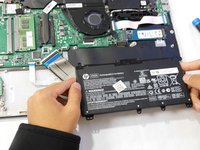
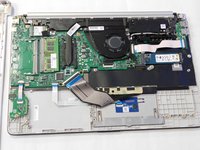
    • Grab the sides of the battery and gently pull the battery until it disconnects from the connector on motherboard.

    • Lift the battery up and out.

    FixBotに聞いてみる
  8. HP 15-dy2702dx Keyboard Replacement, Trackpad: 手順 8、 1の画像 1
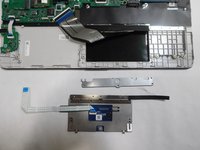
    • Find the trackpad.

    FixBotに聞いてみる
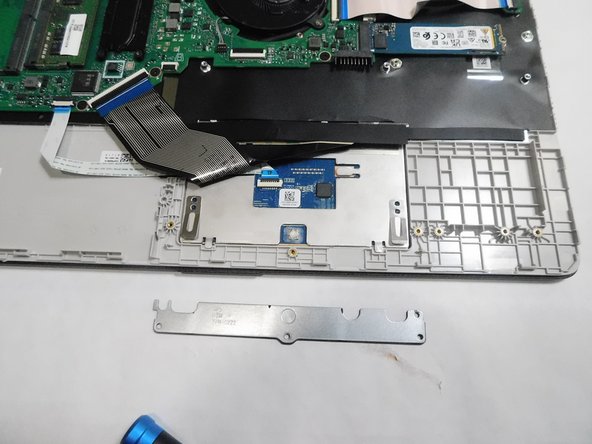
  9. HP 15-dy2702dx Keyboard Replacement: 手順 9、 3の画像 1 HP 15-dy2702dx Keyboard Replacement: 手順 9、 3の画像 2 HP 15-dy2702dx Keyboard Replacement: 手順 9、 3の画像 3
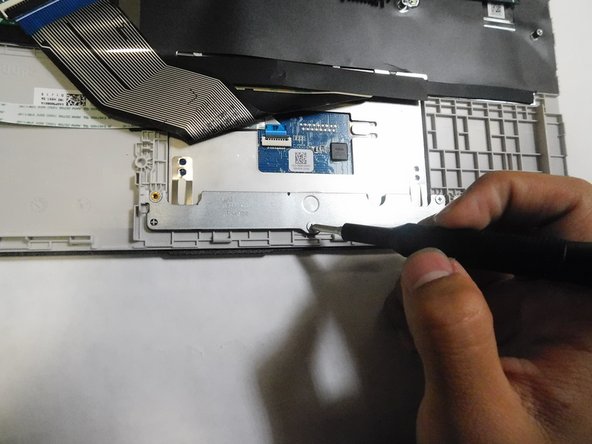
    • Unscrew the two M2x6 Phillips #1 screws securing the trackpad.

    FixBotに聞いてみる
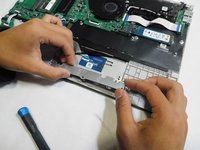
  10. HP 15-dy2702dx Keyboard Replacement: 手順 10、 2の画像 1 HP 15-dy2702dx Keyboard Replacement: 手順 10、 2の画像 2
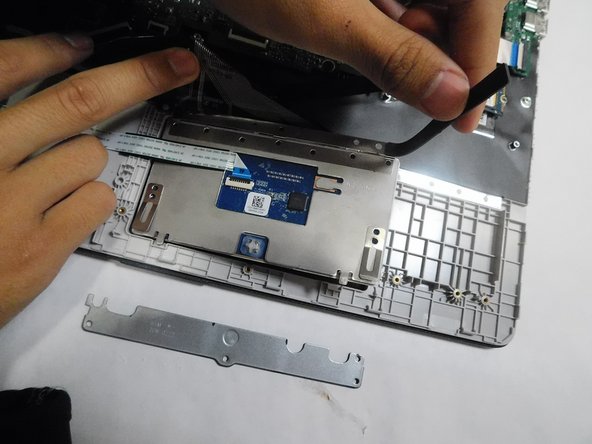
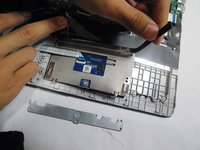
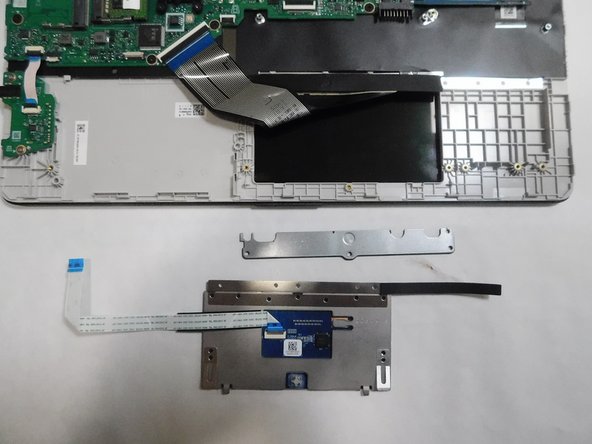
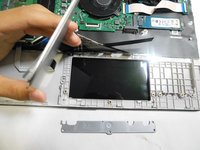
    • Remove the metal bracket.

    FixBotに聞いてみる
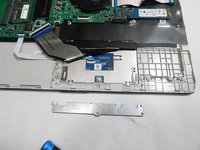
  11. HP 15-dy2702dx Keyboard Replacement: 手順 11、 3の画像 1 HP 15-dy2702dx Keyboard Replacement: 手順 11、 3の画像 2 HP 15-dy2702dx Keyboard Replacement: 手順 11、 3の画像 3
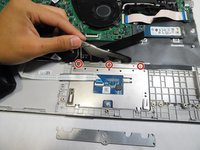
    • Lift the black ribbon covering the screws.

    • Unscrew the top three M2x3 Phillips #0 screws.

    FixBotに聞いてみる
  12. HP 15-dy2702dx Keyboard Replacement: 手順 12、 3の画像 1 HP 15-dy2702dx Keyboard Replacement: 手順 12、 3の画像 2 HP 15-dy2702dx Keyboard Replacement: 手順 12、 3の画像 3
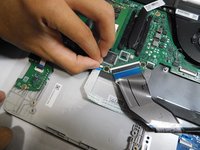
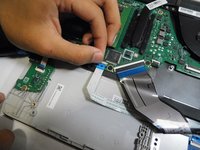
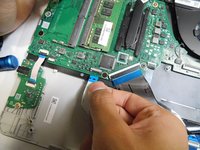
    • Flip up the locking flap holding the trackpad ribbon in place.

    • Pull the ribbon straight out of its socket.

    FixBotに聞いてみる
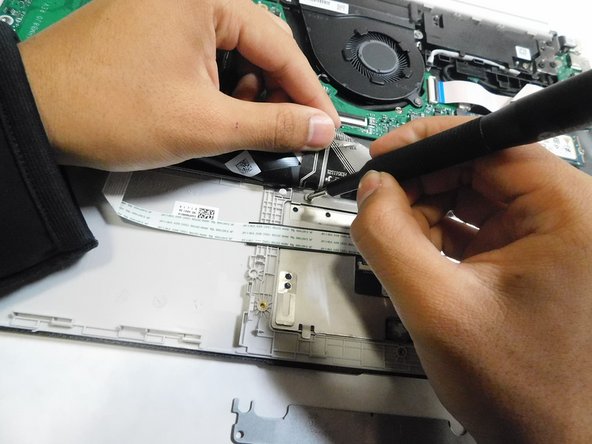
  13. HP 15-dy2702dx Keyboard Replacement: 手順 13、 2の画像 1 HP 15-dy2702dx Keyboard Replacement: 手順 13、 2の画像 2
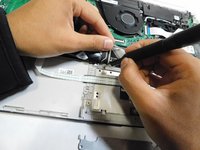
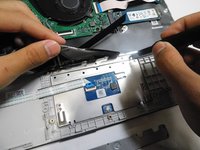
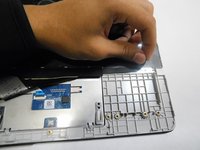
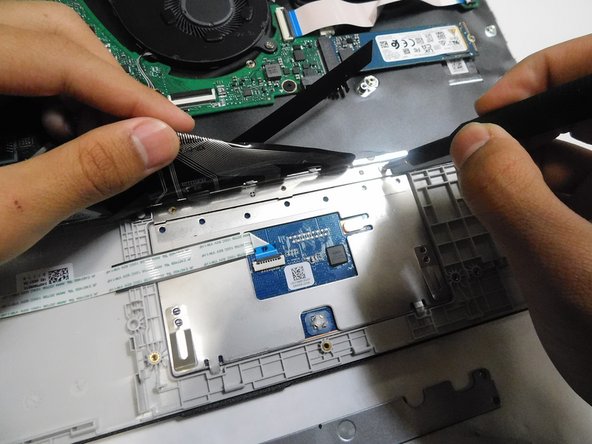
    • Peel back the sticky black strip holding the trackpad in place.

    FixBotに聞いてみる
  14. HP 15-dy2702dx Keyboard Replacement: 手順 14、 2の画像 1 HP 15-dy2702dx Keyboard Replacement: 手順 14、 2の画像 2
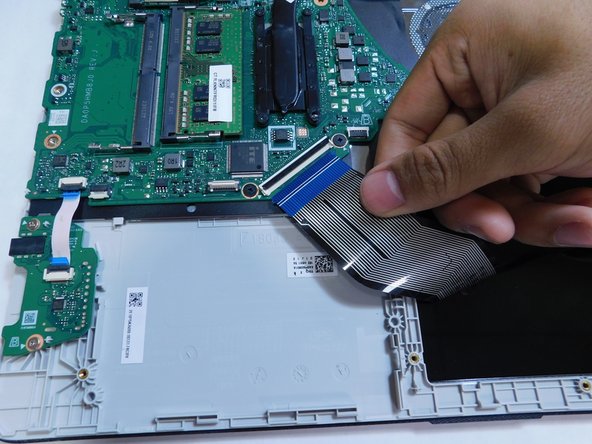
    • Remove the trackpad from the laptop.

    FixBotに聞いてみる
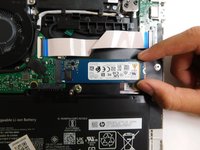
  15. HP 15-dy2702dx Keyboard Replacement, SSD: 手順 15、 3の画像 1 HP 15-dy2702dx Keyboard Replacement, SSD: 手順 15、 3の画像 2 HP 15-dy2702dx Keyboard Replacement, SSD: 手順 15、 3の画像 3
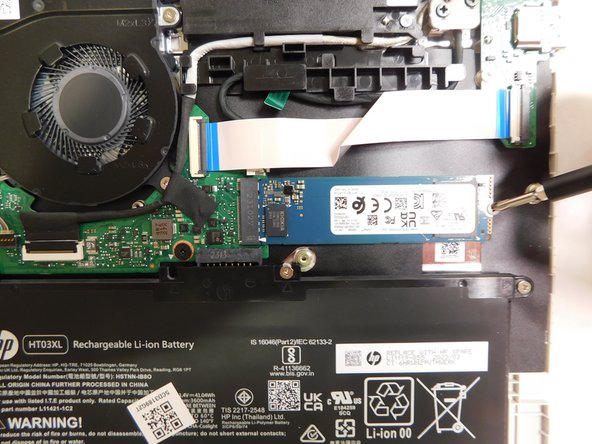
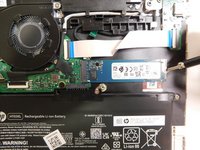
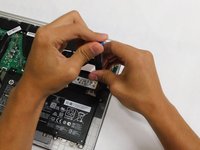
    • Locate the storage drive.

    • Unscrew the single screw holding the drive in place.

    • The screw is a M2x3 mm Phillips #1 head screw.

    FixBotに聞いてみる
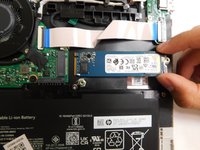
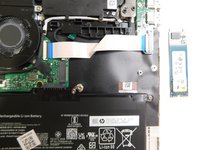
  16. HP 15-dy2702dx Keyboard Replacement: 手順 16、 3の画像 1 HP 15-dy2702dx Keyboard Replacement: 手順 16、 3の画像 2 HP 15-dy2702dx Keyboard Replacement: 手順 16、 3の画像 3
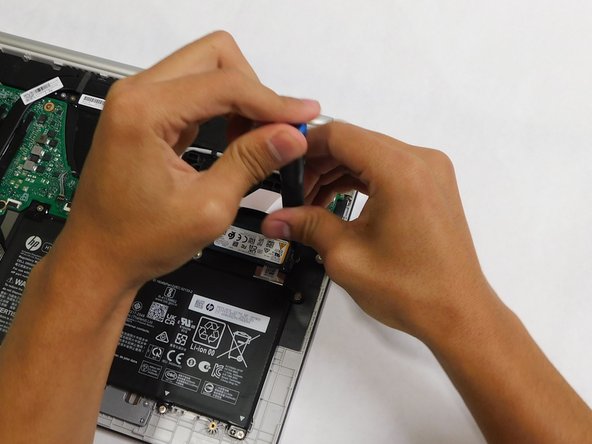
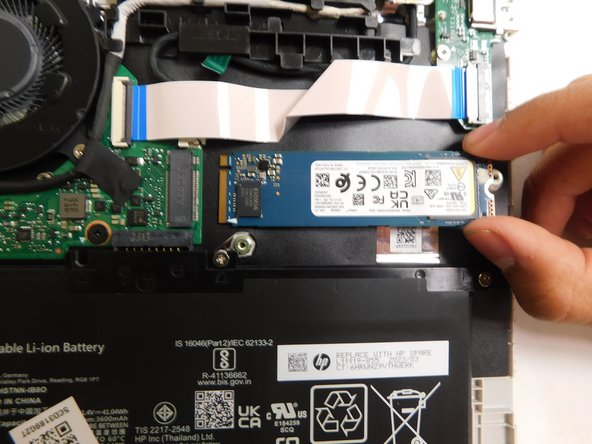
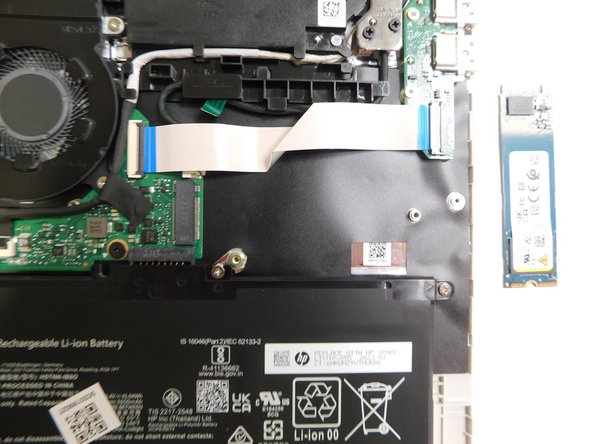
    • Grab the drive by its side and gently pull it out.

    FixBotに聞いてみる
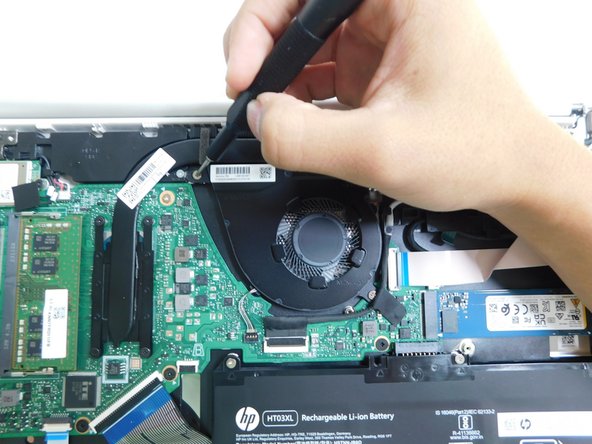
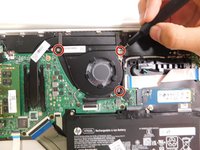
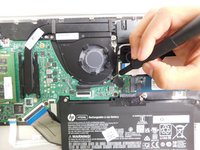
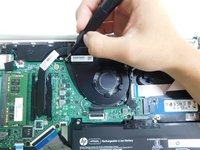
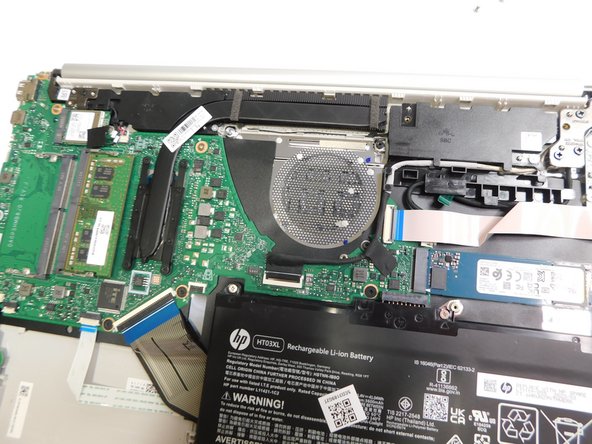
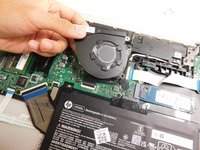
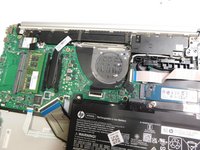
  17. HP 15-dy2702dx Keyboard Replacement, Fan: 手順 17、 3の画像 1 HP 15-dy2702dx Keyboard Replacement, Fan: 手順 17、 3の画像 2 HP 15-dy2702dx Keyboard Replacement, Fan: 手順 17、 3の画像 3
    • Use a Phillips #1 screwdriver to unscrew the three screws that secure the fan.

    • These screws sizes are M2x6.

    FixBotに聞いてみる
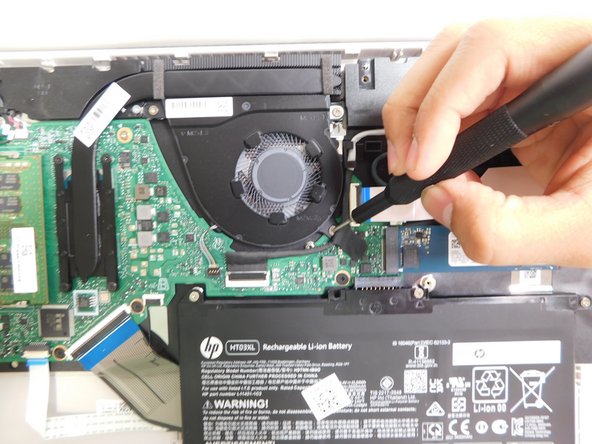
  18. HP 15-dy2702dx Keyboard Replacement: 手順 18、 1の画像 1
    • Grip the cord that connects the fan to the motherboard and gently pull out to disconnect the cable from the connector.

    • Alternatively, we recommend using a tool to push the connector out of its socket to avoid damaging the wires.

    FixBotに聞いてみる
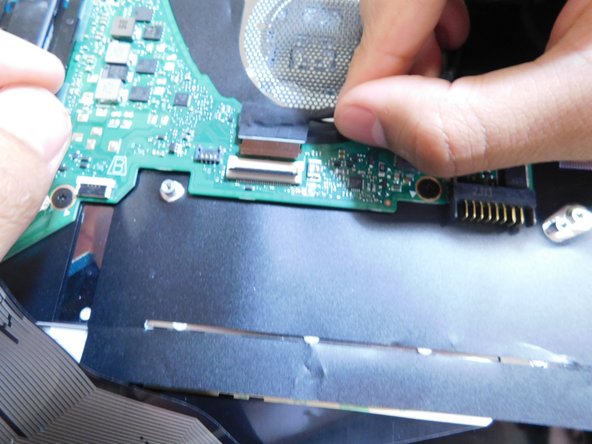
  19. HP 15-dy2702dx Keyboard Replacement: 手順 19、 2の画像 1 HP 15-dy2702dx Keyboard Replacement: 手順 19、 2の画像 2
    • Gently lift the fan to remove it from the case.

    FixBotに聞いてみる
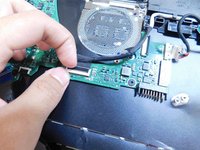
  20. HP 15-dy2702dx Keyboard Replacement, Keyboard Assembly: 手順 20、 3の画像 1 HP 15-dy2702dx Keyboard Replacement, Keyboard Assembly: 手順 20、 3の画像 2 HP 15-dy2702dx Keyboard Replacement, Keyboard Assembly: 手順 20、 3の画像 3
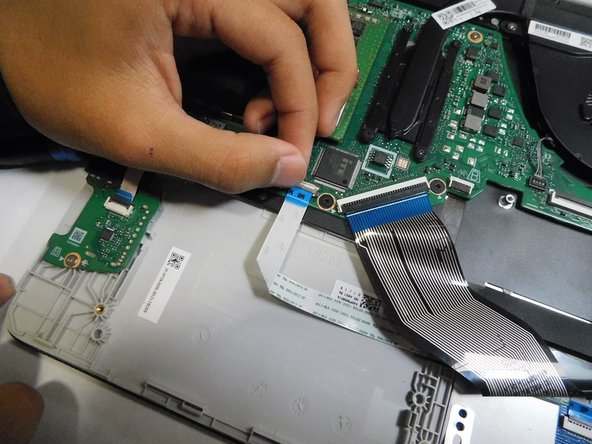
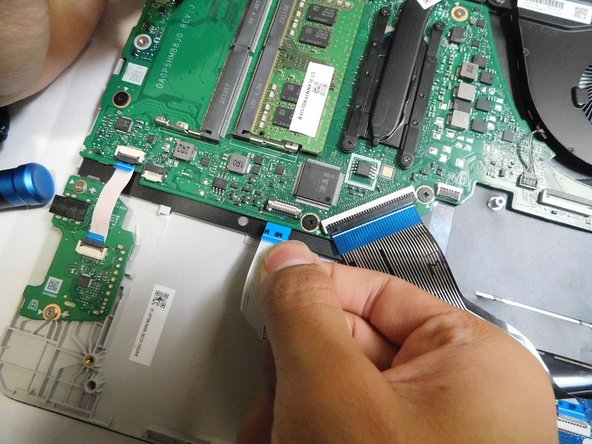
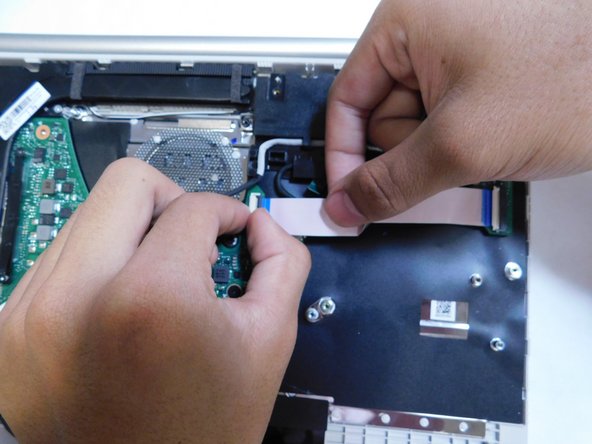
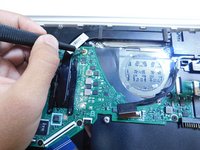
    • Disconnect all the ribbon cables from the motherboard.

    • Ensure to flip up the locking flaps before attempting to pull the ribbon out.

    FixBotに聞いてみる
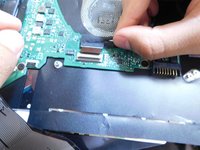
  21. HP 15-dy2702dx Keyboard Replacement: 手順 21、 2の画像 1 HP 15-dy2702dx Keyboard Replacement: 手順 21、 2の画像 2
    • Continue disconnecting the ribbon cables.

    FixBotに聞いてみる
  22. HP 15-dy2702dx Keyboard Replacement: 手順 22、 2の画像 1 HP 15-dy2702dx Keyboard Replacement: 手順 22、 2の画像 2
    • Continue disconnecting the remaining ribbons.

    FixBotに聞いてみる
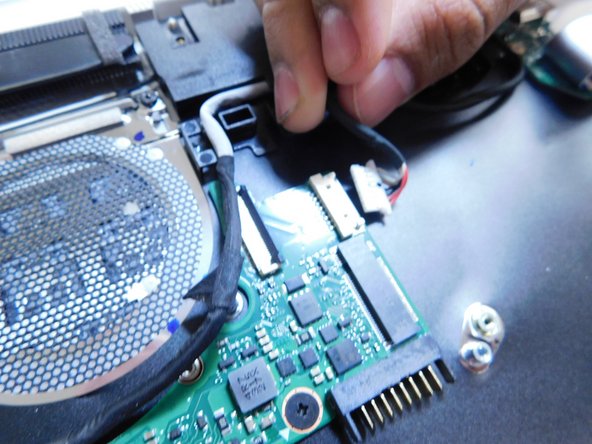
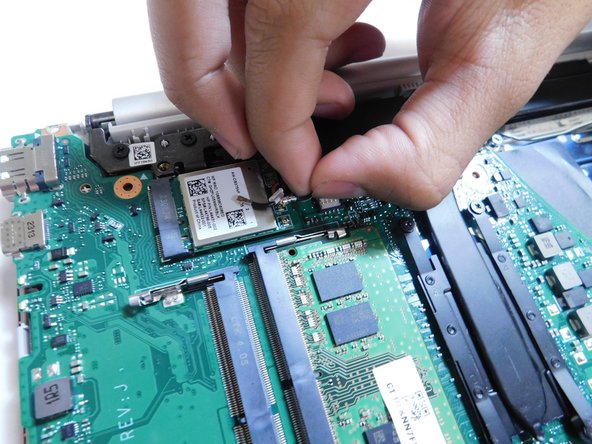
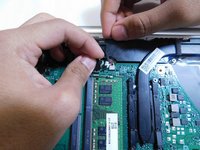
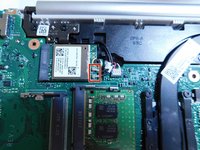
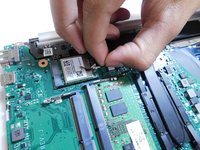
  23. HP 15-dy2702dx Keyboard Replacement: 手順 23、 2の画像 1 HP 15-dy2702dx Keyboard Replacement: 手順 23、 2の画像 2
    • Disconnect the connector.

    FixBotに聞いてみる
  24. HP 15-dy2702dx Keyboard Replacement: 手順 24、 3の画像 1 HP 15-dy2702dx Keyboard Replacement: 手順 24、 3の画像 2 HP 15-dy2702dx Keyboard Replacement: 手順 24、 3の画像 3
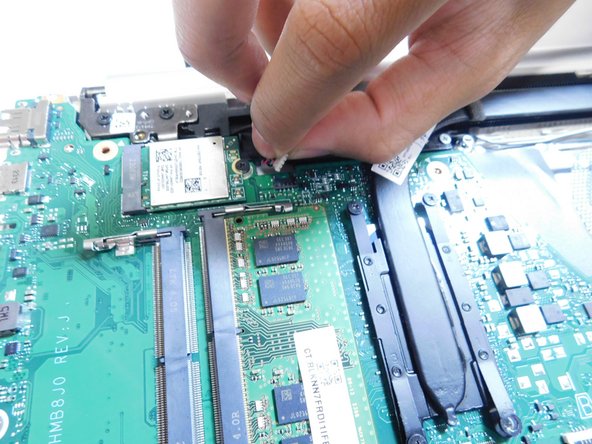
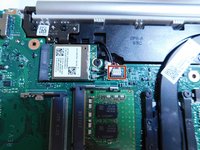
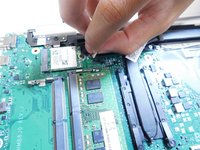
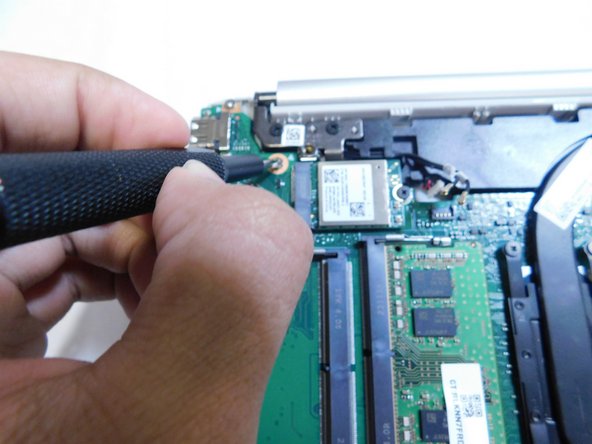
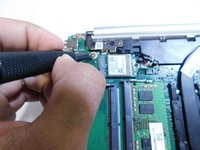
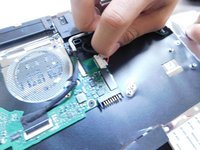
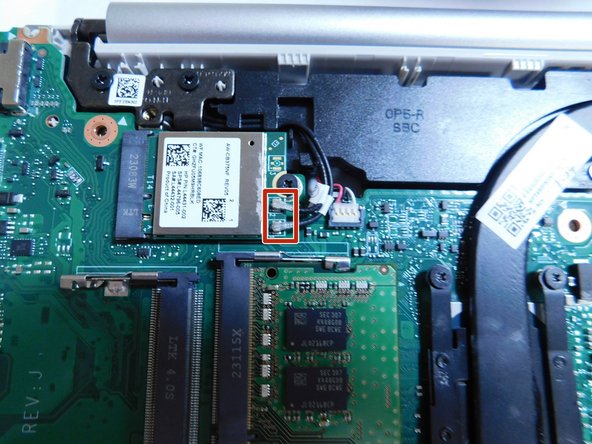
    • Peel off the black sticker covering the silver connectors near the top of the motherboard.

    • Remove the two silver colored round connector from the motherboard by pulling them up.

    • The connector should have a tag on them with number 1 and 2 on them.

    FixBotに聞いてみる
  25. HP 15-dy2702dx Keyboard Replacement: 手順 25、 2の画像 1 HP 15-dy2702dx Keyboard Replacement: 手順 25、 2の画像 2
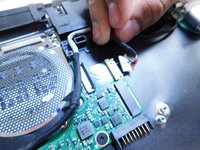
    • Pull up on the last connector on the motherboard next to the connectors removed in the previous step.

    FixBotに聞いてみる
  26. HP 15-dy2702dx Keyboard Replacement: 手順 26、 3の画像 1 HP 15-dy2702dx Keyboard Replacement: 手順 26、 3の画像 2 HP 15-dy2702dx Keyboard Replacement: 手順 26、 3の画像 3
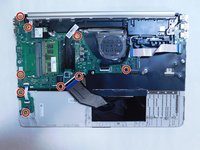
    • Unscrew all M2x3 Phillips #1 screws holding the motherboard in place.

    FixBotに聞いてみる
  27. HP 15-dy2702dx Keyboard Replacement: 手順 27、 2の画像 1 HP 15-dy2702dx Keyboard Replacement: 手順 27、 2の画像 2
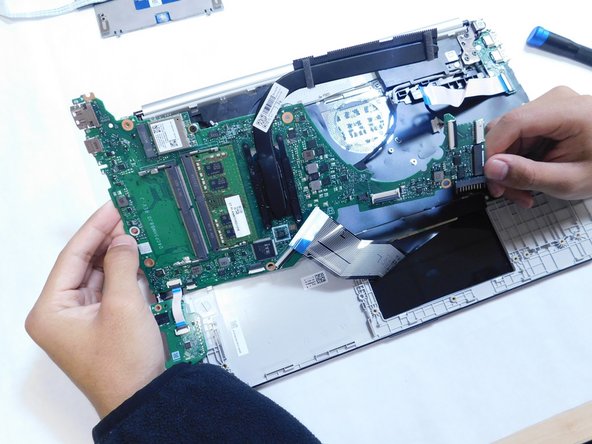
    • Remove the motherboard from the case.

    FixBotに聞いてみる
  28. HP 15-dy2702dx Keyboard Replacement: 手順 28、 2の画像 1 HP 15-dy2702dx Keyboard Replacement: 手順 28、 2の画像 2
    • Unscrew the two M2x3 Phillips #1 screws.

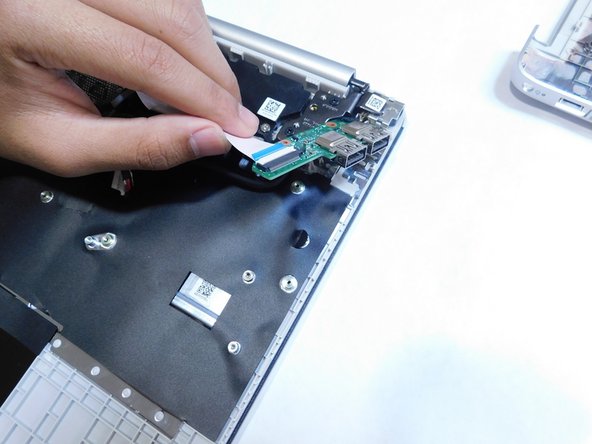
    • Remove the I/O board from the case.

    FixBotに聞いてみる
  29. HP 15-dy2702dx Keyboard Replacement: 手順 29、 3の画像 1 HP 15-dy2702dx Keyboard Replacement: 手順 29、 3の画像 2 HP 15-dy2702dx Keyboard Replacement: 手順 29、 3の画像 3
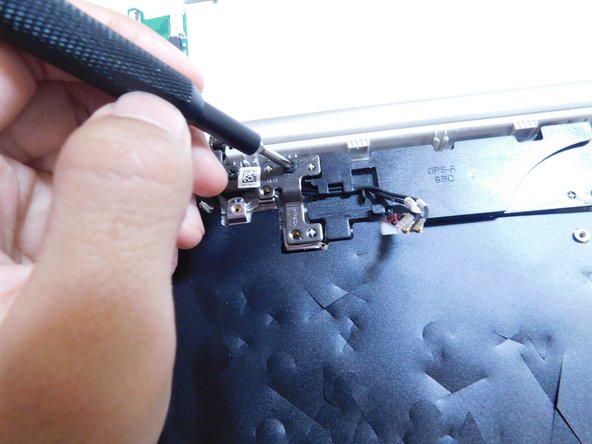
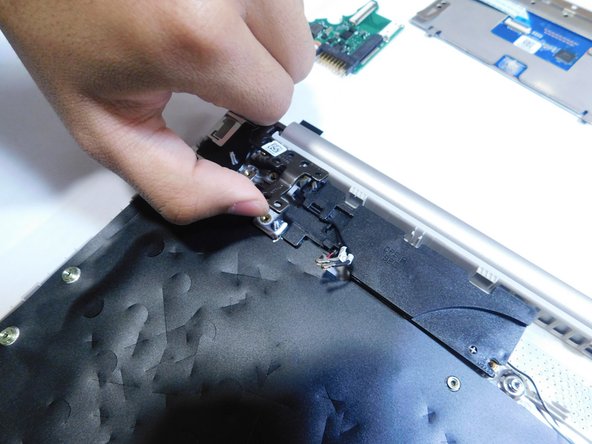
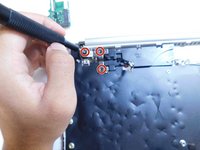
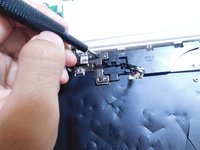
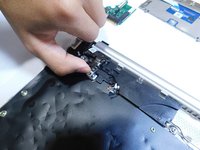
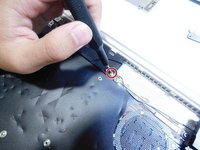
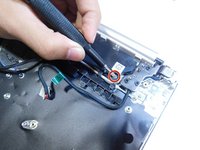
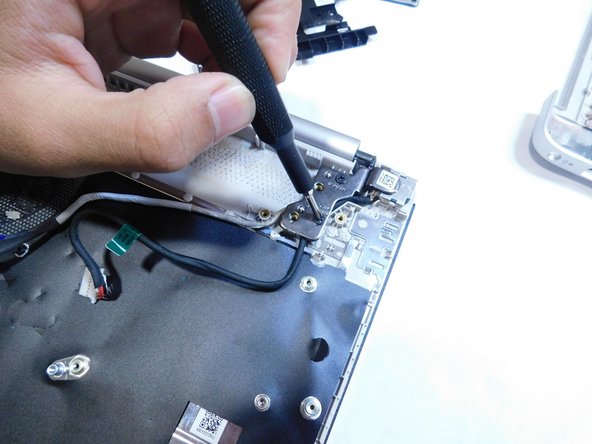
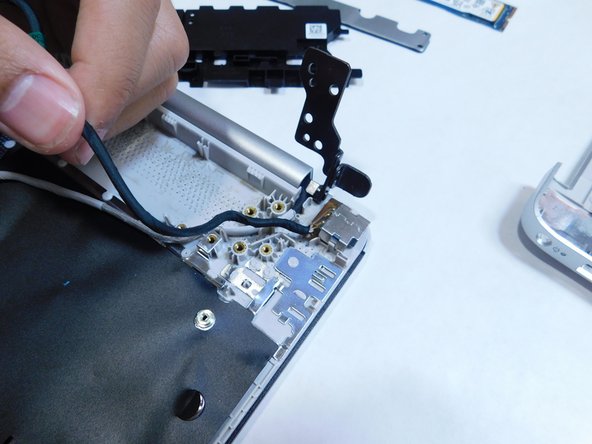
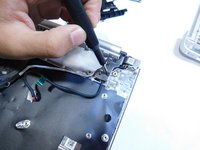
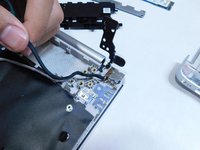
    • Unscrew the three M2x6 Phillips #1 screws from the left metal hinge.

    • Lift the hinge.

    FixBotに聞いてみる
  30. HP 15-dy2702dx Keyboard Replacement: 手順 30、 2の画像 1 HP 15-dy2702dx Keyboard Replacement: 手順 30、 2の画像 2
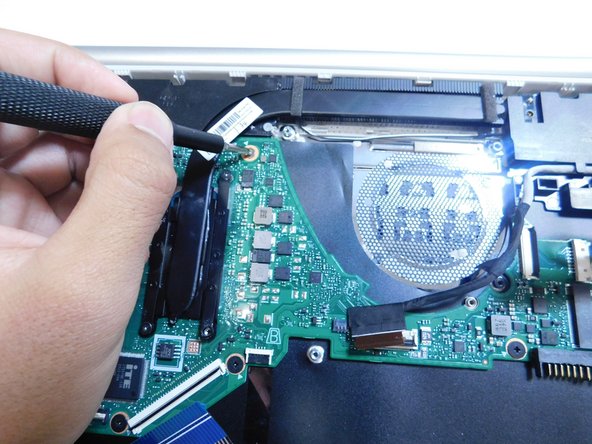
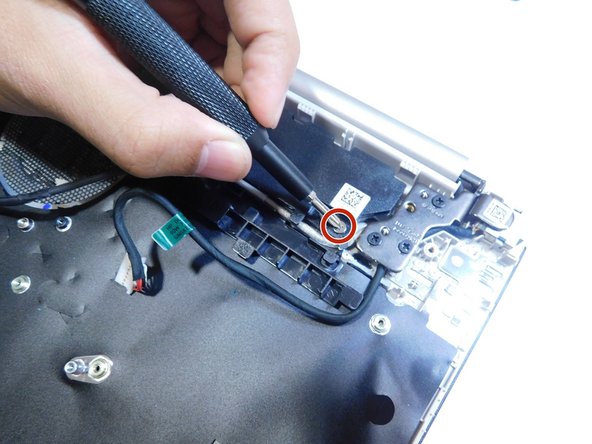
    • Unscrew the two Phillips #1 screws.

    • One is on the left side near where the fan was removed.

    • The other is near the right laptop metal hinge.

    FixBotに聞いてみる
  31. HP 15-dy2702dx Keyboard Replacement: 手順 31、 2の画像 1 HP 15-dy2702dx Keyboard Replacement: 手順 31、 2の画像 2
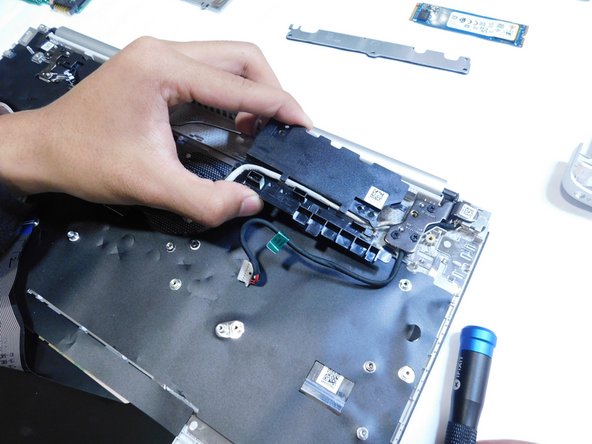
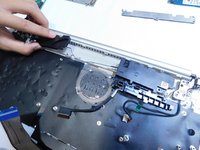
    • Remove the black boxes from the case.

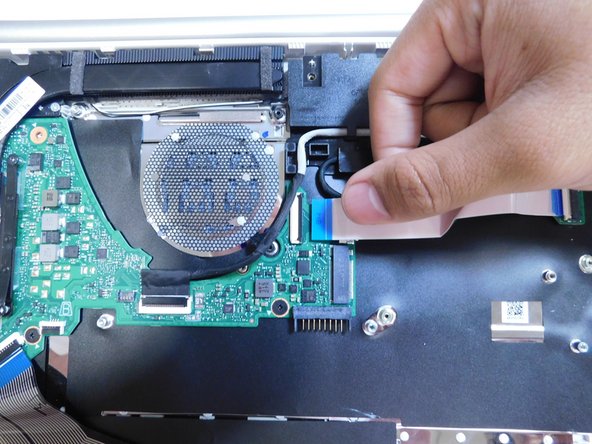
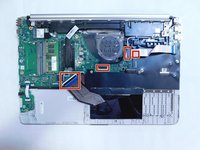
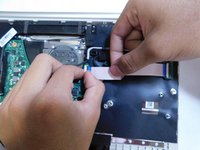
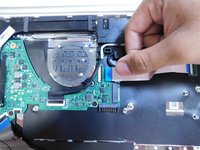
    • Disconnect the power cable (white cable with a black flag at the end).

    • The black boxes is still connected to the case through a black wire, do not attempt to remove the wire.

    FixBotに聞いてみる
  32. HP 15-dy2702dx Keyboard Replacement: 手順 32、 3の画像 1 HP 15-dy2702dx Keyboard Replacement: 手順 32、 3の画像 2 HP 15-dy2702dx Keyboard Replacement: 手順 32、 3の画像 3
    • Unscrew the three Philips head #1 screws on the right-side metal hinge.

    • Lift the hinge.

    FixBotに聞いてみる
  33. HP 15-dy2702dx Keyboard Replacement: 手順 33、 1の画像 1
    • Remove the DC in jack from the case by pulling it straight up.

    FixBotに聞いてみる
  34. HP 15-dy2702dx Keyboard Replacement: 手順 34、 3の画像 1 HP 15-dy2702dx Keyboard Replacement: 手順 34、 3の画像 2 HP 15-dy2702dx Keyboard Replacement: 手順 34、 3の画像 3
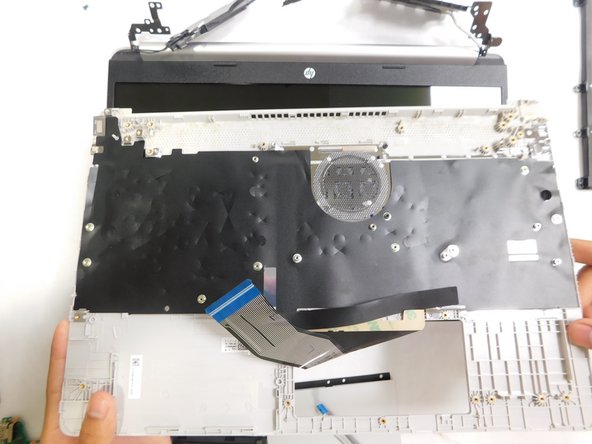
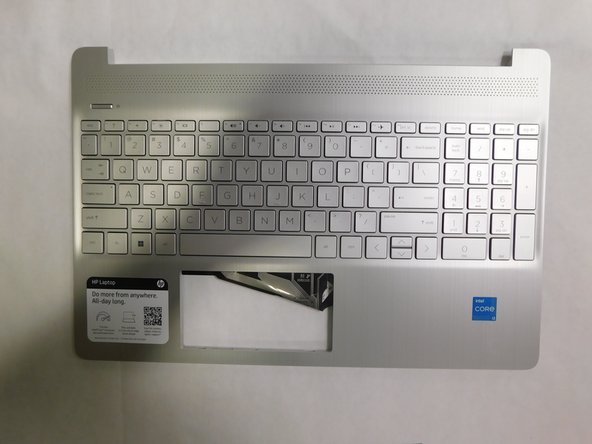
    • Remove the keyboard from the laptop.

    • The keyboard is a type where it is directly integrated into the frame so you will need to replace the whole frame.

    FixBotに聞いてみる
終わりに

To reassemble your device, follow these instructions in reverse order.

ある他の人がこのガイドを完成しました。

作成者

2人の作成者と共同で作成されました。

Zander Herbold

メンバー登録日: 09/05/23

694 ポイント

4のガイドは作成済み

チーム

Gateway, Team 1-4, Pee Fall 2023 Gateway, Team 1-4, Pee Fall 2023人のメンバー

GCC-PEE-F23S1G4

4 メンバー

8のガイドは作成済み

0件のガイドコメント

コメントを追加

統計データ:

過去 24時間: 2

過去 7 日: 21

過去 30 日: 101

今までの合計 1,500