メインコンテンツにスキップ
リペアコミュニティに参加 - アカウントの作成

Gateway MS2370 Fan Replacement

必要な工具と部品

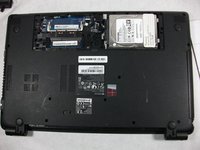
  1. Gateway MS2370 Fan Replacement, Battery: 手順 1、 1の画像 1
    • Make sure the laptop is turned off and flipped over so that the bottom is facing up. Then, locate the battery clip as shown.

    FixBotに聞いてみる

    コメントを追加

  2. Gateway MS2370 Fan Replacement: 手順 2、 1の画像 1
    • Either using your fingers or a plastic spudger push the battery clip to the left to release battery.

    FixBotに聞いてみる

    コメントを追加

  3. Gateway MS2370 Fan Replacement: 手順 3、 1の画像 1
    • Pull the battery from the laptop to remove it.

    FixBotに聞いてみる

    コメントを追加

  4. Gateway MS2370 Fan Replacement, RAM: 手順 4、 1の画像 1
    • Unscrew the three 10mm inch Phillips 01 screws on the back of your laptop.

    • Unplug everything from the USB and SD ports.

    FixBotに聞いてみる

    コメントを追加

  5. Gateway MS2370 Fan Replacement: 手順 5、 1の画像 1
    • Remove the cover panel.

    • This exposes more screws that must be removed.

    FixBotに聞いてみる

    コメントを追加

  6. Gateway MS2370 Fan Replacement: 手順 6、 1の画像 1
    • Unplug the two exposed cables from the motherboard.

    FixBotに聞いてみる

    コメントを追加

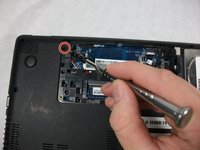
  7. Gateway MS2370 Fan Replacement: 手順 7、 2の画像 1 Gateway MS2370 Fan Replacement: 手順 7、 2の画像 2
    • Unscrew the rest of the case screws which include several 10mm 01 Phillips screws and three 3mm 00 Phillips screws.

    • This marked screw will not fully come out. Just loosen it and leave it there it will not effect the rest of the replacement.

    FixBotに聞いてみる

    コメントを追加

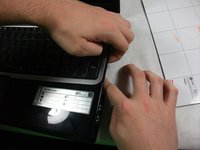
  8. Gateway MS2370 Fan Replacement: 手順 8、 2の画像 1 Gateway MS2370 Fan Replacement: 手順 8、 2の画像 2
    • Pry the laptop case apart.

    • The disc drive in this photo was removed. You can remove it just by puling it out when the previous step is completed.

    FixBotに聞いてみる

    コメントを追加

  9. Gateway MS2370 Fan Replacement: 手順 9、 1の画像 1
    • Unplug the track-pad and the keyboard ribbon cable by lifting up the grey flap and removing the cable.

    • This cable has a special connector the requires you to lift open a grey flap to unplug properly.

    • The keyboard plug is located at the center of the motherboard and can be unplugged like a normal cable.

    FixBotに聞いてみる

    コメントを追加

  10. Gateway MS2370 Fan Replacement: 手順 10、 1の画像 1
    • Remove the top half of the case.

    FixBotに聞いてみる

    コメントを追加

  11. Gateway MS2370 Fan Replacement: 手順 11、 1の画像 1
    • Unscrew all 5 10mm inch Phillips 01 screws.

    • One more off screen

    FixBotに聞いてみる

    コメントを追加

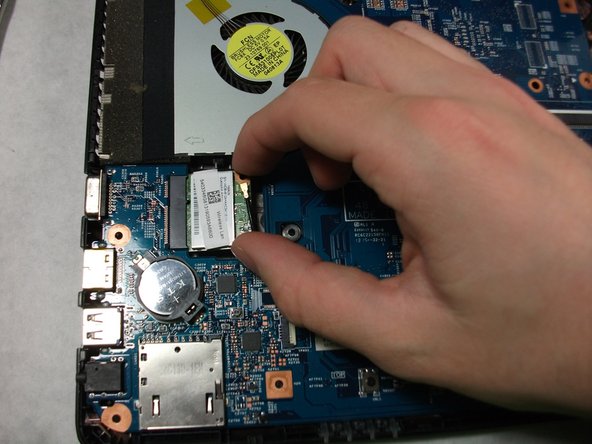
  12. Gateway MS2370 Fan Replacement: 手順 12、 3の画像 1 Gateway MS2370 Fan Replacement: 手順 12、 3の画像 2 Gateway MS2370 Fan Replacement: 手順 12、 3の画像 3
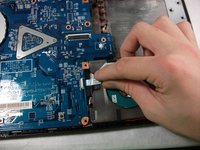
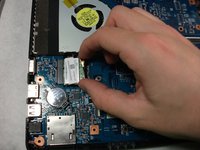
    • Unplug the ribbon cable connected to the USB Hub, the network card, and the monitor cable.

    FixBotに聞いてみる

    コメントを追加

  13. Gateway MS2370 Fan Replacement: 手順 13、 1の画像 1
    • Flip the motherboard over.

    FixBotに聞いてみる

    コメントを追加

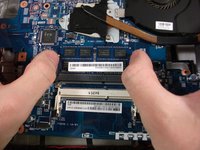
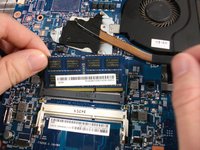
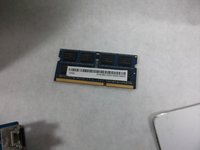
  14. Gateway MS2370 Fan Replacement: 手順 14、 3の画像 1 Gateway MS2370 Fan Replacement: 手順 14、 3の画像 2 Gateway MS2370 Fan Replacement: 手順 14、 3の画像 3
    • Using your two thumbs to pull outwards from the inside of the RAM slot to release and remove the RAM.

    • The last step of this replacement guide is not required to complete the fan replacement guide.

    FixBotに聞いてみる

    コメントを追加

  15. Gateway MS2370 Fan Replacement, Fan: 手順 15、 1の画像 1
    • Unscrew the three 3mm inch Phillips 01 screws.

    • These screws will not be removed entirely. Just loosen them enough to free the fan from the motherboard.

    FixBotに聞いてみる

    コメントを追加

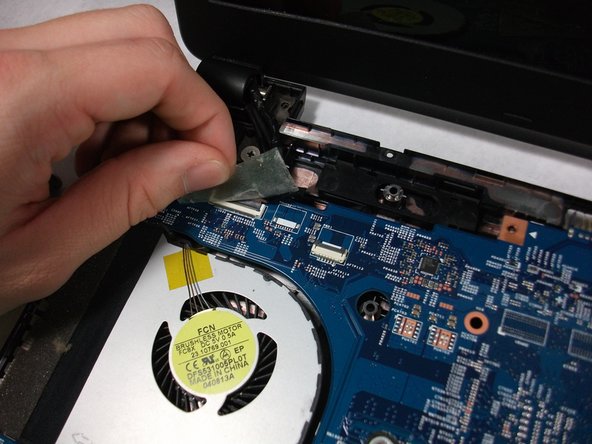
  16. Gateway MS2370 Fan Replacement: 手順 16、 1の画像 1
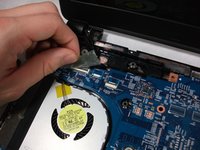
    • Unplug the fan cable from the motherboard.

    FixBotに聞いてみる

    コメントを追加

  17. Gateway MS2370 Fan Replacement: 手順 17、 1の画像 1
    • Remove the Fan.

    FixBotに聞いてみる

    コメントを追加

終わりに

To reassemble your device, follow these instructions in reverse order.

キャンセル: このガイドを終了できませんでした。

作成者

2人の作成者と共同で作成されました。

Erickson Rodrigues

メンバー登録日: 10/17/17

101 ポイント

1ガイドが承認済み

チーム

UMass Dartmouth, Team S1-G5, Simcock Fall 2017 UMass Dartmouth, Team S1-G5, Simcock Fall 2017人のメンバー

UMASSD-SIMCOCK-F17S1G5

3 メンバー

10のガイドは作成済み

0件のガイドコメント

コメントを追加

統計データ:

過去 24時間: 2

過去 7 日: 9

過去 30 日: 27

今までの合計 900