メインコンテンツにスキップ
リペアコミュニティに参加 - アカウントの作成

Gateway GWTC116-2BL Display Replacement

必要な工具と部品

  1. Gateway GWTC116-2BL Display Replacement, Back Panel: 手順 1、 1の画像 1
    • Ground yourself before disassembling and handling the computer.

    • Remove the ten 3.0 mm Phillips #00 screws from the back panel of the laptop.

  2. Gateway GWTC116-2BL Display Replacement: 手順 2、 2の画像 1 Gateway GWTC116-2BL Display Replacement: 手順 2、 2の画像 2
    • Use the spudger to pry the back panel away from the body of the laptop.

  3. Gateway GWTC116-2BL Display Replacement, Battery: 手順 3、 1の画像 1
    • Remove the five 3.0 mm Phillips #00 screws.

  4. Gateway GWTC116-2BL Display Replacement: 手順 4、 2の画像 1 Gateway GWTC116-2BL Display Replacement: 手順 4、 2の画像 2
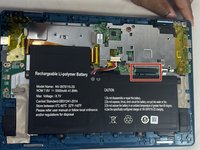
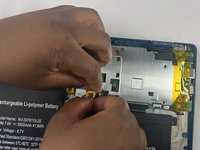
    • Using your fingers, flick open the battery connector bracket.

    • Remove the connector from bracket.

  5. Gateway GWTC116-2BL Display Replacement: 手順 5、 1の画像 1
    • Pull up the battery to remove from the base.

  6. Gateway GWTC116-2BL Display Replacement, Motherboard: 手順 6、 1の画像 1
    • Using your fingers, flick the cable connector bracket open.

    • Remove the cable from the connector.

  7. Gateway GWTC116-2BL Display Replacement: 手順 7、 2の画像 1 Gateway GWTC116-2BL Display Replacement: 手順 7、 2の画像 2
    • Using your fingers, disconnect the black and white connector brackets underneath the gray cable.

  8. Gateway GWTC116-2BL Display Replacement: 手順 8、 2の画像 1 Gateway GWTC116-2BL Display Replacement: 手順 8、 2の画像 2
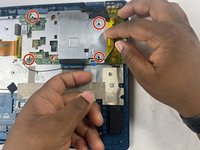
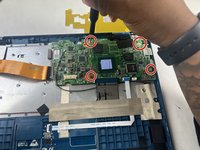
    • Remove the four 3.0 mm Phillips #00 screws located on the motherboard casing.

  9. Gateway GWTC116-2BL Display Replacement: 手順 9、 3の画像 1 Gateway GWTC116-2BL Display Replacement: 手順 9、 3の画像 2 Gateway GWTC116-2BL Display Replacement: 手順 9、 3の画像 3
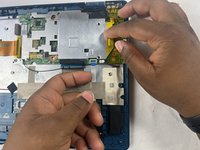
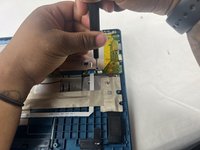
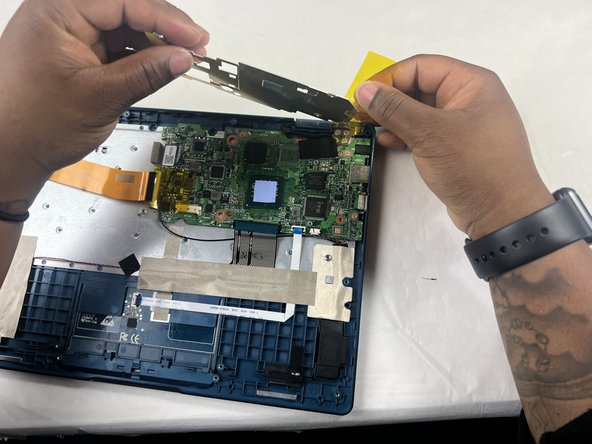
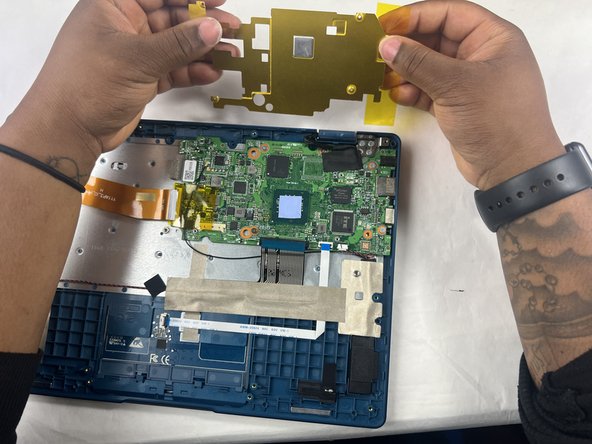
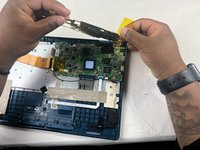
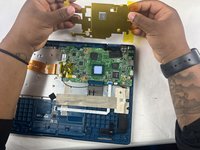
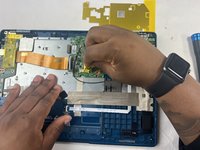
    • Peel the yellow tape off of the casing.

    • Lift the casing off of the motherboard.

  10. Gateway GWTC116-2BL Display Replacement: 手順 10、 2の画像 1 Gateway GWTC116-2BL Display Replacement: 手順 10、 2の画像 2
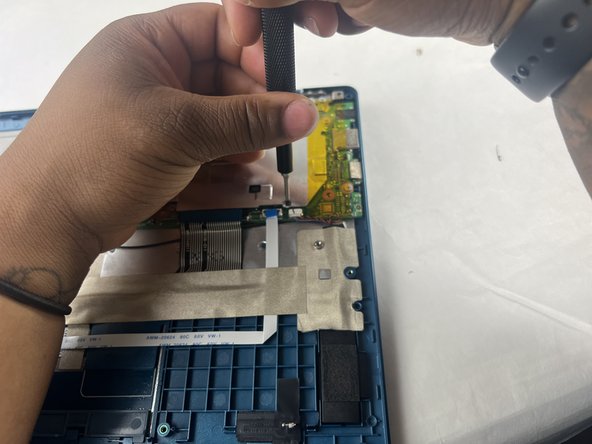
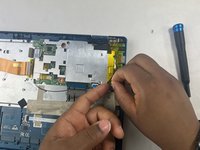
    • Peel off the yellow tape.

    • Remove four 3.0 mm Phillips #00 screws.

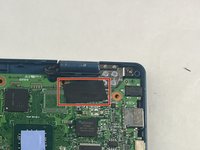
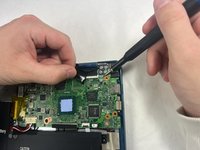
  11. Gateway GWTC116-2BL Display Replacement: 手順 11、 2の画像 1 Gateway GWTC116-2BL Display Replacement: 手順 11、 2の画像 2
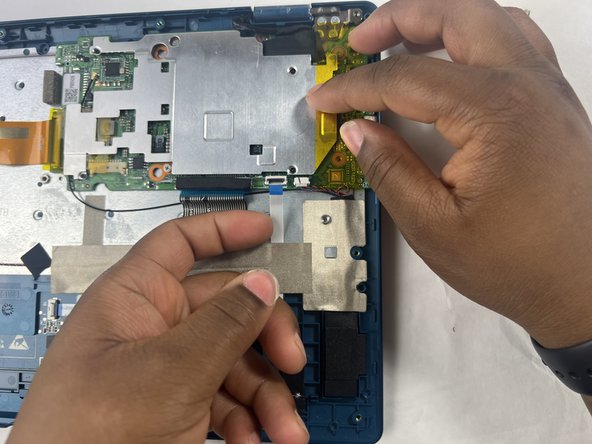
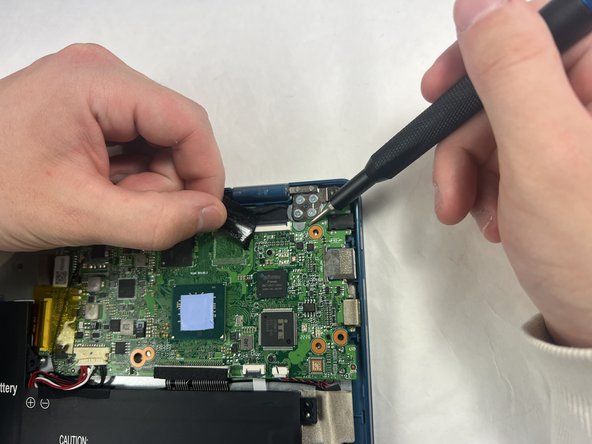
    • Peel off the black piece of tape covering the display cable.

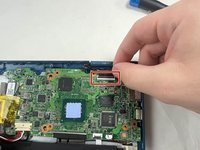
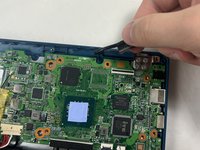
  12. Gateway GWTC116-2BL Display Replacement: 手順 12、 2の画像 1 Gateway GWTC116-2BL Display Replacement: 手順 12、 2の画像 2
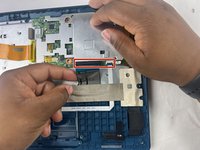
    • Flick open the bracket securing the display cable and disconnect the cable from the motherboard.

  13. Gateway GWTC116-2BL Display Replacement: 手順 13、 1の画像 1
    • Remove the motherboard from the device.

  14. Gateway GWTC116-2BL Display Replacement, Display: 手順 14、 1の画像 1
    • Remove seven 3.0 mm Phillips #00 screws from the laptop.

  15. Gateway GWTC116-2BL Display Replacement: 手順 15、 1の画像 1
    • Applying some force, use your hands to pry the display of the laptop away from the base.

終わりに

To reassemble your device, follow these instructions in reverse order.

ある他の人がこのガイドを完成しました。

作成者

3人の作成者と共同で作成されました。

Kailey Sousa

メンバー登録日: 03/22/24

522 ポイント

4のガイドは作成済み

チーム

UMass Dartmouth, Team 6-2, Botvin Spring 2024 UMass Dartmouth, Team 6-2, Botvin Spring 2024人のメンバー

UMASSD-BOTVIN-S24S6G2

3 メンバー

5のガイドは作成済み

1件のガイドコメント

Mon écran ne s'allume pas au démarrage. Que faire ?

Youssouf SAWADOGO - 返信 共有
コメントを追加

統計データ:

過去 24時間: 4

過去 7 日: 13

過去 30 日: 55

今までの合計 1,136