メインコンテンツにスキップ
リペアコミュニティに参加 - アカウントの作成

Fujitsu LifeBook N3510 Optical Drive Replacement

必要な工具と部品

  1. Fujitsu LifeBook N3510 Optical Drive Replacement, Battery: 手順 1、 1の画像 1
    • Locate the two clips on the bottom of the computer that support the battery.

    FixBotに聞いてみる
  2. Fujitsu LifeBook N3510 Optical Drive Replacement: 手順 2、 1の画像 1
    • Using your fingers, push the clips inward and then upward.

    • Lift the battery out of the computer.

    FixBotに聞いてみる
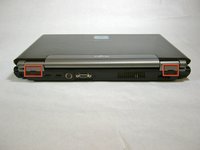
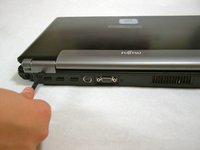
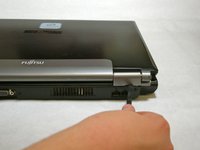
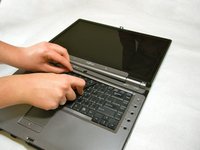
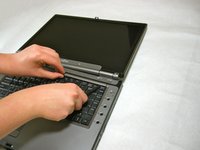
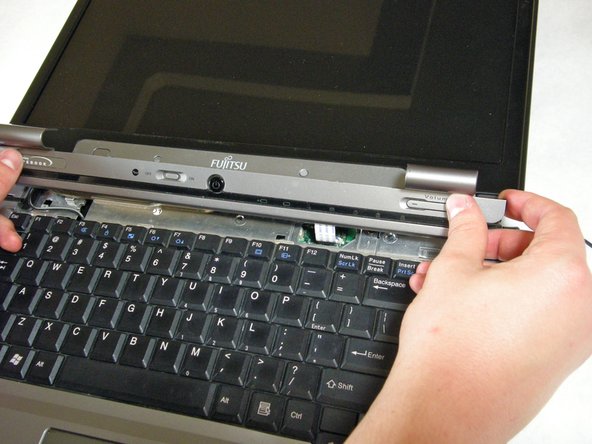
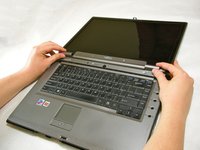
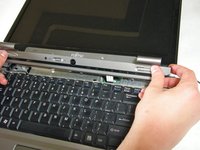
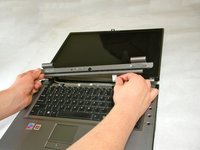
  3. Fujitsu LifeBook N3510 Optical Drive Replacement, Hinge Cover: 手順 3、 3の画像 1 Fujitsu LifeBook N3510 Optical Drive Replacement, Hinge Cover: 手順 3、 3の画像 2 Fujitsu LifeBook N3510 Optical Drive Replacement, Hinge Cover: 手順 3、 3の画像 3
    • Use a spudger to lift the back of the hinge cover on the left and right sides of the computer.

    FixBotに聞いてみる
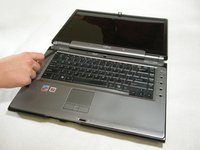
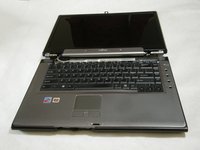
  4. Fujitsu LifeBook N3510 Optical Drive Replacement: 手順 4、 1の画像 1
    • Lay the computer flat on a stable surface with the monitor pointing away from you.

    FixBotに聞いてみる
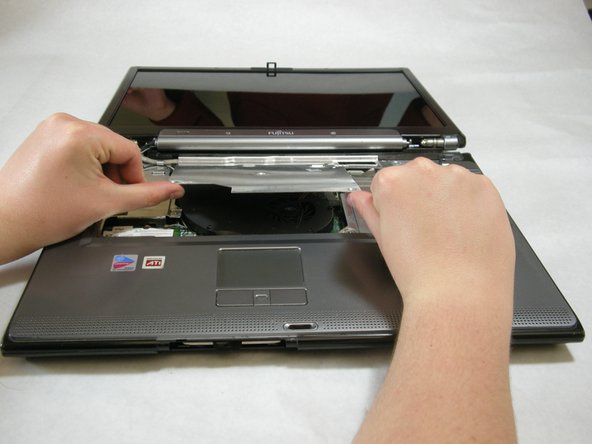
  5. Fujitsu LifeBook N3510 Optical Drive Replacement: 手順 5、 3の画像 1 Fujitsu LifeBook N3510 Optical Drive Replacement: 手順 5、 3の画像 2 Fujitsu LifeBook N3510 Optical Drive Replacement: 手順 5、 3の画像 3
    • Use a spudger to partially lift the hinge cover.

    FixBotに聞いてみる
  6. Fujitsu LifeBook N3510 Optical Drive Replacement: 手順 6、 2の画像 1 Fujitsu LifeBook N3510 Optical Drive Replacement: 手順 6、 2の画像 2
    • The hinge cover has a ribbon cable that is attached to the motherboard. To prevent damage, lift the hinge cover slowly.

    • Lift the hinge cover enough to expose the ribbon cable.

    FixBotに聞いてみる
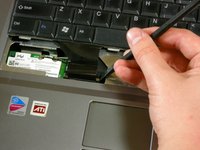
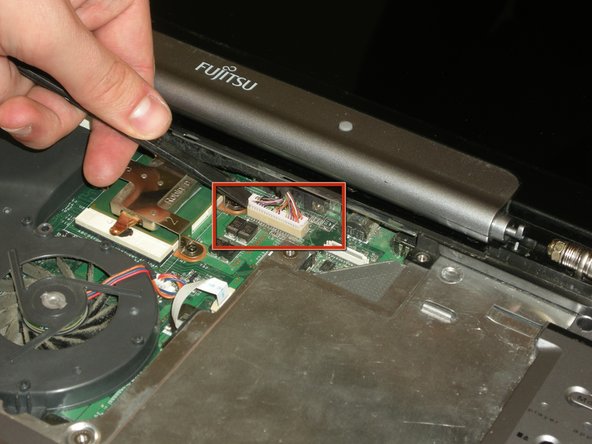
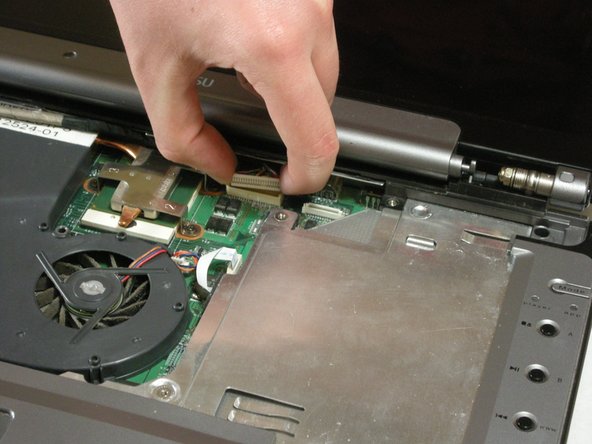
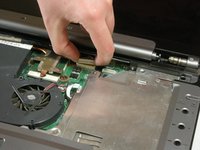
  7. Fujitsu LifeBook N3510 Optical Drive Replacement: 手順 7、 2の画像 1 Fujitsu LifeBook N3510 Optical Drive Replacement: 手順 7、 2の画像 2
    • Disconnect the ribbon cable from the motherboard and remove the hinge cover from the computer.

    FixBotに聞いてみる
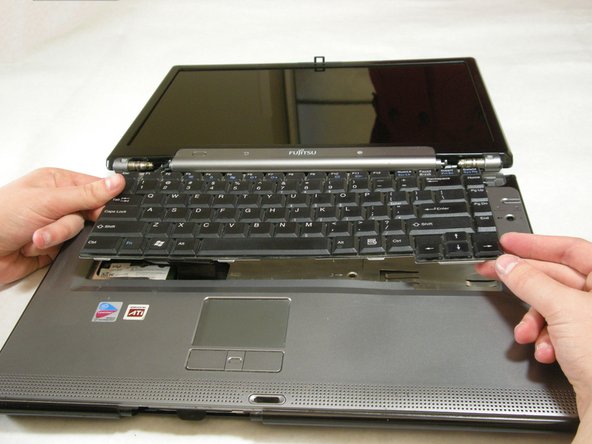
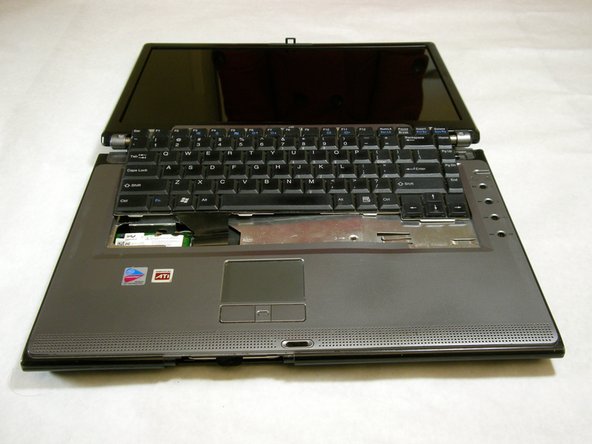
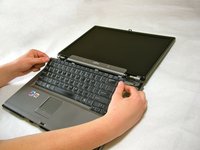
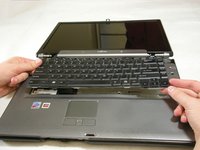
  8. Fujitsu LifeBook N3510 Optical Drive Replacement, Keyboard: 手順 8、 3の画像 1 Fujitsu LifeBook N3510 Optical Drive Replacement, Keyboard: 手順 8、 3の画像 2 Fujitsu LifeBook N3510 Optical Drive Replacement, Keyboard: 手順 8、 3の画像 3
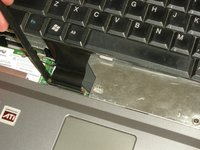
    • The keyboard has a ribbon cable that is attached to the motherboard. To prevent damage, lift keyboard slowly.

    • Lift the keyboard enough to expose the ribbon cable.

    FixBotに聞いてみる
  9. Fujitsu LifeBook N3510 Optical Drive Replacement: 手順 9、 2の画像 1 Fujitsu LifeBook N3510 Optical Drive Replacement: 手順 9、 2の画像 2
    • Use a spudger to release the ribbon cable from the motherboard.

    FixBotに聞いてみる
  10. Fujitsu LifeBook N3510 Optical Drive Replacement: 手順 10、 2の画像 1 Fujitsu LifeBook N3510 Optical Drive Replacement: 手順 10、 2の画像 2
    • After the ribbon has been detached, carefully remove the keyboard.

    FixBotに聞いてみる
  11. Fujitsu LifeBook N3510 Optical Drive Replacement, Metal Motherboard Cover: 手順 11、 1の画像 1
    • Remove the following screws, all labeled "3."

    • Two 8.63mm screws.

    • One 7.65mm screw.

    • One 5.74mm screw.

    • Remove the following screw, labeled "15."

    • One 17.81mm screw.

    FixBotに聞いてみる
  12. Fujitsu LifeBook N3510 Optical Drive Replacement: 手順 12、 3の画像 1 Fujitsu LifeBook N3510 Optical Drive Replacement: 手順 12、 3の画像 2 Fujitsu LifeBook N3510 Optical Drive Replacement: 手順 12、 3の画像 3
    • Lift the cover with fingers and remove.

    FixBotに聞いてみる
  13. Fujitsu LifeBook N3510 Optical Drive Replacement, Display: 手順 13、 1の画像 1
    • Remove labeled screws.

    FixBotに聞いてみる
  14. Fujitsu LifeBook N3510 Optical Drive Replacement: 手順 14、 1の画像 1
    • Remove the screws from the bottom of the hinge as shown in the image.

    FixBotに聞いてみる
  15. Fujitsu LifeBook N3510 Optical Drive Replacement: 手順 15、 3の画像 1 Fujitsu LifeBook N3510 Optical Drive Replacement: 手順 15、 3の画像 2 Fujitsu LifeBook N3510 Optical Drive Replacement: 手順 15、 3の画像 3
    • Use a spudger to detach and remove cables from the motherboard.

    FixBotに聞いてみる
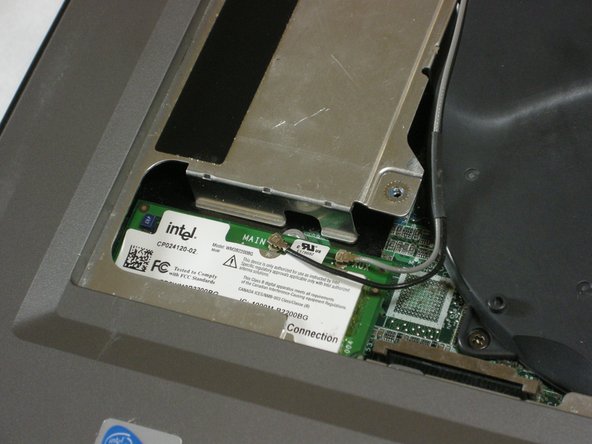
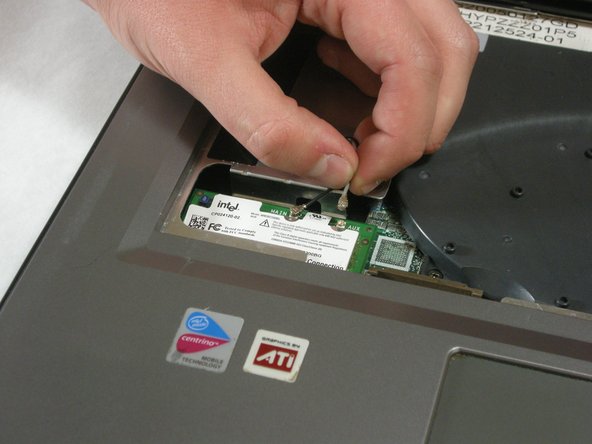
  16. Fujitsu LifeBook N3510 Optical Drive Replacement: 手順 16、 3の画像 1 Fujitsu LifeBook N3510 Optical Drive Replacement: 手順 16、 3の画像 2 Fujitsu LifeBook N3510 Optical Drive Replacement: 手順 16、 3の画像 3
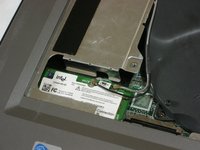
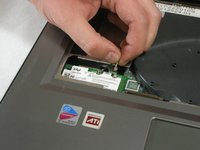
    • Unplug highlighted cables from the wireless module.

    FixBotに聞いてみる
  17. Fujitsu LifeBook N3510 Optical Drive Replacement: 手順 17、 3の画像 1 Fujitsu LifeBook N3510 Optical Drive Replacement: 手順 17、 3の画像 2 Fujitsu LifeBook N3510 Optical Drive Replacement: 手順 17、 3の画像 3
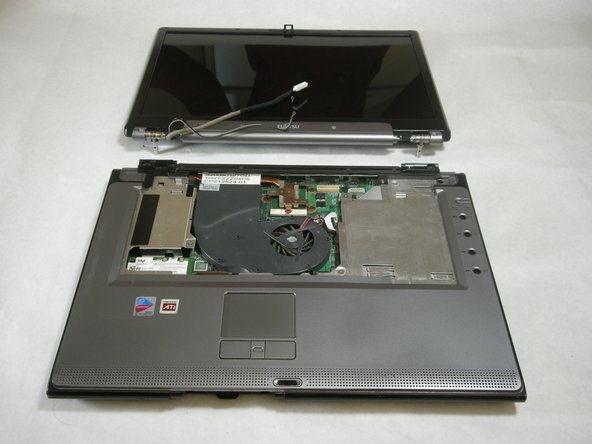
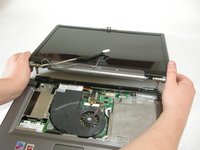
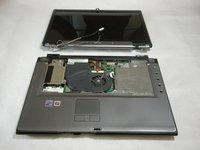
    • Hold down the body of the computer by placing your hands in the pictured positions. Then, lift the display from the body.

    FixBotに聞いてみる
  18. Fujitsu LifeBook N3510 Optical Drive Replacement, Top Palm Rest Cover: 手順 18、 1の画像 1
    • Remove the 4 labeled screws.

    FixBotに聞いてみる
  19. Fujitsu LifeBook N3510 Optical Drive Replacement: 手順 19、 1の画像 1
    • Remove screws from bottom of laptop as shown in the picture.

    FixBotに聞いてみる
  20. Fujitsu LifeBook N3510 Optical Drive Replacement: 手順 20、 1の画像 1
    • Lift the palm rest cover from the base of the laptop.

    • You may use spudger if needed, lift from the front corners as shown.

    FixBotに聞いてみる
  21. Fujitsu LifeBook N3510 Optical Drive Replacement: 手順 21、 1の画像 1
    • Great job! You have successfully removed the old palm rest cover.

    FixBotに聞いてみる
  22. Fujitsu LifeBook N3510 Optical Drive Replacement, Optical Drive: 手順 22、 1の画像 1
    • Remove the single screw labeled "5".

    FixBotに聞いてみる
  23. Fujitsu LifeBook N3510 Optical Drive Replacement: 手順 23、 3の画像 1 Fujitsu LifeBook N3510 Optical Drive Replacement: 手順 23、 3の画像 2 Fujitsu LifeBook N3510 Optical Drive Replacement: 手順 23、 3の画像 3
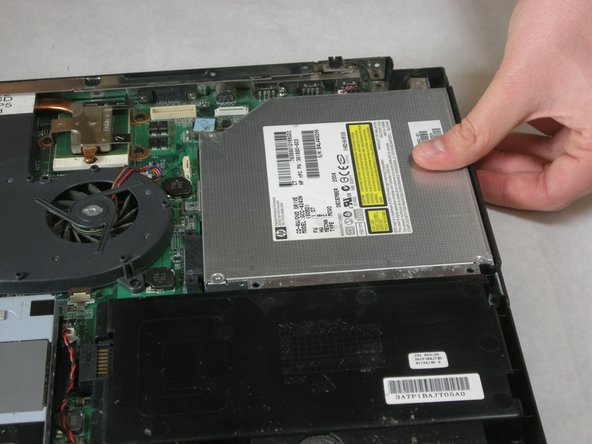
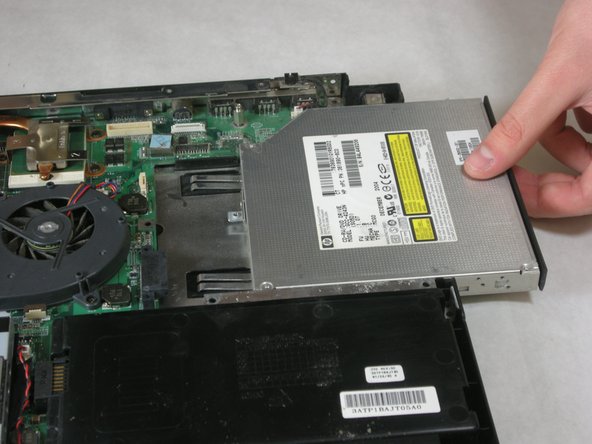
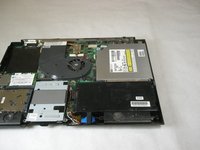
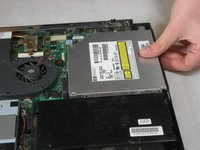
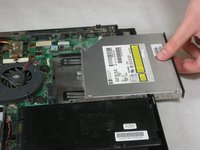
    • Remove optical drive.

    FixBotに聞いてみる
終わりに

To reassemble your device, follow these instructions in reverse order.

作成者

6人の作成者と共同で作成されました。

Neil Daniels

メンバー登録日: 01/17/11

1,411 ポイント

11のガイドは作成済み

チーム

Cal Poly, Team 5-18, Amido Winter 2011 Cal Poly, Team 5-18, Amido Winter 2011人のメンバー

CPSU-AMIDO-W11S5G18

3 メンバー

23のガイドは作成済み

0件のガイドコメント

コメントを追加

統計データ:

過去 24時間: 1

過去 7 日: 6

過去 30 日: 55

今までの合計 1,974