メインコンテンツにスキップ
リペアコミュニティに参加 - アカウントの作成

Canon PowerShot S500 Zoom Lens Replacement

必要な工具と部品

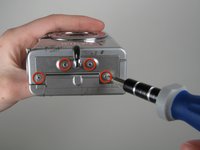
  1. Canon PowerShot S500 Zoom Lens Replacement, Front and Rear Casing : 手順 1、 2の画像 1 Canon PowerShot S500 Zoom Lens Replacement, Front and Rear Casing : 手順 1、 2の画像 2
    • Unscrew five Phillips screws using a #0 Phillips screwdriver.

    • One screw is on upper right corner of the back panel.

    • The other four screws are on the bottom of the camera.

    FixBotに聞いてみる

    コメントを追加

  2. Canon PowerShot S500 Zoom Lens Replacement: 手順 2、 1の画像 1
    • Open the memory card cover by moving the slide switch toward the top end of of the camera.

    • Remove the memory card from the slot.

    FixBotに聞いてみる

    コメントを追加

  3. Canon PowerShot S500 Zoom Lens Replacement: 手順 3、 1の画像 1
    • Remove the rear cover from the rest of the camera.

    • This may require gentle rocking of the case to free it.

    FixBotに聞いてみる

    コメントを追加

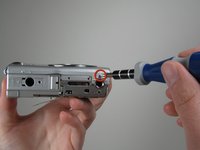
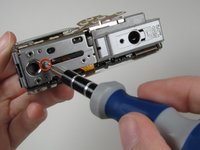
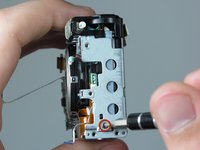
  4. Canon PowerShot S500 Zoom Lens Replacement: 手順 4、 2の画像 1 Canon PowerShot S500 Zoom Lens Replacement: 手順 4、 2の画像 2
    • Unscrew the four Phillips screws from the side of the casing and one screw from the bottom using a #0 Phillips screwdriver.

    FixBotに聞いてみる

    コメントを追加

  5. Canon PowerShot S500 Zoom Lens Replacement: 手順 5、 1の画像 1
    • Free the front cover from the rest of the camera.

    • The cover may require gentle rocking to remove.

    FixBotに聞いてみる

    コメントを追加

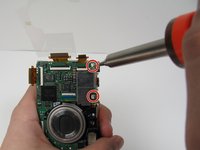
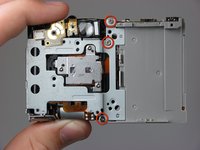
  6. Canon PowerShot S500 Zoom Lens Replacement, LCD: 手順 6、 1の画像 1
    • Unscrew two Phillips screws above the LCD using a #0 Phillips screwdriver.

    FixBotに聞いてみる

    コメントを追加

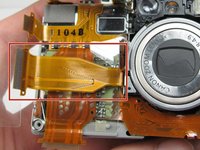
  7. Canon PowerShot S500 Zoom Lens Replacement: 手順 7、 1の画像 1
    • Gently separate the top of LCD from the rest of the camera using your thumb.

    • Be careful not pull the LCD too far because of the ribbon cable connection.

    • Place the Spudger in the hole of the electrical ribbon.

    • Gently pull the ribbon down using the Spudger until it is free from the camera but still connected to the LCD.

    • The LCD will still be connected to the rest of the camera

    FixBotに聞いてみる

    コメントを追加

  8. Canon PowerShot S500 Zoom Lens Replacement: 手順 8、 2の画像 1 Canon PowerShot S500 Zoom Lens Replacement: 手順 8、 2の画像 2
    • Unscrew single Phillips screw with a #0 Phillips screwdriver.

    • Free the bottom panel and attached ribbon from the rest of the camera.

    • Be careful not to damage the ribbon.

    FixBotに聞いてみる

    コメントを追加

  9. Canon PowerShot S500 Zoom Lens Replacement: 手順 9、 1の画像 1
    • Turn over the camera.

    • Lift the clear plastic from the face of the camera, peeling the adhesive just below the zoom lens.

    • The plastic will still be connected on the left side.

    FixBotに聞いてみる

    コメントを追加

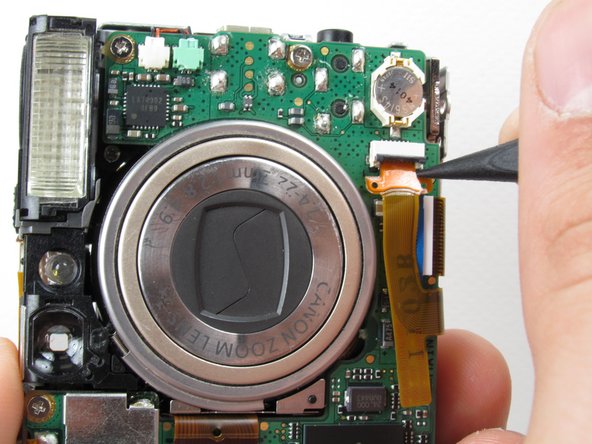
  10. Canon PowerShot S500 Zoom Lens Replacement: 手順 10、 1の画像 1
    • Place the Spudger between the orange ribbon and the black ribbon gate.

    • Lift the ribbon gate using the Spudger.

    FixBotに聞いてみる

    コメントを追加

  11. Canon PowerShot S500 Zoom Lens Replacement: 手順 11、 1の画像 1
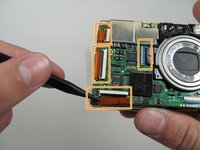
    • Place the Spudger in the corner of the ribbon above the hole.

    • Remove the ribbon from the ribbon gate by pulling the Spudger away from the gate.

    FixBotに聞いてみる

    コメントを追加

  12. Canon PowerShot S500 Zoom Lens Replacement: 手順 12、 1の画像 1
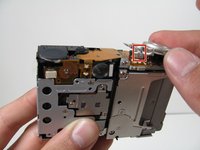
    • Free this ribbon and the bottom panel from the rest of the camera.

    • Be careful not to damage the ribbon.

    FixBotに聞いてみる

    コメントを追加

  13. Canon PowerShot S500 Zoom Lens Replacement: 手順 13、 1の画像 1
    • Turn the camera over so you can see the LCD.

    • Remove single Phillips screw below the LCD using a #0 Phillips screwdriver.

    FixBotに聞いてみる

    コメントを追加

  14. Canon PowerShot S500 Zoom Lens Replacement: 手順 14、 1の画像 1
    • Lift the blue ribbon gate using the Spudger.

    FixBotに聞いてみる

    コメントを追加

  15. Canon PowerShot S500 Zoom Lens Replacement: 手順 15、 1の画像 1
    • Insert the Spudger into the hole of the ribbon.

    • Move the Spudger away from the gate to fully remove ribbon.

    • Be careful not to damage the ribbon.

    FixBotに聞いてみる

    コメントを追加

  16. Canon PowerShot S500 Zoom Lens Replacement: 手順 16、 1の画像 1
    • Lift the LCD away from the rest of the camera.

    FixBotに聞いてみる

    コメントを追加

  17. Canon PowerShot S500 Zoom Lens Replacement, Logic Board: 手順 17、 2の画像 1 Canon PowerShot S500 Zoom Lens Replacement, Logic Board: 手順 17、 2の画像 2
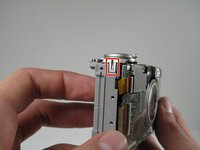
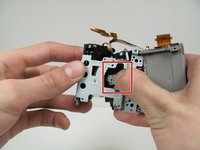
    • Lift off the capture button by wiggling it back and forth while pulling upward.

    • Be careful not to damage the two clips.

    FixBotに聞いてみる

    コメントを追加

  18. Canon PowerShot S500 Zoom Lens Replacement: 手順 18、 2の画像 1 Canon PowerShot S500 Zoom Lens Replacement: 手順 18、 2の画像 2
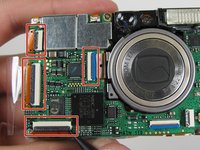
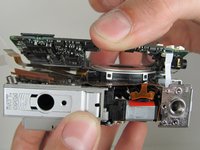
    • Flip open the four ribbon gates using the Spudger.

    • Gently pull out the ribbon cables from the gates using the Spudger.

    FixBotに聞いてみる

    コメントを追加

  19. Canon PowerShot S500 Zoom Lens Replacement: 手順 19、 1の画像 1
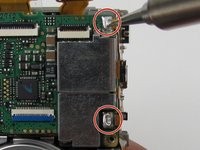
    • Unscrew the four Phillips screws using a #0 Phillips screwdriver.

    FixBotに聞いてみる

    コメントを追加

  20. Canon PowerShot S500 Zoom Lens Replacement: 手順 20、 2の画像 1 Canon PowerShot S500 Zoom Lens Replacement: 手順 20、 2の画像 2
    • Gently lift the logic board.

    • Be careful not to pull too hard and damage the white ribbon cable.

    • Place the Spudger so that it is between the logic board, the white ribbon cable, and the rest of the camera.

    • Remove the white ribbon cable by pulling the Spudger away from the camera, keeping it parallel to the logic board.

    FixBotに聞いてみる

    コメントを追加

  21. Canon PowerShot S500 Zoom Lens Replacement: 手順 21、 1の画像 1
    この手順で使用する道具:
    Tweezers
    $4.99
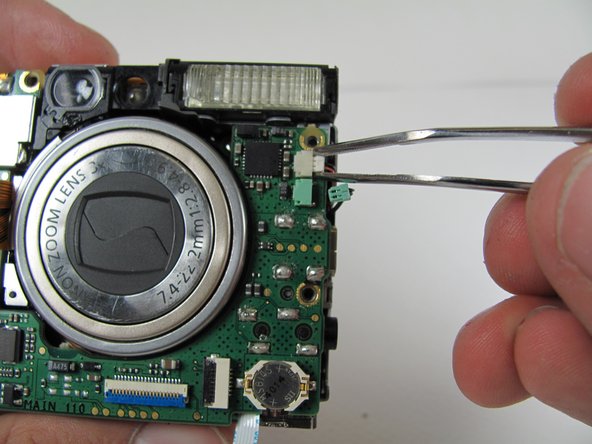
    • Lay the logic board back down so that it is resting on the body of the camera.

    • Pull the two plugs (white and green) out to the right from the logic board using the tweezers.

    FixBotに聞いてみる

    コメントを追加

  22. Canon PowerShot S500 Zoom Lens Replacement: 手順 22、 2の画像 1 Canon PowerShot S500 Zoom Lens Replacement: 手順 22、 2の画像 2
    • We're now ready to begin the desoldering process. You'll need a soldering iron, solder, and desoldering wick. You should be able to find these items at a Radio Shack if you don't already have them.

    • Please do not perform this step if you are not comfortable or have previous experience with soldering. Doing so, could cause severe damage to your camera.

    • Desolder the two soldered ribbon cables attached to the logic board.

    FixBotに聞いてみる

    コメントを追加

  23. Canon PowerShot S500 Zoom Lens Replacement: 手順 23、 1の画像 1
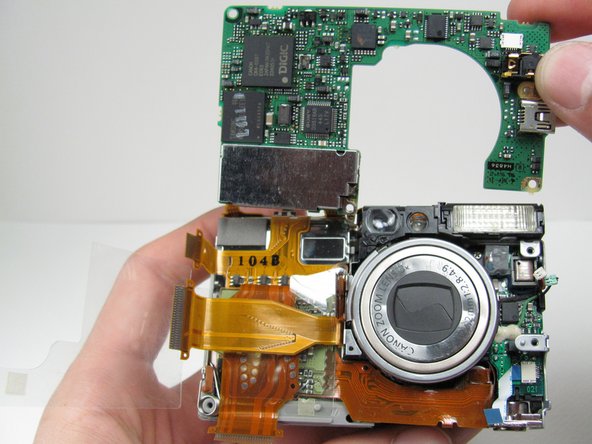
    • Free the logic board from the rest of the camera.

    FixBotに聞いてみる

    コメントを追加

  24. Canon PowerShot S500 Zoom Lens Replacement, Breakdown to Three Parts: 手順 24、 1の画像 1
    • Turn the camera over so that the back is facing you.

    • Unscrew the three Phillips screws using a #0 Phillips screwdriver.

    FixBotに聞いてみる

    コメントを追加

  25. Canon PowerShot S500 Zoom Lens Replacement: 手順 25、 2の画像 1 Canon PowerShot S500 Zoom Lens Replacement: 手順 25、 2の画像 2
    • Lift off the Memory Card casing, sliding the ribbon cable through the camera. Keep pulling until the Memory Card and ribbon cable have been removed from the camera.

    • Note that the ribbon cable is coming from the external front portion of the camera. Make sure that the ribbon cable will not get caught on anything.

    FixBotに聞いてみる

    コメントを追加

  26. Canon PowerShot S500 Zoom Lens Replacement: 手順 26、 2の画像 1 Canon PowerShot S500 Zoom Lens Replacement: 手順 26、 2の画像 2
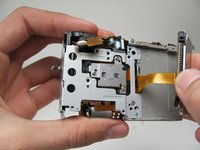
    • Unscrew one Phillips screws from the side and three Phillips screws from the back panel using a #0 Phillips screwdriver.

    FixBotに聞いてみる

    コメントを追加

  27. Canon PowerShot S500 Zoom Lens Replacement: 手順 27、 3の画像 1 Canon PowerShot S500 Zoom Lens Replacement: 手順 27、 3の画像 2 Canon PowerShot S500 Zoom Lens Replacement: 手順 27、 3の画像 3
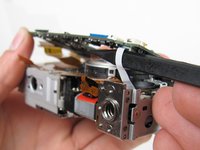
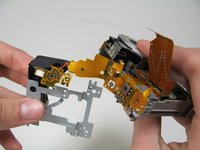
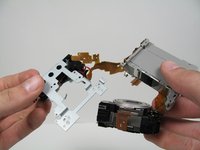
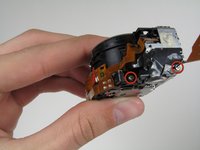
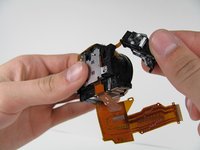
    • Firmly push on the back of the zoom lens, removing it from the left portion of the camera.

    • Lift the zoom lens away from the left portion of the camera so that there are three components connected by a ribbon cables.

    • Be careful not to tear the ribbon cables.

    FixBotに聞いてみる

    コメントを追加

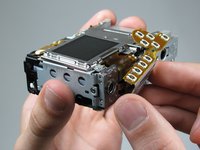
  28. Canon PowerShot S500 Zoom Lens Replacement: 手順 28、 1の画像 1
    • The camera should now be able to be set in this orientation without too much stress on the cables.

    • The clear plastic is still attached to the battery casing.

    FixBotに聞いてみる

    コメントを追加

  29. Canon PowerShot S500 Zoom Lens Replacement: 手順 29、 2の画像 1 Canon PowerShot S500 Zoom Lens Replacement: 手順 29、 2の画像 2
    この手順で使用する道具:
    Tweezers
    $4.99
    • Locate the ribbon cable going from the battery case to the flash assembly.

    • Remove the plug from the ribbon cable using the tweezers.

    • The flash assembly is now free from the rest of the camera.

    FixBotに聞いてみる

    コメントを追加

  30. Canon PowerShot S500 Zoom Lens Replacement: 手順 30、 1の画像 1
    • Pick up the remaining battery casing and zoom lens.

    • Pull off the clear plastic.

    • The clear plastic is secured by adhesive along the bottom edge and a small hook.

    FixBotに聞いてみる

    コメントを追加

  31. Canon PowerShot S500 Zoom Lens Replacement: 手順 31、 1の画像 1
    • Lift the zoom lens off of the battery casing.

    • The back of the circuits are attached to the battery casing by a light adhesive, which can be removed with a slight pull upwards.

    FixBotに聞いてみる

    コメントを追加

  32. Canon PowerShot S500 Zoom Lens Replacement: 手順 32、 1の画像 1
    • The remaining pieces from left to right are: the battery casing, zoom lens and flash assembly.

    FixBotに聞いてみる

    コメントを追加

  33. Canon PowerShot S500 Zoom Lens Replacement, Zoom Lens: 手順 33、 2の画像 1 Canon PowerShot S500 Zoom Lens Replacement, Zoom Lens: 手順 33、 2の画像 2
    • Pick up the zoom lens

    • Remove the two Phillips screws using a #0 Phillips screwdriver.

    • Once the screws are removed, there will be two components connected by a ribbon cable.

    • Be careful not to break the cable.

    FixBotに聞いてみる

    コメントを追加

  34. Canon PowerShot S500 Zoom Lens Replacement: 手順 34、 1の画像 1
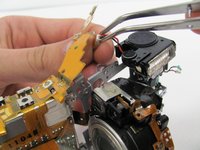
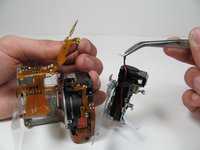
    • Hold the two components back together.

    • Remove the the LED from the circular socket by lifting the ribbon cable's end up and away from you.

    • Unhook the lower part of the ribbon from the plastic pin.

    • Now the two components are free to separate.

    FixBotに聞いてみる

    コメントを追加

  35. Canon PowerShot S500 Zoom Lens Replacement: 手順 35、 1の画像 1
    • Unscrew one Phillips screw, using a #0 Phillips screwdriver.

    FixBotに聞いてみる

    コメントを追加

  36. Canon PowerShot S500 Zoom Lens Replacement: 手順 36、 1の画像 1
    • Lift off the panel, exposing the zoom lens gear drive.

    FixBotに聞いてみる

    コメントを追加

  37. Canon PowerShot S500 Zoom Lens Replacement: 手順 37、 1の画像 1
    • Lift off the shiny zoom lens ring.

    FixBotに聞いてみる

    コメントを追加

  38. Canon PowerShot S500 Zoom Lens Replacement: 手順 38、 1の画像 1
    この手順で使用する道具:
    Tweezers
    $4.99
    • Lift out the ring under the shiny ring, using a tweezers.

    FixBotに聞いてみる

    コメントを追加

  39. Canon PowerShot S500 Zoom Lens Replacement: 手順 39、 2の画像 1 Canon PowerShot S500 Zoom Lens Replacement: 手順 39、 2の画像 2
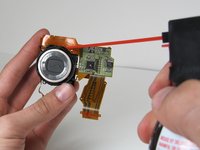
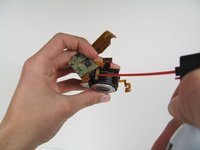
    • Blow out any obstructing particles using compressed air in the slot created by the removal of the previous rings.

    • Blow compressed air into the opening where you can see the gear track.

    FixBotに聞いてみる

    コメントを追加

終わりに

To reassemble your device, follow these instructions in reverse order.

キャンセル: このガイドを終了できませんでした。

2 の人々がこのガイドを完成させました。

作成者

7人の作成者と共同で作成されました。

Nathan Balcom

メンバー登録日: 01/21/10

102 ポイント

8のガイドは作成済み

チーム

Cal Poly, Team 16-28, Maness Winter 2010 Cal Poly, Team 16-28, Maness Winter 2010人のメンバー

CPSU-MANESS-W10S16G28

4 メンバー

9のガイドは作成済み

0件のガイドコメント

コメントを追加

統計データ:

過去 24時間: 3

過去 7 日: 10

過去 30 日: 43

今までの合計 8,669