メインコンテンツにスキップ
リペアコミュニティに参加 - アカウントの作成

Brother PT-D200 LCD Screen Replacement

必要な工具と部品

  1. Brother PT-D200 LCD Screen Replacement, Battery: 手順 1、 1の画像 1
    • Flip the device over and press down on the indication arrows located at the top center of the back cover and pull it open.

    FixBotに聞いてみる

    コメントを追加

  2. Brother PT-D200 LCD Screen Replacement: 手順 2、 1の画像 1
    • Remove the six AAA batteries.

    FixBotに聞いてみる

    コメントを追加

  3. Brother PT-D200 LCD Screen Replacement, Back of Device: 手順 3、 1の画像 1
    • Use the Helping Hand 1/4" screwdriver to unscrew the six 3/16" corner screws.

    FixBotに聞いてみる

    コメントを追加

  4. Brother PT-D200 LCD Screen Replacement: 手順 4、 1の画像 1
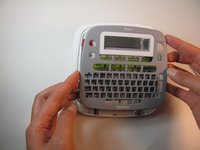
    • Close the back cover and then flip the device over and separate the top half from the bottom half as shown.

    • Be gentle when lifting the top of the device, there is a ribbon cable attaching the two halves together.

    FixBotに聞いてみる

    コメントを追加

  5. Brother PT-D200 LCD Screen Replacement, Circuit Board Cables: 手順 5、 1の画像 1
    • Gently pull out the ribbon cable from the circuit board.

    • The ribbon cable is very fragile.

    FixBotに聞いてみる

    コメントを追加

  6. Brother PT-D200 LCD Screen Replacement: 手順 6、 1の画像 1
    • Remove two-pin plastic connector from the circuit board.

    • Gently pull the two-pin connector from the circuit board to avoid damaging the board.

    FixBotに聞いてみる

    コメントを追加

  7. Brother PT-D200 LCD Screen Replacement, Circuit Board: 手順 7、 2の画像 1 Brother PT-D200 LCD Screen Replacement, Circuit Board: 手順 7、 2の画像 2
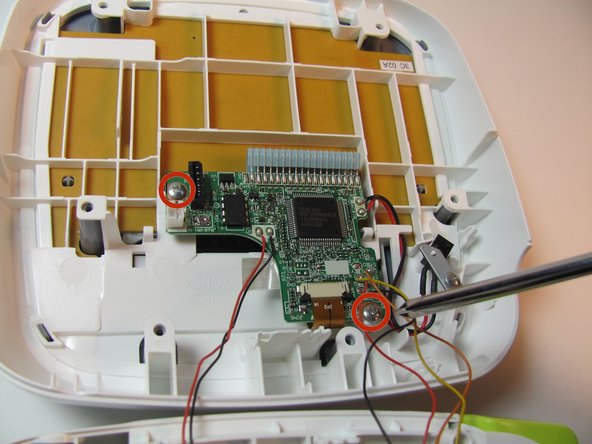
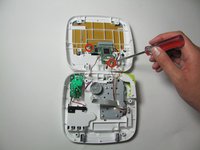
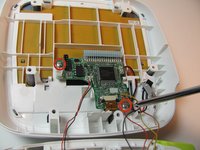
    • Remove the two 3/16" screws from the circuit board using the Helping Hand 1/4" screwdriver.

    FixBotに聞いてみる

    コメントを追加

  8. Brother PT-D200 LCD Screen Replacement: 手順 8、 1の画像 1
    • Release the two black clips that hold the LCD cable ribbon in place. To release, pull the clips towards the ribbon.

    FixBotに聞いてみる

    コメントを追加

  9. Brother PT-D200 LCD Screen Replacement: 手順 9、 1の画像 1
    • Disconnect the LCD ribbon cable from the circuit board.

    FixBotに聞いてみる

    コメントを追加

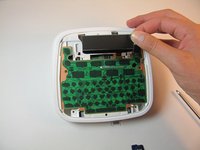
  10. Brother PT-D200 LCD Screen Replacement, Face Plate: 手順 10、 1の画像 1
    • On the top portion of the device there are four grey clips locking the faceplate in place. The two top clips are circled in the image. The two others are located in the other corners of the device.

    FixBotに聞いてみる

    コメントを追加

  11. Brother PT-D200 LCD Screen Replacement: 手順 11、 2の画像 1 Brother PT-D200 LCD Screen Replacement: 手順 11、 2の画像 2
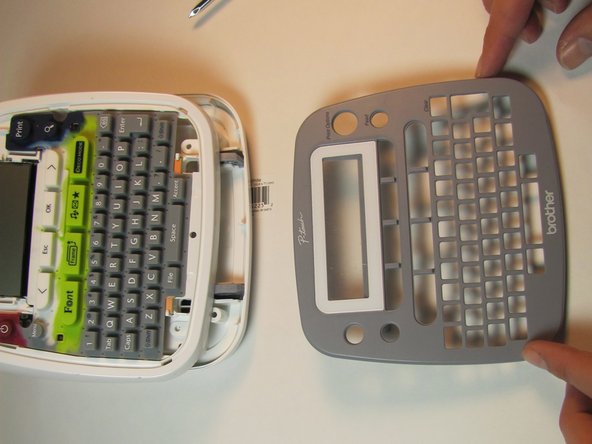
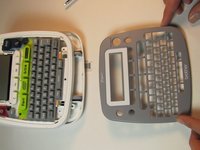
    • Pull the clips inward two at a time, first the top then the bottom, to snap the face plate off.

    FixBotに聞いてみる

    コメントを追加

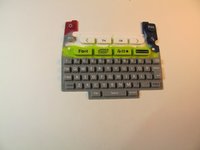
  12. Brother PT-D200 LCD Screen Replacement, Keyboard: 手順 12、 2の画像 1 Brother PT-D200 LCD Screen Replacement, Keyboard: 手順 12、 2の画像 2
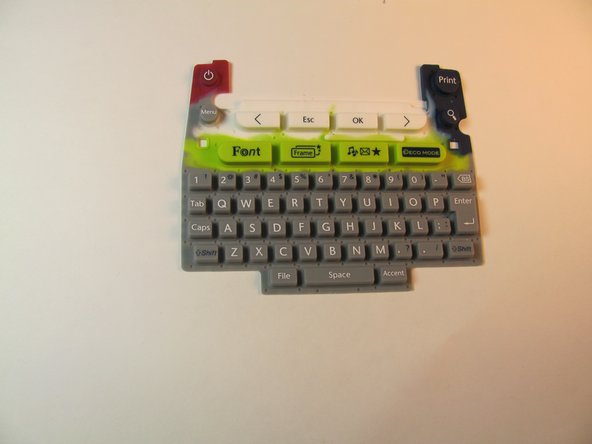
    • Peel off the rubber keyboard of the device.

    FixBotに聞いてみる

    コメントを追加

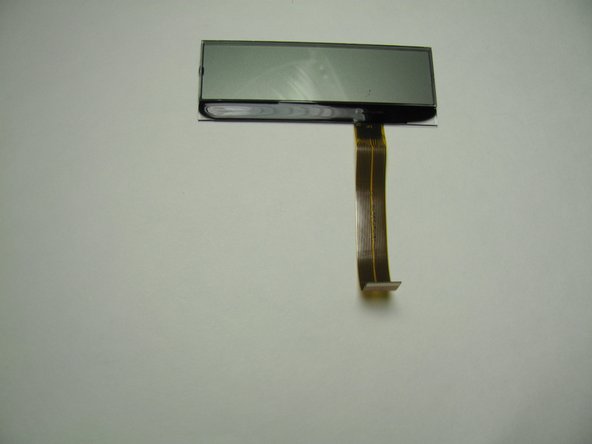
  13. Brother PT-D200 LCD Screen Replacement, LCD Screen: 手順 13、 2の画像 1 Brother PT-D200 LCD Screen Replacement, LCD Screen: 手順 13、 2の画像 2
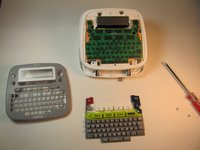
    • Lift the LCD screen out of place.

    FixBotに聞いてみる

    コメントを追加

終わりに

To reassemble your device, follow these instructions in reverse order.

キャンセル: このガイドを終了できませんでした。

作成者

4人の作成者と共同で作成されました。

Jeston Mitchell

メンバー登録日: 01/24/14

308 ポイント

3のガイドは作成済み

チーム

Cal Poly, Team 13-16, Regan Winter 2014 Cal Poly, Team 13-16, Regan Winter 2014人のメンバー

CPSU-REGAN-W14S13G16

3 メンバー

6のガイドは作成済み

0件のガイドコメント

コメントを追加

統計データ:

過去 24時間: 3

過去 7 日: 16

過去 30 日: 63

今までの合計 2,512