メインコンテンツにスキップ
リペアコミュニティに参加 - アカウントの作成

Asus 1015E-DS03 Keyboard Replacement

必要な工具と部品

  1. Asus 1015E-DS03 Keyboard Replacement, Battery: 手順 1、 1の画像 1
    • Hold the laptop using both hands with the battery facing upwards.

    FixBotに聞いてみる
  2. Asus 1015E-DS03 Keyboard Replacement: 手順 2、 1の画像 1
    • Push the two tabs located below the battery in towards each other using your thumbs.

    FixBotに聞いてみる
  3. Asus 1015E-DS03 Keyboard Replacement: 手順 3、 1の画像 1
    • Push the battery upwards and out of the laptop as shown.

    FixBotに聞いてみる
  4. Asus 1015E-DS03 Keyboard Replacement: 手順 4、 1の画像 1
    • Continue to push the battery upwards until it is completely separated from the laptop as shown.

    FixBotに聞いてみる
  5. Asus 1015E-DS03 Keyboard Replacement, Keyboard: 手順 5、 1の画像 1
    • Once the battery is removed, unscrew the highlighted 3mm screws (4) using a #0 Phillps head screwdriver.

    • Be very careful not to lose the screws, these four screws are very small.

    FixBotに聞いてみる
  6. Asus 1015E-DS03 Keyboard Replacement: 手順 6、 2の画像 1 Asus 1015E-DS03 Keyboard Replacement: 手順 6、 2の画像 2
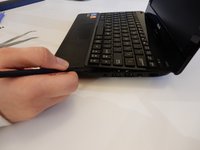
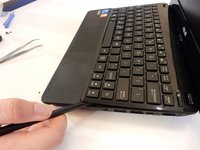
    • After all four screws are removed, flip the laptop over with the keyboard facing up.

    • Use a spudger to pry up where the keyboard is attached to the laptop on all sides until it is detached from the laptop.

    • It is normal to hear cracking noises when prying off the keyboard.

    • After keyboard is detached from laptop, there is a ribbon cable still attached to the motherboard. See next step before completely removing keyboard.

    FixBotに聞いてみる
  7. Asus 1015E-DS03 Keyboard Replacement: 手順 7、 1の画像 1
    • After the keyboard is detached, the ribbon cable which connects the keyboard to the laptop's motherboard is exposed.

    • Be careful not to tear or rip the ribbon cable.

    FixBotに聞いてみる
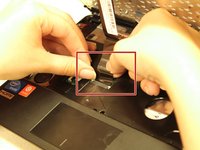
  8. Asus 1015E-DS03 Keyboard Replacement: 手順 8、 1の画像 1
    • Using the spudger push the white clips upwards that are holding the cable.

    FixBotに聞いてみる
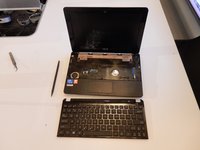
  9. Asus 1015E-DS03 Keyboard Replacement: 手順 9、 2の画像 1 Asus 1015E-DS03 Keyboard Replacement: 手順 9、 2の画像 2
    • Gently pull the strip out of the square slot.

    FixBotに聞いてみる
終わりに

To reassemble your device, follow these instructions in reverse order.

2 の人々がこのガイドを完成させました。

作成者

4人の作成者と共同で作成されました。

Joe Capriola

メンバー登録日: 03/21/16

494 ポイント

3のガイドは作成済み

チーム

Clemson, Team 7-4, Benson Spring 2016 Clemson, Team 7-4, Benson Spring 2016人のメンバー

CLEM-BENSON-S16S7G4

5 メンバー

7のガイドは作成済み

0件のガイドコメント

コメントを追加

統計データ:

過去 24時間: 1

過去 7 日: 9

過去 30 日: 52

今までの合計 1,508