メインコンテンツにスキップ
リペアコミュニティに参加 - アカウントの作成

Apex Tablet 7 Battery Replacement

必要な工具と部品

  1. Apex Tablet 7 Battery Replacement, Back Panel: 手順 1、 1の画像 1
    • Unscrew the two 2.70 mm Phillips #00 screws on the side of the tablet that has the buttons and the headphone jack (bottom side when holding upright).

    FixBotに聞いてみる

    コメントを追加

  2. Apex Tablet 7 Battery Replacement: 手順 2、 2の画像 1 Apex Tablet 7 Battery Replacement: 手順 2、 2の画像 2
    • CAUTION: When removing the back panel of the tablet, take caution around the speaker. This is located in the lower right corner when looking at the back of the tablet. There are two wires inside connecting the tablet back panel to the device itself and this connection may be severed if the back is pulled off without care.

    • This connection is shown in red on the pictures.

    FixBotに聞いてみる

    コメントを追加

  3. Apex Tablet 7 Battery Replacement: 手順 3、 2の画像 1 Apex Tablet 7 Battery Replacement: 手順 3、 2の画像 2
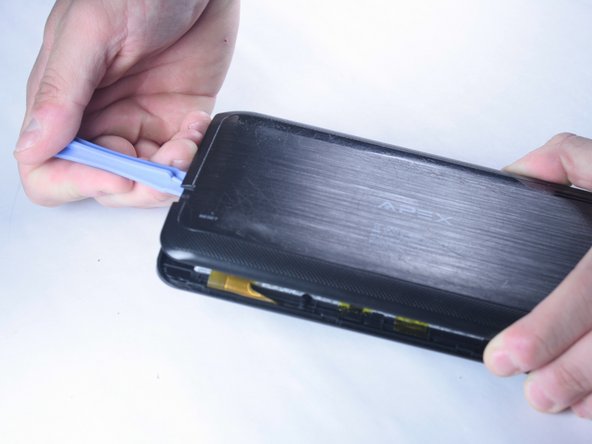
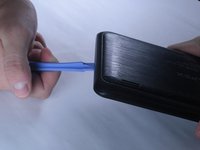
    • Slide a plastic opening tool in between the edge of the back panel and the the top edge of the device.

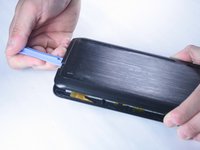
    • Run the plastic opening tool along the sides of the tablet while keeping it in the crack between the tablet and the back panel to create an opening.

    FixBotに聞いてみる

    コメントを追加

  4. Apex Tablet 7 Battery Replacement: 手順 4、 1の画像 1
    • Apply pressure using your hand to pop the back panel off slowly, taking extra care around the speaker connection.

    FixBotに聞いてみる

    コメントを追加

  5. Apex Tablet 7 Battery Replacement: 手順 5、 1の画像 1
    • The back panel should now be disconnected from the device. This provides access to the components of the device for repairing and replacing parts of the tablet.

    FixBotに聞いてみる

    コメントを追加

  6. Apex Tablet 7 Battery Replacement, Battery: 手順 6、 1の画像 1
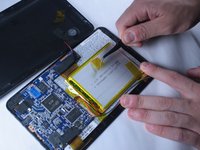
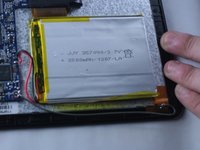
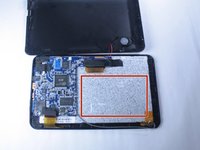
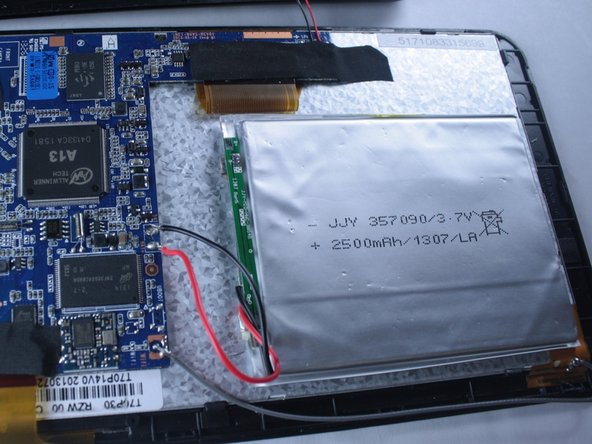
    • Locate battery and wires connected to the battery

    FixBotに聞いてみる

    コメントを追加

  7. Apex Tablet 7 Battery Replacement: 手順 7、 2の画像 1 Apex Tablet 7 Battery Replacement: 手順 7、 2の画像 2
    この手順で使用する道具:
    Tweezers
    $4.99
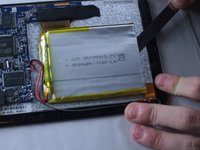
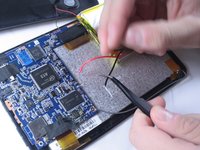
    • Using tweezers or your fingers, begin removing the yellow tape holding the battery down to the device.

    FixBotに聞いてみる

    コメントを追加

  8. Apex Tablet 7 Battery Replacement: 手順 8、 3の画像 1 Apex Tablet 7 Battery Replacement: 手順 8、 3の画像 2 Apex Tablet 7 Battery Replacement: 手順 8、 3の画像 3
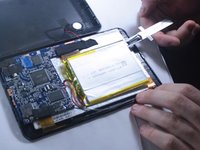
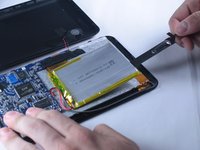
    • The battery is very fragile, so this process may cause some damage to the old battery during removal. Take extra care if you need the old battery to remain intact.

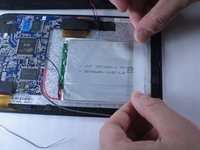
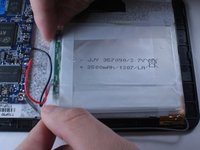
    • The battery is held to the back of the device by an adhesive under the battery. Use a ruler or spudger to slowly separate the battery from the glue underneath.

    • Take care not to bend or puncture the battery, which can cause a fire.

    FixBotに聞いてみる

    コメントを追加

  9. Apex Tablet 7 Battery Replacement: 手順 9、 1の画像 1
    • The battery should now lift up freely from the device.

    FixBotに聞いてみる

    コメントを追加

  10. Apex Tablet 7 Battery Replacement: 手順 10、 1の画像 1
    • Now you will need to disconnect the red and black leads from the battery to the circuit board.

    • This can be done by desoldering the tips using a hot soldering iron tip.

    FixBotに聞いてみる

    コメントを追加

  11. Apex Tablet 7 Battery Replacement: 手順 11、 1の画像 1
    • Apply heat to the solder holding each of the black and red wires to the circuit board while gently pulling with tweezers. When hot enough, the wire should pull away freely from the joint.

    FixBotに聞いてみる

    コメントを追加

  12. Apex Tablet 7 Battery Replacement: 手順 12、 2の画像 1 Apex Tablet 7 Battery Replacement: 手順 12、 2の画像 2
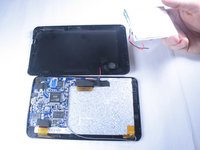
    • Once disconnected, lift the old battery from the device and remove it.

    • You are now left with a space to insert the new replacement battery.

    FixBotに聞いてみる

    コメントを追加

  13. Apex Tablet 7 Battery Replacement: 手順 13、 2の画像 1 Apex Tablet 7 Battery Replacement: 手順 13、 2の画像 2
    • Obtain your replacement battery.

    • Place it centered on the device where the old battery was located.

    FixBotに聞いてみる

    コメントを追加

  14. Apex Tablet 7 Battery Replacement: 手順 14、 1の画像 1
    • Find the red and black wires coming from the battery. You will now need to solder the tips back onto the circuit board where you removed the old connections.

    • The red wire connects to positive (+) and the black wire connects to negative (-), as shown in the picture.

    FixBotに聞いてみる

    コメントを追加

  15. Apex Tablet 7 Battery Replacement: 手順 15、 1の画像 1
    • Place the red wire tip on the positive terminal. Hold the solder strand so that it is touching the terminal and tip, and apply heat with the soldering iron until the two fuse together and produce a small amount of smoke.

    • Repeat the procedure for the black wire tip to the negative terminal.

    FixBotに聞いてみる

    コメントを追加

  16. Apex Tablet 7 Battery Replacement: 手順 16、 1の画像 1
    • Your battery is now soldered to the tablet.

    FixBotに聞いてみる

    コメントを追加

  17. Apex Tablet 7 Battery Replacement: 手順 17、 3の画像 1 Apex Tablet 7 Battery Replacement: 手順 17、 3の画像 2 Apex Tablet 7 Battery Replacement: 手順 17、 3の画像 3
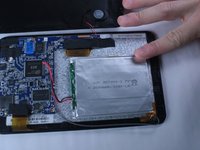
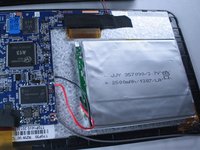
    • Finally, use a heat-resistant tape to secure the battery in place to the device. Center the battery in the middle and apply strips of tape until it sits securely mounted to the device.

    • Your battery is now connected and secured to your tablet

    FixBotに聞いてみる

    コメントを追加

ゴール

キャンセル: このガイドを終了できませんでした。

4 の人々がこのガイドを完成させました。

作成者

5人の作成者と共同で作成されました。

Corrine Nief

メンバー登録日: 03/20/15

325 ポイント

2のガイドは作成済み

チーム

Baylor, Team 2-2, Grigsby Spring 2015 Baylor, Team 2-2, Grigsby Spring 2015人のメンバー

BU-GRIGSBY-S15S2G2

4 メンバー

10のガイドは作成済み

0件のガイドコメント

コメントを追加

統計データ:

過去 24時間: 4

過去 7 日: 14

過去 30 日: 59

今までの合計 3,629