メインコンテンツにスキップ
リペアコミュニティに参加 - アカウントの作成

Xbox 360 Wireless Controller Buttons Replacement

必要な工具と部品

  1. Xbox 360 Wireless Controller Buttons Replacement, Battery: 手順 1、 2の画像 1 Xbox 360 Wireless Controller Buttons Replacement, Battery: 手順 1、 2の画像 2
    • Depress the battery release button on the top of the controller.

    • Remove the battery holder from the controller.

    • The standard option for Xbox 360 Wireless Controllers Battery Packs is AA batteries. A rechargeable battery is also available, but both battery options are removed from the controller in the same way.

    FixBotに聞いてみる

    コメントを追加

  2. Xbox 360 Wireless Controller Buttons Replacement, Rear Case: 手順 2、 1の画像 1
    この手順で使用する道具:
    Tweezers
    $4.99
    • Use a pair of tweezers to peel the barcode sticker from the battery compartment.

    FixBotに聞いてみる

    コメントを追加

  3. Xbox 360 Wireless Controller Buttons Replacement: 手順 3、 1の画像 1
    • Remove the seven 9.3 mm T8 Security Torx screws securing the rear case to the front case.

    FixBotに聞いてみる

    コメントを追加

  4. Xbox 360 Wireless Controller Buttons Replacement: 手順 4、 2の画像 1 Xbox 360 Wireless Controller Buttons Replacement: 手順 4、 2の画像 2
    この手順で使用する道具:
    Spudger
    $2.99
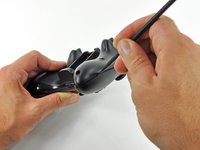
    • Insert a Spudger between the front and rear cases along the left edge of the controller.

    • Rotate the spudger toward the front of the controller, prying the two cases apart.

    FixBotに聞いてみる

    コメントを追加

  5. Xbox 360 Wireless Controller Buttons Replacement: 手順 5、 2の画像 1 Xbox 360 Wireless Controller Buttons Replacement: 手順 5、 2の画像 2
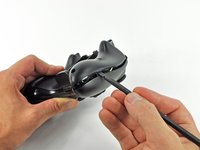
    • Insert a spudger between the front and rear cases, near the headphone jack.

    • Rotate the spudger toward the front of the controller to pry the two cases apart.

    FixBotに聞いてみる

    コメントを追加

  6. Xbox 360 Wireless Controller Buttons Replacement: 手順 6、 2の画像 1 Xbox 360 Wireless Controller Buttons Replacement: 手順 6、 2の画像 2
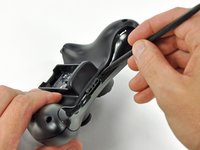
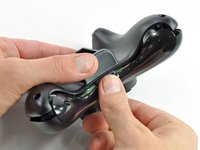
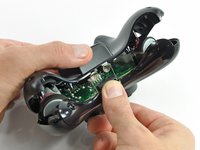
    • Grasp the controller by the battery compartment and the headphone jack.

    • Lift the battery compartment away from the headphone jack, separating the rear case from the front case and logic board.

    • The battery contact springs are held in place by slots in the battery housing in the rear case. Be sure to realign them properly during reassembly.

    FixBotに聞いてみる

    コメントを追加

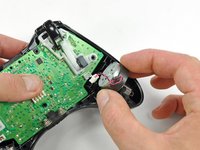
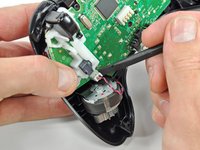
  7. Xbox 360 Wireless Controller Buttons Replacement, Vibration Motors: 手順 7、 2の画像 1 Xbox 360 Wireless Controller Buttons Replacement, Vibration Motors: 手順 7、 2の画像 2
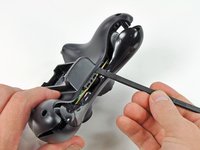
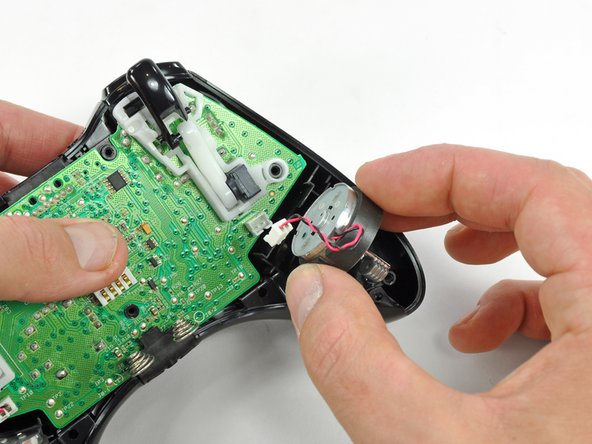
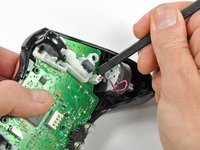
    • Use the flat end of a spudger to remove the vibration motor cable, moving it upward from its socket on the logic board.

    • Lift the vibration motor out of the front case.

    FixBotに聞いてみる

    コメントを追加

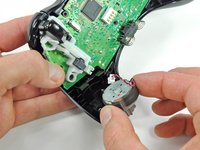
  8. Xbox 360 Wireless Controller Buttons Replacement: 手順 8、 2の画像 1 Xbox 360 Wireless Controller Buttons Replacement: 手順 8、 2の画像 2
    • Remove the vibration motor from the other side of the controller using the same method previously described.

    • The left motor has significantly more counterweight than the right motor.

    FixBotに聞いてみる

    コメントを追加

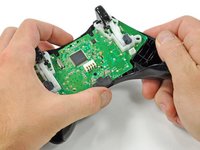
  9. Xbox 360 Wireless Controller Buttons Replacement, Logic Board: 手順 9、 2の画像 1 Xbox 360 Wireless Controller Buttons Replacement, Logic Board: 手順 9、 2の画像 2
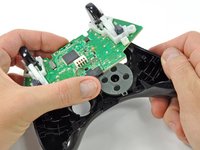
    • Lifting from the headphone jack and power plug, remove the logic board from the front case.

    FixBotに聞いてみる

    コメントを追加

  10. Xbox 360 Wireless Controller Buttons Replacement, Buttons: 手順 10、 1の画像 1
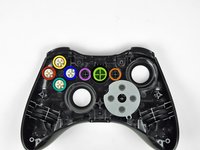
    • Remove the rubber pad from the back of the input buttons.

    FixBotに聞いてみる

    コメントを追加

  11. Xbox 360 Wireless Controller Buttons Replacement: 手順 11、 2の画像 1 Xbox 360 Wireless Controller Buttons Replacement: 手順 11、 2の画像 2
    この手順で使用する道具:
    Tweezers
    $4.99
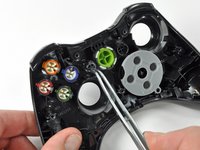
    • Using a pair of tweezers, remove the buttons from the front case.

    • A Button

    • B Button

    • X Button

    • Y Button

    • Start Button

    • Select Button

    • Guide Button

    FixBotに聞いてみる

    コメントを追加

  12. Xbox 360 Wireless Controller Buttons Replacement: 手順 12、 1の画像 1
    • Using a pair of tweezers, lift the home button's LED ring out of the front case of the controller.

    • All of the buttons have tabs that correspond to slots in the front case. This prevents buttons from being placed in the incorrect position or orientation.

    FixBotに聞いてみる

    コメントを追加

終わりに

To reassemble your device, follow these instructions in reverse order.

キャンセル: このガイドを終了できませんでした。

68 の人々がこのガイドを完成させました。

作成者

5人の作成者と共同で作成されました。

Brett Hartt

メンバー登録日: 04/12/10

132,200 ポイント

144のガイドは作成済み

チーム

iFixit iFixit人のメンバー

Staff

122 メンバー

26,514のガイドは作成済み

3件のガイドコメント

Hello I have had an Xbox for about 1-2years and everything has been working fine until the A button on one of my controllers stopped working I don't think it has gunk or anything because I can press it down and it comes back up just that when I press it in screen nothing happens but the other buttons work fine

Saul Escalon - 返信 共有

Thank you for the teardown! My cat has just vomitted on my joystick…. I could have cleaned it now! I appreciate it , thanks…

Nathan St-Onge - 返信 共有

Has anyone ever replaced the spring contacts in the logic board???

BJ Robbins - 返信 共有

コメントを追加

統計データ:

過去 24時間: 18

過去 7 日: 111

過去 30 日: 368

今までの合計 78,608