メインコンテンツにスキップ
リペアコミュニティに参加 - アカウントの作成

Tagital T7X Screen/ Digitizer Replacement

必要な工具と部品

  1. Tagital T7X Screen/ Digitizer Replacement, Case: 手順 1、 3の画像 1 Tagital T7X Screen/ Digitizer Replacement, Case: 手順 1、 3の画像 2 Tagital T7X Screen/ Digitizer Replacement, Case: 手順 1、 3の画像 3
    • Place the Tagital T7X on a sturdy surface.

    • Insert the plastic opening tool into the crack and pry open the tablet. Move the tool along the edge, while continuing to pry up the casing.

    FixBotに聞いてみる

    コメントを追加

  2. Tagital T7X Screen/ Digitizer Replacement, Battery: 手順 2、 2の画像 1 Tagital T7X Screen/ Digitizer Replacement, Battery: 手順 2、 2の画像 2
    • Follow the attached wires to the positive and negative connections.

    FixBotに聞いてみる

    コメントを追加

  3. Tagital T7X Screen/ Digitizer Replacement: 手順 3、 3の画像 1 Tagital T7X Screen/ Digitizer Replacement: 手順 3、 3の画像 2 Tagital T7X Screen/ Digitizer Replacement: 手順 3、 3の画像 3
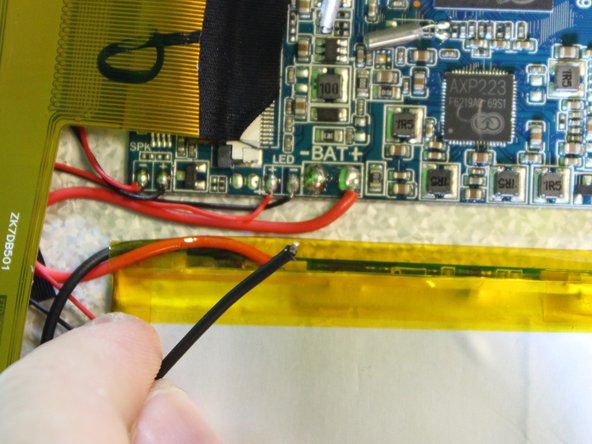
    • The soldering iron can destroy components on the motherboard. Only touch the soldering iron to the solder already on the board.

    • Touch the tip of the soldering iron to the solder connecting the negative wire.

    • Pull back on the wire with the iron in place, removing it from the hot solder.

    • The solder will be melted almost instantly. There is no need to hold the iron on the solder for more than a second or two. Visit iFixit's soldering guide for more info.

    • Repeat this step for the positive wire.

    FixBotに聞いてみる

    コメントを追加

  4. Tagital T7X Screen/ Digitizer Replacement: 手順 4、 3の画像 1 Tagital T7X Screen/ Digitizer Replacement: 手順 4、 3の画像 2 Tagital T7X Screen/ Digitizer Replacement: 手順 4、 3の画像 3
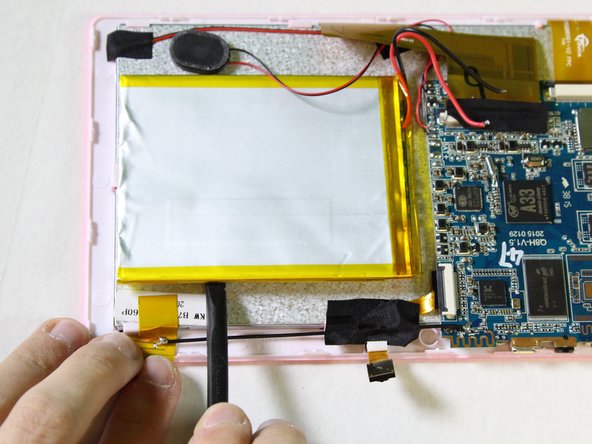
    • Use the nylon spudger to pry the battery from the back of the screen. Work your way around the edges, similar to opening the casing.

    • The adhesive used to hold the battery down is very strong. Don't be afraid to use some force.

    FixBotに聞いてみる
    コメントを追加

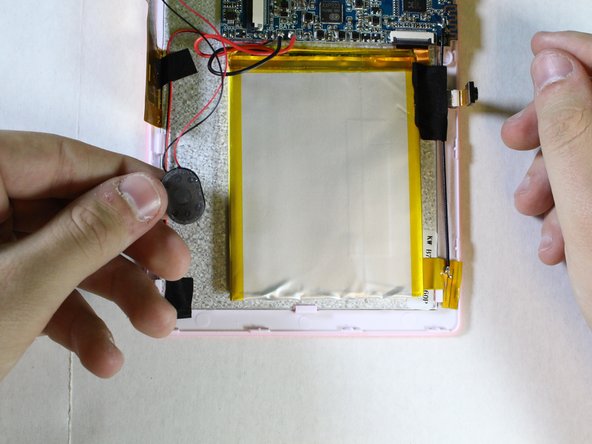
  5. Tagital T7X Screen/ Digitizer Replacement, Speaker: 手順 5、 3の画像 1 Tagital T7X Screen/ Digitizer Replacement, Speaker: 手順 5、 3の画像 2 Tagital T7X Screen/ Digitizer Replacement, Speaker: 手順 5、 3の画像 3
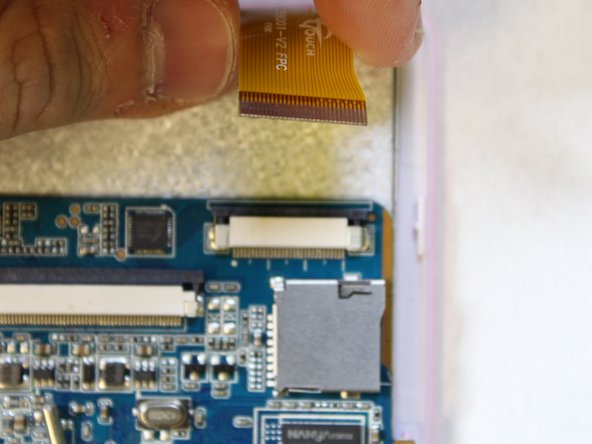
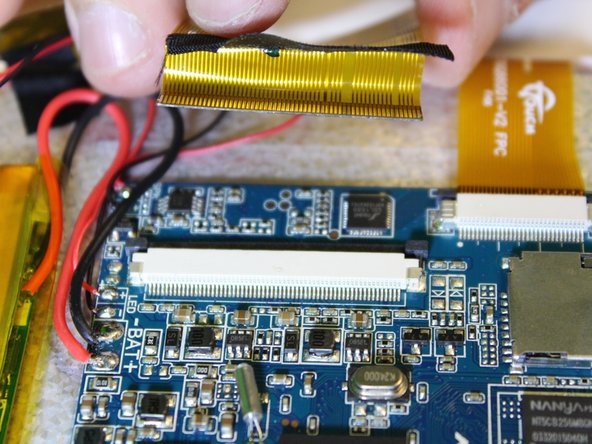
    • Remove the ribbon cable on the top left corner of the mother board.

    • Gently lift the black tape up to see the ribbon cable socket.

    FixBotに聞いてみる

    コメントを追加

  6. Tagital T7X Screen/ Digitizer Replacement: 手順 6、 3の画像 1 Tagital T7X Screen/ Digitizer Replacement: 手順 6、 3の画像 2 Tagital T7X Screen/ Digitizer Replacement: 手順 6、 3の画像 3
    • Push both side buttons away from the socket by using a spudger.

    FixBotに聞いてみる

    コメントを追加

  7. Tagital T7X Screen/ Digitizer Replacement: 手順 7、 2の画像 1 Tagital T7X Screen/ Digitizer Replacement: 手順 7、 2の画像 2
    • Gently pull the ribbon cable away from the socket.

    • Don't be afraid to use some force for this step.

    FixBotに聞いてみる

    コメントを追加

  8. Tagital T7X Screen/ Digitizer Replacement: 手順 8、 2の画像 1 Tagital T7X Screen/ Digitizer Replacement: 手順 8、 2の画像 2
    • The soldering iron can destroy components on the motherboard. Only touch the soldering iron to the solder already on the board.

    • Touch the tip of the soldering iron to the solder connecting the positive (red) wire.

    • Pull back on the wire with the iron in place, removing it from the hot solder.

    • Repeat this step for the negative wire.

    • The solder will be melted almost instantly. There is no need to hold the iron on the solder for than a second or two. Visit IFixit's soldering guide for more info.

    FixBotに聞いてみる

    コメントを追加

  9. Tagital T7X Screen/ Digitizer Replacement: 手順 9、 2の画像 1 Tagital T7X Screen/ Digitizer Replacement: 手順 9、 2の画像 2
    • Remove the speaker from the motherboard.

    FixBotに聞いてみる

    コメントを追加

  10. Tagital T7X Screen/ Digitizer Replacement, Camera: 手順 10、 3の画像 1 Tagital T7X Screen/ Digitizer Replacement, Camera: 手順 10、 3の画像 2 Tagital T7X Screen/ Digitizer Replacement, Camera: 手順 10、 3の画像 3
    • Use a spudger to hold the cameras in place.

    • Gently pull the black tape away using your finger.

    FixBotに聞いてみる

    コメントを追加

  11. Tagital T7X Screen/ Digitizer Replacement: 手順 11、 3の画像 1 Tagital T7X Screen/ Digitizer Replacement: 手順 11、 3の画像 2 Tagital T7X Screen/ Digitizer Replacement: 手順 11、 3の画像 3
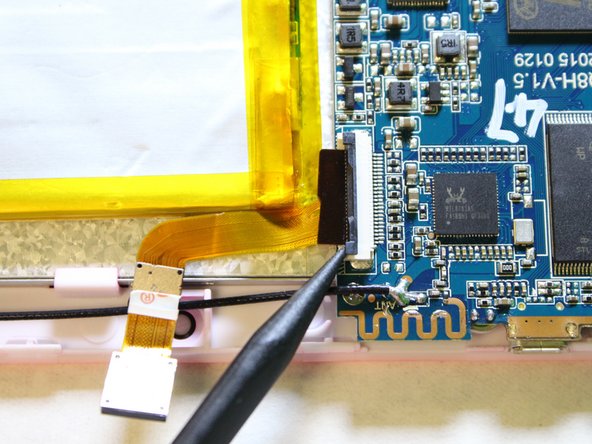
    • Remove the ribbon cable from the motherboard.

    • Use a spudger to lift the two tabs, freeing the ribbon cable from the socket.

    FixBotに聞いてみる

    コメントを追加

  12. Tagital T7X Screen/ Digitizer Replacement: 手順 12、 3の画像 1 Tagital T7X Screen/ Digitizer Replacement: 手順 12、 3の画像 2 Tagital T7X Screen/ Digitizer Replacement: 手順 12、 3の画像 3
    • Gently pull the ribbon cable away from the motherboard.

    • Don't be afraid to use some force to pull the ribbon cable.

    FixBotに聞いてみる
    コメントを追加

  13. Tagital T7X Screen/ Digitizer Replacement, Motherboard: 手順 13、 2の画像 1 Tagital T7X Screen/ Digitizer Replacement, Motherboard: 手順 13、 2の画像 2
    • Next we will disconnect the digitizer ribbon cable from the motherboard.

    • Using the black spudger, gently push the tabs on each side of the socket to free the ribbon cable.

    FixBotに聞いてみる

    コメントを追加

  14. Tagital T7X Screen/ Digitizer Replacement: 手順 14、 2の画像 1 Tagital T7X Screen/ Digitizer Replacement: 手順 14、 2の画像 2
    • Gently pull on the ribbon cable, separating it from the socket.

    FixBotに聞いてみる

    コメントを追加

  15. Tagital T7X Screen/ Digitizer Replacement: 手順 15、 3の画像 1 Tagital T7X Screen/ Digitizer Replacement: 手順 15、 3の画像 2 Tagital T7X Screen/ Digitizer Replacement: 手順 15、 3の画像 3
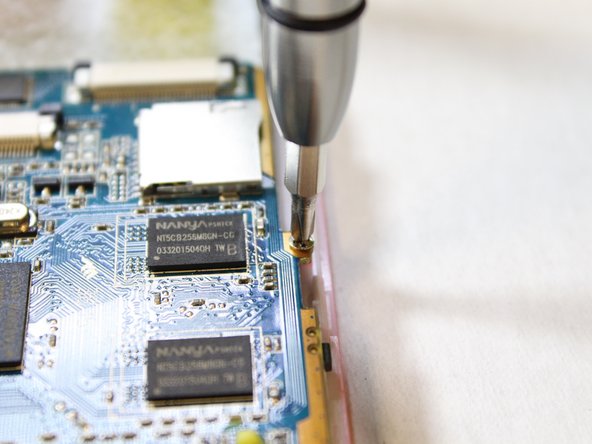
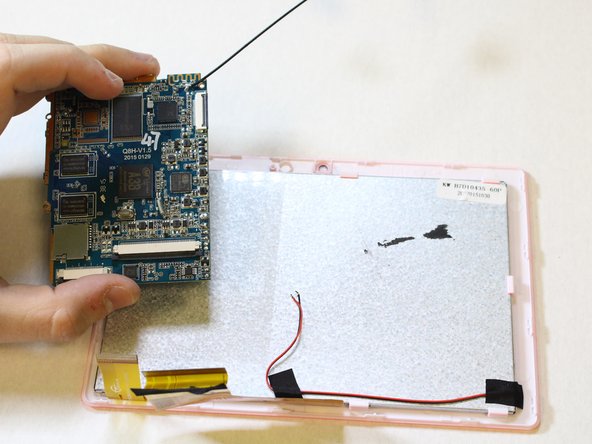
    • Next, we will unscrew the three PH#0 screws anchoring the motherboard into the case.

    • You will need the Phillips Screw #0 to remove the screws of the motherboard.

    • Using the screwdriver, with the PH#0 attachment, carefully unscrew the screws of the motherboard in order to remove it from the device.

    FixBotに聞いてみる

    コメントを追加

  16. Tagital T7X Screen/ Digitizer Replacement, Screen/ Digitizer: 手順 16、 3の画像 1 Tagital T7X Screen/ Digitizer Replacement, Screen/ Digitizer: 手順 16、 3の画像 2 Tagital T7X Screen/ Digitizer Replacement, Screen/ Digitizer: 手順 16、 3の画像 3
    • Insert a plastic opening tool where the screen connects with the front face of the case.

    • Use a spudger to keep the screen from falling back into the casing.

    • The screen will slide out once the connection has been nudged on three sides.

    FixBotに聞いてみる

    コメントを追加

終わりに

To reassemble your device, follow these instructions in reverse order.

キャンセル: このガイドを終了できませんでした。

2 の人々がこのガイドを完成させました。

作成者

4人の作成者と共同で作成されました。

Garven Dabady

メンバー登録日: 02/10/16

370 ポイント

2のガイドは作成済み

チーム

USF Tampa, Team 2-1, Sullivan Spring 2016 USF Tampa, Team 2-1, Sullivan Spring 2016人のメンバー

USFT-SULLIVAN-S16S2G1

4 メンバー

12のガイドは作成済み

0件のガイドコメント

コメントを追加

統計データ:

過去 24時間: 4

過去 7 日: 11

過去 30 日: 45

今までの合計 956