メインコンテンツにスキップ
リペアコミュニティに参加 - アカウントの作成

DualSense Controller V5 Buttons Replacement

必要な工具と部品

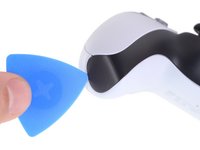
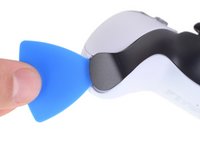
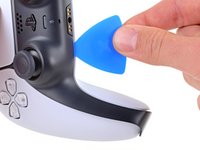
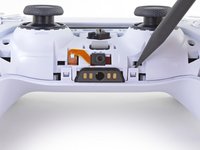
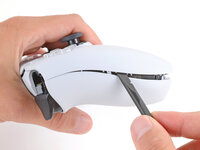
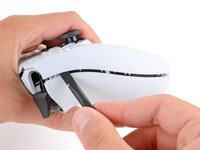
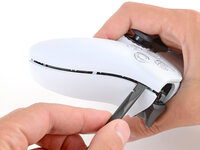
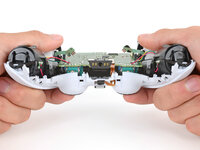
  1. DualSense Controller V5 Buttons Replacement, Unclip the right end of the middle trim: 手順 1、 2の画像 1 DualSense Controller V5 Buttons Replacement, Unclip the right end of the middle trim: 手順 1、 2の画像 2
    • Disconnect and power down your controller before you begin.

    • Insert an opening pick underneath the middle trim at the bottom-right corner of the controller to release the clips securing it to the case.

    FixBotに聞いてみる
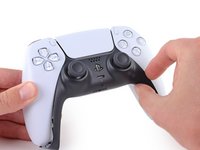
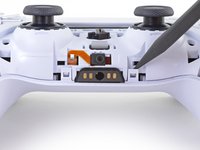
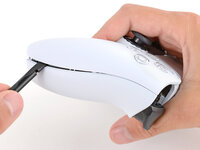
  2. DualSense Controller V5 Buttons Replacement, Unclip the lower-right edge of the middle trim: 手順 2、 3の画像 1 DualSense Controller V5 Buttons Replacement, Unclip the lower-right edge of the middle trim: 手順 2、 3の画像 2 DualSense Controller V5 Buttons Replacement, Unclip the lower-right edge of the middle trim: 手順 2、 3の画像 3
    • Slide the opening pick along the lower-right edge of the middle trim to release the clips securing it to the case.

    FixBotに聞いてみる
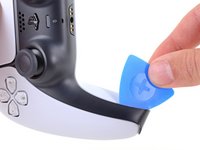
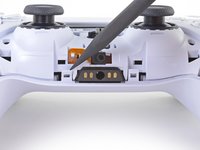
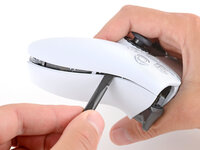
  3. DualSense Controller V5 Buttons Replacement, Unclip the left end of the middle trim: 手順 3、 2の画像 1 DualSense Controller V5 Buttons Replacement, Unclip the left end of the middle trim: 手順 3、 2の画像 2
    • Insert an opening pick underneath the middle trim at the bottom-left corner of the controller to release the clips securing it to the case.

    FixBotに聞いてみる
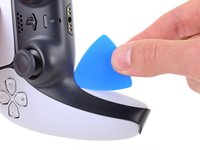
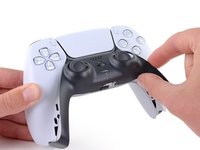
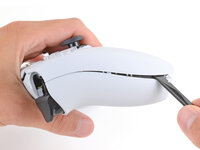
  4. DualSense Controller V5 Buttons Replacement, Unclip the lower-left edge of the middle trim: 手順 4、 3の画像 1 DualSense Controller V5 Buttons Replacement, Unclip the lower-left edge of the middle trim: 手順 4、 3の画像 2 DualSense Controller V5 Buttons Replacement, Unclip the lower-left edge of the middle trim: 手順 4、 3の画像 3
    • Slide the opening pick along the lower-left edge of the middle trim to release the clips securing it to the case.

    FixBotに聞いてみる
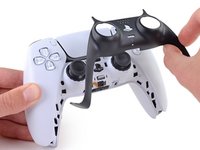
  5. DualSense Controller V5 Buttons Replacement, Remove the middle trim: 手順 5、 3の画像 1 DualSense Controller V5 Buttons Replacement, Remove the middle trim: 手順 5、 3の画像 2 DualSense Controller V5 Buttons Replacement, Remove the middle trim: 手順 5、 3の画像 3
    • Use your fingers to lift up the bottom edge of the middle trim to release the remaining clips.

    • Lift the middle trim over the joysticks to remove it.

    FixBotに聞いてみる
  6. DualSense Controller V5 Buttons Replacement, Remove the L1 button: 手順 6、 3の画像 1 DualSense Controller V5 Buttons Replacement, Remove the L1 button: 手順 6、 3の画像 2 DualSense Controller V5 Buttons Replacement, Remove the L1 button: 手順 6、 3の画像 3
    • With one hand, grip the controller and use your thumb to hold down the left trigger.

    • With your free hand, insert the flat end of a spudger between the L1 and L2 buttons.

    • Use the spudger to gently pry the L1 button away from the controller and remove it, holding your finger over the button so it doesn't eject.

    FixBotに聞いてみる
  7. DualSense Controller V5 Buttons Replacement, Remove the R1 button: 手順 7、 3の画像 1 DualSense Controller V5 Buttons Replacement, Remove the R1 button: 手順 7、 3の画像 2 DualSense Controller V5 Buttons Replacement, Remove the R1 button: 手順 7、 3の画像 3
    • Repeat the previous step to remove the R1 button.

    FixBotに聞いてみる
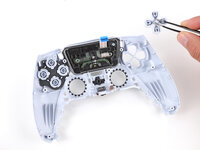
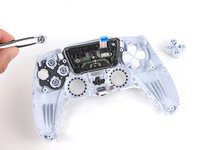
  8. DualSense Controller V5 Buttons Replacement, Remove the rear case screws: 手順 8、 2の画像 1 DualSense Controller V5 Buttons Replacement, Remove the rear case screws: 手順 8、 2の画像 2
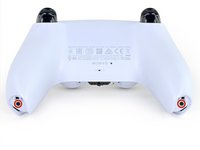
    • Use a Phillips screwdriver to remove the two 6.4 mm screws securing the bottom corners of the lower case.

    FixBotに聞いてみる
  9. DualSense Controller V5 Buttons Replacement: 手順 9、 2の画像 1 DualSense Controller V5 Buttons Replacement: 手順 9、 2の画像 2
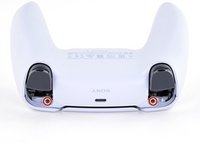
    • Use a Phillips screwdriver to remove the two 6.4 mm screws behind the L1 and R1 buttons.

    FixBotに聞いてみる
  10. DualSense Controller V5 Buttons Replacement, Separate the rear case: 手順 10、 3の画像 1 DualSense Controller V5 Buttons Replacement, Separate the rear case: 手順 10、 3の画像 2 DualSense Controller V5 Buttons Replacement, Separate the rear case: 手順 10、 3の画像 3
    • Be gentle when releasing the rear cover clips—they're delicate and can easily break.

    • Use the point of a spudger to release the two clips on either side of the headset jack.

    FixBotに聞いてみる
  11. DualSense Controller V5 Buttons Replacement: 手順 11、 3の画像 1 DualSense Controller V5 Buttons Replacement: 手順 11、 3の画像 2 DualSense Controller V5 Buttons Replacement: 手順 11、 3の画像 3
    • Tight plastic clips secure the left and right edges of the rear case.

    • Insert the flat end of a spudger between the front and rear shells near the bottom of the left edge.

    • Slide the spudger along the left edge and gently pry the shells apart to release the clips.

    FixBotに聞いてみる
  12. DualSense Controller V5 Buttons Replacement: 手順 12、 3の画像 1 DualSense Controller V5 Buttons Replacement: 手順 12、 3の画像 2 DualSense Controller V5 Buttons Replacement: 手順 12、 3の画像 3
    • Repeat the previous step on the right edge to release its clips.

    FixBotに聞いてみる
  13. DualSense Controller V5 Buttons Replacement: 手順 13、 2の画像 1 DualSense Controller V5 Buttons Replacement: 手順 13、 2の画像 2
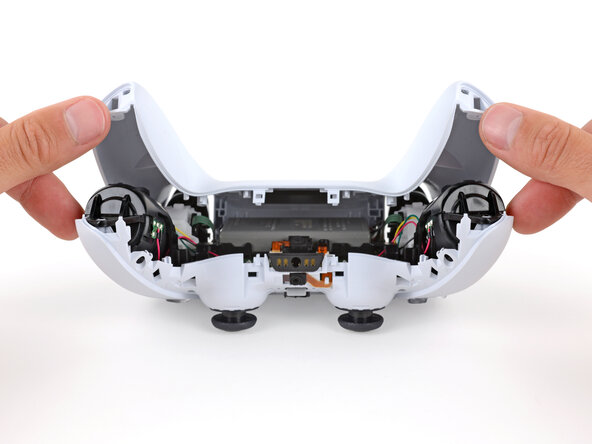
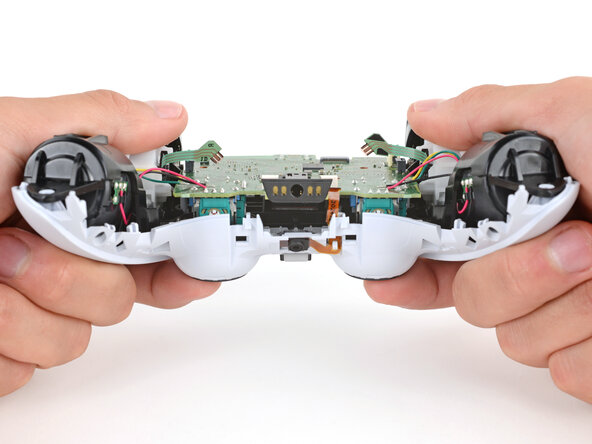
    • Lay your controller upside down so the joysticks are on your work surface.

    • Hold the controller down with your fingers and use your thumbs to lift the rear case away from the controller to fully separate it.

    FixBotに聞いてみる
  14. DualSense Controller V5 Buttons Replacement, Remove the rear case: 手順 14、 1の画像 1
    • Remove the rear case.

    FixBotに聞いてみる
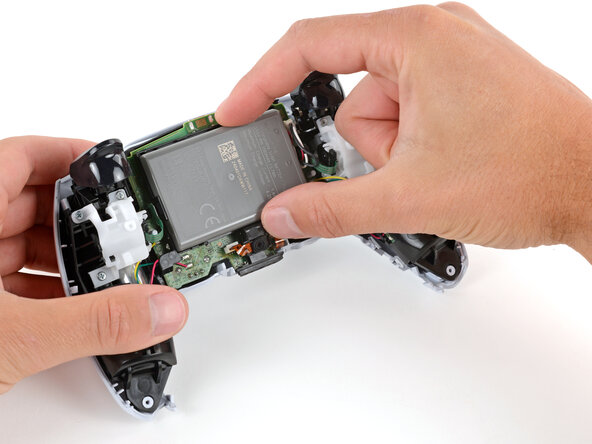
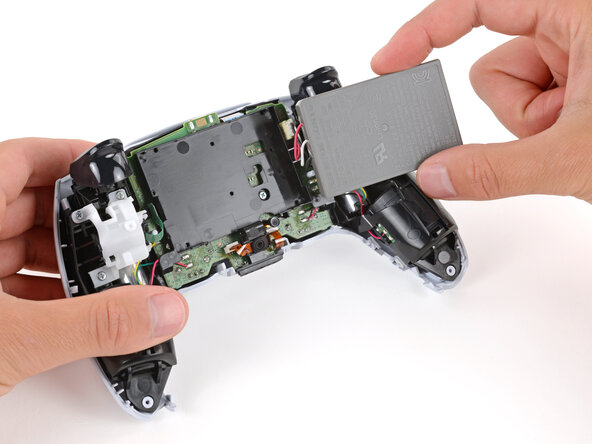
  15. DualSense Controller V5 Buttons Replacement, Disconnect the battery: 手順 15、 2の画像 1 DualSense Controller V5 Buttons Replacement, Disconnect the battery: 手順 15、 2の画像 2
    • Don't try to fully remove the battery, as it's still connected to the controller by delicate cables.

    • Swing the battery out of its recess so you can access its connector, making sure to not strain the cables.

    • Keep the battery supported so it doesn't fall during the next step.

    FixBotに聞いてみる
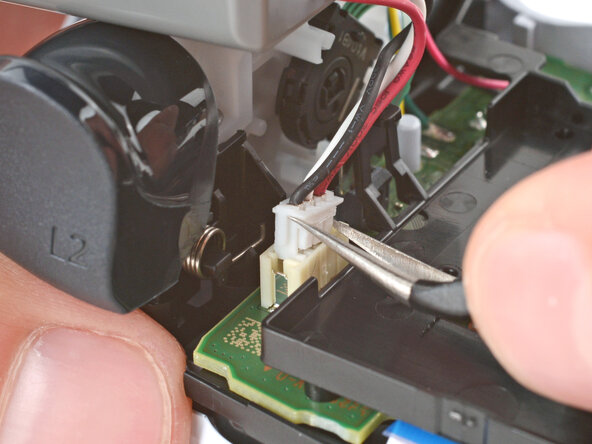
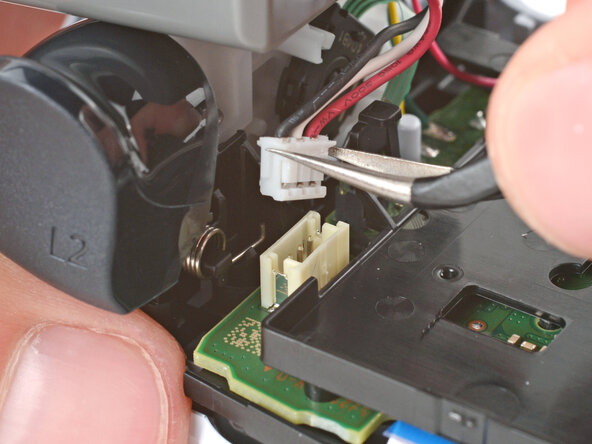
  16. DualSense Controller V5 Buttons Replacement: 手順 16、 3の画像 1 DualSense Controller V5 Buttons Replacement: 手順 16、 3の画像 2 DualSense Controller V5 Buttons Replacement: 手順 16、 3の画像 3
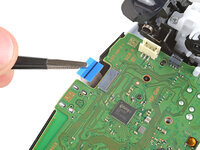
    • Use a pair of angled tweezers to firmly grip the short sides of the battery connector.

    • To get a stronger hold on the connector, grip the tweezers as close to the connector as you can.

    • Rock the connector side‑to‑side to walk it out of its socket and disconnect it.

    FixBotに聞いてみる
  17. DualSense Controller V5 Buttons Replacement, Remove the battery: 手順 17、 1の画像 1
    • Remove the battery.

    FixBotに聞いてみる
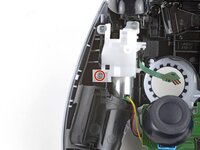
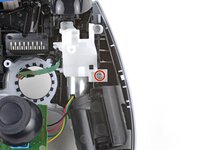
  18. DualSense Controller V5 Buttons Replacement, Remove the lower microphone: 手順 18、 2の画像 1 DualSense Controller V5 Buttons Replacement, Remove the lower microphone: 手順 18、 2の画像 2
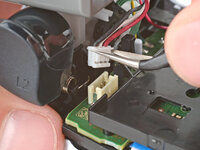
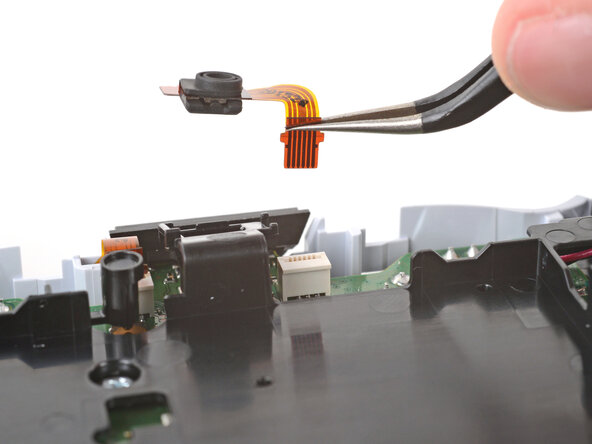
    • Use tweezers to grip the lower microphone cable's plastic tab and pull it straight out of the socket to remove the microphone.

    • During reassembly, make sure the microphone has its rubber gasket and that the alignment tab goes into its cutout.

    FixBotに聞いてみる
  19. DualSense Controller V5 Buttons Replacement, Remove the battery bracket: 手順 19、 2の画像 1 DualSense Controller V5 Buttons Replacement, Remove the battery bracket: 手順 19、 2の画像 2
    • Use a Phillips screwdriver to remove the 6.5 mm‑long screw securing the battery bracket.

    FixBotに聞いてみる
  20. DualSense Controller V5 Buttons Replacement: 手順 20、 2の画像 1 DualSense Controller V5 Buttons Replacement: 手順 20、 2の画像 2
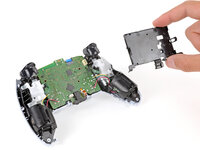
    • Remove the battery bracket.

    FixBotに聞いてみる
  21. DualSense Controller V5 Buttons Replacement, Disconnect the motherboard: 手順 21、 2の画像 1 DualSense Controller V5 Buttons Replacement, Disconnect the motherboard: 手順 21、 2の画像 2
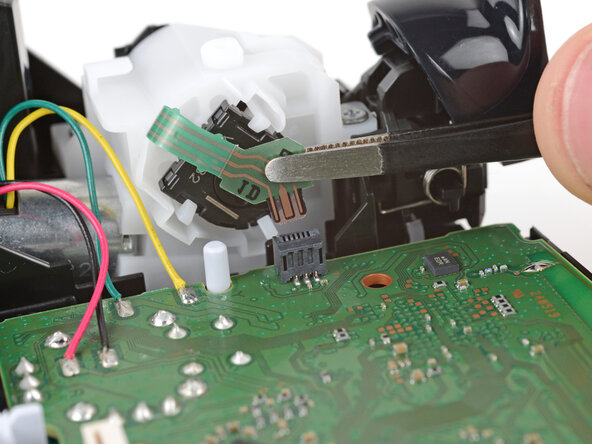
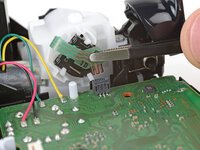
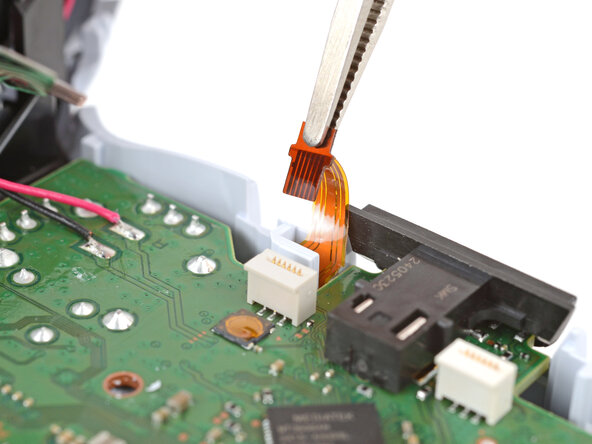
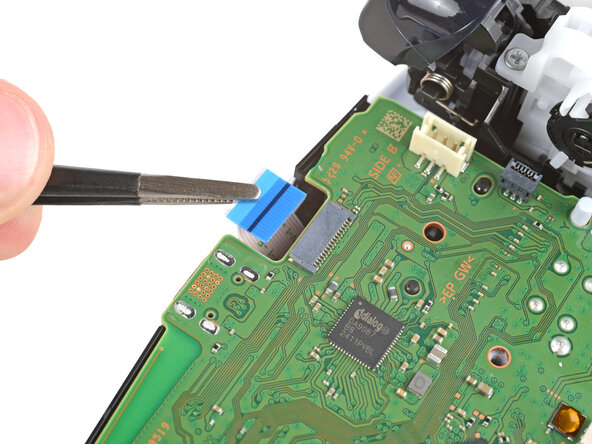
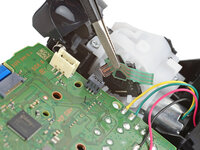
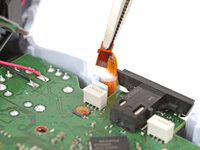
    • Use tweezers to grip the hard plastic section of the right trigger ribbon cable and pull the cable straight out of its socket to disconnect it.

    • If you're having trouble, try gripping the tweezers as close to the cable as possible to get a better hold.

    FixBotに聞いてみる
  22. DualSense Controller V5 Buttons Replacement: 手順 22、 3の画像 1 DualSense Controller V5 Buttons Replacement: 手順 22、 3の画像 2 DualSense Controller V5 Buttons Replacement: 手順 22、 3の画像 3
    FixBotに聞いてみる
  23. DualSense Controller V5 Buttons Replacement, Reposition the motherboard: 手順 23、 2の画像 1 DualSense Controller V5 Buttons Replacement, Reposition the motherboard: 手順 23、 2の画像 2
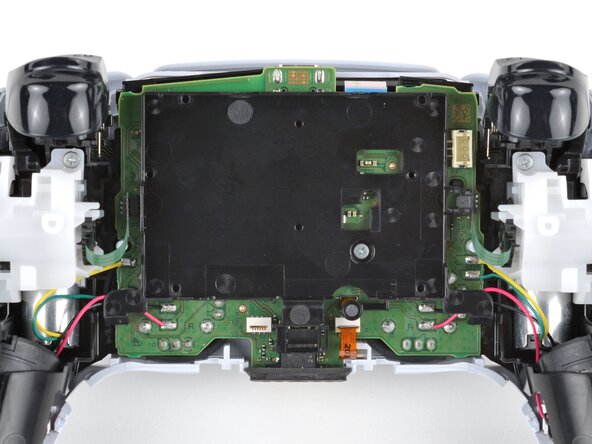
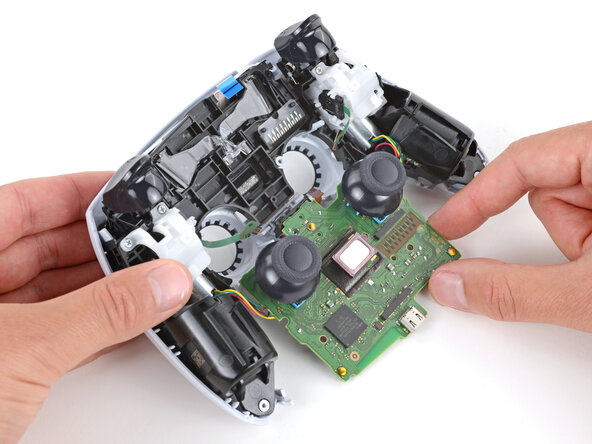
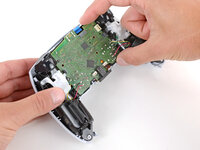
    • Throughout the rest of your repair, be very careful not to strain the delicate wires attached to the bottom edge of the board. They can easily tear, requiring soldering to fix them.

    • Use your fingers to gently push the joysticks through their cutouts on the shell to separate the motherboard.

    FixBotに聞いてみる
  24. DualSense Controller V5 Buttons Replacement: 手順 24、 2の画像 1 DualSense Controller V5 Buttons Replacement: 手順 24、 2の画像 2
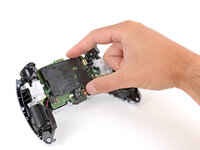
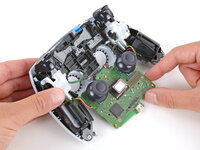
    • Carefully flip the motherboard down so the joysticks are facing up.

    FixBotに聞いてみる
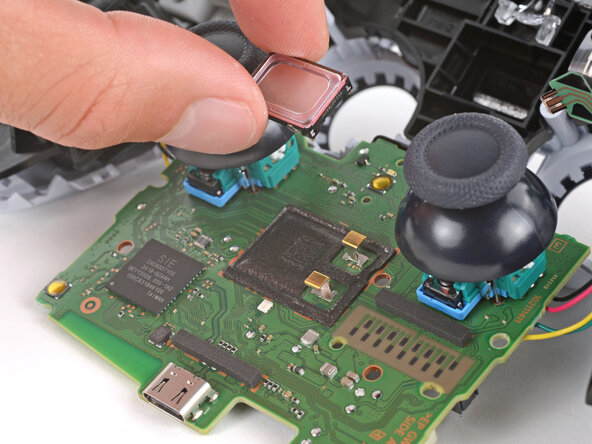
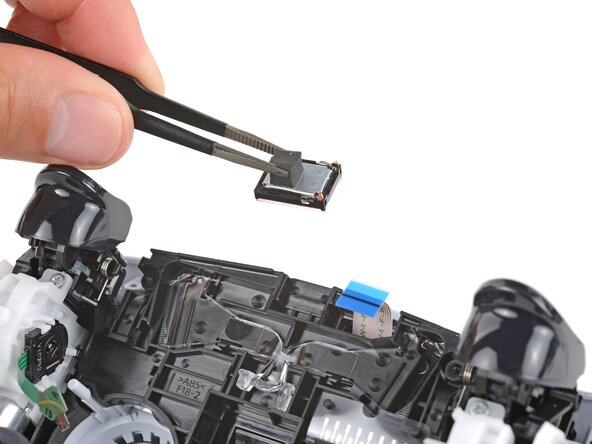
  25. DualSense Controller V5 Buttons Replacement, Remove the speaker: 手順 25、 3の画像 1 DualSense Controller V5 Buttons Replacement, Remove the speaker: 手順 25、 3の画像 2 DualSense Controller V5 Buttons Replacement, Remove the speaker: 手順 25、 3の画像 3
    FixBotに聞いてみる
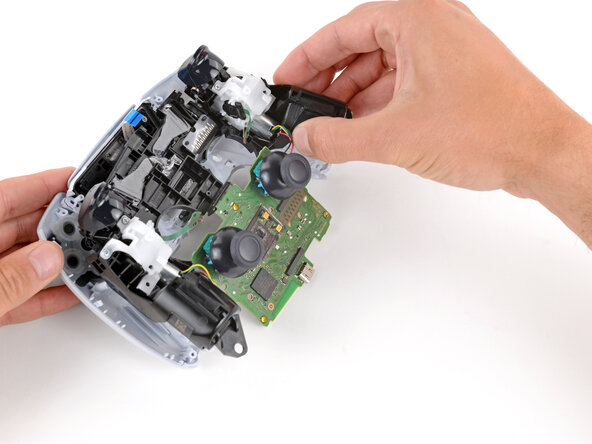
  26. DualSense Controller V5 Buttons Replacement, Remove the midframe: 手順 26、 3の画像 1 DualSense Controller V5 Buttons Replacement, Remove the midframe: 手順 26、 3の画像 2 DualSense Controller V5 Buttons Replacement, Remove the midframe: 手順 26、 3の画像 3
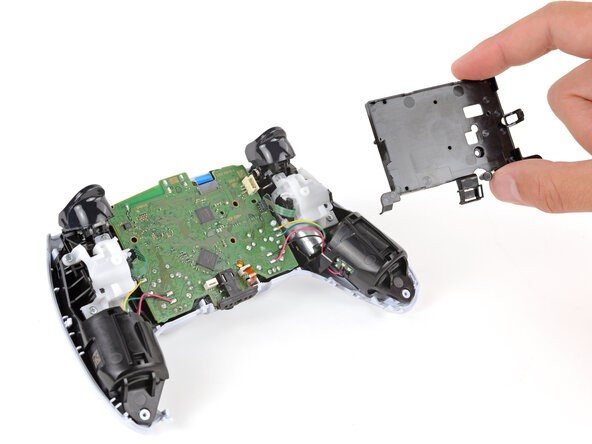
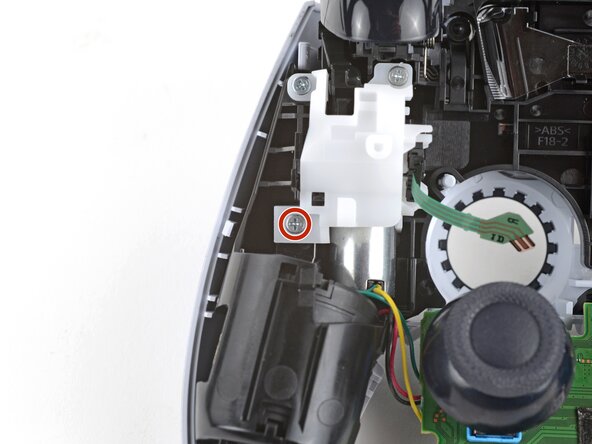
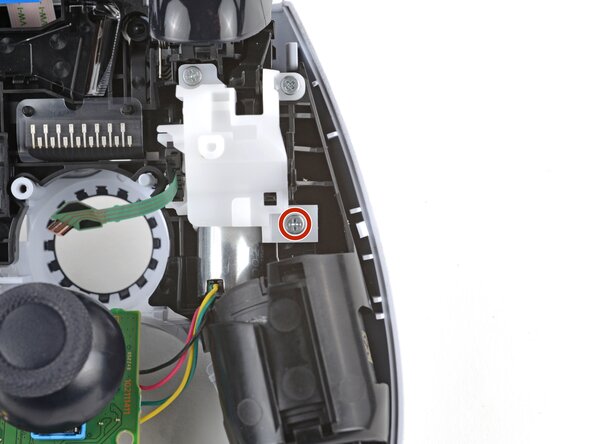
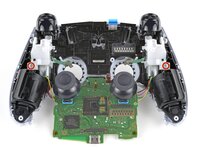
    • Use a Phillips screwdriver to remove the two 6.5 mm‑long screws securing the midframe.

    FixBotに聞いてみる
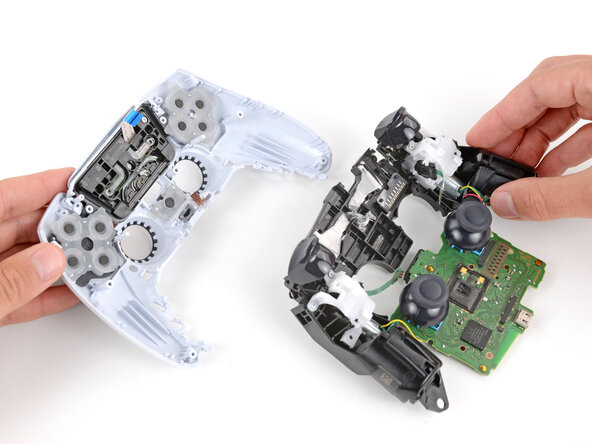
  27. DualSense Controller V5 Buttons Replacement: 手順 27、 3の画像 1 DualSense Controller V5 Buttons Replacement: 手順 27、 3の画像 2 DualSense Controller V5 Buttons Replacement: 手順 27、 3の画像 3
    • Carefully lift the midframe and motherboard up and out of the front case.

    FixBotに聞いてみる
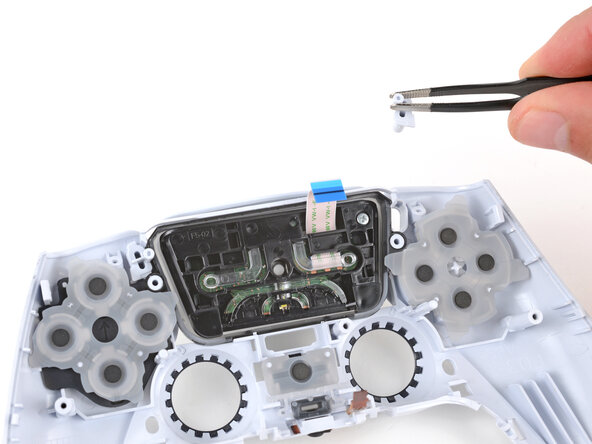
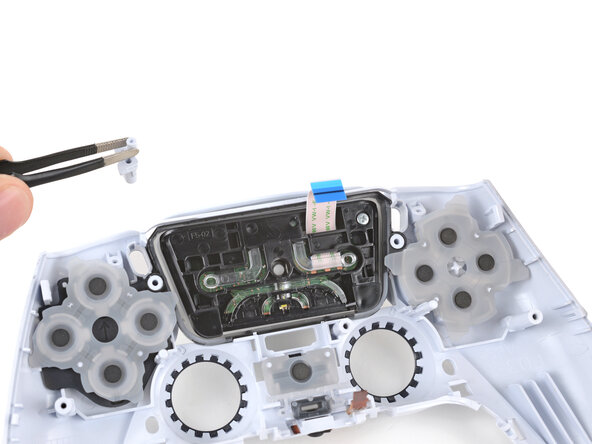
  28. DualSense Controller V5 Buttons Replacement, Remove the buttons: 手順 28、 3の画像 1 DualSense Controller V5 Buttons Replacement, Remove the buttons: 手順 28、 3の画像 2 DualSense Controller V5 Buttons Replacement, Remove the buttons: 手順 28、 3の画像 3
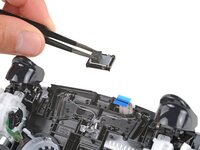
    • Use tweezers or your fingers to remove the Options and Create buttons.

    FixBotに聞いてみる
  29. DualSense Controller V5 Buttons Replacement: 手順 29、 3の画像 1 DualSense Controller V5 Buttons Replacement: 手順 29、 3の画像 2 DualSense Controller V5 Buttons Replacement: 手順 29、 3の画像 3
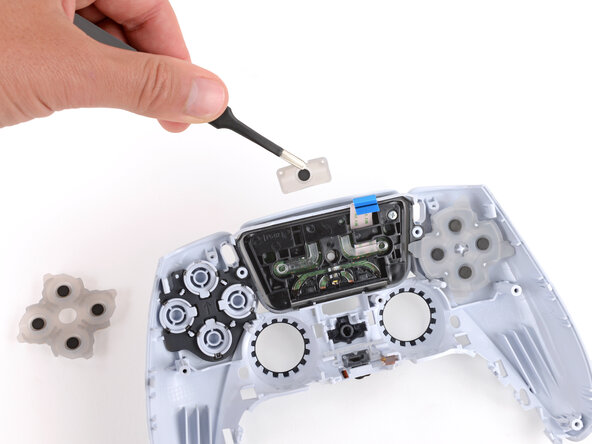
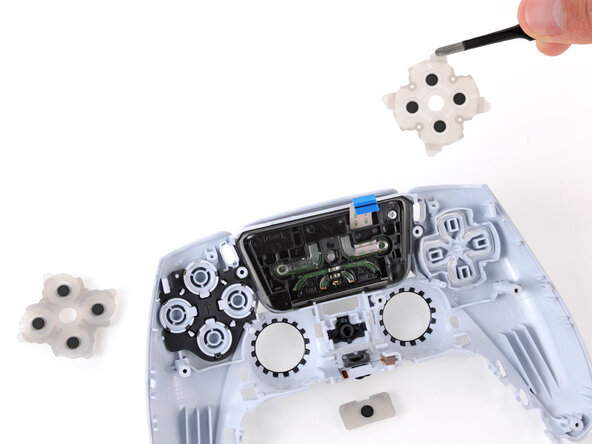
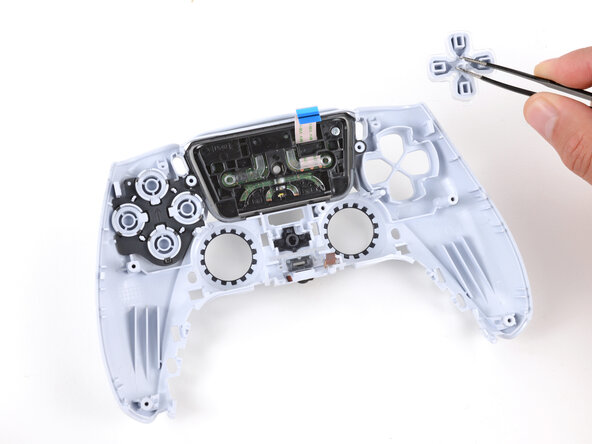
    • Use tweezers or your fingers to remove the three silicone pads covering the Action, PS, and Directional buttons.

    FixBotに聞いてみる
  30. DualSense Controller V5 Buttons Replacement: 手順 30、 3の画像 1 DualSense Controller V5 Buttons Replacement: 手順 30、 3の画像 2 DualSense Controller V5 Buttons Replacement: 手順 30、 3の画像 3
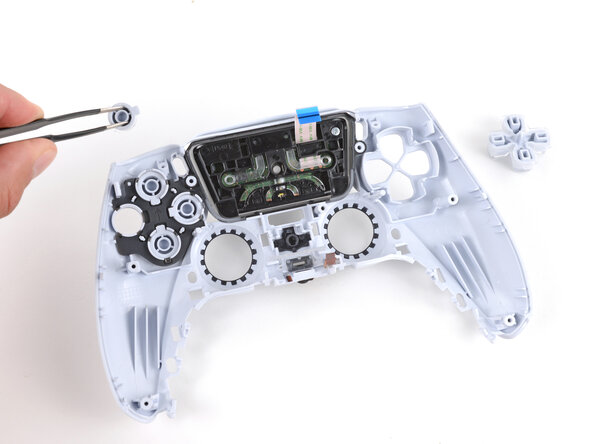
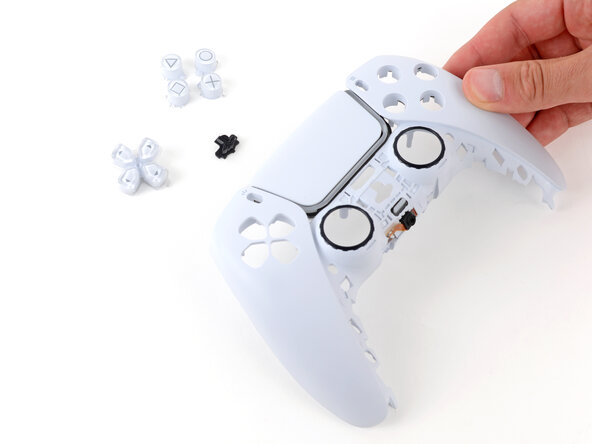
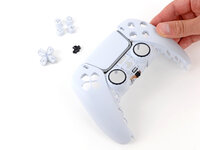
    • Use tweezers or your fingers to remove the Action, PS, and Directional buttons.

    • Alternatively, you can slowly flip the front case over to let the buttons fall out.

    • During reassembly, use the alignment tabs to orient each button into its recess—each one is keyed specifically for its recess and proper orientation.

    FixBotに聞いてみる
終わりに

To reassemble your device, follow these instructions in reverse order.

Repair didn’t go as planned? Try some basic troubleshooting, or ask our Answers community for help.

6 の人々がこのガイドを完成させました。

作成者

1人の作成者と共同作成されました。

Spencer Day

メンバー登録日: 09/14/22

188,382 ポイント

1,187のガイドは作成済み

チーム

iFixit iFixit人のメンバー

Staff

123 メンバー

25,802のガイドは作成済み

0件のガイドコメント

コメントを追加

統計データ:

過去 24時間: 12

過去 7 日: 86

過去 30 日: 375

今までの合計 3,898