はじめに
If you are unsure how to write a Windows 10/11 ISO to a USB flash drive, this guide will show you how to use Rufus and bypass the Microsoft account requirements if you do not want to have one on your PC or do not want to create one during setup. It can also be used to create an installer that works on “unsupported” PCs (1). This guide focuses on making a bootable USB drive, which is the most common method as most computers no longer include an optical drive.
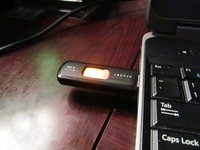
A 16-32GB USB flash drive is generally the lowest drive I would recommend for such a task (2). This guide outlines the process for Rufus 3.x and 4.x; early versions like Rufus 2.x do not support the Microsoft account bypass, as well as the others in 3.x and later. 3.x and 4.x use the same steps.
IMPORTANT!!! Windows 11 25H2 images require 4.x because Microsoft made changes in 25H2 to block bypasses. 24H2 works with both 3.x and 4.x versions of Rufus.
TL;DR: When buying a new USB drive, stick with name-brand 32GB+ drives, and avoid Amazon if you can. USB 3.0 drives are recommended unless your machine has a incredibly rare issue where the chipset cannot boot from ANY USB3 drive.
(3) IF YOUR BUDGET IS THIN, YOU ARE BETTER OFF REUSING AN OLD 8-16GB NAME-BRAND DRIVE THAT CAN BE ERASED IF YOU ARE CHOOSING BETWEEN NEW NO-NAME JUNK OR A KNOWN-NAME BRAND!
Footnotes:
AMAZON WARNING: If you buy the flash drive on Amazon and it has issues out of the box, it is probably counterfeit - get rid of it and buy another one in person. If the drive is NOT directly sold by Amazon and came from a 3rd party reseller (even FBA), test it with H2TestW FIRST!
(1) YOUR PC IS STILL UNSUPPORTED TO MICROSOFT. Feature updates must be force-installed through bypassed bootable media. While I have included "safe" guidelines on Step 5, you can technically install 11 on any CPU with SSE 1.4 and PopCnt (Population Count), with 4-8GB of RAM installed.
(2) Low capacity drives WORK (minimum 8GB), but leave limited extra spare space (e.g., application installers and device drivers) AND some generic drives do not behave well when used as a boot drive, so caution is needed in case anything goes wrong. Any new 8GB drives will all use failed 16GB chips with the bad half disabled. You generally will not see these from big manufacturers today given the minimum floor is generally 32GB. In addition, they do not save much - 32GB drives are ~$1 more, 64GB+ ~$2+ (unless you find a name-brand drive on clearance as dead stock, but these all use B-Stock NAND from vendors like SanDisk). As such, the general recommendation is 32GB+ for NEW drive purchases. (Note: USB3 preferred, USB2 will be slow).
(3) Used drives should be erased before formatting in Rufus. Rufus also does this, but preformatting it (format, like NTFS/exFAT/FAT32 does not matter) makes detection easier.
必要な工具と部品
-
-
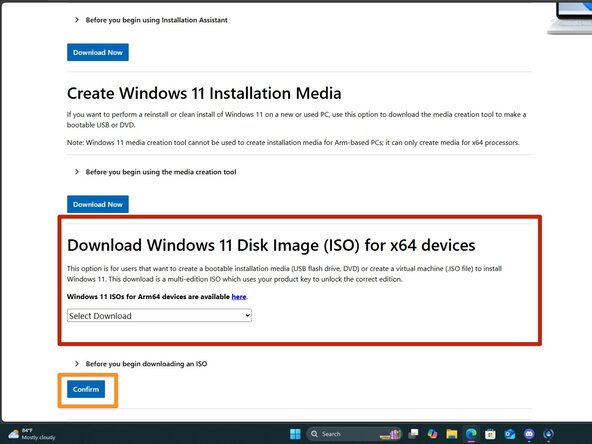
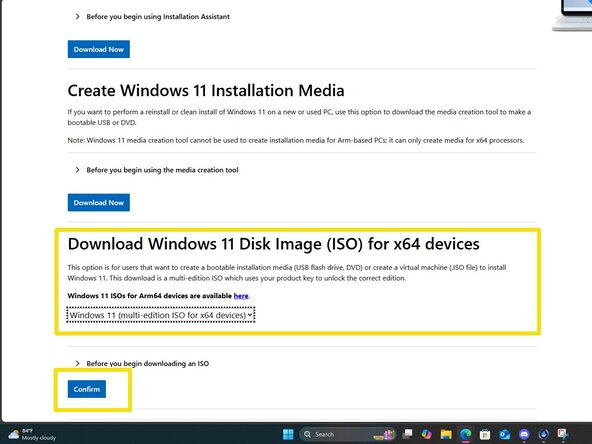
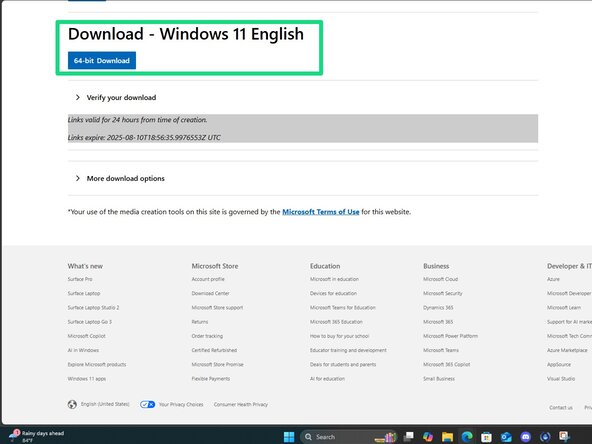
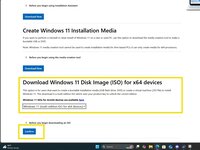
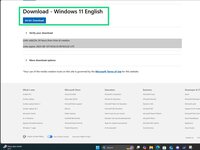
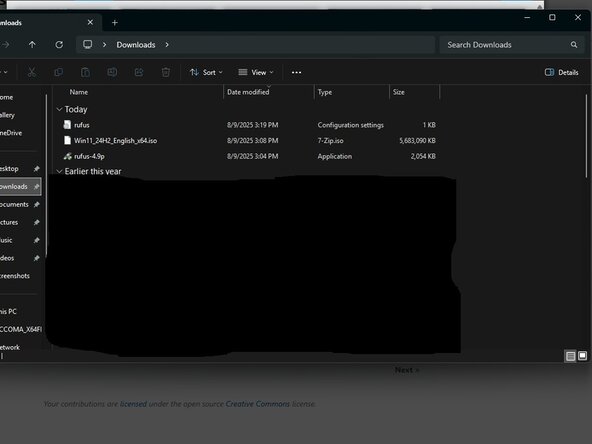
Download a Windows 10 or 11 ISO from Microsoft - do not use other sources unless you trust it.
-
Windows 11: https://www.microsoft.com/en-us/software...
-
Windows 10: https://www.microsoft.com/en-us/software...
-
-
-
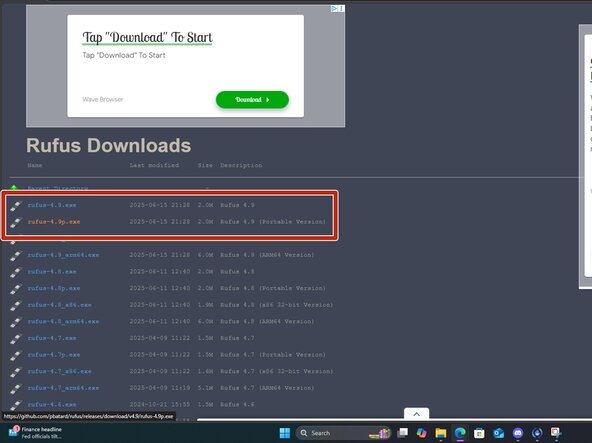
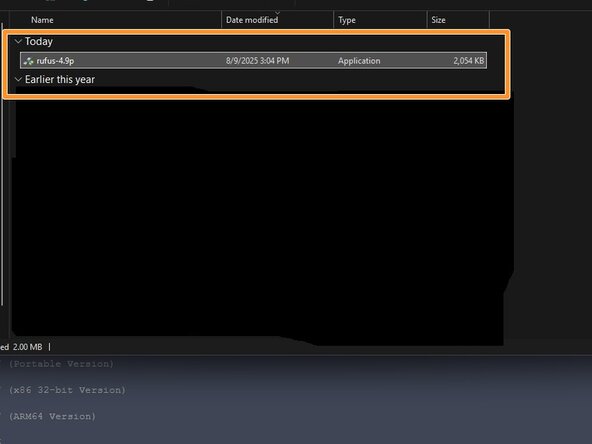
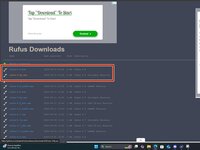
IMPORTANT: make sure to use Rufus 3.x, 4.x or newer — anything older will not work. To write the ISO, download Rufus. Place this somewhere it is easily found.
-
-
-
-
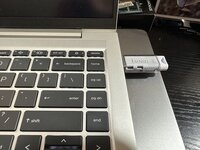
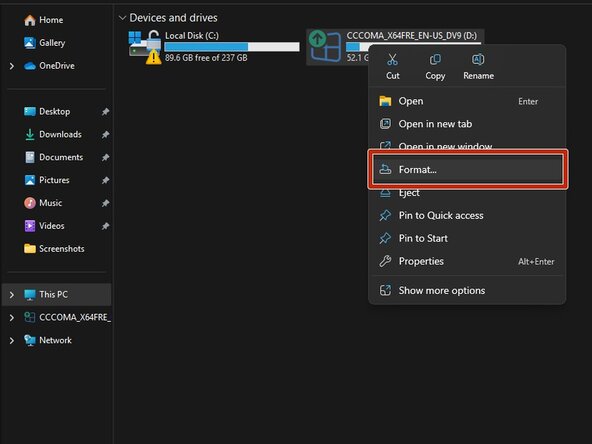
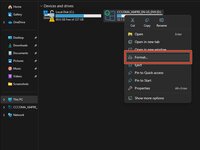
With the USB drive plugged into the computer, go into Windows Explorer, right click Format. For all intents and purposes format type used here does not matter as Rufus does a format before writing the drive image.
-
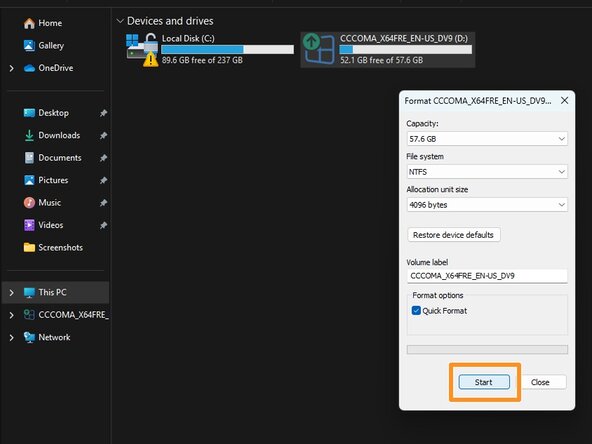
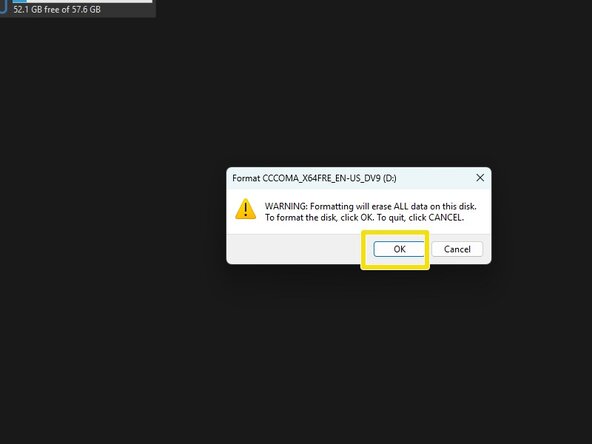
Click on Format and click OK on the data loss warning. Once done the drive is ready to be imaged with Rufus.
-
-
-
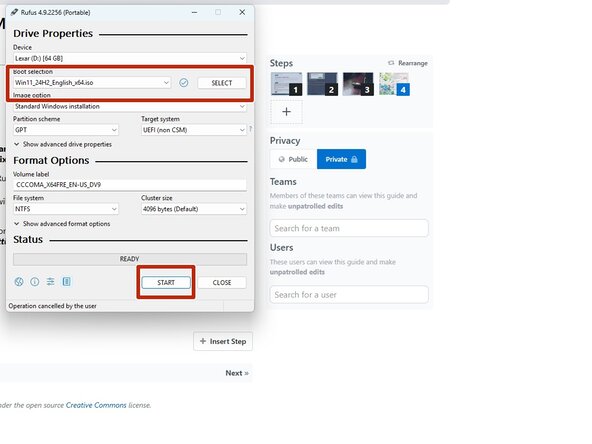
Open Rufus and click SELECT. Find the ISO and click Open.
-
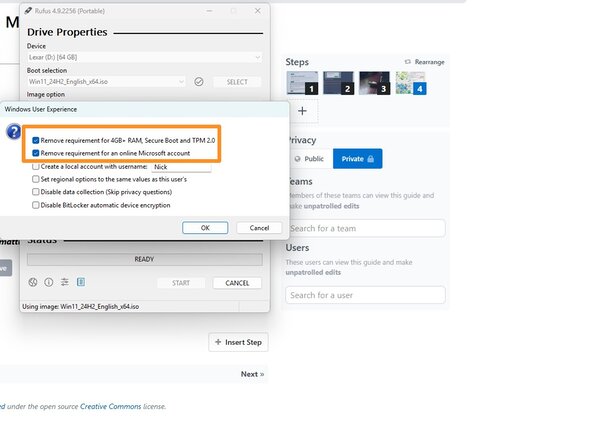
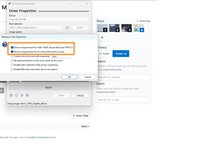
Select the options you want to enable. For most people the defaults are fine, but you can enable and disable options as you desire.
-
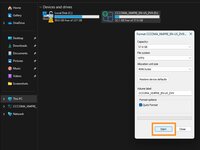
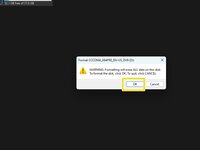
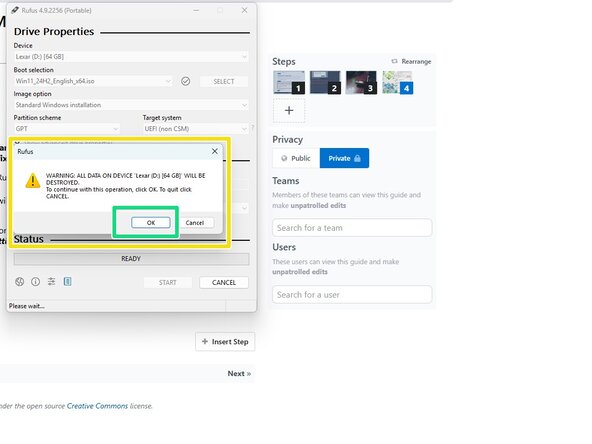
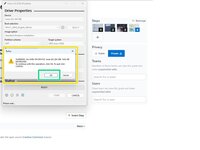
After configuring the writing process, click start. Click OK on the formatting warning.
-
-
-
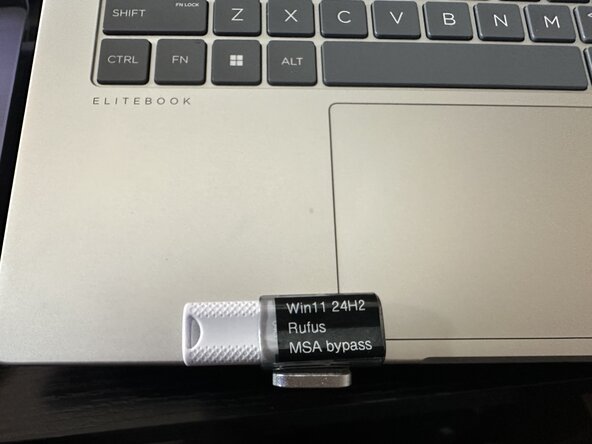
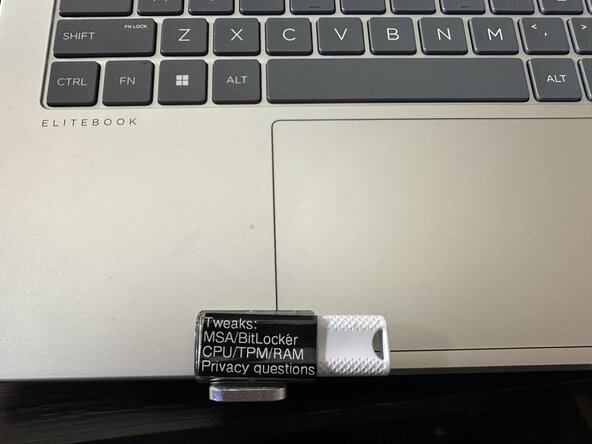
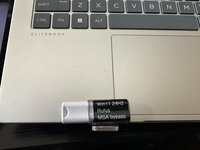
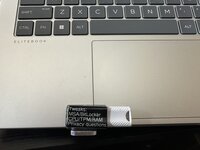
How you do this is up to you, but depending on the drive size -- you might find yourself with little room - in these cases, choose carefully what you put on the drive. If you have a larger drive like this one, you can have a more "full" label.
-
-
-
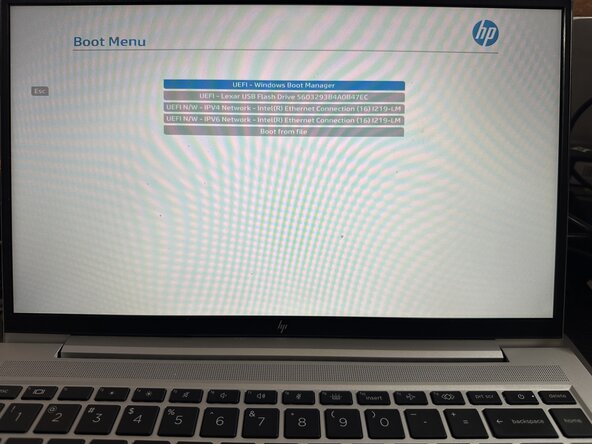
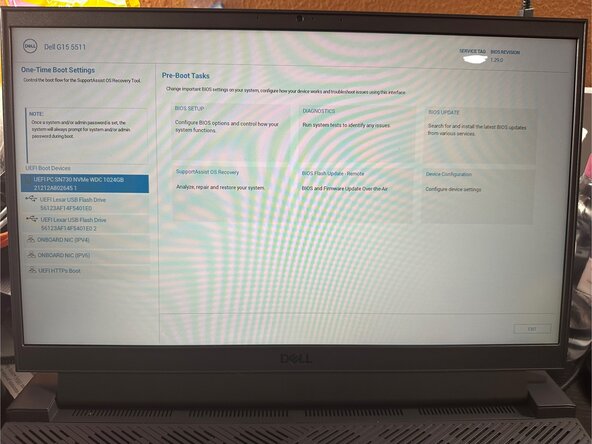
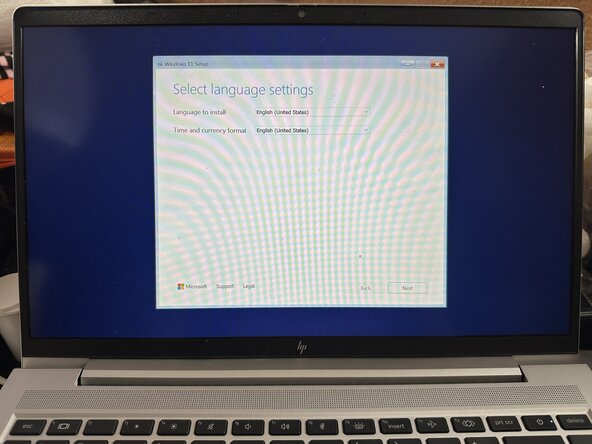
After selecting the drive from the BIOS startup menu, follow the prompts to install Windows 10/11 on your PC.
-


3 の人々がこのガイドを完成させました。


