メインコンテンツにスキップ

Solid-State Drive Replacement in ThinkPad E14 Gen 2 (AMD)

必要な工具と部品

  1. Solid-State Drive Replacement in ThinkPad E14 Gen 2 (AMD), Solid-State Drive: 手順 1、 1の画像 1
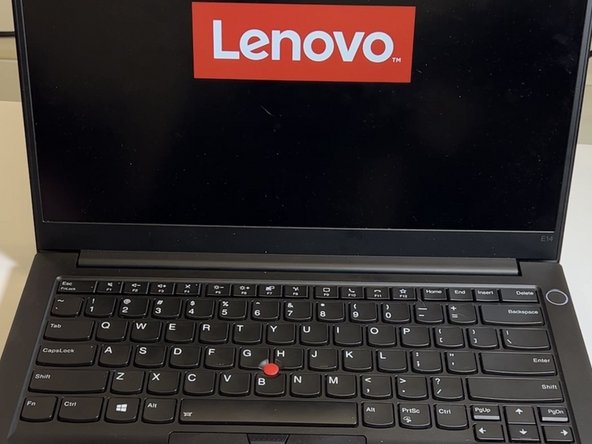
    • Ensure the laptop is powered off.

  2. Solid-State Drive Replacement in ThinkPad E14 Gen 2 (AMD): 手順 2、 3の画像 1 Solid-State Drive Replacement in ThinkPad E14 Gen 2 (AMD): 手順 2、 3の画像 2 Solid-State Drive Replacement in ThinkPad E14 Gen 2 (AMD): 手順 2、 3の画像 3
    • Unscrew all 7 of the Phillips #0 back plate screws on the bottom of the laptop.

    • These will be "captive" and will not come out of the backplate, so you do not need to worry about them getting lost.

    • Separate the back from the laptop assembly using the opening pick tool.

    • If you have trouble with just using one pick tool, feel free to use multiple ones to keep sections of the back plate separated.

  3. Solid-State Drive Replacement in ThinkPad E14 Gen 2 (AMD): 手順 3、 2の画像 1 Solid-State Drive Replacement in ThinkPad E14 Gen 2 (AMD): 手順 3、 2の画像 2
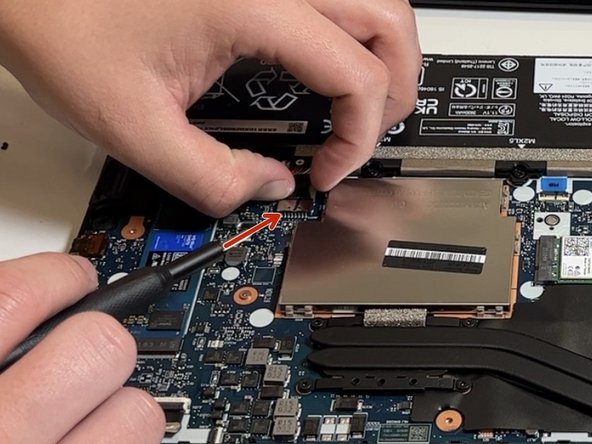
    • Unplug the battery connector and press the power button to ensure the device has no power running.

  4. Solid-State Drive Replacement in ThinkPad E14 Gen 2 (AMD): 手順 4、 2の画像 1 Solid-State Drive Replacement in ThinkPad E14 Gen 2 (AMD): 手順 4、 2の画像 2
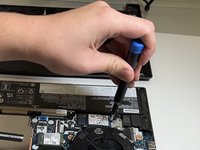
    • Use a Phillips #0 screwdriver to remove the single 4 mm screw that secures the solid-state drive.

  5. Solid-State Drive Replacement in ThinkPad E14 Gen 2 (AMD): 手順 5、 3の画像 1 Solid-State Drive Replacement in ThinkPad E14 Gen 2 (AMD): 手順 5、 3の画像 2 Solid-State Drive Replacement in ThinkPad E14 Gen 2 (AMD): 手順 5、 3の画像 3
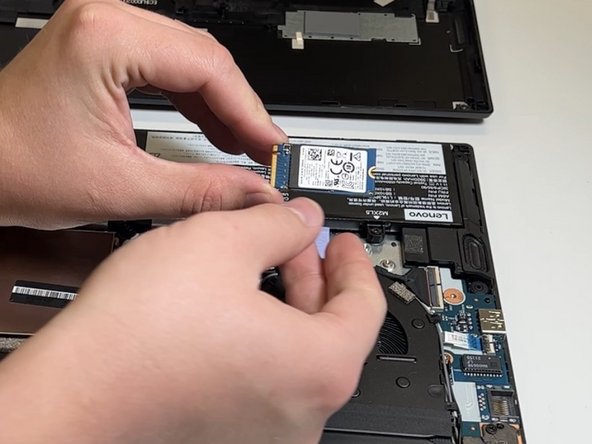
    • Slide the Solid-State Drive out of its slot.

  6. Solid-State Drive Replacement in ThinkPad E14 Gen 2 (AMD): 手順 6、 3の画像 1 Solid-State Drive Replacement in ThinkPad E14 Gen 2 (AMD): 手順 6、 3の画像 2 Solid-State Drive Replacement in ThinkPad E14 Gen 2 (AMD): 手順 6、 3の画像 3
    • Replace the Solid-State Drive with the new one.

  7. Solid-State Drive Replacement in ThinkPad E14 Gen 2 (AMD): 手順 7、 1の画像 1
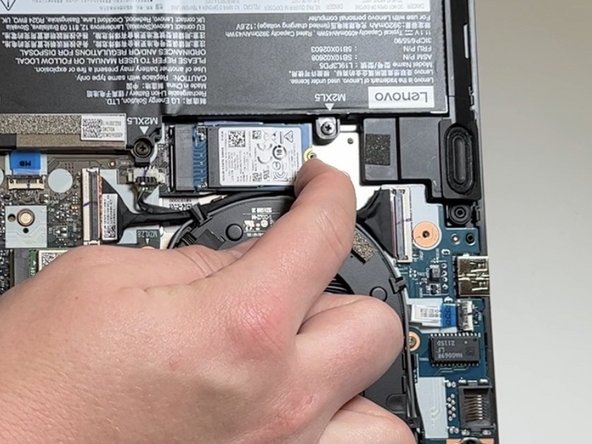
    • Screw in the Solid-State Drive 4 mm Retaining screw in the new Solid-State Drive using the phillips #0 screwdriver.

  8. Solid-State Drive Replacement in ThinkPad E14 Gen 2 (AMD): 手順 8、 1の画像 1
    • Power the laptop back on to ensure the computer starts up without issues.

終わりに

A good end of repair practice is to check to make sure that your laptop powers up safely and is able to boot into the new drive that has been installed in your laptop. Following this repair if your Operating System has not been installed, the next step is to install Windows / whichever Operating System you prefer.

作成者

2人の作成者と共同で作成されました。

Ahmed Alrimawi

メンバー登録日: 10/06/22

157 ポイント

1ガイドが承認済み

チーム

University of North Texas, Team 2-3, Raign Fall 2022 University of North Texas, Team 2-3, Raign Fall 2022人のメンバー

UNT-RAIGN-F22S2G3

2 メンバー

2のガイドは作成済み

0件のガイドコメント

コメントを追加

統計データ:

過去 24時間: 1

過去 7 日: 10

過去 30 日: 80

今までの合計 3,283