メインコンテンツにスキップ
リペアコミュニティに参加 - アカウントの作成

Samsung Jack LCD Replacement

閲覧: 2411

統計データ:

過去24時間:
2
過去7日:
21
過去30日:
94
今までの合計
2,411
コメント: 0

このガイドにコメントを投稿した人はいません。何かコメントはありませんか?(日本語可)

修理ガイドのコメントへ
完了済み: 1

1人のユーザーがこのガイドを使って修理を「完了」させました。あなたも加わりませんか?

お気に入り: 0

誰もこのガイドをお気に入りに登録していません。一番最初の登録者になりませんか?

所要時間: 15分
難易度: 難しい
Samsung Jack LCD Replacement

はじめに

手順 1 に進む ↓

Use this guide to install a new LCD screen.

必要な工具と部品

ツール

    1. Samsung Jack LCD Replacement, Battery: 手順 1、 1の画像 1
      • Slide the battery cover downwards with pressure focused on the center of the cover.

      • Lift the cover off of the phone.

      FixBotに聞いてみる

      コメントを追加

    2. Samsung Jack LCD Replacement: 手順 2、 1の画像 1
      • Grasp the bottom left and right corners of the battery and lift it from its housing.

      FixBotに聞いてみる

      コメントを追加

    1. Samsung Jack LCD Replacement, Rear Case: 手順 3、 1の画像 1
      • Remove the four black 7.30 mm screws surrounding the battery housing using a Phillips #00 Screwdriver.

      FixBotに聞いてみる

      コメントを追加

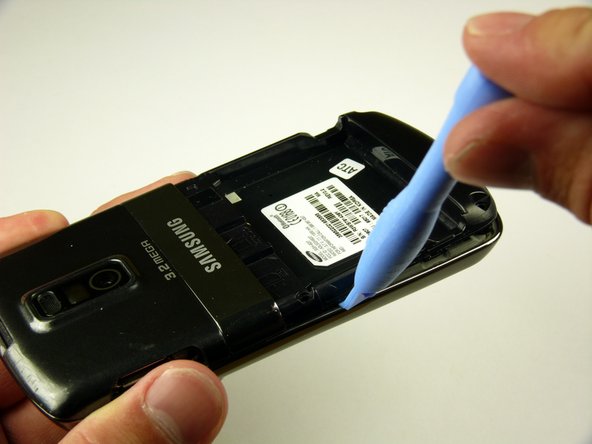
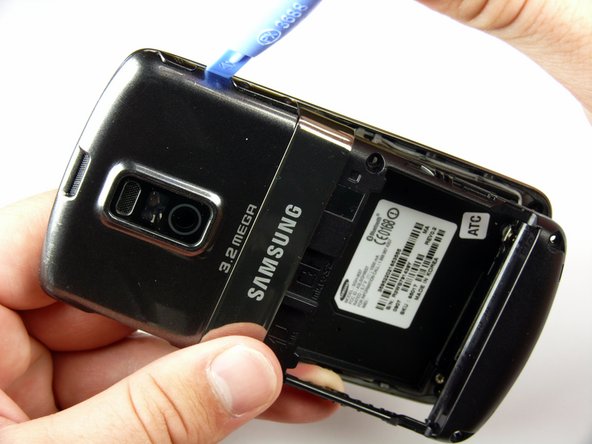
    2. Samsung Jack LCD Replacement: 手順 4、 3の画像 1 Samsung Jack LCD Replacement: 手順 4、 3の画像 2 Samsung Jack LCD Replacement: 手順 4、 3の画像 3
      • The rear case is firmly attached to the phone with clips. Do not be afraid to use a little extra force.

      • Insert the Plastic Opening Tool in between the front and rear cases.

      • Pry with the Plastic Opening Tool around all edges of the phone until you free all the clips.

      FixBotに聞いてみる

      コメントを追加

    3. Samsung Jack LCD Replacement: 手順 5、 1の画像 1
      • Lift the rear case off of the phone.

      FixBotに聞いてみる

      コメントを追加

    1. Samsung Jack LCD Replacement, Antenna: 手順 6、 1の画像 1
      • Remove the two silver 4.30 mm screws on either side of the antenna using a Phillip's #00 Screwdriver.

      FixBotに聞いてみる

      コメントを追加

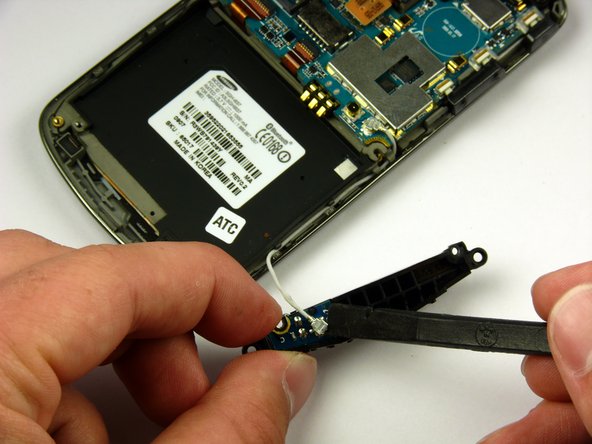
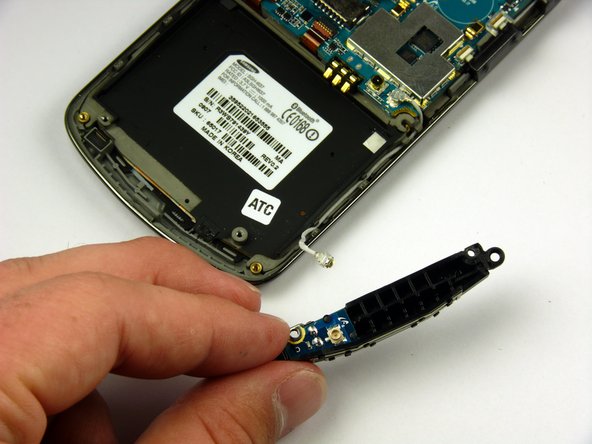
    2. Samsung Jack LCD Replacement: 手順 7、 3の画像 1 Samsung Jack LCD Replacement: 手順 7、 3の画像 2 Samsung Jack LCD Replacement: 手順 7、 3の画像 3
      • There is a wire under the antenna connecting it to the Motherboard. Do not pull off the antenna just yet.

      • Use a spudger to remove the wire connector under the antenna.

      FixBotに聞いてみる

      コメントを追加

    1. Samsung Jack LCD Replacement, Speaker: 手順 8、 1の画像 1
      • Remove the two black 7.30 mm screws on the top right and left corners of the Motherboard using a Phillips #00 Screwdriver.

      • Remove the silver 4.50 mm screw located below the speaker using a Phillips #00 Screwdriver.

      FixBotに聞いてみる

      コメントを追加

    2. Samsung Jack LCD Replacement: 手順 9、 2の画像 1 Samsung Jack LCD Replacement: 手順 9、 2の画像 2
      • Use the spudger to detach the speaker ribbon cable.

      FixBotに聞いてみる

      コメントを追加

    3. Samsung Jack LCD Replacement: 手順 10、 1の画像 1
      • Lift the speaker out of its compartment.

      FixBotに聞いてみる

      コメントを追加

    1. Samsung Jack LCD Replacement, Motherboard: 手順 11、 1の画像 1
      • Remove the power and volume buttons on the right side of the Motherboard.

      FixBotに聞いてみる

      コメントを追加

    2. Samsung Jack LCD Replacement: 手順 12、 2の画像 1 Samsung Jack LCD Replacement: 手順 12、 2の画像 2
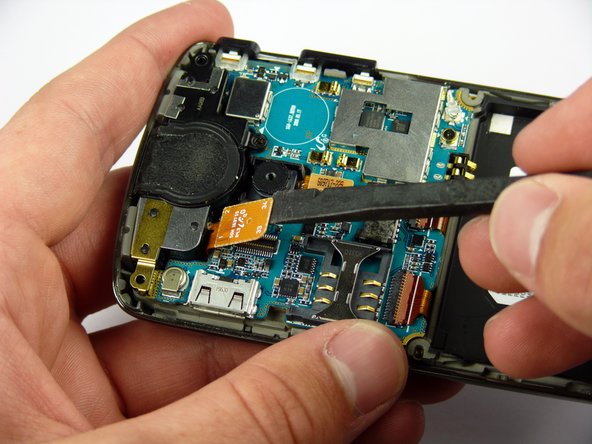
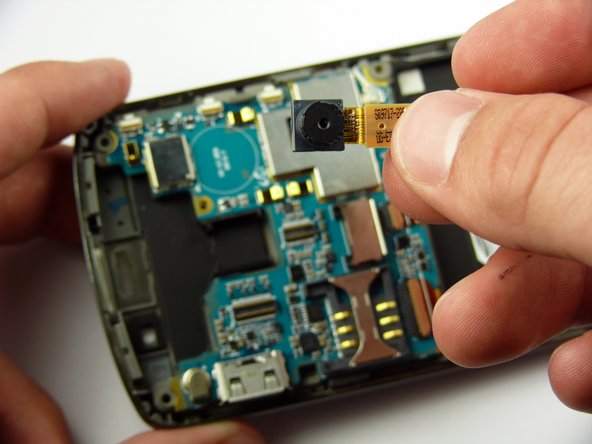
      • Use a spudger to detach the camera ribbon cable.

      • Lift the camera off of the Motherboard.

      FixBotに聞いてみる

      コメントを追加

    3. Samsung Jack LCD Replacement: 手順 13、 2の画像 1 Samsung Jack LCD Replacement: 手順 13、 2の画像 2
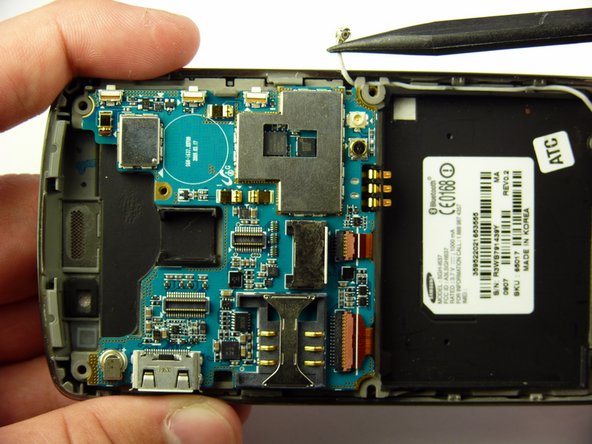
      • Use a spudger to disconnect the white antenna wire on the bottom right corner of the Motherboard.

      FixBotに聞いてみる

      コメントを追加

    4. Samsung Jack LCD Replacement: 手順 14、 3の画像 1 Samsung Jack LCD Replacement: 手順 14、 3の画像 2 Samsung Jack LCD Replacement: 手順 14、 3の画像 3
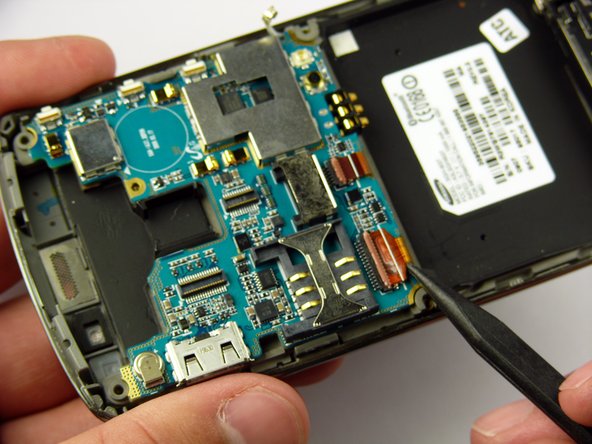
      • Use a Plastic Opening Tool to lift the flaps of the ZIF connectors to release the ribbon cables near the bottom of the Motherboard.

      • Use a spudger to carefully pull the ribbon cables away from the ZIF connectors.

      FixBotに聞いてみる

      コメントを追加

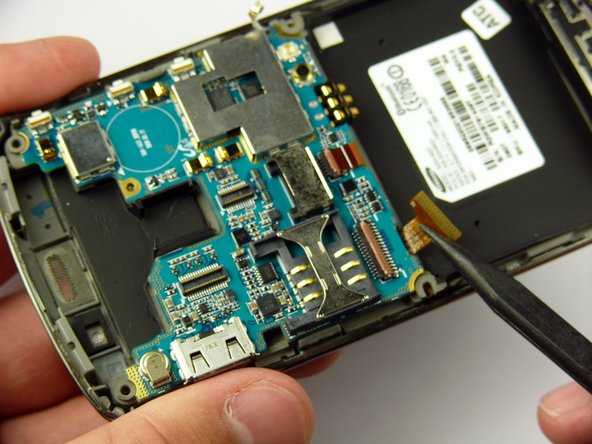
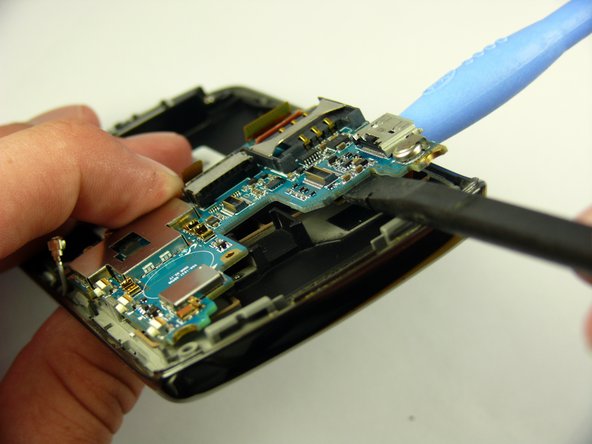
    5. Samsung Jack LCD Replacement: 手順 15、 2の画像 1 Samsung Jack LCD Replacement: 手順 15、 2の画像 2
      • There is a ribbon cable under the Motherboard connecting it to the LCD. Do not pull off the Motherboard just yet.

      • Insert the Plastic Opening Tool under the upper left corner of the Motherboard to help reveal the ribbon cable.

      • Use a spudger to disconnect the Motherboard ribbon cable.

      FixBotに聞いてみる

      コメントを追加

    6. Samsung Jack LCD Replacement: 手順 16、 1の画像 1
      • Lift the Motherboard off of the phone.

      FixBotに聞いてみる

      コメントを追加

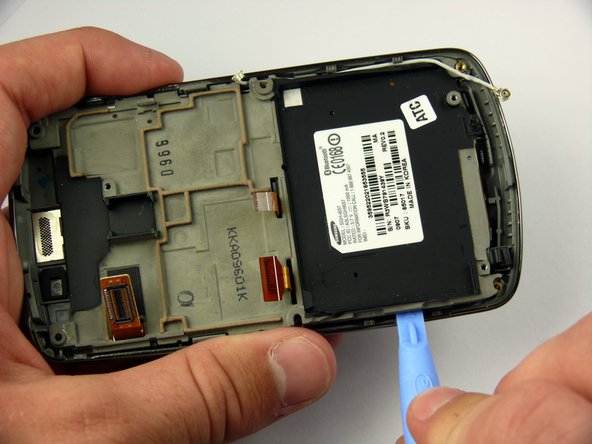
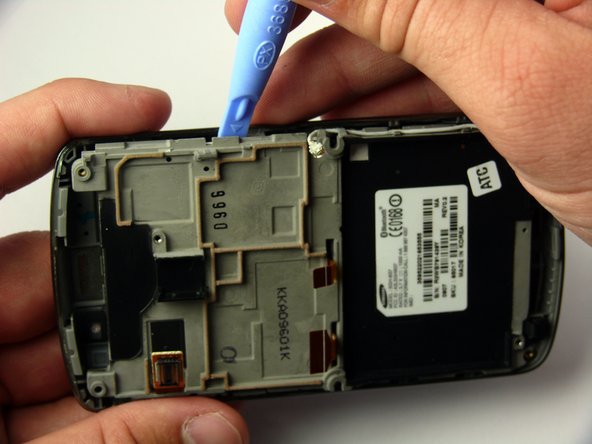
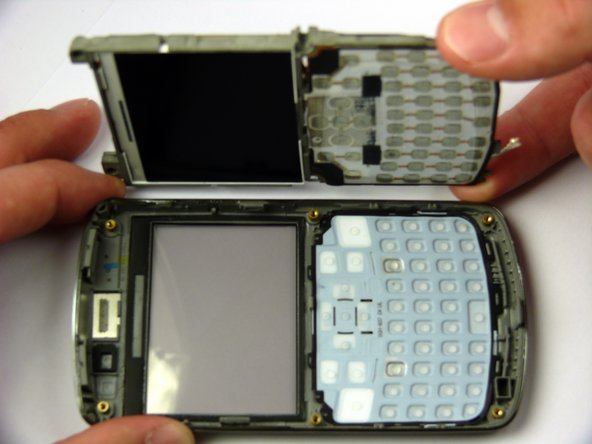
    1. Samsung Jack LCD Replacement, LCD: 手順 17、 3の画像 1 Samsung Jack LCD Replacement, LCD: 手順 17、 3の画像 2 Samsung Jack LCD Replacement, LCD: 手順 17、 3の画像 3
      • The LCD frame is firmly attached to the phone with clips. Do not be afraid to use a little extra force.

      • Insert the Plastic Opening Tool between the LCD frame and the front case of the phone.

      • Slide the Plastic Opening Tool around the LCD frame to detach all of the clips.

      FixBotに聞いてみる

      コメントを追加

    2. Samsung Jack LCD Replacement: 手順 18、 2の画像 1 Samsung Jack LCD Replacement: 手順 18、 2の画像 2
      • Lift up the LCD frame.

      FixBotに聞いてみる

      コメントを追加

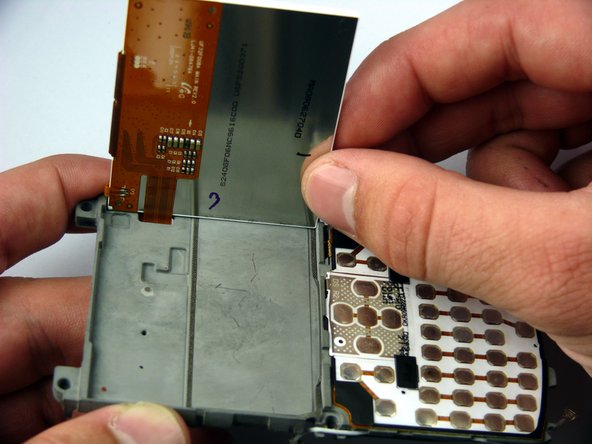
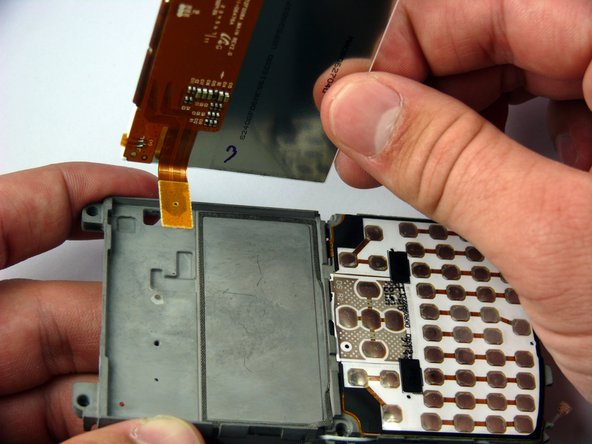
    3. Samsung Jack LCD Replacement: 手順 19、 3の画像 1 Samsung Jack LCD Replacement: 手順 19、 3の画像 2 Samsung Jack LCD Replacement: 手順 19、 3の画像 3
      • There is a hanging ribbon cable connected to the LCD screen that passes through the LCD frame.

      • Insert the spudger under the bottom left corner of the LCD screen.

      • Use the spudger to gently pry the LCD screen out of its frame.

      • Gently remove the screen from the frame.

      FixBotに聞いてみる

      コメントを追加

終わりに

To reassemble your device, follow these instructions in reverse order.

キャンセル: このガイドを終了できませんでした。

ある他の人がこのガイドを完成しました。

作成者

6人の作成者と共同で作成されました。

Paul Piller

メンバー登録日: 04/12/11

56 ポイント

5のガイドは作成済み

チーム

Cal Poly, Team 24-57, Amido Spring 2011 Cal Poly, Team 24-57, Amido Spring 2011人のメンバー

CPSU-AMIDO-S11S24G57

4 メンバー

84のガイドは作成済み

0件のガイドコメント

コメントを追加

統計データ:

過去 24時間: 2

過去 7 日: 21

過去 30 日: 94

今までの合計 2,411