はじめに
Sometimes during printing the paper will become jammed inside the printer. There are three places in which paper can become jammed. The following guide shows you the three different ways of removing the jammed paper depending on where the jam occurs.
-
-
Press the front cover release button.
-
Keep the button pressed and pull the cover toward yourself.
 FixBotに聞いてみる
-
-
-
With the front cover in the downward position, the drum & toner unit will be visible.
-
Grab the black-and-yellow handle on the unit. Lift unit up and pull it out of the printer.
-
-
-
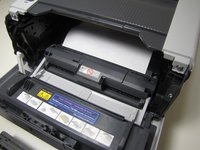
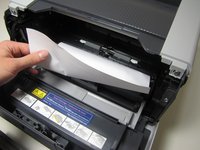
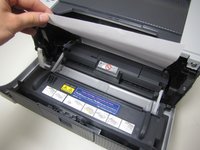
If jammed, paper will be visible after removing the drum unit. To clear paper jam, reach into printer and grab a corner of the paper.
-
Proceed to lift paper up and out of the printer.
-
Jammed paper may require an excess amount of force to be removed from printer.
-
-
-
-
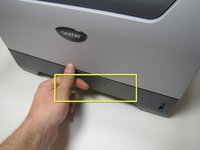
Grab onto the lift located on the paper tray near the bottom on the front of the printer.
-
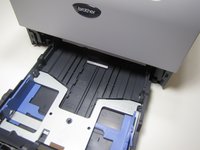
Pull the paper tray completely out of the printer by pulling towards yourself.
-
-
-
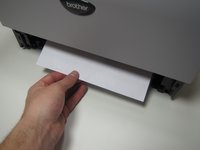
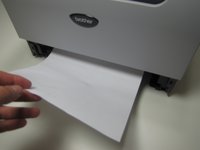
If jammed paper is visible, grab onto the paper and remove by pulling up and towards yourself.
-
-
-
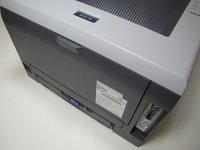
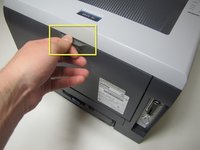
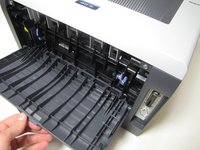
Located on the back of the printer, open up the cover by grabbing onto the tab and pulling down.
-
-
-
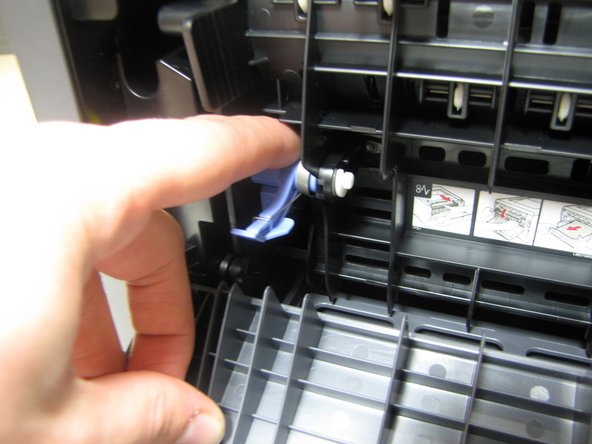
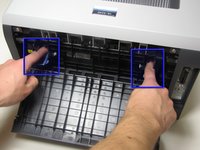
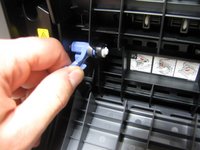
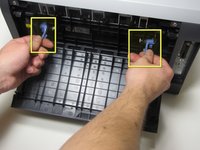
In front of you will see two blue tabs, one on the left and right side.
-
First, push the top part of the tab in until the bottom part of the tab lifts up.
-
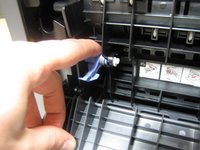
Grab onto the bottom part of the tab.
-
-
-
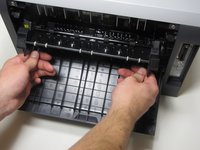
Once you have a firm grib of both the right and left tab, lift both tabs up and towards yourself.
-
-
-
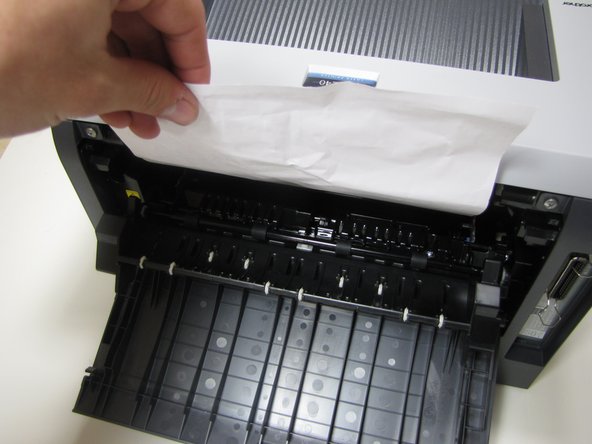
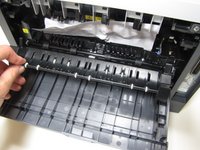
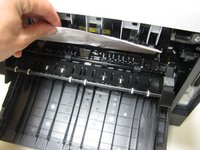
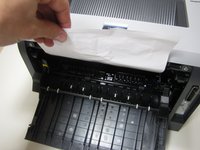
If jammed paper is visible, grab onto the top of the paper and pull up until completely removed from printer.
-
















To reassemble your device, follow these instructions in reverse order.
2 の人々がこのガイドを完成させました。

チーム

Cal Poly, Team 4-14, Forte Winter 2010 Cal Poly, Team 4-14, Forte Winter 2010人のメンバー
CPSU-FORTE-W10S4G14
5 メンバー
10のガイドは作成済み
