メインコンテンツにスキップ
リペアコミュニティに参加 - アカウントの作成

Philips DC320 37 LCD Screen Replacement

必要な工具と部品

  1. Philips DC320 37 LCD Screen Replacement, Docking entertainment system: 手順 1、 1の画像 1
    • Pry off the four white feet with the pointed end of the spudger

    FixBotに聞いてみる

    コメントを追加

  2. Philips DC320 37 LCD Screen Replacement: 手順 2、 1の画像 1
    • Gently unscrew the four 15.5 mm Phillips #2 screws that hold the bottom panel to the dock.

    FixBotに聞いてみる

    コメントを追加

  3. Philips DC320 37 LCD Screen Replacement: 手順 3、 1の画像 1
    • Use the flat end of the spudger to pry the lid off from the two connectors holding it to the body of the dock.

    • The connectors on the panel are fragile and may break.

    FixBotに聞いてみる

    コメントを追加

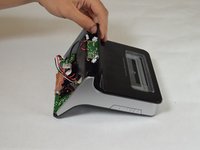
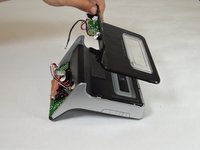
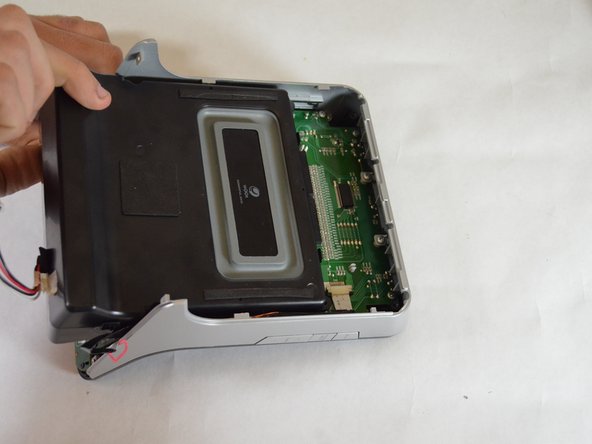
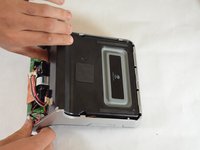
  4. Philips DC320 37 LCD Screen Replacement: 手順 4、 3の画像 1 Philips DC320 37 LCD Screen Replacement: 手順 4、 3の画像 2 Philips DC320 37 LCD Screen Replacement: 手順 4、 3の画像 3
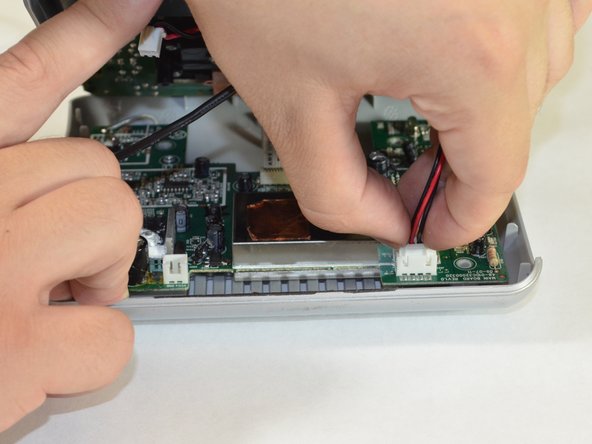
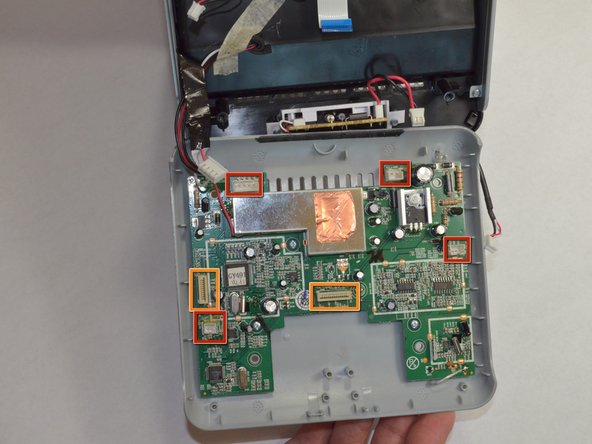
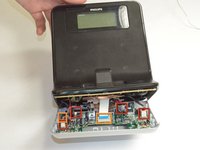
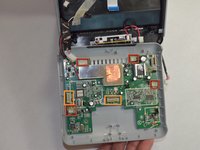
    • Carefully pull up and out the four electrical connectors and two ribbon connectors that connect the bottom panel to the dock.

    • Electrical Connectors

    • Ribbon Connectors

    • The cables do not have a lot of slack in them. Be careful not to break the connectors.

    • One wire is soldered onto the bottom panel. Be careful not to break this bond.

    FixBotに聞いてみる

    コメントを追加

  5. Philips DC320 37 LCD Screen Replacement, Speaker: 手順 5、 1の画像 1
    • Unscrew the two 6 mm Phillips #00 screws attaching the back panel to device.

    FixBotに聞いてみる

    コメントを追加

  6. Philips DC320 37 LCD Screen Replacement: 手順 6、 3の画像 1 Philips DC320 37 LCD Screen Replacement: 手順 6、 3の画像 2 Philips DC320 37 LCD Screen Replacement: 手順 6、 3の画像 3
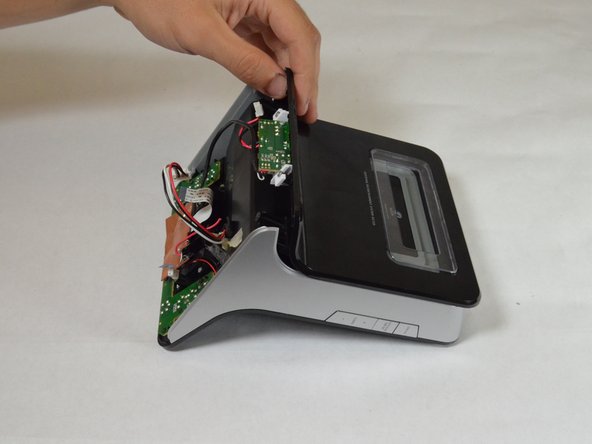
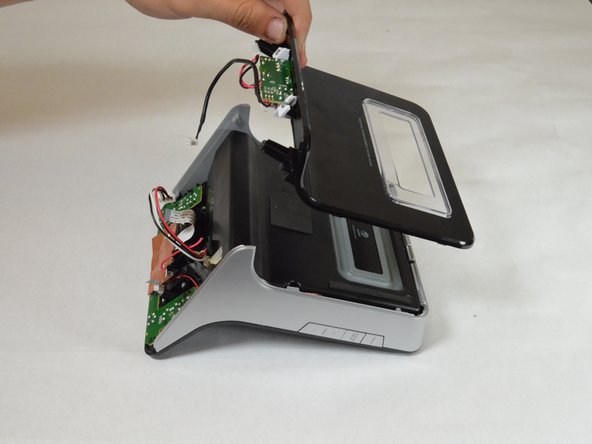
    • Slide the back panel towards top of the device and lift away from the device to detach back panel.

    FixBotに聞いてみる

    コメントを追加

  7. Philips DC320 37 LCD Screen Replacement: 手順 7、 1の画像 1
    • Unscrew the four 16 mm Phillips #2 screws attaching the speaker unit to device.

    FixBotに聞いてみる

    コメントを追加

  8. Philips DC320 37 LCD Screen Replacement: 手順 8、 2の画像 1 Philips DC320 37 LCD Screen Replacement: 手順 8、 2の画像 2
    • Slide the speaker towards the bottom of the device to remove.

    FixBotに聞いてみる

    コメントを追加

  9. Philips DC320 37 LCD Screen Replacement, LCD Screen: 手順 9、 3の画像 1 Philips DC320 37 LCD Screen Replacement, LCD Screen: 手順 9、 3の画像 2 Philips DC320 37 LCD Screen Replacement, LCD Screen: 手順 9、 3の画像 3
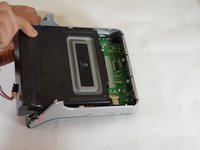
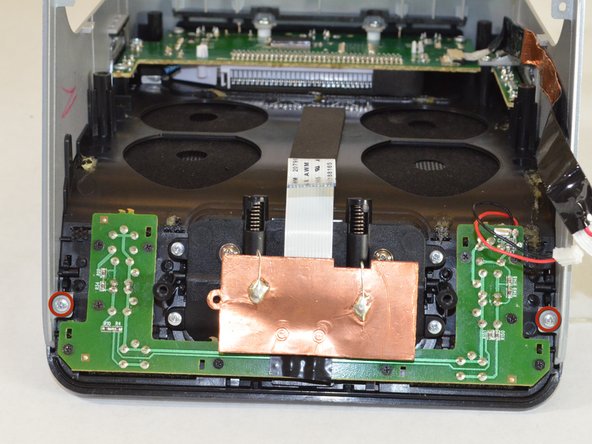
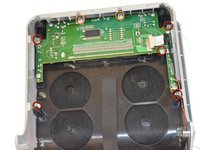
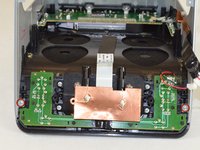
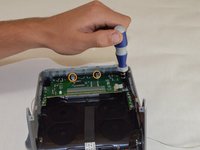
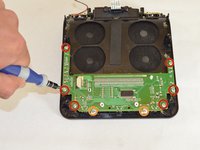
    • Unscrew the seven 6 mm Phillips #00 screws holding the grey side piece to the black front panel.

    • Five of the Phillips #00 screws are on the LCD board. The other two are on the dock's bottom circuit board.

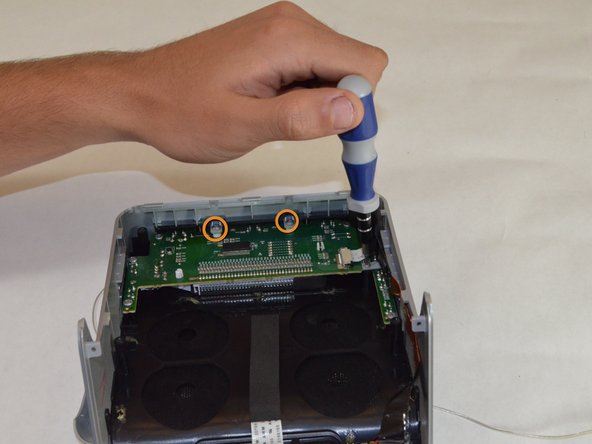
    • Unscrew the two 8 mm Phillips #1 screws that go through the grey piece and the LCD motherboard.

    FixBotに聞いてみる

    コメントを追加

  10. Philips DC320 37 LCD Screen Replacement: 手順 10、 1の画像 1
    • Remove the ribbon cable from the ZIF connector by pulling out the two black tabs with the pointed end of the spudger then pulling the cable straight out of the connector.

    FixBotに聞いてみる

    コメントを追加

  11. Philips DC320 37 LCD Screen Replacement: 手順 11、 2の画像 1 Philips DC320 37 LCD Screen Replacement: 手順 11、 2の画像 2
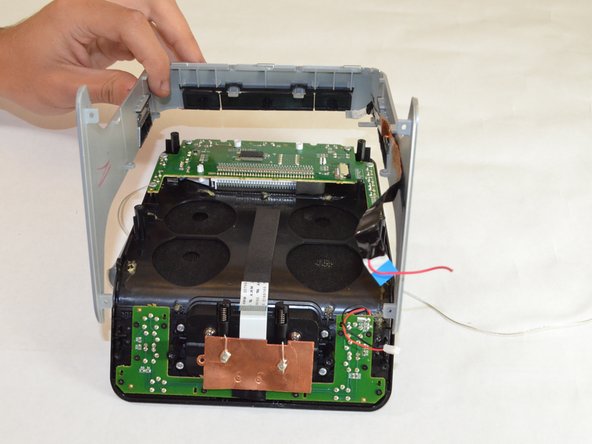
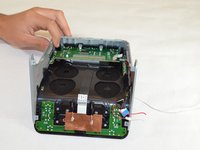
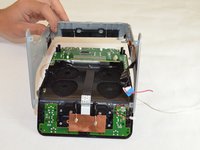
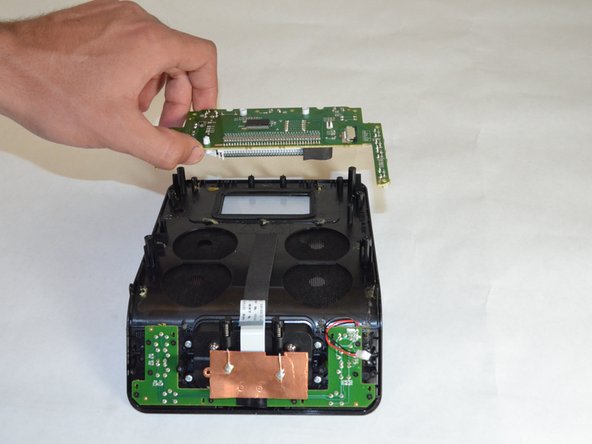
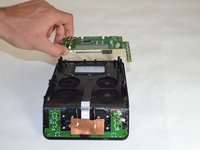
    • Remove the grey side piece from the black front panel by pulling it straight up. It should easily slide off.

    FixBotに聞いてみる

    コメントを追加

  12. Philips DC320 37 LCD Screen Replacement: 手順 12、 2の画像 1 Philips DC320 37 LCD Screen Replacement: 手順 12、 2の画像 2
    • Unscrew the six 8 mm Phillips #1 screws holding the LCD screen to the black front panel.

    • Unscrew the two 6 mm Phillips #00 screws from the top of the panel holding the the LCD screen to the front panel.

    • Pull the LCD and circuit board off of the front panel.

    FixBotに聞いてみる

    コメントを追加

終わりに

To reassemble your device, follow these instructions in reverse order.

キャンセル: このガイドを終了できませんでした。

作成者

5人の作成者と共同で作成されました。

Greg Lane

メンバー登録日: 04/16/13

39 ポイント

4のガイドは作成済み

チーム

Cal Poly, Team 3-48, Amido Spring 2013 Cal Poly, Team 3-48, Amido Spring 2013人のメンバー

CPSU-AMIDO-S13S3G48

4 メンバー

7のガイドは作成済み

0件のガイドコメント

コメントを追加

統計データ:

過去 24時間: 0

過去 7 日: 2

過去 30 日: 28

今までの合計 1,758