メインコンテンツにスキップ
リペアコミュニティに参加 - アカウントの作成

Nook Tablet Speaker Assembly Replacement

必要な工具と部品

    1. Nook Tablet Speaker Assembly Replacement, Back Cover: 手順 1、 1の画像 1
      • Flip the Nook over.

      FixBotに聞いてみる

      コメントを追加

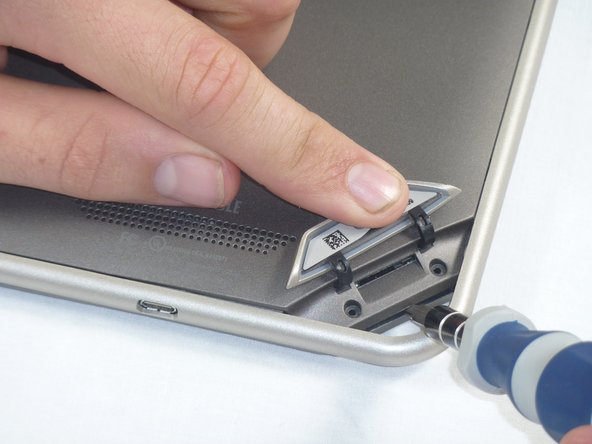
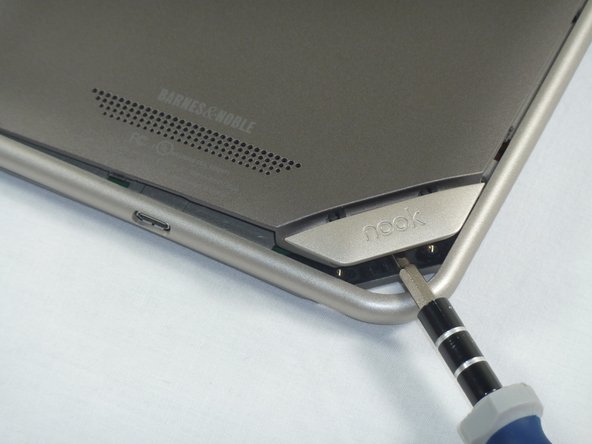
    2. Nook Tablet Speaker Assembly Replacement: 手順 2、 2の画像 1 Nook Tablet Speaker Assembly Replacement: 手順 2、 2の画像 2
      • Lift the flap that reads "Nook" to reveal the tape that is underneath. Remove the memory card if one is present.

      • Remove the tape covering the round holes to reveal two T5 Torx screws.

      • Remove the two T5 Torx screws securing the back cover.

      FixBotに聞いてみる

      コメントを追加

    3. Nook Tablet Speaker Assembly Replacement: 手順 3、 2の画像 1 Nook Tablet Speaker Assembly Replacement: 手順 3、 2の画像 2
      • Insert the flat end of a spudger between the front panel and the rear assembly.

      • Though these photos show a screwdriver, use a spudger or plastic opening tool in order to prevent damage to the device.

      • Use a spudger to lift the the back panel from the rest of the Nook.

      FixBotに聞いてみる

      コメントを追加

    4. Nook Tablet Speaker Assembly Replacement: 手順 4、 2の画像 1 Nook Tablet Speaker Assembly Replacement: 手順 4、 2の画像 2
      • Slide the spudger around the edges of the Nook to loosen the back panel.

      FixBotに聞いてみる

      コメントを追加

    5. Nook Tablet Speaker Assembly Replacement: 手順 5、 1の画像 1
      • Pull the back panel off the Nook.

      FixBotに聞いてみる

      コメントを追加

    1. Nook Tablet Speaker Assembly Replacement, Screen Bezel: 手順 6、 2の画像 1 Nook Tablet Speaker Assembly Replacement, Screen Bezel: 手順 6、 2の画像 2
      • Using the T5 Torx screwdriver, remove the ten T5 screws from around the edges of the silver midframe.

      FixBotに聞いてみる

      コメントを追加

    2. Nook Tablet Speaker Assembly Replacement: 手順 7、 2の画像 1 Nook Tablet Speaker Assembly Replacement: 手順 7、 2の画像 2
      • Using a spudger or plastic opening tool, carefully pry the screen bezel away from the silver midframe.

      FixBotに聞いてみる

      コメントを追加

    1. Nook Tablet Speaker Assembly Replacement, Disconnect the Battery: 手順 8、 2の画像 1 Nook Tablet Speaker Assembly Replacement, Disconnect the Battery: 手順 8、 2の画像 2
      • Lift up the foam pad at the corner of the battery to reveal the battery connector.

      • Use a spudger or plastic opening tool to disconnect the battery cable from the motherboard.

      • These photos show a screwdriver, but we recommend using a nonconductive tool like a spudger to prevent a potential short.

      FixBotに聞いてみる

      コメントを追加

    1. Nook Tablet Speaker Assembly Replacement, Midframe: 手順 9、 1の画像 1
      • Lift up the foam that covers the power connector and volume connector.

      • Disconnect the power and volume cables from their sockets on the motherboard.

      FixBotに聞いてみる

      コメントを追加

    2. Nook Tablet Speaker Assembly Replacement: 手順 10、 2の画像 1 Nook Tablet Speaker Assembly Replacement: 手順 10、 2の画像 2
      • Carefully lift the silver midframe away from the motherboard and display assembly.

      • Be careful when handling the motherboard, making sure to not dislodge/shift any of its major components.

      FixBotに聞いてみる

      コメントを追加

    1. Nook Tablet Speaker Assembly Replacement, Removing Speaker Assembly: 手順 11、 1の画像 1
      • Using your hands pull the square speaker assembly component off the motherboard.

      FixBotに聞いてみる

      コメントを追加

    2. Nook Tablet Speaker Assembly Replacement, Replacing Speaker Assembly: 手順 12、 1の画像 1
      • Now place the new speaker assembly component back in the same square location.

      • As Step 12 mentions, make sure to realign the speaker assembly correctly in the square.

      FixBotに聞いてみる

      コメントを追加

終わりに

To reassemble your device, follow these instructions in reverse order.

キャンセル: このガイドを終了できませんでした。

ある他の人がこのガイドを完成しました。

作成者

6人の作成者と共同で作成されました。

Josh Fisher

メンバー登録日: 09/26/12

9 ポイント

1ガイドが承認済み

チーム

Cal Poly, Team 1-4, Propen Fall 2012 Cal Poly, Team 1-4, Propen Fall 2012人のメンバー

CPSU-PROPEN-F12S1G4

4 メンバー

14のガイドは作成済み

0件のガイドコメント

コメントを追加

統計データ:

過去 24時間: 2

過去 7 日: 6

過去 30 日: 36

今までの合計 2,521