メインコンテンツにスキップ
リペアコミュニティに参加 - アカウントの作成

MacBook Air & MacBook Pro (Newer than 2019) Sticky Key Fix

必要な工具と部品

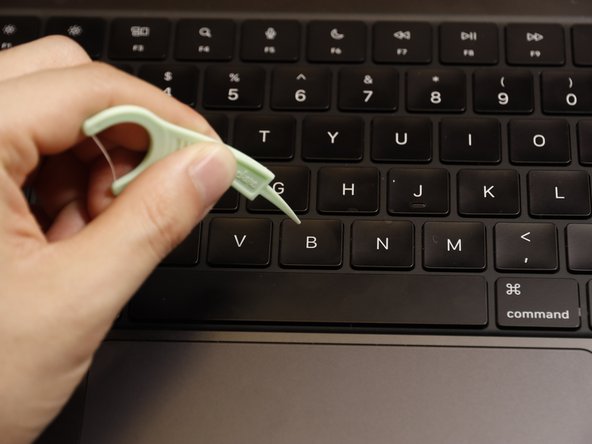
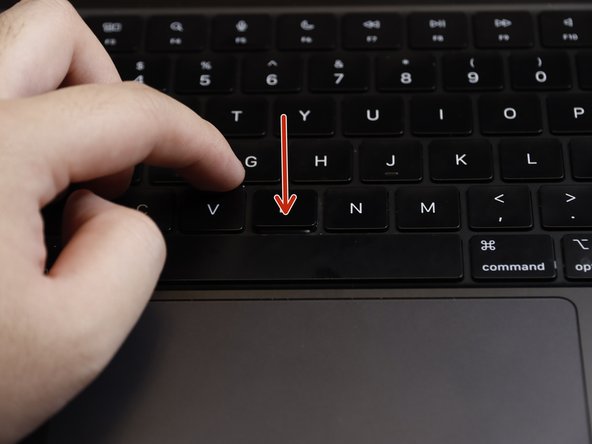
    1. MacBook Air & MacBook Pro (Newer than 2019) Sticky Key Fix, MacBook Air & MacBook Pro (Newer than 2019) Sticky Key Fix: 手順 1、 2の画像 1 MacBook Air & MacBook Pro (Newer than 2019) Sticky Key Fix, MacBook Air & MacBook Pro (Newer than 2019) Sticky Key Fix: 手順 1、 2の画像 2
      • Unplug and shut down your laptop.

      FixBotに聞いてみる

      コメントを追加

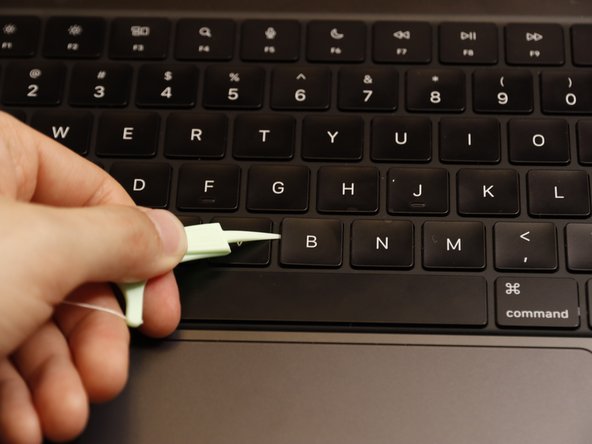
    2. MacBook Air & MacBook Pro (Newer than 2019) Sticky Key Fix: 手順 2、 3の画像 1 MacBook Air & MacBook Pro (Newer than 2019) Sticky Key Fix: 手順 2、 3の画像 2 MacBook Air & MacBook Pro (Newer than 2019) Sticky Key Fix: 手順 2、 3の画像 3
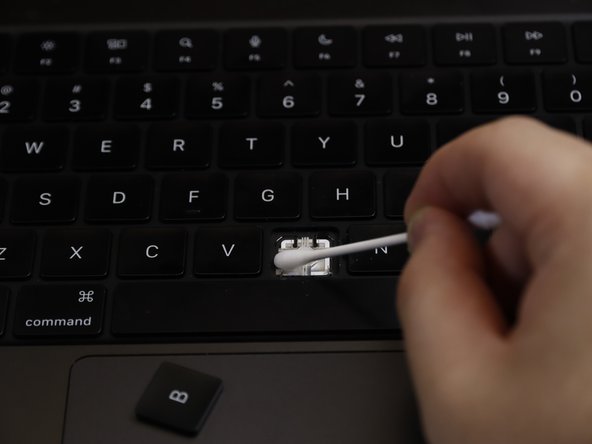
      • Dip a cotton swab into high-concentration isopropyl alcohol and clean the surface/surroundings of the keycap.

      FixBotに聞いてみる

      コメントを追加

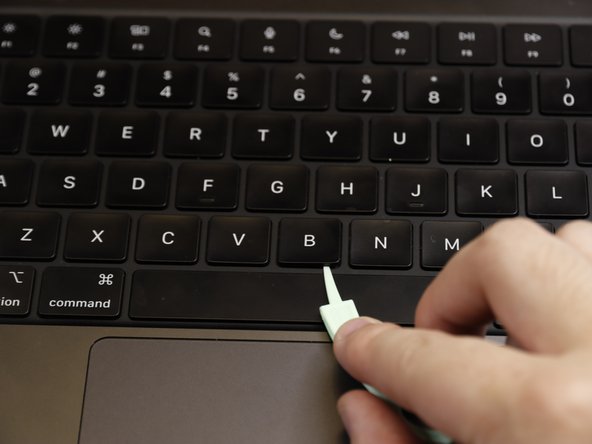
    3. MacBook Air & MacBook Pro (Newer than 2019) Sticky Key Fix: 手順 3、 2の画像 1 MacBook Air & MacBook Pro (Newer than 2019) Sticky Key Fix: 手順 3、 2の画像 2
      • Use a toothpick to gently remove crumbs or debris stuck in the gap between the keyboard metal and keycaps.

      FixBotに聞いてみる

      コメントを追加

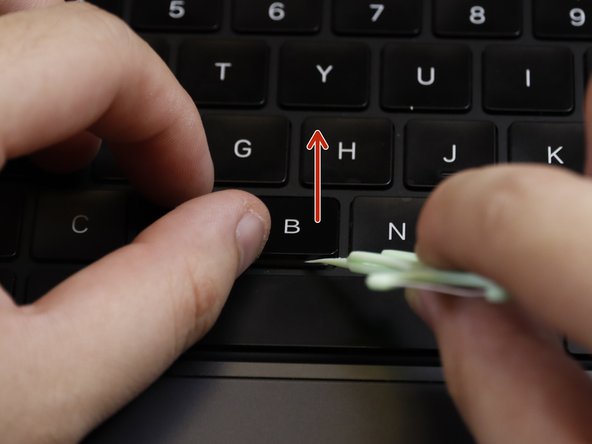
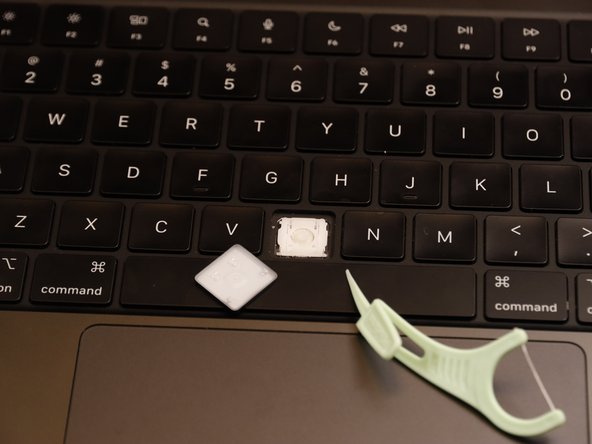
    4. MacBook Air & MacBook Pro (Newer than 2019) Sticky Key Fix: 手順 4、 3の画像 1 MacBook Air & MacBook Pro (Newer than 2019) Sticky Key Fix: 手順 4、 3の画像 2 MacBook Air & MacBook Pro (Newer than 2019) Sticky Key Fix: 手順 4、 3の画像 3
      • Gently use the toothpick to pry up sticky key(s) from the bottom of the keycaps.

      FixBotに聞いてみる

      コメントを追加

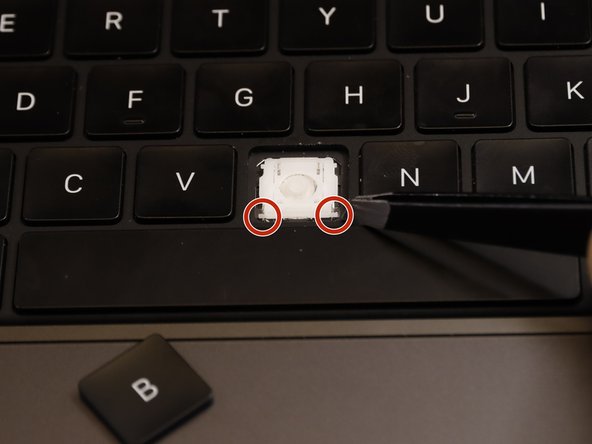
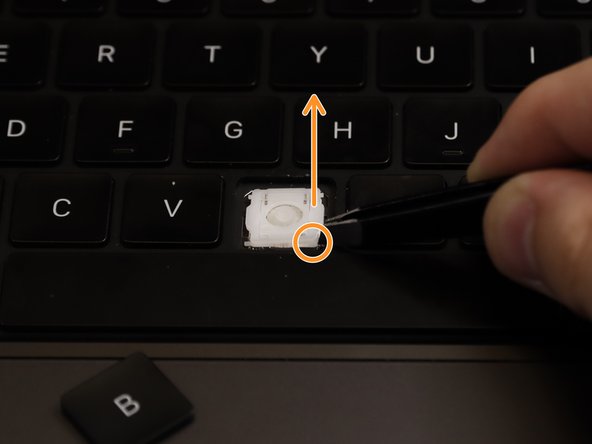
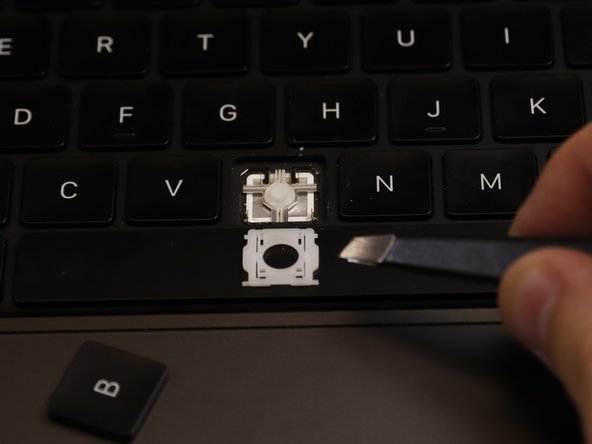
    5. MacBook Air & MacBook Pro (Newer than 2019) Sticky Key Fix: 手順 5、 3の画像 1 MacBook Air & MacBook Pro (Newer than 2019) Sticky Key Fix: 手順 5、 3の画像 2 MacBook Air & MacBook Pro (Newer than 2019) Sticky Key Fix: 手順 5、 3の画像 3
      • Remove the 2 plastic key carrier parts using tweezers.

      • Use tweezers to grab one side of the tip (circled in orange) of the carrier parts and pull it out. Do the same thing on the other side of the tip.

      FixBotに聞いてみる

      コメントを追加

    6. MacBook Air & MacBook Pro (Newer than 2019) Sticky Key Fix: 手順 6、 1の画像 1
      • Use cotton swabs with damp with high-concentration isopropyl alcohol to clean the part underneath the key carriers.

      FixBotに聞いてみる

      コメントを追加

    7. MacBook Air & MacBook Pro (Newer than 2019) Sticky Key Fix: 手順 7、 3の画像 1 MacBook Air & MacBook Pro (Newer than 2019) Sticky Key Fix: 手順 7、 3の画像 2 MacBook Air & MacBook Pro (Newer than 2019) Sticky Key Fix: 手順 7、 3の画像 3
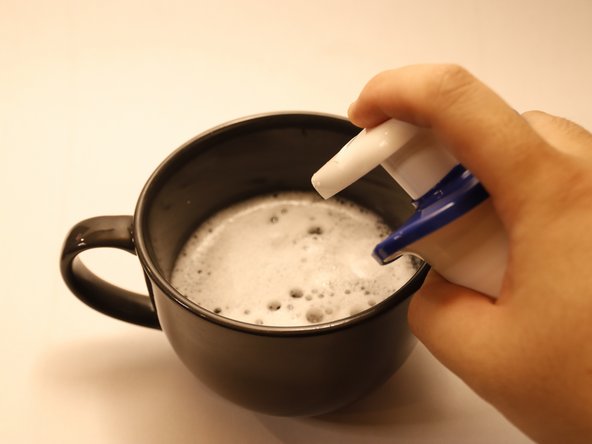
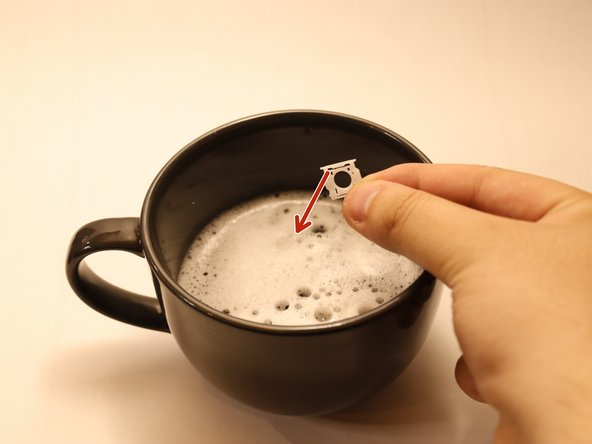
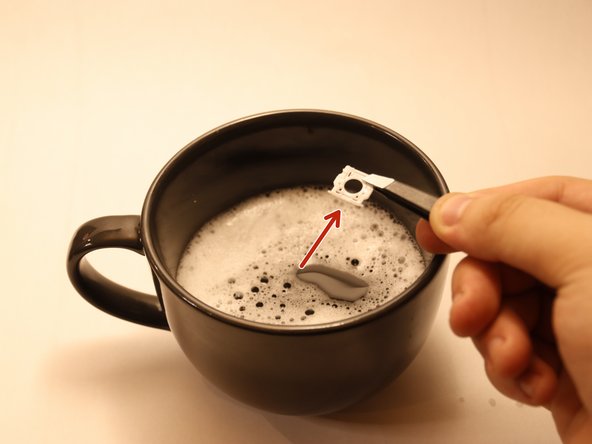
      • Put dish soap and warm water in a cup and soak the 2 key carriers in the cup for 10 min.

      • Stirring may help.

      FixBotに聞いてみる

      コメントを追加

    8. MacBook Air & MacBook Pro (Newer than 2019) Sticky Key Fix: 手順 8、 3の画像 1 MacBook Air & MacBook Pro (Newer than 2019) Sticky Key Fix: 手順 8、 3の画像 2 MacBook Air & MacBook Pro (Newer than 2019) Sticky Key Fix: 手順 8、 3の画像 3
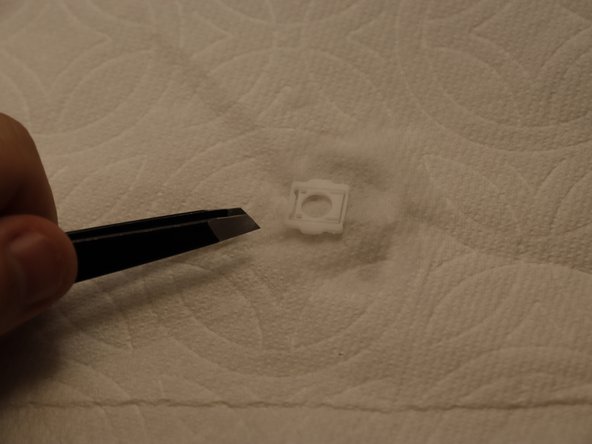
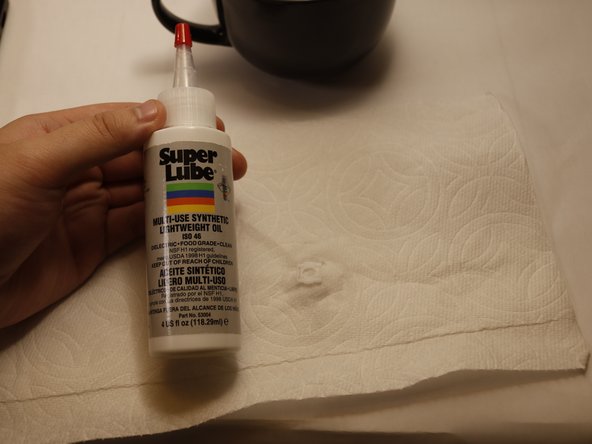
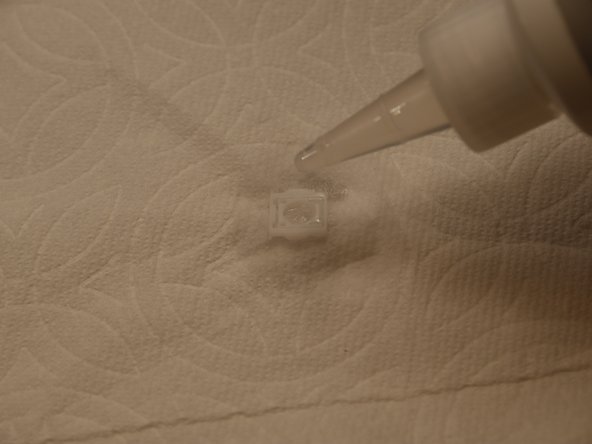
      • Let the carrier parts dry on a tissue paper.

      • Use The Super Lube LightWeight Synthetic Oil to lube the 2 carriers before assembling them, especially the parts that contact with other parts.

      FixBotに聞いてみる

      コメントを追加

    9. MacBook Air & MacBook Pro (Newer than 2019) Sticky Key Fix: 手順 9、 2の画像 1 MacBook Air & MacBook Pro (Newer than 2019) Sticky Key Fix: 手順 9、 2の画像 2
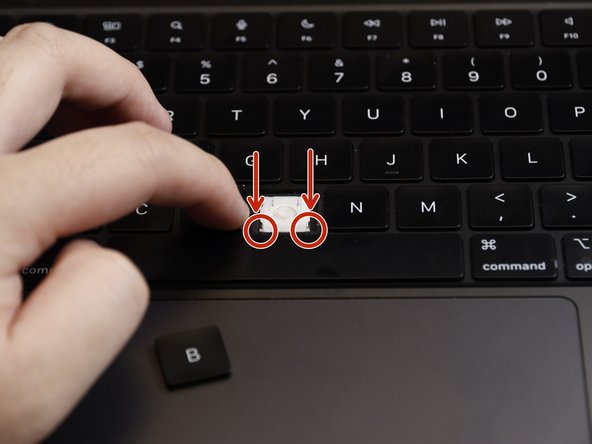
      • Reinstall everything and pop up the keycaps.

      • When the keycaps are reinstalled, slide them to the top of the keycap first, then press down the bottom part until you hear a "click."

      FixBotに聞いてみる

      コメントを追加

終わりに

To reassemble your device, follow these instructions in reverse order.

キャンセル: このガイドを終了できませんでした。

作成者

3人の作成者と共同で作成されました。

Tan

メンバー登録日: 04/15/24

176 ポイント

1ガイドが承認済み

チーム

UC Davis, Team 2-6, Morris Spring 2024 UC Davis, Team 2-6, Morris Spring 2024人のメンバー

UCD-MORRIS-S24S2G6

3 メンバー

12のガイドは作成済み

0件のガイドコメント

コメントを追加

統計データ:

過去 24時間: 6

過去 7 日: 44

過去 30 日: 166

今までの合計 2,421