メインコンテンツにスキップ

Logitech K400r Wireless Keyboard Disassembly & Cleaning

必要な工具と部品

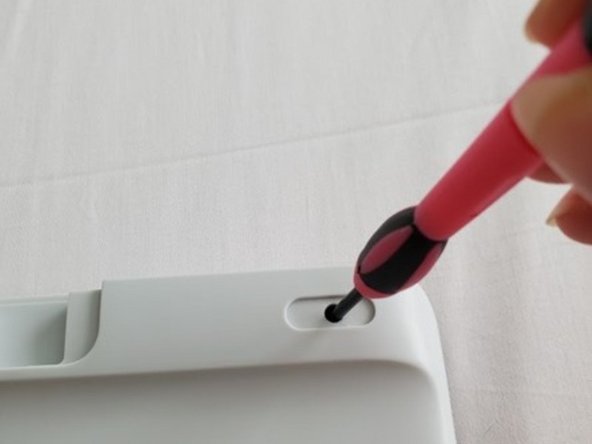
  1. Logitech K400r Wireless Keyboard Disassembly & Cleaning, Keyboard: 手順 1、 1の画像 1
    • Use a small Phillips head screwdriver to unscrew all visible screws on the back of the keyboard.

    • Keep all screws in a safe place for easy reassembly.

    • Ensure the keyboard is shut off before disassembly.

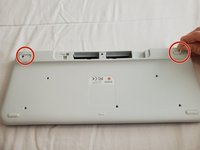
  2. Logitech K400r Wireless Keyboard Disassembly & Cleaning: 手順 2、 2の画像 1 Logitech K400r Wireless Keyboard Disassembly & Cleaning: 手順 2、 2の画像 2
    • Remove the battery port so that the batteries are exposed and take them out.

    • Unscrew the screw that is located in the battery port.

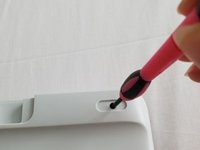
  3. Logitech K400r Wireless Keyboard Disassembly & Cleaning: 手順 3、 2の画像 1 Logitech K400r Wireless Keyboard Disassembly & Cleaning: 手順 3、 2の画像 2
    • Remove the two rubber pieces off the top of the keyboard.

    • Unscrew screws located under the rubber pieces.

  4. Logitech K400r Wireless Keyboard Disassembly & Cleaning: 手順 4、 1の画像 1
    • Unscrew the screws located under the label in the center of the back of the keyboard.

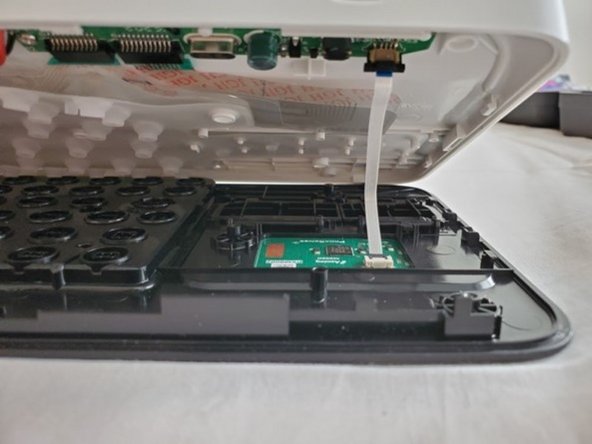
  5. Logitech K400r Wireless Keyboard Disassembly & Cleaning: 手順 5、 2の画像 1 Logitech K400r Wireless Keyboard Disassembly & Cleaning: 手順 5、 2の画像 2
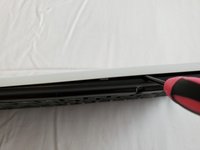
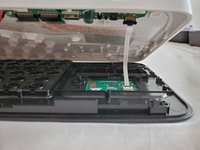
    • Once you have removed all screws from the exterior, the keyboard should be able to split open and come apart.

    • Carefully pry open the keyboard. You can use your screwdriver or any prying tool.

  6. Logitech K400r Wireless Keyboard Disassembly & Cleaning: 手順 6、 2の画像 1 Logitech K400r Wireless Keyboard Disassembly & Cleaning: 手順 6、 2の画像 2
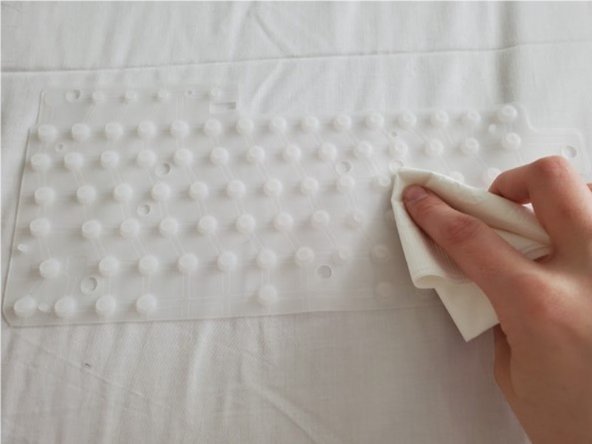
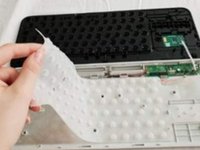
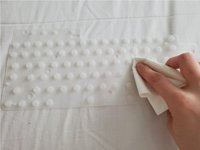
    • Remove the key matrix, which is soft and should be clear or white.

    • Using a dry cloth, lightly wipe off the key matrix.

  7. Logitech K400r Wireless Keyboard Disassembly & Cleaning: 手順 7、 1の画像 1
    • Using a dry cotton swab, lightly dust off the mousepad and area around the keys on the outside of the board.

  8. Logitech K400r Wireless Keyboard Disassembly & Cleaning: 手順 8、 2の画像 1 Logitech K400r Wireless Keyboard Disassembly & Cleaning: 手順 8、 2の画像 2
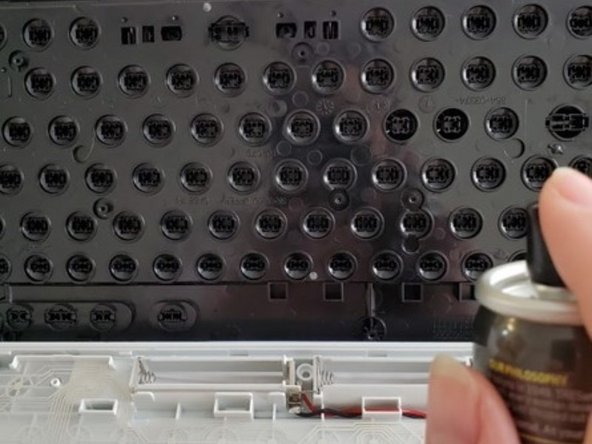
    • Using compressed air, dust in between the key switches and inside the circuit grid.

    • After you have cleaned all components of your keyboard, place the key matrix, key switchboard, and circuit grid back inside the keyboard.

    • Place all screws back into the exterior of the keyboard and screw them in tightly.

    • Place batteries back in battery compartment and close the battery port.

    • Keyboard is reassembled!

ゴール

5 の人々がこのガイドを完成させました。

作成者

1人の作成者と共同作成されました。

Dustie Flowers

メンバー登録日: 11/19/21

283 ポイント

1ガイドが承認済み

1件のガイドコメント

Thanks for the guide.

Should be noted that on newer/older (?) boards, the battery compartment is different, and doesn't have a screw in the middle. Instead a screw is hidden under the little serial number to the side of the battery compartment. there is however no sticker on the middle of the back hiding two screws.

You can also remove the keys, by depressing the two snap-in hooks from the back-side. I had to do this as the stablizer on my enter key (ISO layout) wasn't properly on.

EDIT: Just realized I have a K400 plus. Well those are the only differences, so this guide pretty much applies to that too! :)

Mikkel Jeppesen - 返信

コメントを追加

統計データ:

過去 24時間: 2

過去 7 日: 23

過去 30 日: 150

今までの合計 4,406