メインコンテンツにスキップ

Kindle 10 LED Status Light Replacement

必要な工具と部品

  1. Kindle 10 LED Status Light Replacement, Battery: 手順 1、 2の画像 1 Kindle 10 LED Status Light Replacement, Battery: 手順 1、 2の画像 2
    • Gently use a metal spudger to pry, twist, and lift the bezel away from the display.

  2. Kindle 10 LED Status Light Replacement: 手順 2、 1の画像 1
    • Remove the eight 2.6 mm screws using a T5 Torx screwdriver.

  3. Kindle 10 LED Status Light Replacement: 手順 3、 2の画像 1 Kindle 10 LED Status Light Replacement: 手順 3、 2の画像 2
    • Use the metal spudger to gently lift the screen out of the back frame.

  4. Kindle 10 LED Status Light Replacement: 手順 4、 1の画像 1
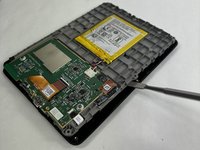
    • Detach the battery connector from the motherboard.

    • The battery pack may be glued on to the gray plastic frame. Take care when prying it out not to rip the battery, since it is made of a lithium polymer which is flammable and deforms easily.

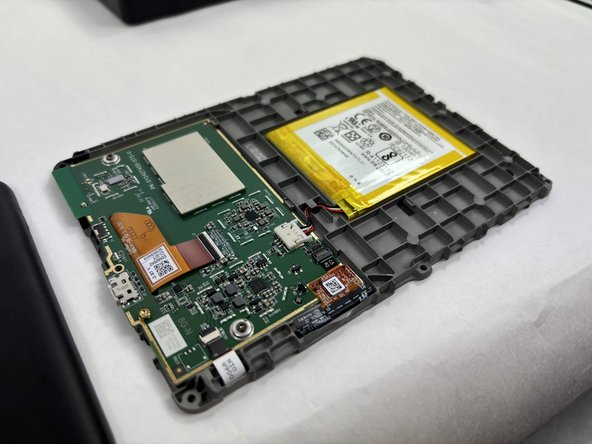
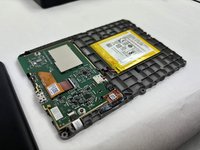
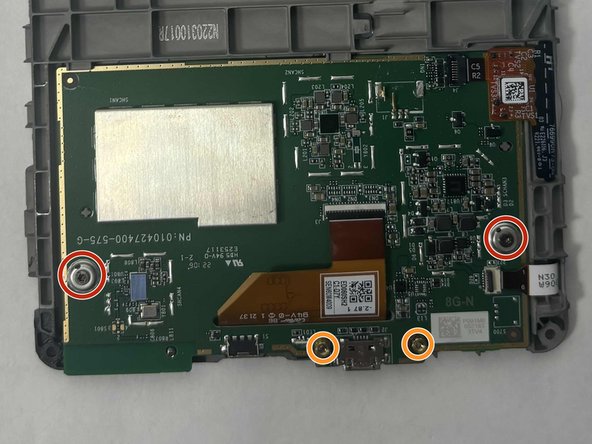
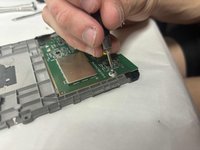
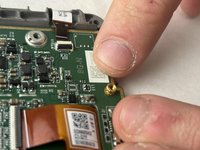
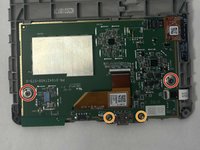
  5. Kindle 10 LED Status Light Replacement, Motherboard: 手順 5、 3の画像 1 Kindle 10 LED Status Light Replacement, Motherboard: 手順 5、 3の画像 2 Kindle 10 LED Status Light Replacement, Motherboard: 手順 5、 3の画像 3
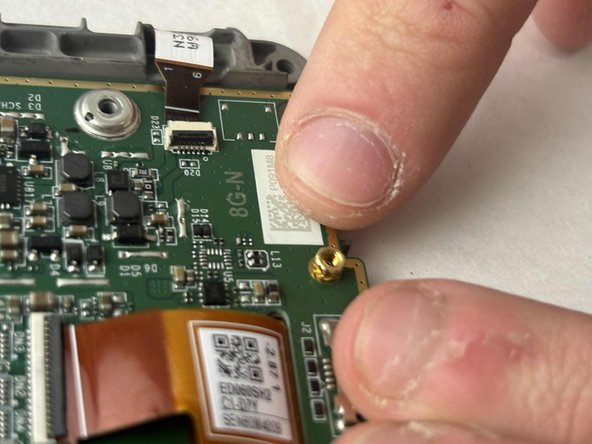
    • Remove the two outer silver screws with a T5 Torx screwdriver.

    • Use your fingers to remove the two gold screws in the middle.

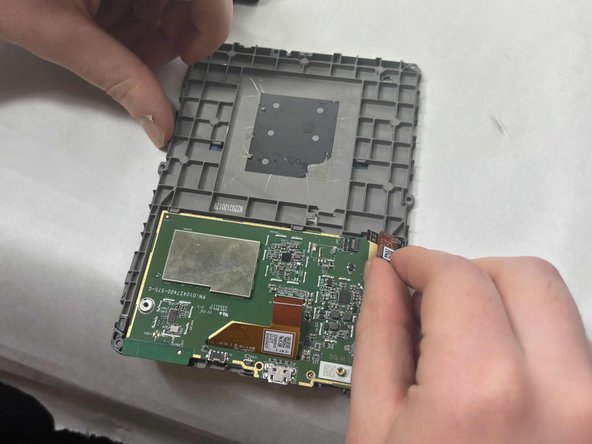
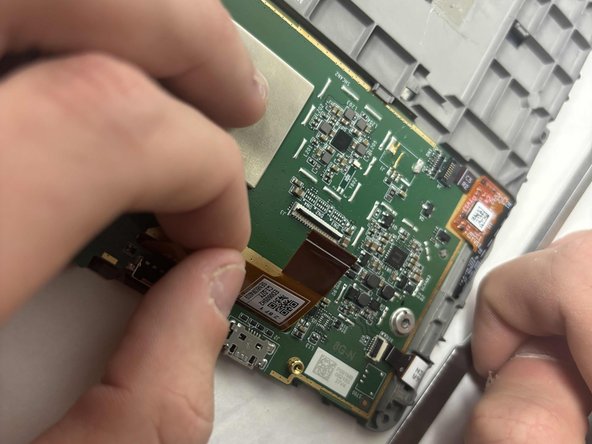
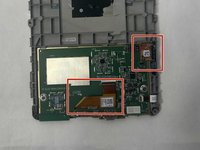
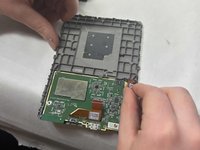
  6. Kindle 10 LED Status Light Replacement: 手順 6、 3の画像 1 Kindle 10 LED Status Light Replacement: 手順 6、 3の画像 2 Kindle 10 LED Status Light Replacement: 手順 6、 3の画像 3
    • Disconnect the two orange clear plastic ribbons on the upper right and center.

  7. Kindle 10 LED Status Light Replacement: 手順 7、 2の画像 1 Kindle 10 LED Status Light Replacement: 手順 7、 2の画像 2
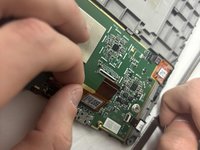
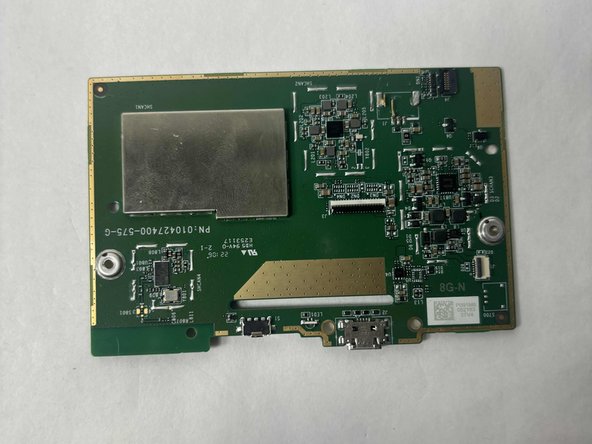
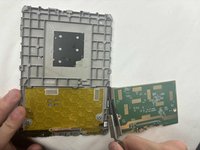
    • Pry the motherboard away from the display frame

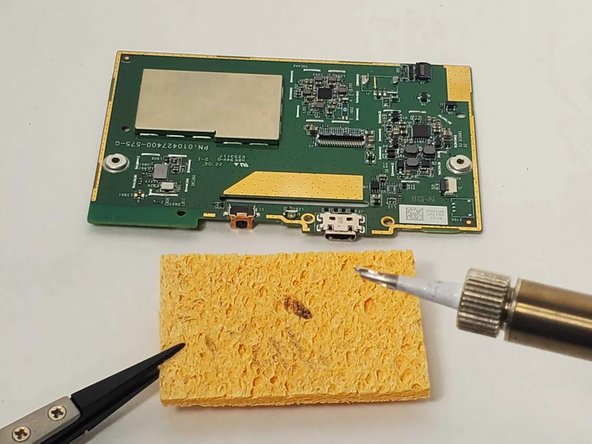
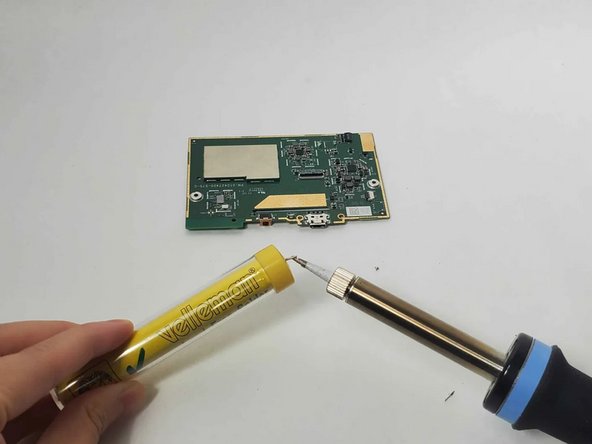
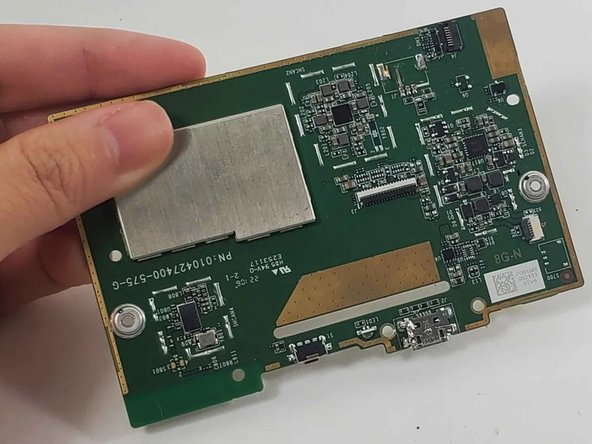
  8. Kindle 10 LED Status Light Replacement, LED Status Light: 手順 8、 3の画像 1 Kindle 10 LED Status Light Replacement, LED Status Light: 手順 8、 3の画像 2 Kindle 10 LED Status Light Replacement, LED Status Light: 手順 8、 3の画像 3
    • Follow the guide How To Solder to prepare your soldering iron.

    • Turn on the soldering iron.

    • Clean the tip after the old solder has melted by dragging it across a sponge.

    • Prime the soldering iron by touching its tip with a dab of lead-free wire. Your soldering iron is ready when the solder readily melts.

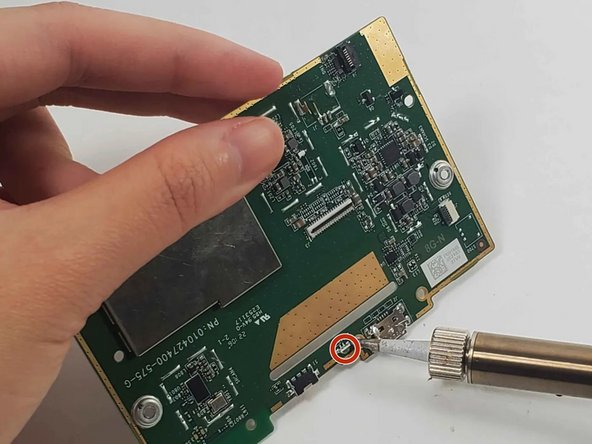
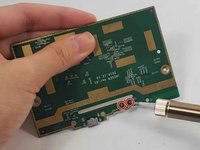
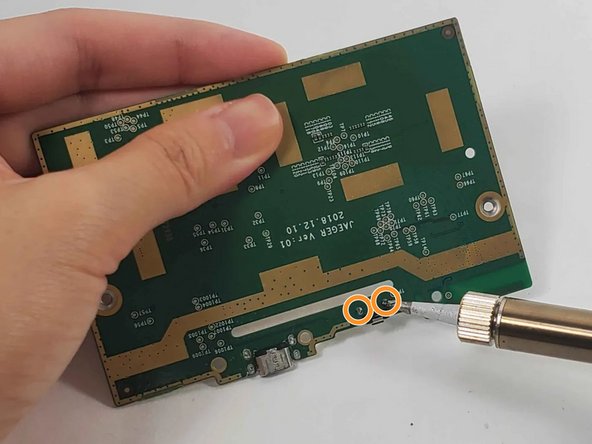
  9. Kindle 10 LED Status Light Replacement: 手順 9、 3の画像 1 Kindle 10 LED Status Light Replacement: 手順 9、 3の画像 2 Kindle 10 LED Status Light Replacement: 手順 9、 3の画像 3
    • Touch the soldering iron's tip to the two joints on the front and back of the LED for 5 seconds, or longer if it is not melted.

    • Use tweezers to pull out the LED once it is loosened.

    • Always use tweezers to handle components near the soldering tip as it will be hot.

  10. Kindle 10 LED Status Light Replacement: 手順 10、 3の画像 1 Kindle 10 LED Status Light Replacement: 手順 10、 3の画像 2 Kindle 10 LED Status Light Replacement: 手順 10、 3の画像 3
    • Search for "Through-Hole Soldering" on this How To Solder guide to ensure you replace and solder the LED correctly.

    • Align your new replacement LED in the correct location.

    • Pull the wires on each side of the new LED through the holes in the circuit where the LED was previously.

    • Solder its joints in the back. Be sure the soldering joints create a concave tent shape indicating a strong connection.

    • Use a tool such as tweezers to hold the new LED in place so that your hands are not near the hot soldering iron.

終わりに

To reassemble your device, follow these instructions in reverse order.

作成者

1人の作成者と共同作成されました。

hzheng2

メンバー登録日: 10/21/24

537 ポイント

4のガイドは作成済み

チーム

UMass Dartmouth, Team 1-2, Konn Fall 2024 UMass Dartmouth, Team 1-2, Konn Fall 2024人のメンバー

UMASSD-KONN-F24S1G2

3 メンバー

5のガイドは作成済み

0件のガイドコメント

コメントを追加

統計データ:

過去 24時間: 0

過去 7 日: 5

過去 30 日: 17

今までの合計 238