メインコンテンツにスキップ

How to Apply Screen Adhesive in Your Microsoft Surface Pro 11

必要な工具と部品

  1. How to Apply Screen Adhesive in Your Microsoft Surface Pro 11, Clean the frame: 手順 1、 3の画像 1 How to Apply Screen Adhesive in Your Microsoft Surface Pro 11, Clean the frame: 手順 1、 3の画像 2 How to Apply Screen Adhesive in Your Microsoft Surface Pro 11, Clean the frame: 手順 1、 3の画像 3
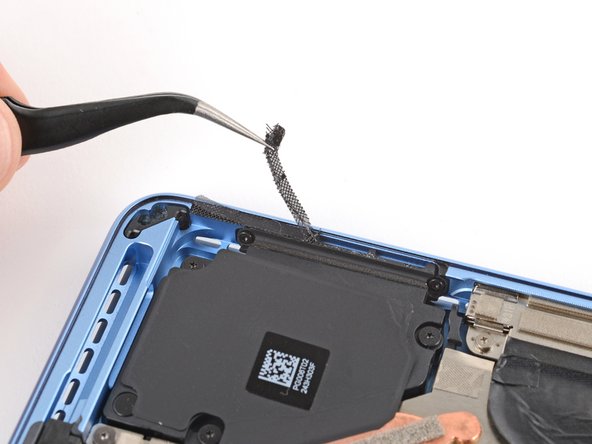
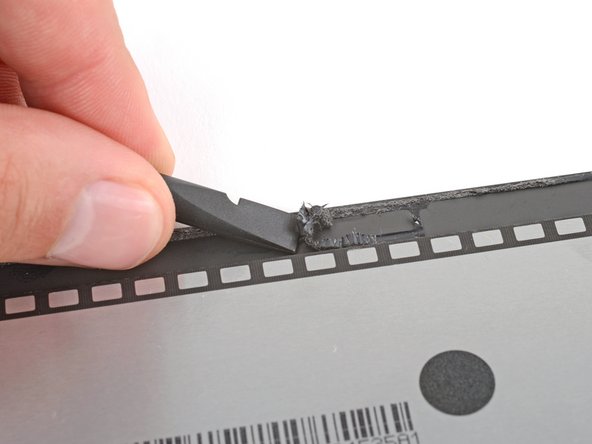
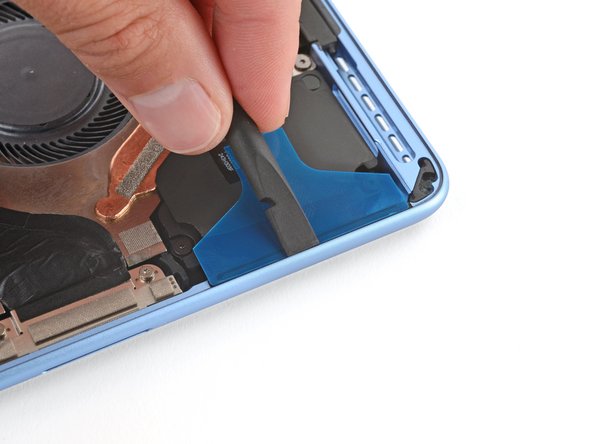
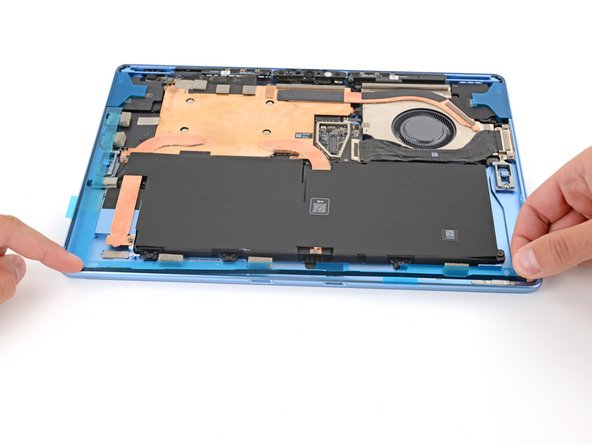
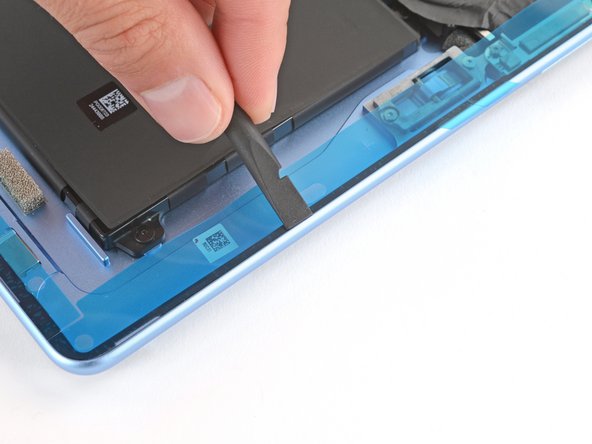
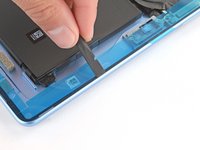
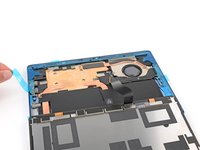
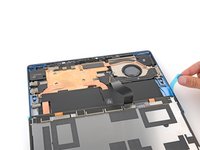
    • Use a spudger and your fingers (or tweezers) to scrape up and remove all the old screen adhesive from the perimeter of the frame.

    • Use tweezers and a spudger to remove both speaker meshes from the frame.

    • If you're reusing your screen, repeat the process to remove any of the old screen adhesive from the perimeter.

    • To prevent damaging your screen, press gently with the spudger and make sure nothing is under the screen while you work.

  2. How to Apply Screen Adhesive in Your Microsoft Surface Pro 11: 手順 2、 2の画像 1 How to Apply Screen Adhesive in Your Microsoft Surface Pro 11: 手順 2、 2の画像 2
    • Take your time and be very thorough during this step. A clean frame allows replacement adhesive to lay evenly, ensuring a better bond.

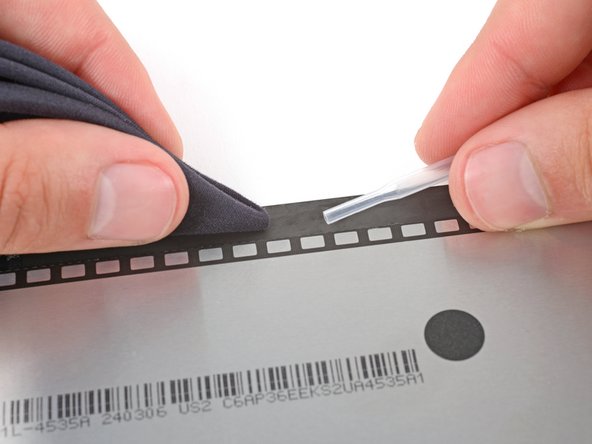
    • Use a lint‑free cloth (or coffee filter) and some high‑concentration (>90%) isopropyl alcohol to thoroughly clean the frame where you removed the old screen adhesive.

    • If you're reusing the screen, repeat the process to clean its perimeter.

  3. How to Apply Screen Adhesive in Your Microsoft Surface Pro 11, Apply the speaker mesh: 手順 3、 3の画像 1 How to Apply Screen Adhesive in Your Microsoft Surface Pro 11, Apply the speaker mesh: 手順 3、 3の画像 2 How to Apply Screen Adhesive in Your Microsoft Surface Pro 11, Apply the speaker mesh: 手順 3、 3の画像 3
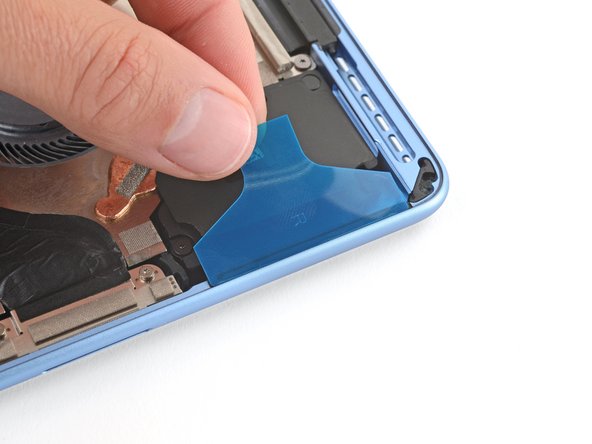
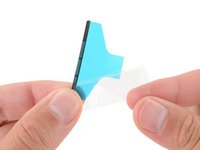
    • The speaker meshes are labelled L and R. When applying them, make sure they're on the correct side and that the colored, thicker liner is facing inward.

    • Remove the larger, clear liner from one of the speaker meshes and carefully put it into place on the frame.

    • Use the flat end of a spudger to firmly push down on the adhesive, securing it to the frame.

    • Leave the remaining colored liner in place for now—it will be removed in a later step.

    • Repeat the process to apply the other speaker mesh.

  4. How to Apply Screen Adhesive in Your Microsoft Surface Pro 11, Adhesive information: 手順 4、 1の画像 1
    • Before applying any screen adhesives, find their proper orientation on the frame—the larger, clear liner should be facing down and the colored liners should face inward. Use cutouts and notches in the adhesive to match each strip to its spot on the perimeter.

    • The top strip has lots of cutouts for the cameras and sensors.

  5. How to Apply Screen Adhesive in Your Microsoft Surface Pro 11, Apply the screen adhesive: 手順 5、 3の画像 1 How to Apply Screen Adhesive in Your Microsoft Surface Pro 11, Apply the screen adhesive: 手順 5、 3の画像 2 How to Apply Screen Adhesive in Your Microsoft Surface Pro 11, Apply the screen adhesive: 手順 5、 3の画像 3
    • Be very careful during this step! Once the adhesive sticks to the frame, it can't be repositioned—you'll need to start over with a new strip.

    • Remove the larger, clear liner from one of the adhesive strips.

    • Line up the strip and use your finger to secure one end to the frame.

    • With one end secured, gently lay the strip onto the frame using your finger to lightly press down on the strip as you go.

    • Use the flat end of a spudger to firmly push down on the strip, securing it to the frame.

    • Do not remove the remaining colored liner yet—it'll be removed in a later step.

    • Repeat the process to apply the remaining adhesive strips.

  6. How to Apply Screen Adhesive in Your Microsoft Surface Pro 11: 手順 6、 2の画像 1 How to Apply Screen Adhesive in Your Microsoft Surface Pro 11: 手順 6、 2の画像 2
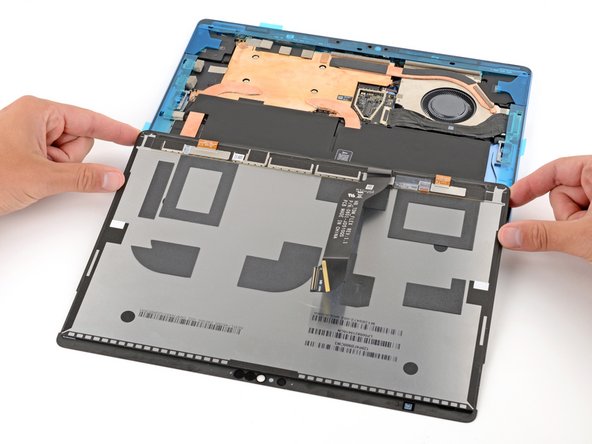
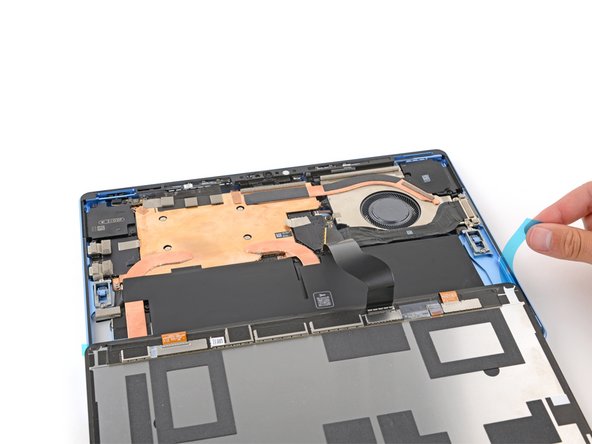
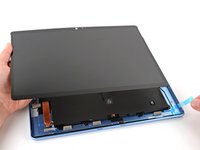
    • With the screen facing down, lay the edge of the screen with the cable over the bottom edge of the device frame.

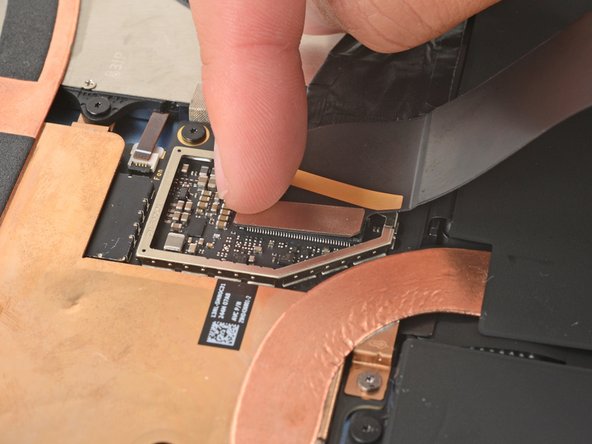
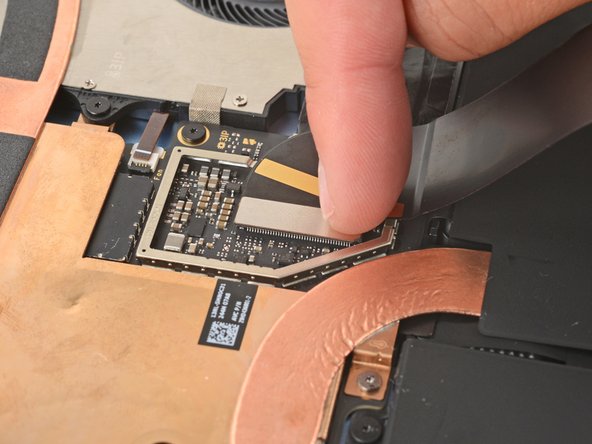
  7. How to Apply Screen Adhesive in Your Microsoft Surface Pro 11, Connect the screen cable: 手順 7、 3の画像 1 How to Apply Screen Adhesive in Your Microsoft Surface Pro 11, Connect the screen cable: 手順 7、 3の画像 2 How to Apply Screen Adhesive in Your Microsoft Surface Pro 11, Connect the screen cable: 手順 7、 3の画像 3
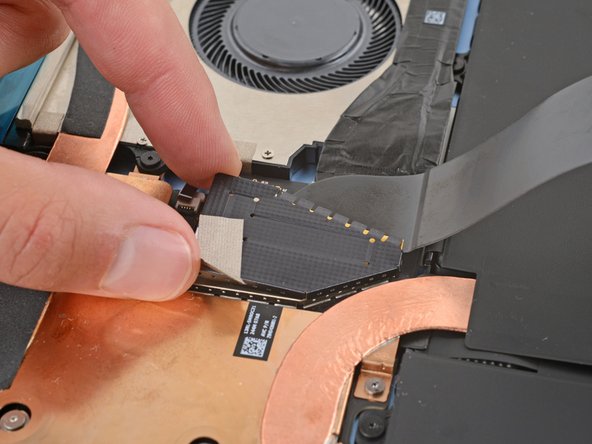
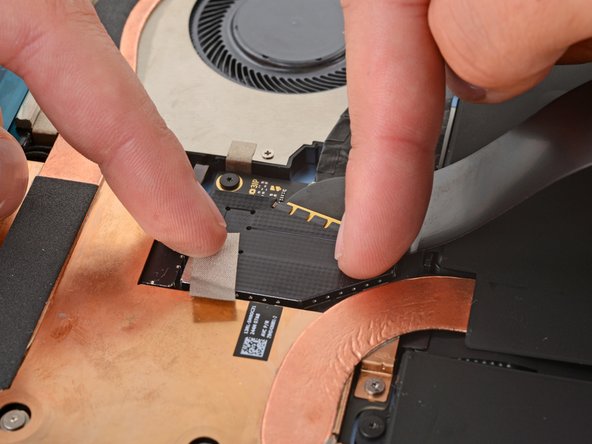
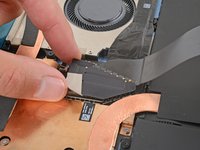
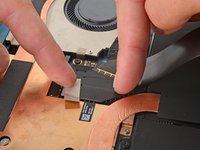
    • Align the screen cable press connector over its socket and press down with your fingertip—first on one of the short sides, then the other—until it clicks into place.

    • Don't try to force the connector into place. If you're having trouble, reposition it and try again.

  8. How to Apply Screen Adhesive in Your Microsoft Surface Pro 11: 手順 8、 3の画像 1 How to Apply Screen Adhesive in Your Microsoft Surface Pro 11: 手順 8、 3の画像 2 How to Apply Screen Adhesive in Your Microsoft Surface Pro 11: 手順 8、 3の画像 3
    • Lay the screen cable shield into place and press down firmly around the entire perimeter to secure it—you should feel the shield snap into place.

  9. How to Apply Screen Adhesive in Your Microsoft Surface Pro 11, Remove all the plastic liners: 手順 9、 3の画像 1 How to Apply Screen Adhesive in Your Microsoft Surface Pro 11, Remove all the plastic liners: 手順 9、 3の画像 2 How to Apply Screen Adhesive in Your Microsoft Surface Pro 11, Remove all the plastic liners: 手順 9、 3の画像 3
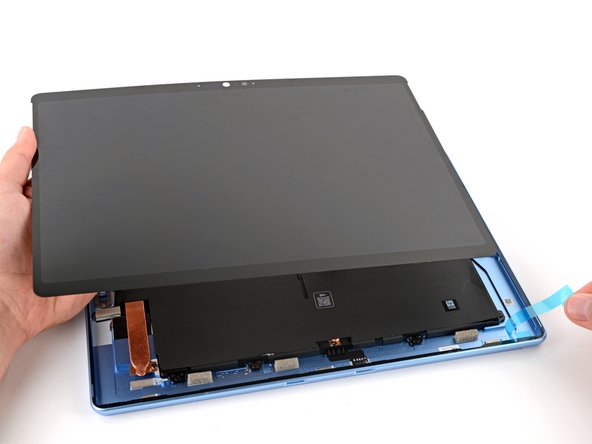
    • Remove all the remaining adhesive liners, carefully holding the screen above your device as necessary.

  10. How to Apply Screen Adhesive in Your Microsoft Surface Pro 11, Install the screen: 手順 10、 2の画像 1 How to Apply Screen Adhesive in Your Microsoft Surface Pro 11, Install the screen: 手順 10、 2の画像 2
    • Align the bottom edge of the screen, using the frame's lip to properly orient it.

    • Once the bottom edge is properly aligned, lay the screen onto the frame.

  11. How to Apply Screen Adhesive in Your Microsoft Surface Pro 11: 手順 11、 3の画像 1 How to Apply Screen Adhesive in Your Microsoft Surface Pro 11: 手順 11、 3の画像 2 How to Apply Screen Adhesive in Your Microsoft Surface Pro 11: 手順 11、 3の画像 3
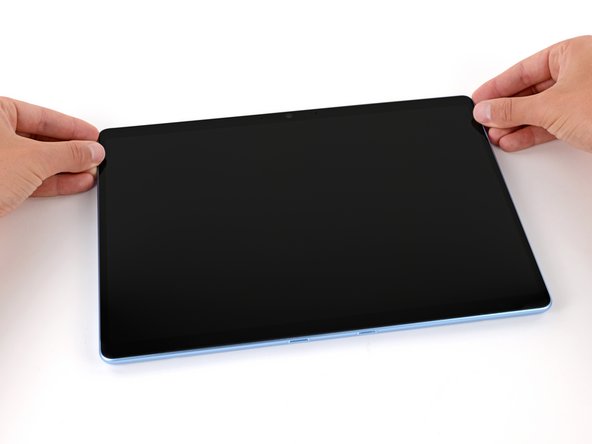
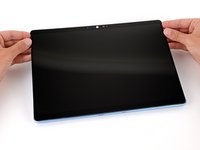
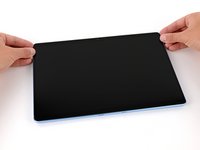
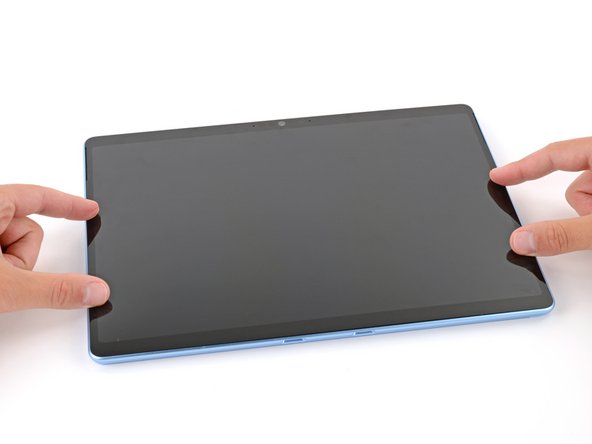
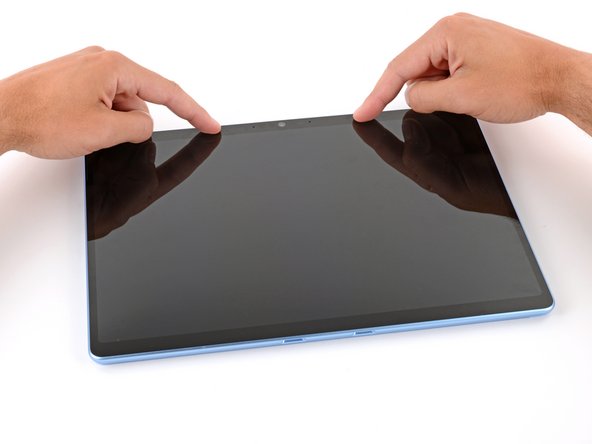
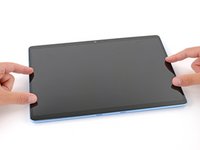
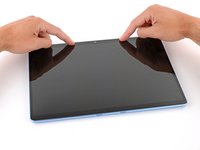
    • Use your fingers to press down on the entire perimeter of the screen to secure it in the frame.

    • Check the edges of the screen and make sure they're sitting flush in the frame—there should be no gaps.

  12. How to Apply Screen Adhesive in Your Microsoft Surface Pro 11, Bond the screen adhesive: 手順 12、 2の画像 1 How to Apply Screen Adhesive in Your Microsoft Surface Pro 11, Bond the screen adhesive: 手順 12、 2の画像 2
    この手順で使用する道具:
    Surface Display Bonding Frame (M1260233-001)
    $29.99
    • Lay your Surface Pro screen down on a clean, flat surface.

    • If you're using a display bonding frame, put it on your device first.

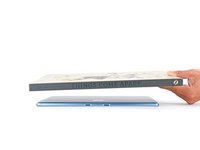
    • Place 4–5 heavy books squarely on top of your device.

    • Leave the books in place for at least thirty minutes. The lighter the books, the longer they should be left. Ideally, leave them stacked overnight.

    • The pressure will help activate the adhesive, creating a stronger bond.

終わりに

Congratulations on completing your repair!

Take your e-waste to an R2 or e-Stewards certified recycler.

Repair didn’t go as planned? Try some basic troubleshooting, or ask our Answers community for help.

作成者

1人の作成者と共同作成されました。

Spencer Day

メンバー登録日: 09/14/22

149,272 ポイント

995のガイドは作成済み

チーム

iFixit iFixit人のメンバー

Staff

123 メンバー

23,608のガイドは作成済み

0件のガイドコメント

コメントを追加

統計データ:

過去 24時間: 2

過去 7 日: 12

過去 30 日: 34

今までの合計 372