メインコンテンツにスキップ
リペアコミュニティに参加 - アカウントの作成

Gateway NV52 Cooling Fan Replacement

必要な工具と部品

  1. Gateway NV52 Cooling Fan  Replacement, Battery: 手順 1、 1の画像 1
    • Turn the laptop on its backside with the stickers and barcode facing you.

    • Locate the latches on the top left corner.

    FixBotに聞いてみる
  2. Gateway NV52 Cooling Fan  Replacement: 手順 2、 1の画像 1
    • In order to unlock the battery, slide the vertical latch downward where it indicates the unlocking icon.

    FixBotに聞いてみる
  3. Gateway NV52 Cooling Fan  Replacement: 手順 3、 1の画像 1
    • Slide the horizontal latch to the right to pop open the battery pack.

    FixBotに聞いてみる
  4. Gateway NV52 Cooling Fan  Replacement, Motherboard: 手順 4、 1の画像 1
    • Remove the five identical 3/16" Phillips #0 screws that secure the hard drive and memory cover.

    FixBotに聞いてみる
  5. Gateway NV52 Cooling Fan  Replacement: 手順 5、 1の画像 1
    • Lift up the base cover from the the top with your hands to a 90 degree angle.

    • Remove the base cover.

    FixBotに聞いてみる
  6. Gateway NV52 Cooling Fan  Replacement: 手順 6、 1の画像 1
    • Remove the 1/4" Phillips #0 screw located at the top right of the hard drive.

    FixBotに聞いてみる
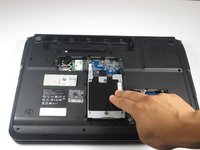
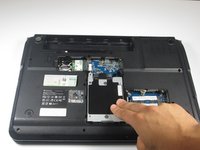
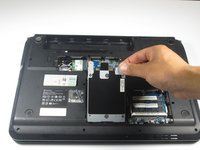
  7. Gateway NV52 Cooling Fan  Replacement: 手順 7、 3の画像 1 Gateway NV52 Cooling Fan  Replacement: 手順 7、 3の画像 2 Gateway NV52 Cooling Fan  Replacement: 手順 7、 3の画像 3
    • Remove the hard drive component from its compartment. To do so, slide the component downward away from the battery pack.

    • Lift the hard drive to a 90 degree angle and out of its slot.

    FixBotに聞いてみる
  8. Gateway NV52 Cooling Fan  Replacement: 手順 8、 1の画像 1
    • Remove the 3/16" Phillips #0 screw located at the bottom left corner of the WiFi card.

    FixBotに聞いてみる
  9. Gateway NV52 Cooling Fan  Replacement: 手順 9、 1の画像 1
    • Locate the black and white cables attached to the WiFi card.

    • Gently wiggle the black cable until it detaches from the WiFi card.

    • Repeat the previous step for the white cable.

    FixBotに聞いてみる
  10. Gateway NV52 Cooling Fan  Replacement: 手順 10、 1の画像 1
    • Gently, remove the Wifi card from its slot, and place it in a dry and safe place.

    • Turn the laptop with the keyboard compartment facing up.

    FixBotに聞いてみる
  11. Gateway NV52 Cooling Fan  Replacement: 手順 11、 1の画像 1
    • Remove the five identical 9/32" Phillips #0 screws located under the battery and both upper corners.

    • Remove the 9/32" Phillips #0 screw fastening the optical disc drive.

    FixBotに聞いてみる
  12. Gateway NV52 Cooling Fan  Replacement: 手順 12、 1の画像 1
    • Using your hands, gently slide the optical drive out of the slot.

    FixBotに聞いてみる
  13. Gateway NV52 Cooling Fan  Replacement: 手順 13、 1の画像 1
    この手順で使用する道具:
    Heavy-Duty Spudger
    $4.99
    • Flip the device so the keyboard and display screen are faced upright.

    • Lift up the media button board cover using the heavy duty spudger. Apply a minimum amount of upward force to the media button board cover at the right bottom corner. Starting from the right, continuously lift the cover to the left edge until completely separated.

    • Do not lift up the media button board cover too much, it’s still connected to the motherboard. Set the media button board cover upside down on the keyboard.

    FixBotに聞いてみる
  14. Gateway NV52 Cooling Fan  Replacement: 手順 14、 1の画像 1
    • Disconnect the dark colored locking tab by pulling at a 90 degree angle, and then slightly pull away the ribbon from the locking tab.

    FixBotに聞いてみる
  15. Gateway NV52 Cooling Fan  Replacement: 手順 15、 1の画像 1
    • Lift up the keyboard with the spudger. Rotate the keyboard until its face down on top of its base.

    • The keyboard is still connected to the access keyboard connector, so do not attempt to detach the keyboard from the laptop, yet.

    FixBotに聞いてみる
  16. Gateway NV52 Cooling Fan  Replacement: 手順 16、 1の画像 1
    • Disconnect the brown-colored locking tab by pulling at a 90 degree angle and slightly pulling away from the locking tab.

    • Do not apply too much force to the locking tab, because a damaged connector will disable the keyboard.

    • Remove the keyboard.

    FixBotに聞いてみる
  17. Gateway NV52 Cooling Fan  Replacement: 手順 17、 1の画像 1
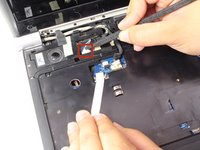
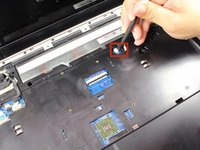
    • Locate the three LCD connectors.

    FixBotに聞いてみる
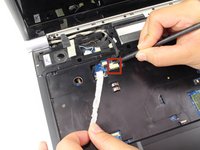
  18. Gateway NV52 Cooling Fan  Replacement: 手順 18、 3の画像 1 Gateway NV52 Cooling Fan  Replacement: 手順 18、 3の画像 2 Gateway NV52 Cooling Fan  Replacement: 手順 18、 3の画像 3
    • Use the pointy end of the spudger to gently pry each side of the LCD connector until they are detached from their respective ports.

    • Do not pull with excessive force, since it could damage the LCD cable plug-in.

    FixBotに聞いてみる
  19. Gateway NV52 Cooling Fan  Replacement: 手順 19、 1の画像 1
    • Using the flat edge of the spudger, disconnect the big white LCD cable connector by slightly pulling on it until it's detached from its respective port.

    FixBotに聞いてみる
  20. Gateway NV52 Cooling Fan  Replacement: 手順 20、 1の画像 1
    この手順で使用する道具:
    Tweezers
    $4.99
    • Using the tweezers, pull out the black and white cables located at the right side of the laptop.

    FixBotに聞いてみる
  21. Gateway NV52 Cooling Fan  Replacement: 手順 21、 2の画像 1 Gateway NV52 Cooling Fan  Replacement: 手順 21、 2の画像 2
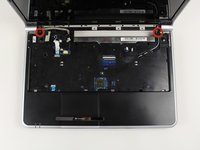
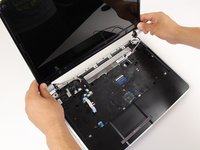
    • Remove the two 9/32" Phillips #0 screws on the top left and right corners.

    • Lift the entire display screen straight up using both hands.

    FixBotに聞いてみる
  22. Gateway NV52 Cooling Fan  Replacement: 手順 22、 1の画像 1
    • Turn the laptop upside down.

    • Remove ten 9/32" screws with a Phillips #0 Screwdriver.

    FixBotに聞いてみる
  23. Gateway NV52 Cooling Fan  Replacement: 手順 23、 1の画像 1
    • Flip the laptop over.

    • Remove the three 9/32"screws that secures the top cover with a Phillips #0 screwdriver.

    FixBotに聞いてみる
  24. Gateway NV52 Cooling Fan  Replacement: 手順 24、 1の画像 1
    • Gently disconnect the two ribbons from the motherboard using the black tweezers.

    FixBotに聞いてみる
  25. Gateway NV52 Cooling Fan  Replacement: 手順 25、 1の画像 1
    • Separate the top cover from the base using the heavy duty spudger. Insert the spudger in between the keyboard base and the base of the laptop with a minimum amount of force to separate them. Follow this procedure around the perimeter until the parts are separated.

    FixBotに聞いてみる
  26. Gateway NV52 Cooling Fan  Replacement: 手順 26、 1の画像 1
    • Remove the 3/16" screw securing the motherboard with a Phillips #0 screwdriver.

    FixBotに聞いてみる
  27. Gateway NV52 Cooling Fan  Replacement: 手順 27、 1の画像 1
    • Cautiously disconnect the USB board cable that is situated on the top right corner of the motherboard.

    FixBotに聞いてみる
  28. Gateway NV52 Cooling Fan  Replacement: 手順 28、 1の画像 1
    • Disconnect the modem cable located at the bottom right of the motherboard.

    FixBotに聞いてみる
  29. Gateway NV52 Cooling Fan  Replacement: 手順 29、 1の画像 1
    • Cautiously remove the motherboard and lie it down.

    FixBotに聞いてみる
  30. Gateway NV52 Cooling Fan  Replacement, Cooling Fan: 手順 30、 1の画像 1
    • Loosen the four 13/32" screws that connects the cooling fan to the motherboard using the Phillips #0 Screwdriver.

    • The four 13/32" Phillip screws do not come off the metal fan support. Do not force to take the screws off, else the screw attachment can get damaged.

    FixBotに聞いてみる
  31. Gateway NV52 Cooling Fan  Replacement: 手順 31、 1の画像 1
    • Disconnect the fan cable from the motherboard.

    • Do not pull on the fan cable will excessive force. It will result with a non-working cooling fan and a damaged wire.

    FixBotに聞いてみる
  32. Gateway NV52 Cooling Fan  Replacement: 手順 32、 1の画像 1
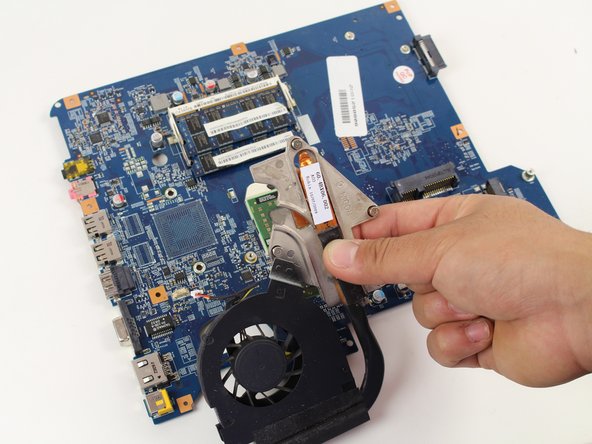
    • Carefully lift up and remove the cooling fan using your hands, and place it in a dry and safe zone.

    FixBotに聞いてみる
終わりに

To reassemble your device, follow these instructions in reverse order.

2 の人々がこのガイドを完成させました。

作成者

5人の作成者と共同で作成されました。

Ruben

メンバー登録日: 04/22/14

298 ポイント

2のガイドは作成済み

チーム

Cal Poly, Team 7-24, Regan Spring 2014 Cal Poly, Team 7-24, Regan Spring 2014人のメンバー

CPSU-REGAN-S14S7G24

4 メンバー

18のガイドは作成済み

0件のガイドコメント

コメントを追加

統計データ:

過去 24時間: 2

過去 7 日: 12

過去 30 日: 53

今までの合計 3,489