メインコンテンツにスキップ
リペアコミュニティに参加 - アカウントの作成

Dell Inspiron 1525 RAM Replacement

必要な工具と部品

    1. Dell Inspiron 1525 RAM Replacement, Battery: 手順 1、 1の画像 1
      • Locate the battery release switch on the bottom of the laptop.

      FixBotに聞いてみる

      コメントを追加

    2. Dell Inspiron 1525 RAM Replacement: 手順 2、 2の画像 1 Dell Inspiron 1525 RAM Replacement: 手順 2、 2の画像 2
      • Slide the battery release switch away from the lock symbol until you hear the battery click.

      • Slide the battery towards the back of the laptop until it comes free.

      FixBotに聞いてみる

      コメントを追加

    1. Dell Inspiron 1525 RAM Replacement, Bottom Cover: 手順 3、 2の画像 1 Dell Inspiron 1525 RAM Replacement, Bottom Cover: 手順 3、 2の画像 2
      • Remove/loosen the eight 4.80 mm Phillips #1 screws securing the bottom panel.

      • The screws may only need to be loosened, as they are generally retained by plastic washers.

      • Remove the bottom panel.

      FixBotに聞いてみる

      コメントを追加

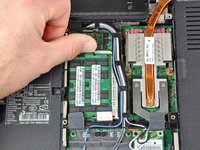
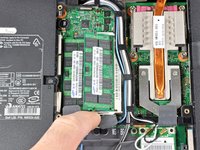
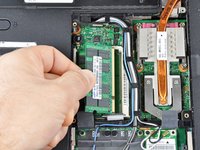
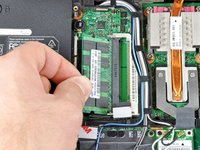
    1. Dell Inspiron 1525 RAM Replacement, RAM: 手順 4、 3の画像 1 Dell Inspiron 1525 RAM Replacement, RAM: 手順 4、 3の画像 2 Dell Inspiron 1525 RAM Replacement, RAM: 手順 4、 3の画像 3
      • Push the white tabs on either side of the RAM chip outward. The chip should pop up a little.

      • Carefully remove the RAM chip by pulling it out at a slight vertical angle.

      FixBotに聞いてみる

      コメントを追加

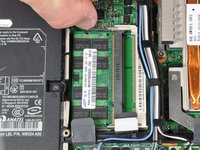
    2. Dell Inspiron 1525 RAM Replacement: 手順 5、 2の画像 1 Dell Inspiron 1525 RAM Replacement: 手順 5、 2の画像 2
      • Remove the lower RAM chip in the same fashion as the upper one.

      FixBotに聞いてみる

      コメントを追加

終わりに

To reassemble your device, follow these instructions in reverse order.

キャンセル: このガイドを終了できませんでした。

5 の人々がこのガイドを完成させました。

作成者

2人の作成者と共同で作成されました。

Miroslav Djuric

161,047 ポイント

144のガイドは作成済み

0件のガイドコメント

コメントを追加

統計データ:

過去 24時間: 1

過去 7 日: 6

過去 30 日: 27

今までの合計 11,353