メインコンテンツにスキップ

Dell EMC PowerEdge R750 Server Fan Replacement

必要な工具と部品

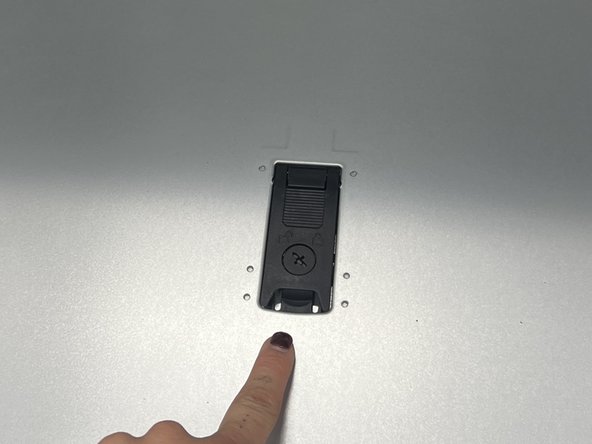
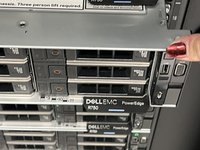
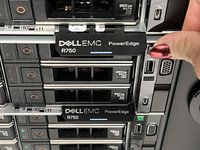
  1. Dell EMC PowerEdge R750 Server Fan Replacement, Server Fan: 手順 1、 3の画像 1 Dell EMC PowerEdge R750 Server Fan Replacement, Server Fan: 手順 1、 3の画像 2 Dell EMC PowerEdge R750 Server Fan Replacement, Server Fan: 手順 1、 3の画像 3
    • Gently slide or lift the cover off, exposing the internal components.

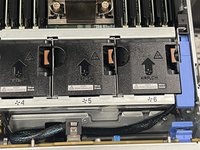
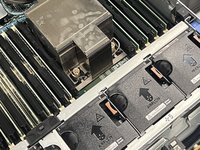
  2. Dell EMC PowerEdge R750 Server Fan Replacement: 手順 2、 3の画像 1 Dell EMC PowerEdge R750 Server Fan Replacement: 手順 2、 3の画像 2 Dell EMC PowerEdge R750 Server Fan Replacement: 手順 2、 3の画像 3
    • Locate the fan(s) within the server.

    • Typically they are located near heat-sensitive components like the CPU or Power Supply. A visual inspection will help identify the malfunctioning fan.

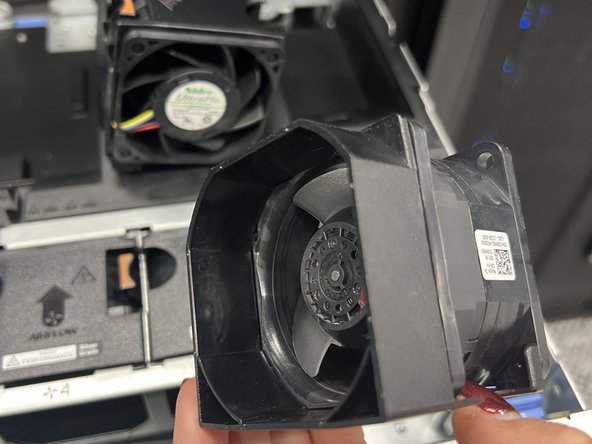
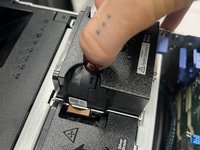
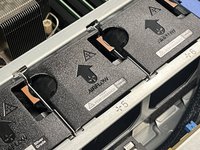
  3. Dell EMC PowerEdge R750 Server Fan Replacement: 手順 3、 3の画像 1 Dell EMC PowerEdge R750 Server Fan Replacement: 手順 3、 3の画像 2 Dell EMC PowerEdge R750 Server Fan Replacement: 手順 3、 3の画像 3
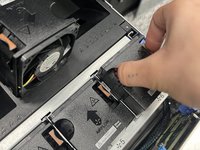
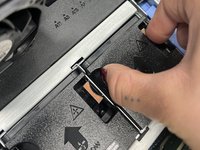
    • Release the clips holding the fan in place.

    • Keep the screws safe as you may need them to install the new fan.

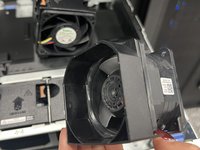
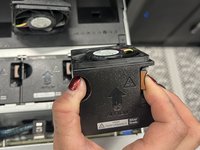
    • Carefully lift the fan out of its slot. Take note of the positioning to ensure the replacement fan is aligned correctly.

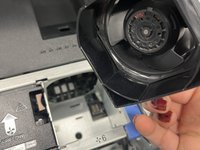
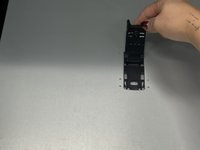
  4. Dell EMC PowerEdge R750 Server Fan Replacement: 手順 4、 3の画像 1 Dell EMC PowerEdge R750 Server Fan Replacement: 手順 4、 3の画像 2 Dell EMC PowerEdge R750 Server Fan Replacement: 手順 4、 3の画像 3
    • Place the new fan in the same position, ensuring it is aligned as the previous one.

    • Secure it by replacing the screws or clipping it into place.

  5. Dell EMC PowerEdge R750 Server Fan Replacement: 手順 5、 3の画像 1 Dell EMC PowerEdge R750 Server Fan Replacement: 手順 5、 3の画像 2 Dell EMC PowerEdge R750 Server Fan Replacement: 手順 5、 3の画像 3
    • Now that the new fan is inserted correctly, make a visual verification that all parts look properly placed.

  6. Dell EMC PowerEdge R750 Server Fan Replacement: 手順 6、 3の画像 1 Dell EMC PowerEdge R750 Server Fan Replacement: 手順 6、 3の画像 2 Dell EMC PowerEdge R750 Server Fan Replacement: 手順 6、 3の画像 3
    • Reattach the server's outer casting and tighten the screws.

    • Plug the server back in, power it on, and listen to the new fan to ensure it is running smoothly.

終わりに

To reassemble your device, follow these instructions in reverse order.

作成者

1人の作成者と共同作成されました。

Kristiana Romero

メンバー登録日: 09/23/24

140 ポイント

1ガイドが承認済み

チーム

Austin Community College, Team 8-8, Kapoor Fall 2024 Austin Community College, Team 8-8, Kapoor Fall 2024人のメンバー

AUSTINCC-KAPOOR-F24S8G8

1 メンバー

1のガイドは作成済み

0件のガイドコメント

コメントを追加

統計データ:

過去 24時間: 0

過去 7 日: 3

過去 30 日: 24

今までの合計 234